


School iPads are configured via Mobile Device Management (MDM) and are remotely accessed by the IT department. The features, apps, and settings are restricted based on the school’s allowed lists.
Therefore, you may not be able to maximize the iPad’s potential since it’s tied up to your school’s provisions unless you know how to delete device management on school iPad and gain full access and control of your device. Check out the rest below, it will tell you how.
دليل المحتويات Part #1: What Is Mobile Device Management (MDM) and How Does It Work?Part #2: How to Delete Device Management on School iPad with a PasswordPart #3: How to Delete Device Management on School iPad without a Password [No Data Loss]الجزء # 4: ملخص
Part #1: What Is Mobile Device Management (MDM) and How Does It Work?
Students can get bored while in class and boredom tempts them to browse through their iPads and find something that can uplift their attentions. And this is what teachers are having a hard time with nowadays. Having a balance between technology and play while using gadgets inside the classroom.
Before we know how to delete device management on school iPad, we should know that to prevent unnecessary access to various sites, apps, and games, ابل created MDMs for schools and organizations to remotely access each device registered. School MDMs authorize teachers to view all students’ iPad screens in real-time. They can also send URLs, lock screens, and even mirror the student and classroom screens.
You can find the MDM in الإعدادات، ومن ثم أسئلة عامة. Find and open الملفات الشخصية وإدارة الجهاز. Apparently, there is a password set before you can update or remove this kind of feature.
Part #2: How to Delete Device Management on School iPad with a Password
Fortunately, if you are already done with school and you want to delete the MDM, you can ask your school’s IT team to delete the configuration for you or they may give out the password if possible.
To delete the device management on your school iPad with a password, follow these:
- انتقل إلى البرنامج المساعد في التأليف الإعدادات
- انقر على أسئلة عامة
- قم بالتمرير والبحث إدارة الجهاز
- أختر "Codeproof MDM profile "
- انقر إزالة الإدارة
- أدخل كلمه السر
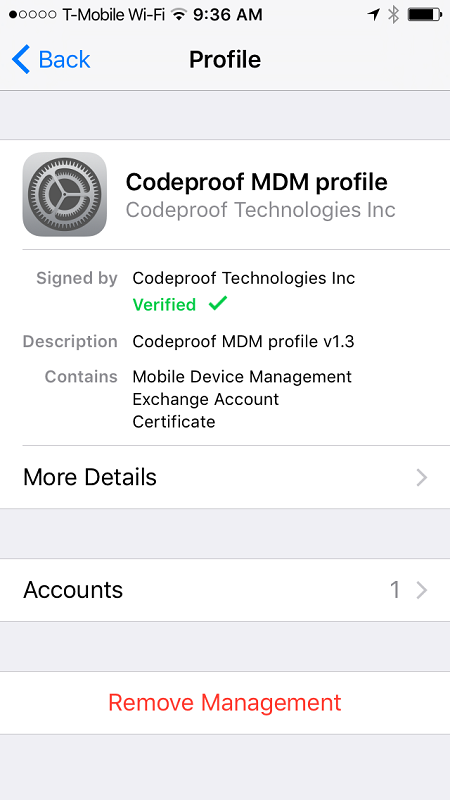
Your iPad is now free from any restrictions! You can now set up the device according to how you want it to be.
Part #3: How to Delete Device Management on School iPad without a Password [No Data Loss]
Mobile Device Management is not only limited to your office and school. There is also another MDM that is set locally on the iPad. This is called Screen Time Restrictions.
Screen Time Restrictions feature is a helpful tool to control, manage, and customize the way you want the iPad to be. This is also known as the Parental Control feature. If you turn off parental controls on iPhone without a password, you can no longer set an hour or limit the time of use, restrict the device from downloading and purchasing, block games and other explicit sites, and many more.
Usually, setting up Screen Time Restrictions can be done directly on the iPad or via Family Sharing.
If you are using Family Sharing, use this guide to manage Screen Time:
- إطلاق الخاص بك رابط العائلة التطبيق
- اعثر و حدد iPad
- نقر ضع الحدود under App activity
- اذهب فوق desired apps والاستفادة بكج قصر
- يمكنك ضبط ملف الحد الزمني اليومي for using the app
- اختار بكج

To have more app limitations set on the iPad, you can configure it manually on the device.
- فتح الخاص الإعدادات
- نقر وقت الشاشة
- قم بتشغيله
- أختار حدود التطبيق
- نقر إضافة limits and enter one or more app categories
- اختار لتالي ثم اختر الوقت . You can customize the days if you prefer
- نقر إضافة after making sure all app limitations are set
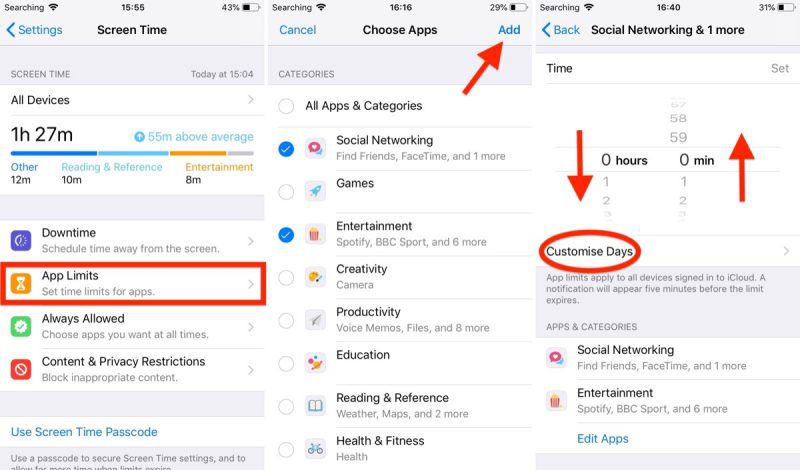
Apart from app limitations, you can also do more such as managing:
- التوقف
- حدود الاتصال
- قيود المحتوى والخصوصية
- And Always Allowed
How to Remove or Restore Screen Time Restrictions
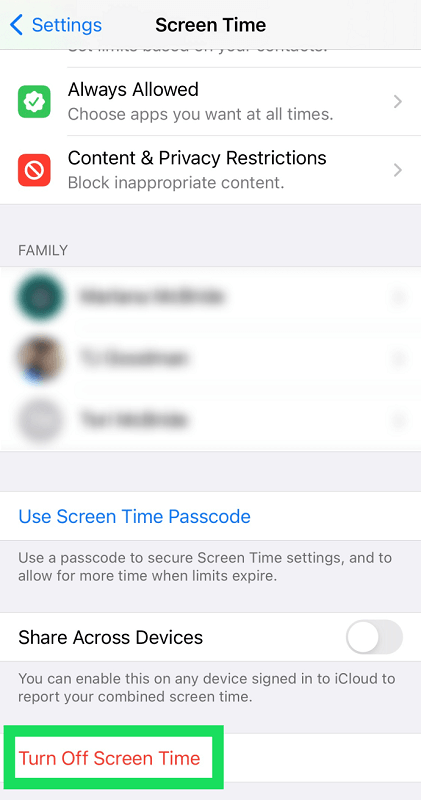
Now that you have decided to remove and free your iPad from any restrictions, you can simply turn off the Screen Time Restrictions via Settings.
- فتح الإعدادات on your iPad
- انتقل لأسفل وقت الشاشة
- نقر أوقف وقت الشاشة
- أدخل رمز مرور that was used during set up
However, if you don’t have the password or perhaps you have forgotten already, you can also use iOS أونلوكر to solve “how to delete device management on school iPad”. This software will completely remove or reset the Screen Time passcode on your iPad without losing data. Even if you are a beginner with no computer expertise, you may easily manage it on your own as long as you have a computer. It also works well on both Windows and Mac. Try this software for free by clicking the download button below to delete the MDM on your school iPad.
To learn more about how iOS Unlocker works, follow this guide:
1. Download and install iOS Unlocker on your computer
2. حدد Remove Screen Time Restrictions على القائمة
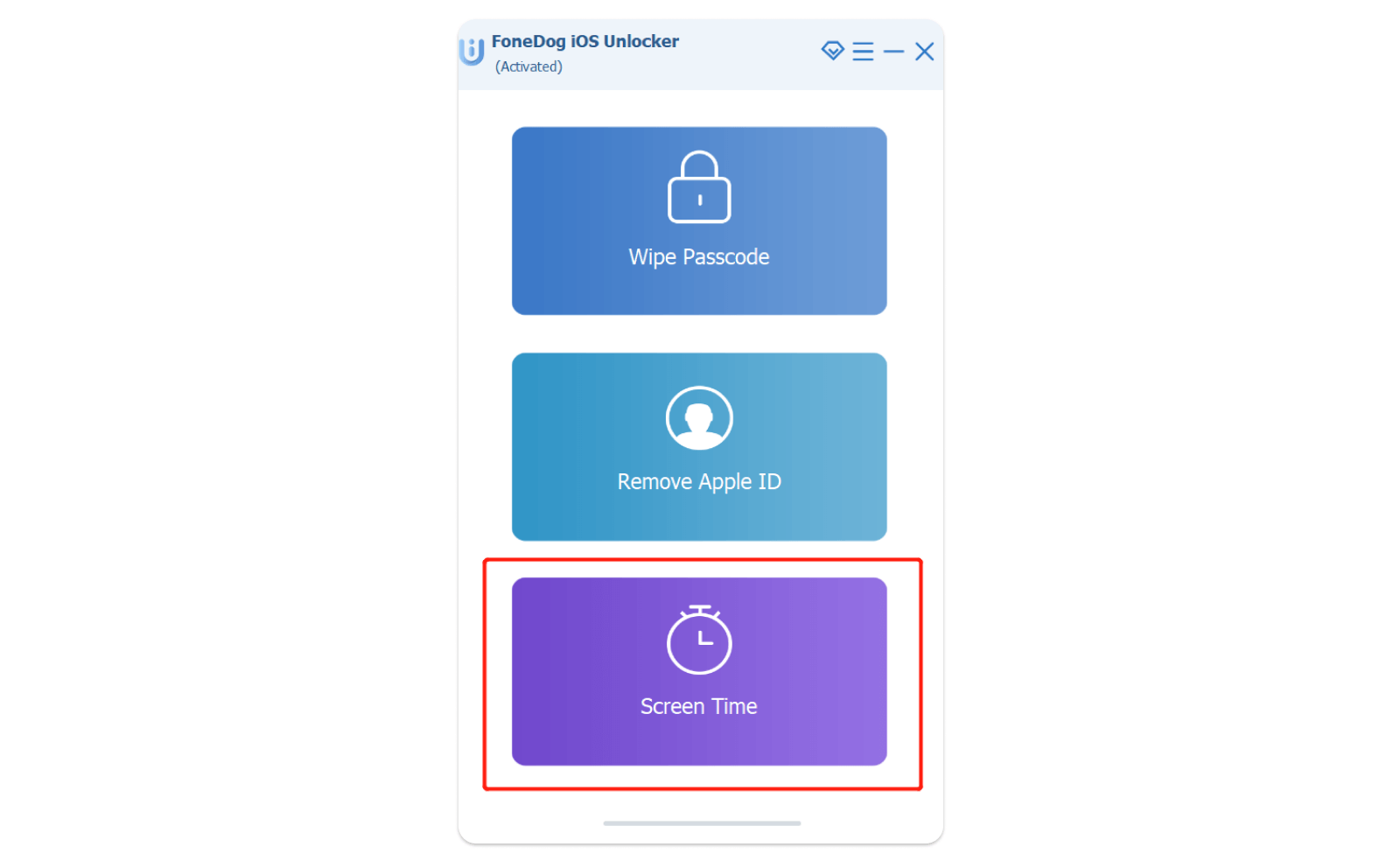
3. التواصل your iPad via USB
4. انقر فوق الرئيسية زر
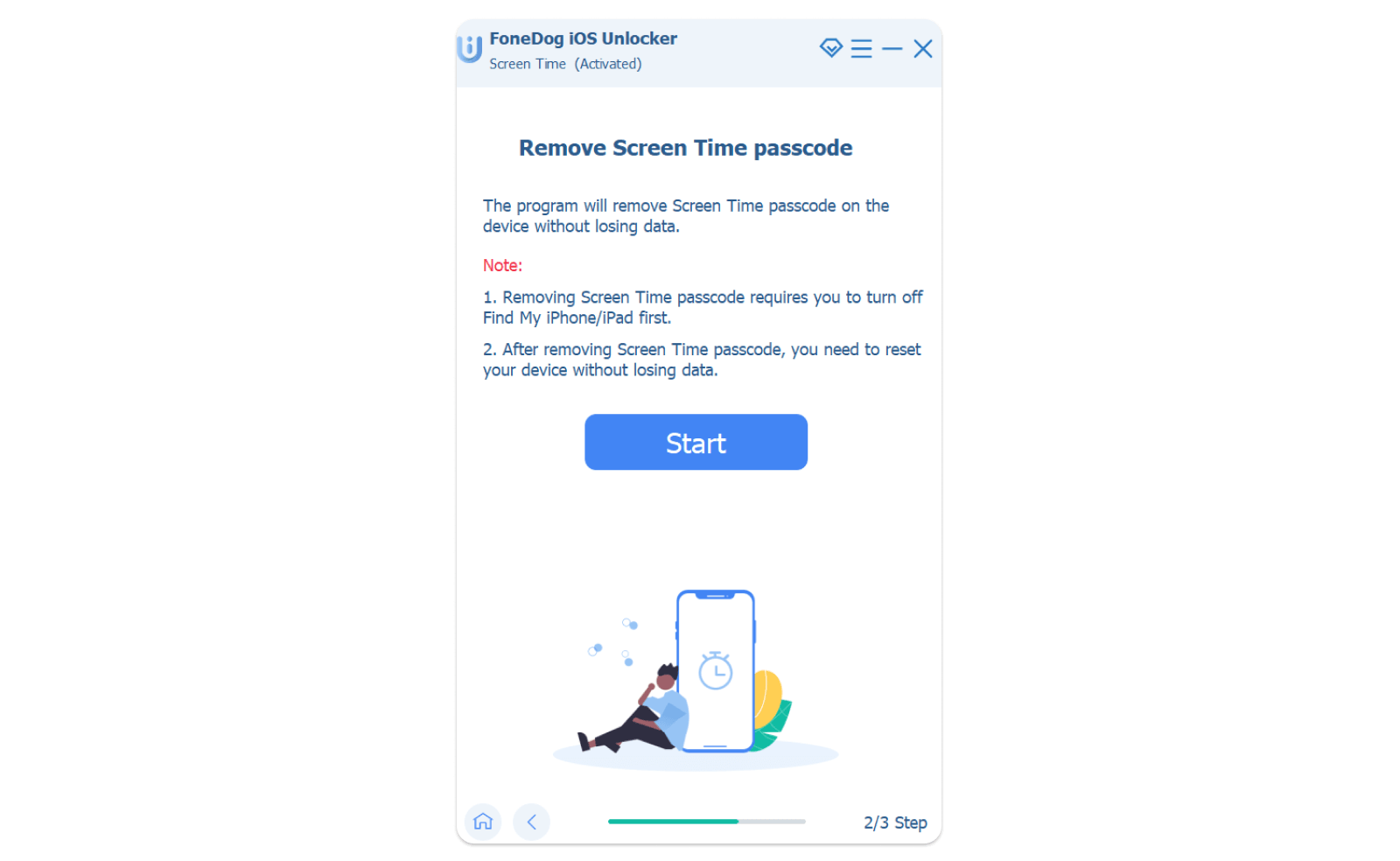
5. Wait for iOS Unlocker to complete the Screen Time Restrictions removal
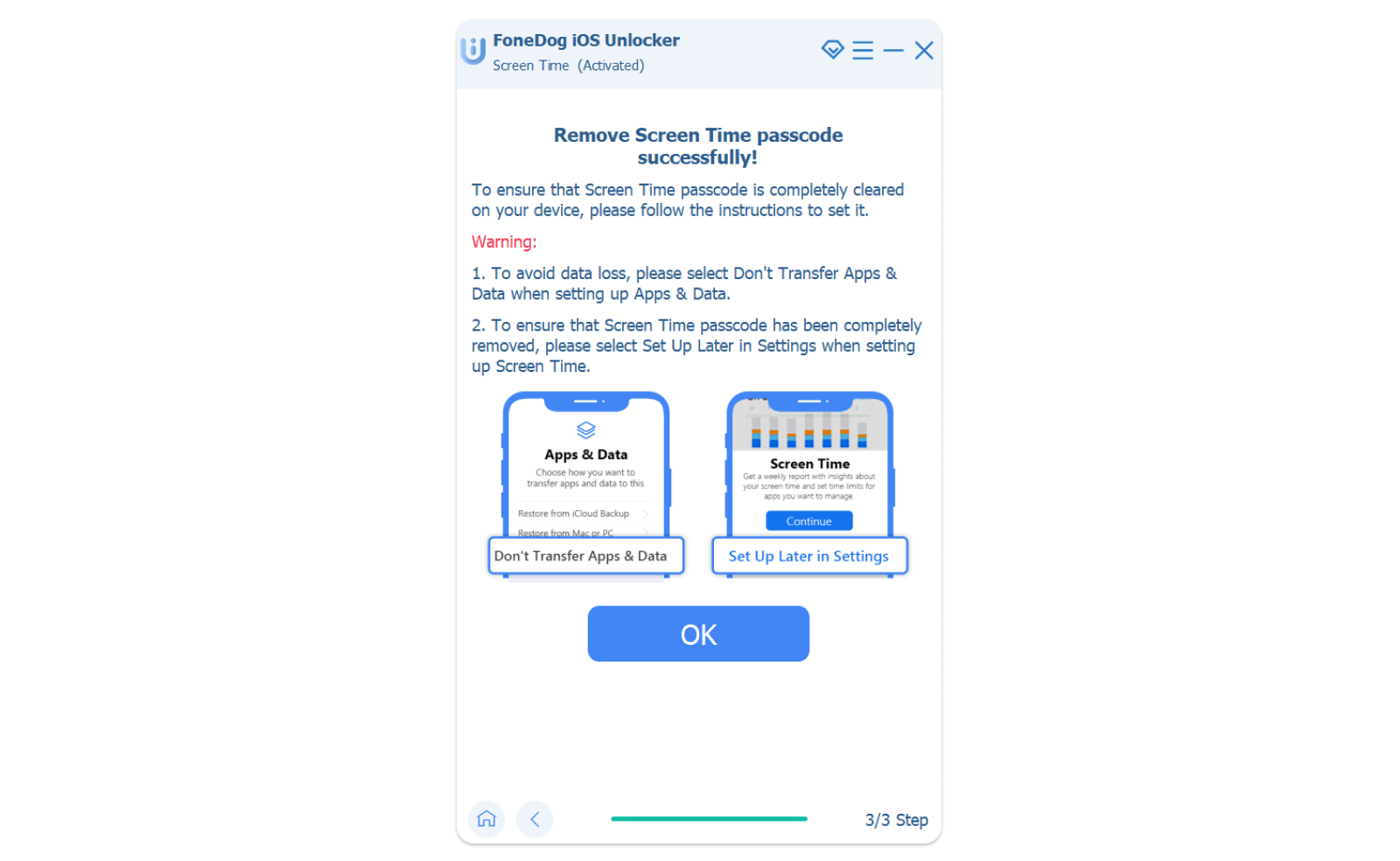
6. Follow the onscreen instructions on the next page to تجنب فقدان البيانات. Upon setting up your device, select لا تنقل التطبيقات والبيانات و اختار Select Later in Settings on the Screen Time page
7. iOS Unlocker will then reset the passcode in just a few minutes
الناس اقرأ أيضاتعليمات حول كيفية فتح رمز مرور iPad بدون جهاز كمبيوتردليل سهل: كيفية فتح جهاز iPad بدون رمز مرور
الجزء # 4: ملخص
في هذه المقالة ، لقد تعلمت للتو how to delete device management on school iPad. MDMs were created mainly for devices under a company or school to ensure that no distractions can keep you from focusing on the main goal. Using an MDM-enabled iPad is limited according to how the school allowed certain functions and features.
This device management feature is usually set up remotely by the system administrator before the iPad will be given out. It automatically creates a profile on your device and manages the way you use it such as limiting your access to certain apps, sites, features, and other settings.
The process to delete the MDM requires a password that is configured by your school admin. We have provided a guide on how to delete the MDM with a password onset of this article.
Another form of MDM is Screen Time Restrictions, which is more of a parental control feature and is done locally on the iOS device or Family Sharing. You can also disable this by following the steps recommended above.
However, if you don’t have the password, you can reset it by utilizing iOS Unlocker. This software has a quicker way to reset the passcode on the iPad without the fear of data loss. iOS Unlocker is your official go-to in case you have unlocking issues with your iOS devices.
بقلم روزي
آخر تحديث: 2022-01-27