


We create passcodes for our phones so that no other person will have access to it. Once it is locked, anybody who holds your phone won’t be able to open it due to the passcode. But, what if you forgot your new password?
In such a case, you may want to unlock iPhone if you forgot password. There are multiple ways to fix this problem. However, these ways will definitely erase the contents of your phone. As such, below, we will teach you كيفية فتح قفل جهاز iPhone بدون كلمة مرور if you suddenly forgot the password or if you got a second-hand device and you can’t contact the previous owner.
Part 1. Unlock iPhone If You Forgot Password through Find My FeaturePart 2. Using Recovery Mode to Unlock Your iPhoneالجزء الثالث: أفضل طريقة لفتح قفل جهاز iPhone الخاص بكالجزء 4. استنتاج
Part 1. Unlock iPhone If You Forgot Password through Find My Feature
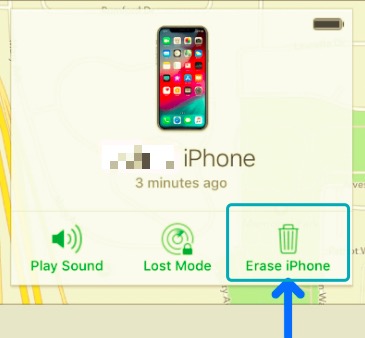
If the feature called Find My iPhone is enabled within your device, you can actually factory reset the iPhone without the passcode if you forgot it. Resetting your iPhone to its factory settings will remove all the contents of the device. But, it will remove the forgotten passcode too.
Amazingly, if you have an iCloud backup, you can simply restore the backup to your factory reset iPhone. However, if you don’t have a backup on iCloud or your computer, then be prepared to have all your data deleted.
للقيام بذلك ، اتبع الخطوات أدناه:
- Use a computer or mobile device in order to visit موقع iCloud الإلكتروني.
- Sign in to your iCloud account by placing the Apple ID including its corresponding password.
- Once inside the iCloud dashboard, press the option for جميع الاجهزة.
- On the list of devices connected to your account, select the iPhone you wish to factory reset.
- Now, an information window will show up. On that window, press the option that says محو اي فون.
- Now, confirm the process by placing your password for the said Apple ID.
- The iPhone will now be reset if it’s connected to the Internet. As such, you may set it up as a new device or you can restore a backup from iCloud or from your computer.
Part 2. Using Recovery Mode to Unlock Your iPhone
If you forgot your iPhone’s passcode, you must use the recovery mode and connect it to your computer to restore it back to its factory state. To do that, follow the steps below:
- أولا ، عليك قم بإيقاف تشغيل جهاز iPhone الخاص بك. The steps to do this will vary depending on the model of your iPhone. However, this is pretty straightforward.
- The next step is to connect the iPhone to a Windows or Mac computer. It doesn’t matter what operating system you have. To do that, you will need a USB cable.
- After that, press the right buttons to enter your iPhone into the necessary recovery mode. You will have to press the right buttons depending on the model of your iPhone.
- For iPhone 12 models, you will have to press and instantly release its Volume Up button. After that, press and instantly release the Volume Down button.
- Once that is done, press the Power button (or the Side button) and hold this press until the recovery mode is shown.
- The recovery mode will be apparent if you see a laptop with a USB charging cable icon on your phone.
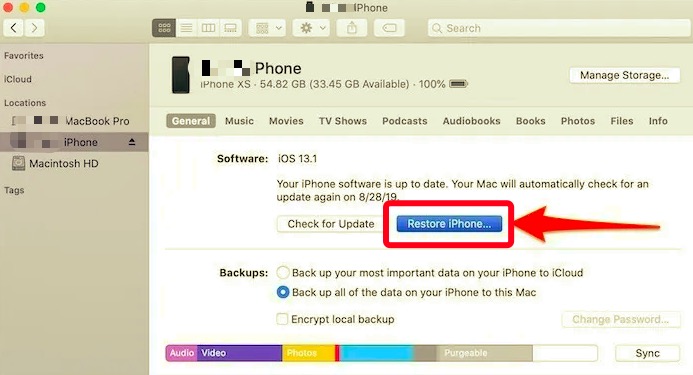
- Once in recovery mode, you must use your computer (Mac or Windows). On that computer, open مكتشف لنظام التشغيل Mac أو اي تيونز for Windows. Take note that the latest version of iTunes must be installed on your Windows computer.
- Once you launch Finder or iTunes, find the iPhone on the left panel. انقر that iPhone device to select it.
- A message will be shown to you. Various options will be available. As such, if you want to unlock iPhone if you forgot password, click استعادة.
- Wait until the restoration process is complete. Once that is done, you can disconnect the iPhone from the computer by unlinking the USB cable.
- You can now restore a previous backup or set up your iPhone as a new device.
الجزء الثالث: أفضل طريقة لفتح قفل جهاز iPhone الخاص بك
The best way to unlock your Apple smartphone is by using iOS أونلوكر. This is a safe way to remove the passcode on your iPhone. In addition, it can help you remove the Apple ID and its associated iCloud account. Apart from that, you can use it to remove the Screen Time passcode on your iPhone.
We will tell you the steps to use the tool below. But before that, you have to know certain things:
- Removing the passcode using iOS Unlocker will wipe out all data from your iPhone.
- Removing the passcode will also update the iOS of your iPhone to its latest version.
- You must ensure that the iPhone is linked to the computer with the USB cable all throughout the process to avoid errors in wiping out the passcode.
Here are the steps you should follow to unlock iPhone if you forgot password:
- Launch iOS Unlocker on your computer. On the interface, click مسح رمز المرور.
- After that, press the button called الرئيسية. Once that is done, use the lightning cable or USB cable to link the iPhone to the computer.
- على جهاز iPhone الخاص بك، اضغط على الثقة option in order to completely connect it to the computer.
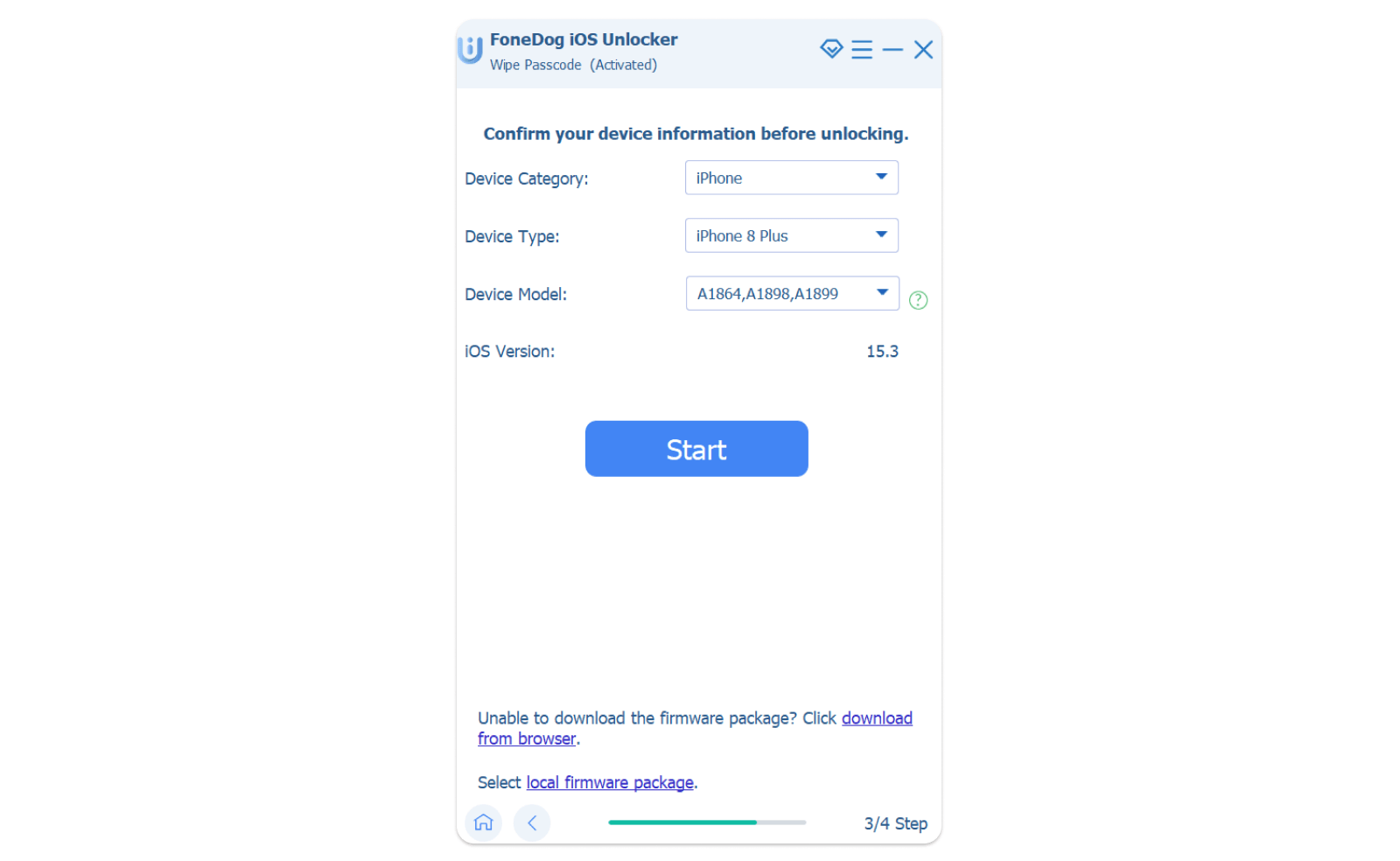
- اضغط على الزر ل الرئيسية on the iOS Unlocker tool in order to confirm that the device information displayed is correct.
- Now, the firmware package will be downloaded. Wait for it to be finished.
- Once it is done, press the button for فتح. Then, type in 0000 to confirm the unlocking process.
- Wait for about a few minutes until your iPhone’s passcode is totally removed. After that, you can simply remove the USB cable to disconnect the iPhone from the computer.
الناس اقرأ أيضاكيفية فتح قفل iPhone 12 بدون Face ID أو رمز المروردليل سريع حول كيفية فتح قفل iPhone 13 بدون رمز المرور
الجزء 4. استنتاج
This guide has given you a discussion on how to unlock iPhone if you forgot password. We have discussed three different methods on how to do it. The first method is through the Find My iPhone feature. The second method is by restoring your process through Recovery Mode.
لكن الأفضل من بين الثلاثة هو من خلال iOS أونلوكر, a tool that will allow you to remove passcodes, Apple IDs, and screen time passwords. You can download a free trial of the tool at FoneDog.com/iOS-Unlocker/ and test the product out yourself!
بقلم روزي
آخر تحديث: 2022-03-22