


You may have changed your Email address and have no idea of the details, yet it was the address for App Store. You could have forgotten the details. Moreover, you could have also had an attempted fraud, and the only way to come out of this is to change App store ID.
The Apple ID is the only way you can access your Apple devices. Moreover, when you integrate them into the iCloud settings, you can remotely access your gadgets with minimal effort.
Like you can forget the passcode on your iPhone, similarly, you can also forget the Apple ID, and you have no option but to use other credentials that you can easily remember. In that case, you must have information at your fingertips on the best way to change App store ID.
You can choose to use the available toolkits on the internet or engage the developer through their vibrant customer support to help you in this. The million-dollar question here is; which is the best application for such a move? Continue reading to get more information.
Part #1: Change App Store ID Using iOS UnlockerPart #2: How to Change App Store ID Using iPhone SettingsPart #3: How to Change App Store ID Using Apple SupportParte #4: Conclusión
Part #1: Change App Store ID Using iOS Unlocker
Desbloqueador de iOS is a must-have toolkit for passcode removal, screen time management, and Apple ID removal. It supports and allows unauthorized access to iDevices. Besides, it also comes in handy to manage the iCloud settings. The application runs on a simple console ideal for both novices and experts.
Descargar gratis Descargar gratis
To change your App store ID, you can take advantage of its feature of eliminar la ID de Apple sin contraseña. The advantage of this feature is that the old ID details are erased from the system; that means all accounts associated with the Apple ID.
That means there is no way it can be tracked or used- the old Apple ID. The second-hand Apple devices benefit from this device, especially when the original owners forget to remove the Apple ID details.
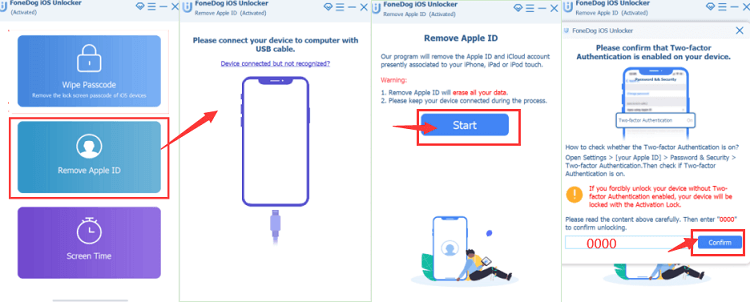
Straight to the point, what is the procedure to change App store ID using FoneDog iOs Unlocker?
- Download, install and run FoneDog iOs Unlocker
- Click the second option Eliminar ID de Apple
- Connect the iDevice to the computer and click the Confianza menú
- Haga clic en Tus datos para iniciar el proceso
- Confirm the unlock code “0000 " to confirm the verification procedures prompted
- Approve the displayed information if in line with the device and click Tus datos to get the firmware toolkit downloaded
- Wait for some minutes, and the process is complete.
The process helps you remove the Apple ID and the iCloud accounts, prompting you to set up a new one. For second-hand users, this is a must-have application.
Part #2: How to Change App Store ID Using iPhone Settings
The device itself is also capable of running the functions with minimal effort. You only need to arm yourself with the right knowledge for it. Whether you want to temporarily or permanently change App store ID, you are at liberty to do so without engaging in third-party integrations. The same procedure also applies to changing your iTunes account.
Aqui esta el procedimiento
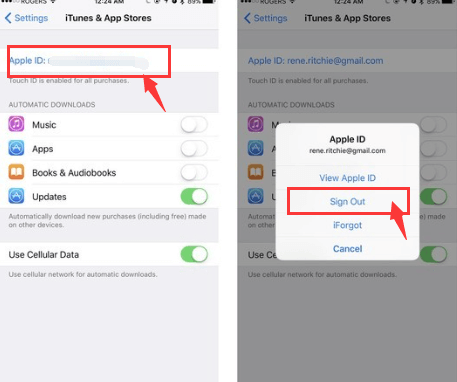
- En tu iPhone, ve a Configuración menú
- Swipe up or down and get the App Store de iTunes Menú
- Haga clic en el elemento ID de apple y seleccione Desconectar
- Clickea en Iniciar Sesión and input another account details or register for a new one as desired.
The procedure depends on different Apple devices, but all the icons are found in the Settings menu.
Part #3: How to Change App Store ID Using Apple Support
Apple has vibrant and 24/7 customer support that is always handy to address your queries and concerns as soon as possible. Phone support, live chat support, Email support, and even social media support are a plus for this company.
Even when you want to change App store ID, you can still use their laid down procedures and have the old Apple ID removed and the new one installed. The Sign-in function is the answer to this. Read on and get more details
- Vaya a la aplicación Applied. Apple.com
- Sign in by filling in the required details
- Choose the Sign in and security menu
- Seleccione la opción ID de apple menú
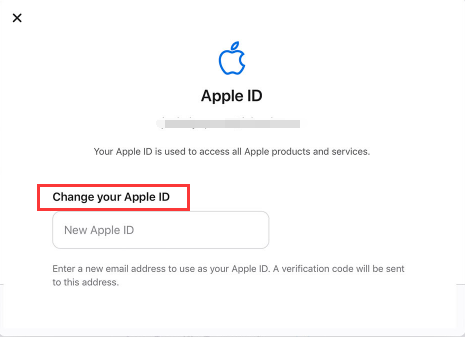
- Enter the Email address that you want to use henceforth
- Haga clic en el botón Cambia tu ID de Apple menú
- Verify through the primary Email address where they will send the verification code
- Update all devices associated with the Email address and make the necessary changes
- Also, register for other Apple services that you may also need.
- Confirm and enjoy a new change of App store ID
There are instances when this procedure does not work, especially if you have recently changed your Email address and have a 30-day waiting period. Moreover, if your Apple ID is also a phone number, this is not an option for you.
La gente también Leer¡Mi ID de Apple en gris! Esto es lo que debe hacerHow to Crack Apple ID Password in 3 Ways
Parte #4: Conclusión
The choice of the method to use depends on what you have at your disposal. You need to explore all options to widen your knowledge on how to change App store ID. However, the best and simple way is to engage a third party designed to handle such instances.
Moreover, the application-iOS Unlocker discussed above is not the only digital toolkit; the web has several of them, but it emerges the best, thanks to the highlights in this article. There is no harm in exploring as many options as possible to ensure you get the best out of what the market offers.
Moreover, you are at liberty to try them out and also be a statistic on the best and the most effective method to change App store ID.
Are you still in doubt that you can have a new App store ID? Is there anything impossible in the technology world when there are software developers who spend sleepless nights offering digital solutions?
Escrito por Rosie
Última actualización: 2022-06-13