


The only way to unlock your iOS device like your iPad whenever you olvida el código de acceso del iPad is to restore it. Your device will be disabled after attempting to open it several times. As of now, there is no official way to unlock any iOS device without restoring it.
But since this process is challenging, it gave an opportunity for various third-party programs to develop more straightforward methods to open your iPad again.
Today, we will find out como desbloquear contraseña de iPad without restore él.
Part #1: Use Recovery Mode to Unlock iPad Without PasscodePart #2: Take Advantage of iCloud to Unlock Your iPadPart #3: How to Unlock the iPad Passcode EfficientlyParte #4: Resumen
Part #1: Use Recovery Mode to Unlock iPad Without Passcode
Before we go into how to unlock iPad passcode without restore, recovery mode is such a common way to solve it that we should introduce it to you first. A Recovery Mode is being used in troubleshooting an iOS device via iTunes or Finder. It lets you connect your iPad to the computer and perform a force restart. This method is ideal for those who haven’t used iTunes in syncing and if the feature called Find My iPad is turned off.
Before you use this method, you should familiarize yourself with Reanudar la fuerza. A Force restart will shut down all software processes in your iPad but won’t delete any data. Here’s how to do it on your iPad:
- Simply press and hold the Inicio junto con la Estela del sueño botón hasta que vea el Logotipo de Apple en la pantalla
Now, here are the complete steps on how to enter the Recovery Mode on your iPad:
- Make sure your iPad has enough battery life, at least más de 50% CHARGE
- Conecta the iPad to the computer
- Launch iTunes/ Finder
- Lleve a cabo una Reanudar la fuerza. Refer to the steps given earlier. If you have done it successfully, you will see a screen that prompts: “iTunes has detected an iPad in recovery mode "
- Seleccione Restaurar on the iTunes/Finder screen
- If you failed to proceed to the Restore screen, then you may need to repetir the steps above several times.
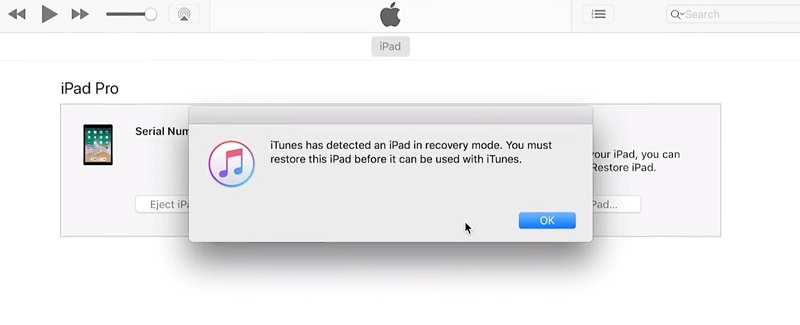
One of the major downsides of this method is the process of entering the recovery mode itself. You need to be extra patient and keen on putting your iPad into this state.
Part #2: Take Advantage of iCloud to Unlock Your iPad
If the first method we shared, required that the Encontrar mi iPad feature be disabled. However, in the next one, we need this feature turned on for how to unlock iPad passcode without restore.
The Find My iPad feature in iCloud lets you remotely access your device whenever it is lost or stolen. Apart from that, if you have gotten yourself locked out again, you can always utilize this feature and reset your iPad password.
Before you can use the Find My iPad, it must have been enabled first prior to getting the iPad disabled. To activate this feature, follow these:
- Go to your iPad’s Configuración
- Open your name or the apple account and tap the Encontrar mi applicación
- Seleccione Encuentra mi iPad y alternar el encender. If preferred, tap the Enviar última ubicación cambiar y encenderlo. This will send a report on the approximate location of your iPad.
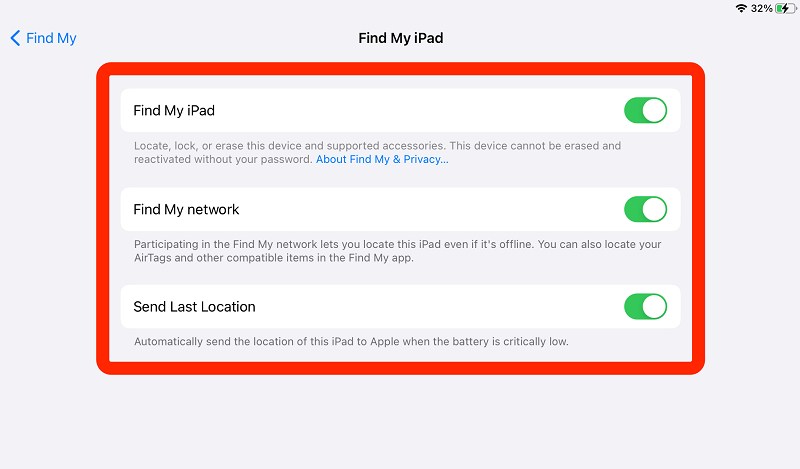
Given that you have switched on the Find My iPad feature before locking out of your device, then follow this complete guide on how to remotely unlock your iPad.
- On any browser, open iCloud
- Log in using your Apple ID and password. The account must be the mismo en el iPad
- Haga clic en Encuentra iPhone once you have successfully logged in
- Vaya a Para todos los dispositivos and search for your iPad
- Once your iPad is displayed on the screen, select Borrar iPad del menú
- Provide your iCloud la contraseña para confirmar
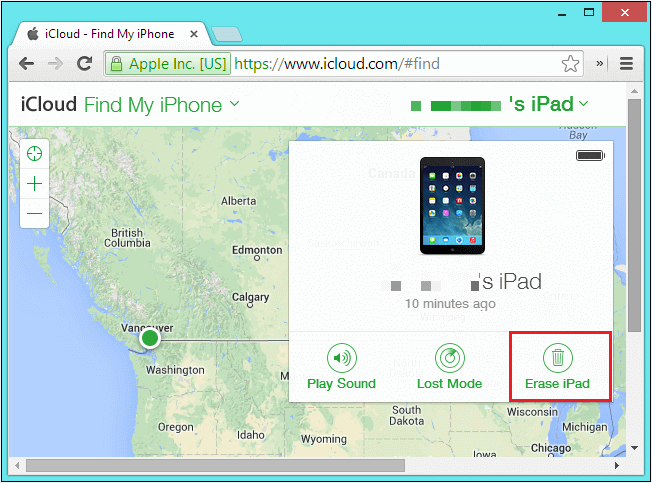
You should note that this method will totally wipe out all the data on the iPad.
Part #3: How to Unlock the iPad Passcode Efficiently
Your initial reaction whenever you get locked out of your iPad is to look for a better alternative on como desbloquear iPad passcode without restaurar él.
Apparently, there is no official way to bypass this process. But, there are plenty of programs you can find that are better and more efficient than the usual steps.
The above two methods are reliable in terms of unlocking your iPad, but their processes are complicated and time-consuming. Most of us don’t have the time to spend going over a lot of steps to unlock our devices.
We all need a reliable, efficient, and convenient method to help us open our iOS devices quickly. Talking about convenience, Desbloqueador de iOS is the ultimate solution that you can use to unlock or wipe out the passcode on your iPad.
Descargar gratis Descargar gratis
This program comes with a straightforward method on how to Borrar código de acceso, Eliminar la identificación de Apple, e incluso Restore or Remove the Screen Time Restrictions. iOS Unlocker gives you the peace of mind that you no longer have to endure a series of tapping and holding and even running out of patience.
If you want to learn how to use iOS Unlocker, check this out:
Paso n.° 1: Instale y ejecute iOS Unlocker
The first thing you need is to download and get iOS Unlocker running on your computer. Select the Wipe Passcod e menu on the main program screen and click Start.
Step #2: Attach your iPad to the computer
Next, you need to attach the iPad to the computer using a USB cable. Use the original lightning cable that came along with your device. Make sure that your iPad is recognized by the computer.
Step #3: Verify iOS Firmware and Download
On the next screen, you need to verify if the information displayed is correct. This includes the make and model plus the iOS version of your iPad. Click the Tus datos botón para continuar.
Step #4: Unlock iPad
Once you have successfully downloaded and installed the iOS firmware package, you will be forwarded over to the Unlock iPad screen. Simply click the button and enter 0000 to confirm the unlock request.
Just wait until the unlocking is complete and your iPad has restarted.

Keeping iOS Unlocker on your computer is great since you might need it again in the near future!
La gente también LeerCómo desbloquear iPad deshabilitado sin iTunes [Guía 2024]Instrucciones sobre cómo desbloquear el código de acceso del iPad sin computadora
Parte #4: Resumen
There are no other means for how to unlock iPad passcode without restore it. However, there is a big difference in the process you use. If you prefer the usual and conventional methods such as iTunes and iCloud, then you may end up beating around the bush since the steps may be confusing and time-consuming.
If you are looking for a better alternative to these kinds of tedious processes, then we strongly recommend iOS Unlocker. This software has gotten rid of all the annoying steps and makes the unlocking way quicker and more user-friendly.
The next time you forget the iPad passcode, make sure that you have iOS Unlocker already running on your computer!
Escrito por Rosie
Última actualización: 2022-01-27