


Security is perhaps the iPhone’s best feature. However, getting past this security feature can be challenging when you have forgotten your apple passcode. Usually, your iPhone will be disabled for a minute after you have failed six attempts in a row. Your seventh attempt will lock you out for 5 minutes and it will be permanently disabled after encoding several wrong passcodes.
So, all you have now is a device that says “el iphone está deshabilitado. Conectar a itunes", como desbloquear sin computadora? In this article, we will introduce you to some of the workarounds that you can do to bypass the passcode on your iPhone with and without a computer.
Part #1: How to Unlock a Disabled iPhone Using the Recovery Mode with a ComputerPart #2: Use the Find My iPhone Service to Unlock Your iPhone Without a ComputerPart #3: How to Unlock a Disabled iPhone Without iTunes or iCloudParte #4: Resumen
Part #1: How to Unlock a Disabled iPhone Using the Recovery Mode with a Computer
When the error “iPhone is disabled. Connect to iTunes” appears, the first option of how to unlock without a computer is to place it under recovery mode. Recovery Mode is a troubleshooting state wherein iTunes or Finder will diagnose and repair the issue. However, this process requires you to have a computer (either Windows PC or Mac).
To place your device in recovery mode, you need the following:
- A working computer (if this is not available, you can go to the nearest Apple store or affiliated store for help)
- Lightning cable -original or compatible cable
- iTunes or Finder
Once you have all these ready, follow these steps on how to place your iPhone into recovery mode:
- Desactive your iPhone according to its make and model.
-
- If you own the latest model or an iPhone 8, 8 Plus, X, and SE (2nd/3rd gen) - Press and hold both the Side and the Volume down buttons. Slide to power off
- For those using an iPhone 7, 7 Plus, 6s, or 6: Simply, press and hold the Side button until you see the slider appears.
- iPhone SE (1st gen), 5s, and earlier, just press and hold the top button. Slide to power off.
- Pulsación larga the button, while instantly connecting the iPhone to the computer, till the recovery mode screen appears on your iPhone:
-
- iPhone SE (1st gen), iPhone 6s, and earlier - Botón de inicio
- iPhone 7, 7 Plus - Botón para bajar el volumen
- iPhone SE (2nd and 3rd gen), 8/ 8 Plus, X, and later- Botón lateral
- Find your device in iTunes or Finder
- Haga clic en Restaurar from the pop-up option
- Wait until iTunes or Finder finishes the restore
- Disconnect your iPhone
Your iPhone will be restored into a clean slate and you can now set it up just like how you want it.
Part #2: Use the Find My iPhone Service to Unlock Your iPhone Without a Computer
Find My iPhone has an option of how to unlock without a computer when you encounter “el iphone está deshabilitado. Conectar a itunes”. All it takes is to have your Apple ID ready and use a borrowed iOS device.
Once you have gotten hold of the iPhone, first check if the Encontrar mi app is installed or not. If yes, proceed to the steps below, otherwise, you need to visit the App Store and download the app. You might need to ask for permission from the owner before downloading.
- Open the Find My iPhone app on the borrowed iPhone. Alternatively, you can visit the iCloud.com sitio web.
- Inicie sesión con su ID de Apple. Note: the account should be the same on your own iPhone
- Go to the devices enrolled on your account
- Tap on the concerned iPhone
- Vaya a Acciones
- Seleccione Borrar iphone
- Espere hasta que se complete el proceso
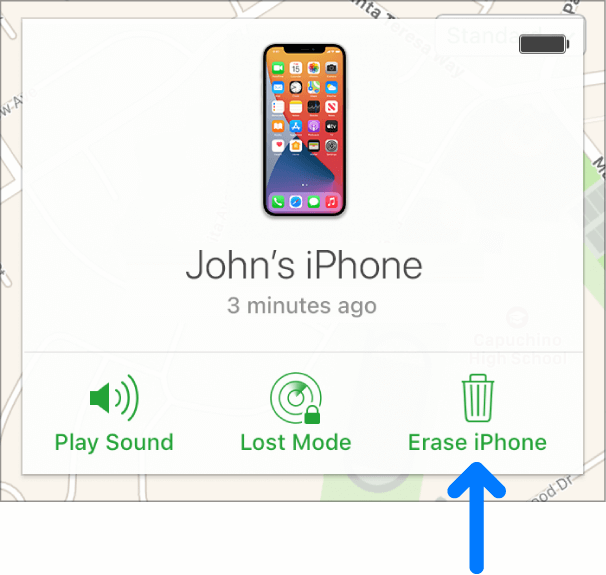
After you have successfully erased your iPhone using the Find My iPhone app, you can now set up your device like how it was prior to getting disabled.
Part #3: How to Unlock a Disabled iPhone Without iTunes or iCloud
The real challenge when you have the error “el iphone está deshabilitado. Conectar a itunes esté how to unlock without a computer. Desbloqueador de iOS unlocks your iPhone without the need for iTunes or iCloud. It simply wipes out the passcode on your device and lets you start over. Whatever scenario you are in, said your iPhone is disabled, or the screen is broken, iOS Unlocker is the ultimate convenient solution that you can trust.
Descargar gratis Descargar gratis
Here are the steps on how to fix an iPhone that is disabled and says ‘Connect to iTunes’:
Step #1: Install iOS Unlocker
iOS Unlocker is software that you can download on your computer anytime. All you need is to head over to that link and install the program. Simply follow the on-screen installation guide until the software is fully installed and ready.
Step #2: Select Wipe Passcode and Connect iPhone
From the program’s main menu, select the Borrar código de acceso modo y luego haga clic en el Tus datos button. After that, connect your iPhone to the computer via a USB connection. If required, tap the Confianza this Computer to proceed.
Step #3: Choose Device Information and Start
Using the drop-down menu, choose the correct make and model of your iPhone in order to download the most recent and compatible firmware version. Click the Tus datos button once you have reviewed and confirmed the details.
Step #4: Enter Default Passcode and Unlock
The firmware will be downloaded quickly right after you hit that Start button. Once the download is complete, just enter the default passcode 0000 y luego haga clic en el Descubrir button. Your iPhone will be unlocked in just a while and everything will be reset.

Nota: : It is highly recommended to create a regular backup of your iPhone in case there will be issues like getting your device disabled.
La gente también Leer[Reparado] Cómo desbloquear un iPhone deshabilitado sin iTunes en 2020Cómo desbloquear iPad deshabilitado sin iTunes [Guía 2022]
Part #1: How to Unlock a Disabled iPhone Using the Recovery Mode with a ComputerPart #2: Use the Find My iPhone Service to Unlock Your iPhone Without a ComputerPart #3: How to Unlock a Disabled iPhone Without iTunes or iCloudParte #4: Resumen
Parte #4: Resumen
There is nothing more annoying than seeing the message ‘el iphone está deshabilitado. Conectar a itunes.’ and the worst part of it is that you don’t know what to do. Thankfully, there are many ways to fix this problem and in this article, you were able to learn how to unlock without a computer.
iTunes or Finder is the most popular option that you can utilize to unlock your disabled iPhone, however, some find it inconvenient. Others prefer the Find My iPhone app which you can remotely erase your phone contents.
But the most reliable and convenient option we prefer is to use iOS Unlocker. This software has all the workaround needed to unlock your iOS device in different scenarios.
Escrito por Rosie
Última actualización: 2022-03-01