


iPhone passcodes help us protect our sensitive information from prying eyes. In addition, it helps prevent us from mistakenly tapping the screen when the Apple smartphone is not in use. But what if you find the problem wherein you can’t remember iPhone passcode ? How do you regain control of your precious smartphone?
There are different ways to do that. You can simply put your phone in recovery mode to restore it to its factory settings. You can also use the Find My iPhone feature. Apart from that, you can use an iPhone unlocking tool to help you.
Here, we will discuss different ways you can fix the issue if you forgot the passcode on your iPhone. Our methods will enable you to gain full control of your iPhone again. After you finish this guide, you will be able to unlock your iPhone if you can’t remember its passcode.
Guide des matières Part 1. Can’t Remember iPhone Passcode? Use Recovery Mode With Computer!Part 2. Forgot iPhone Passcode? Using Find My iPhone With Apple ID!Part 3. Can’t Remember iPhone Passcode? Here’s The Best Way To Fix It Without Passcode!Partie 4. Conclusion
Part 1. Can’t Remember iPhone Passcode? Use Recovery Mode With Computer!
One thing you can do if you forgot the passcode to your iPhone is to use Recovery Mode. In this iPhone startup mode, you can simply restore the device to its factory-like state. This means that all your data will be deleted.
If you have a backup, you can simply restore the backup after you have restored the iPhone to its factory settings. To be able to restore your iPhone back to its factory settings with recovery mode, you will need a Mac computer or Windows PC.
Voici les étapes à suivre pour le faire :
- First off, make sure you have all the things you need with you. The user will need a USB cable compatible with the iPhone and a USB port. In addition, you will need your iPhone and a Windows or Mac computer. If you have a Windows computer, make sure it has la dernière version d'iTunes installé dessus.
- After that, you can simply turn off your iPhone. Once that is finished, you can connect the iPhone to the Mac or Windows computer with the help of the USB cable.
- Now, it’s time to put your iPhone into recovery mode. You will press certain buttons until the recovery mode logo (a laptop with a USB cable) shows up. The buttons to press will depend on the iPhone model you have. Check them out below:
- For iPhone 8 Plus, iPhone 8, iPhone SE (3rd 2nd generation), and iPhone X or later versions, you will long-press the side button until the recovery mode logo shows up.
- For iPhone 7 and 7 Plus, you will press the Volume down button until the recovery mode logo shows up.
- Pour la 1st generation iPhone SE and for iPhone 6s and earlier iPhone models, you should press the Home button until the recovery mode logo shows up.
- After that, you should go to the computer and open Finder if you have a Mac. If you’re using Windows, you must open the iTunes app. On the left panel, you should click the iPhone you just connected to the computer.
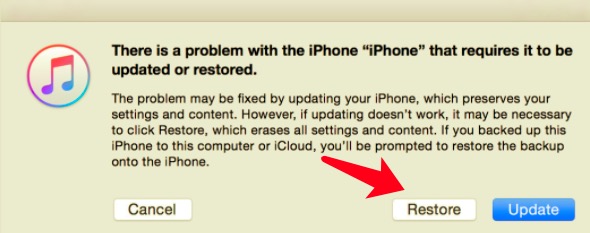
- A window will pop up giving you different options to choose from. Here, you should choose the option to Restore. The computer will now download a software package for your iPhone. After that, the restoration process will begin.
- Wait until the restore process is complete. You can disconnect the iPhone from the computer and then set the device as a new one (or restore it from a backup).
Part 2. Forgot iPhone Passcode? Using Find My iPhone With Apple ID!
If your iPhone is connected to the Internet, this method is possible when your can't remember iPhone passcode. It will erase all the contents of your device, including the passcode. Here are the steps on how to do it:
- Rendez nous visite iCloud.com and log into the iPhone’s Apple ID account.
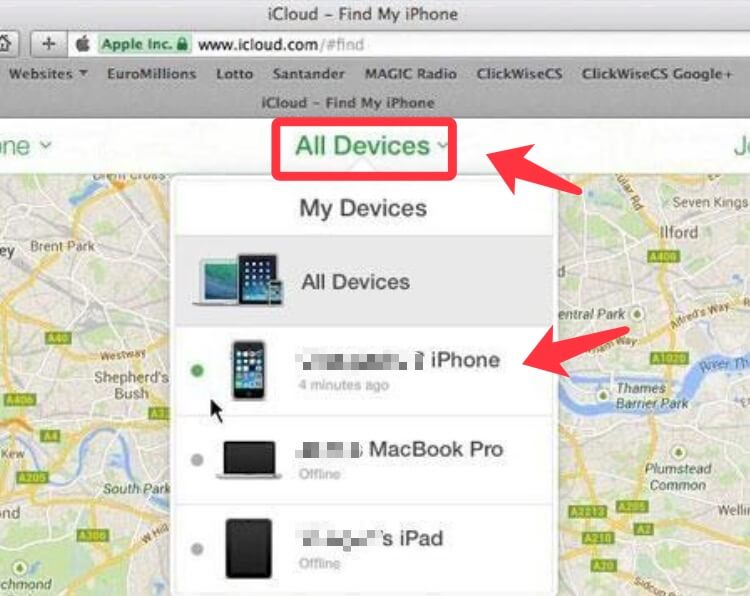
- In the main interface of iCloud, click the option for Tous les dispositifs.
- After that, select the iPhone in the list of devices that shows up.
- Cliquez sur l'option qui dit Effacer l'iphone.
- Input your Apple ID’s corresponding password. Or, you can answer security questions depending on what the browser will ask you to do.
- Wait until the entire erasure process is comlete. You can set up your iPhone as a new device or restore a backup from your computer or iCloud.
Part 3. Can’t Remember iPhone Passcode? Here’s The Best Way To Fix It Without Passcode!
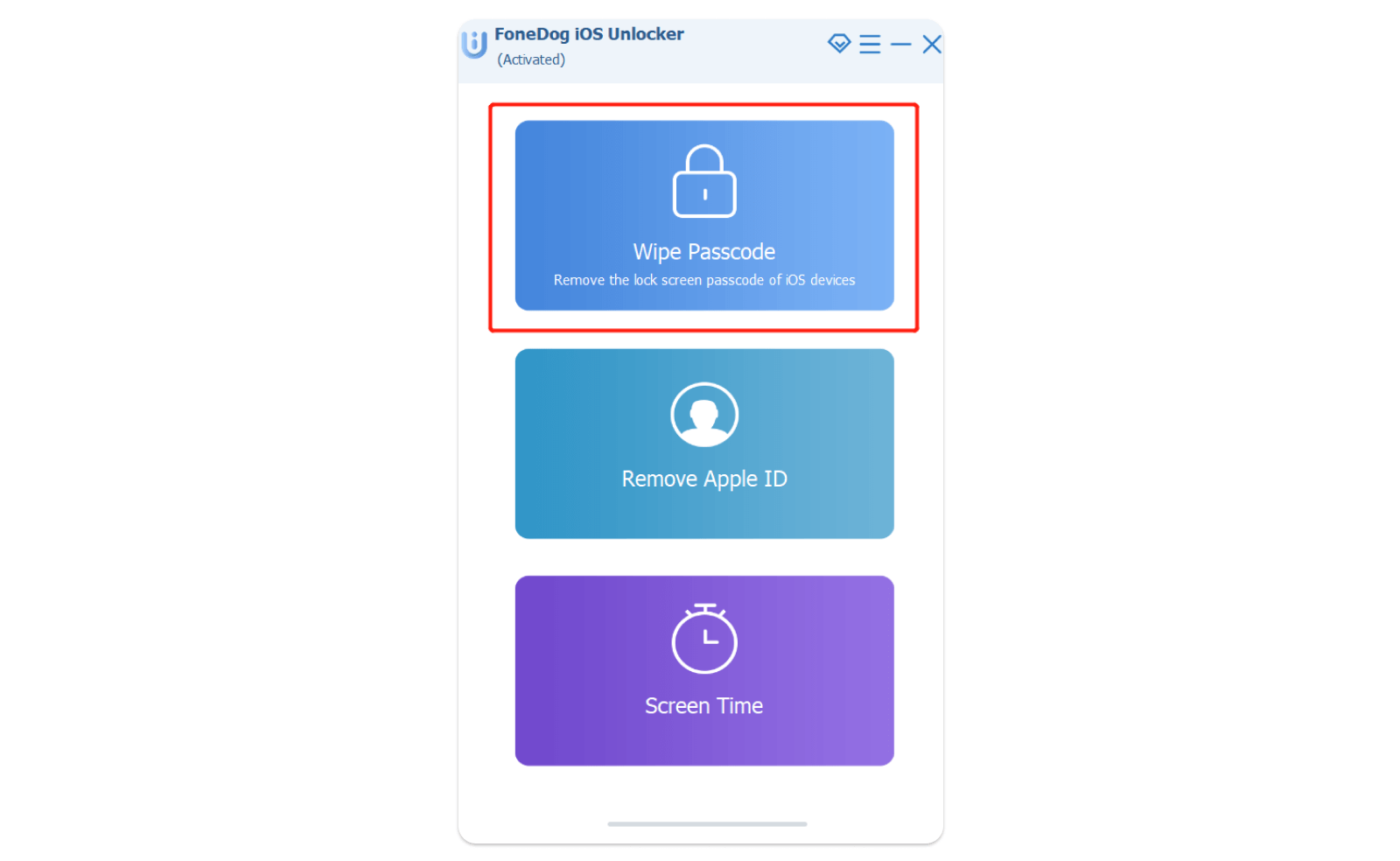
Si vous can’t remember iPhone passcode, Tu auras besoin de Déverrouilleur iOS. This tool enables you to do four different things to your iOS device. First, it enables users to remove the passcode from their Apple gadgets. Not only iPhone or iPod, but you can also unlock your iPad without a password easily with it. Next, it is a tool that gives you the option to remove the Apple ID. Removing the Apple ID will also remove the associated iCloud account. Finally, it gives you the ability to remove the Screen Time password on your device.
Téléchargement gratuit Téléchargement gratuit
The steps to use the tool will be given below. However, you have to take note of the following:
- Removing the passcode will lead to your iPhone’s data being deleted.
- The iPhone will also be updated to the latest version of iOS.
- Finally, you have to make sure that the iPhone is connected using the USB cable to the computer throughout the entire process.
Here’s how to use the tool to remove the passcode:
- Téléchargez, installez et lancez iOS Unlocker sur votre ordinateur.
- After that, choose the mode called Effacer le mot de passe.
- On the interface, press the button for Commencez.
- After that, connect the iPhone to the computer. On your iPhone, press the Confiance
- Information about your device will be displayed. Confirm it by pressing Commencez.
- Wait until the process of downloading the necessary firmware package is complete.
- Once the downloading process is complete, you can press the button called Débloquer. After that, type out 0000. Wait for a few minutes until the passcode for the device is removed
Les gens LIRE AUSSI4 façons simples d'ouvrir un iPhone sans mot de passeGuide pour pirater un iPhone sans mot de passe
Partie 4. Conclusion
This guide has given you the top solution to the problem wherein you can’t remember iPhone passcode. As such, we have given you three different ways to remove the passcode from your device. This includes the recovery mode, the Find My iPhone Feature, and the iOS Unlocker.
The third method is the best way to do it because the tool has other helpful features as well. You can grab the tool today at ios-unlocker.com and you never have to worry about getting locked out of your iOS device!
Écrit par Rosie
Dernière mise à jour: 2022-03-22