


Screen time is used to make sure your kid’s iOS device is controlled with the settings that you like to implement in it. However, you may want to know how to turn off screen time without password, especially if you forgot the code you need for it.
This guide will teach you how to remove the passcode for your screen time feature even if you don’t have the password to it. The first part will teach you the most effective way of doing so. The latter sections will focus on some methods you can also implement as alternatives.
Part #1: The Best Way on How to Turn Off Screen Time Without PasswordPart #2: Alternative Ways to Eliminate Screen Time Without Its PasscodePartie n° 3 : Conclusion
Part #1: The Best Way on How to Turn Off Screen Time Without Password
The best tool you can use to remove your passcode for the screen time feature is iOS Unlocker. This powerful software enables users to unlock iPhones, iPads, and iPod Touch devices. This is done through three different methods, erasing the passcode, removing the screen time password, and eliminating the Apple ID without a password including its associated iCloud account.
Déverrouilleur iOS is available in both macOS and Windows platforms, offering user various options for their hardware. It’s a great way to unlock your iOS device, especially if you j'ai oublié le mot de passe de votre iPhone or the screen time password. In addition, it can help you unlock second-hand devices by removing its Apple ID and associated iCloud account.
Téléchargement gratuit Téléchargement gratuit
With the tool, you can gain full control of your iOS devices. You don’t have to worry about forgetting your passcodes, because you have iOS Unlocker at your disposal. If you can’t contact the previous owner of the iOS device you’re using, you can also gain full control over the gadget without having rigorously find a way to locate the previous owner.
Before we teach the steps on how to eliminate the screen time passcode on your device, check out the following important notes:
- To use the tool, you have to désactiver le Trouver mon This includes Find My iPhone/ iPad/ iPod Touch.
- iTunes should be installed in the computer you will use iOS Unlocker within. In addition, the iTunes version should be the latest one.
- Once the screen time passcode is removed, you can reset your iOS device without losing any of your data.
So, here are the steps on how to turn off screen time without password using iOS Unlocker:
- Open iOS Unlocker within your computer and select "Temps d'écran". dans l'interface principale.
- Use the USB cable or lightning cable to Contact the iOS device to the computer with the iOS Unlocker. Press the Confiance button on your mobile device to ensure a stable connection between the two.
- Appuyez sur le bouton pour Commencez. Based on the iOS device version you have, there are different situations that will happen. Check them out below:
-
- Pour les experts de l’ iOS versions 12.0 and later ones, iOS Unlocker will immediately remove the screen time passcode of your device IF the feature called Find My is deactivated. In this case, you have to reset your device to make sure that the passcode for screen time is completely eliminated. To do that, it is necessary that within the section called Applications et données, you will choose the option that says “Ne transférez pas d'applications et de données ”. In addition, you have to choose the option called Configurer plus tard within the section called Paramètres.
- Si vous n'avez pas encore suivi iOS versions 11.0 and earlier, you will be to recover the screen time passcode of your device. This is possible if the backup within iTunes isn’t encrypted. If this iTunes backup doesn’t have encryption or security, iOS Unlocker will recover the passcode for restrictions immediately. However, if the said backup is secured with an encryption, you have to enter the password to decrypt the backup.
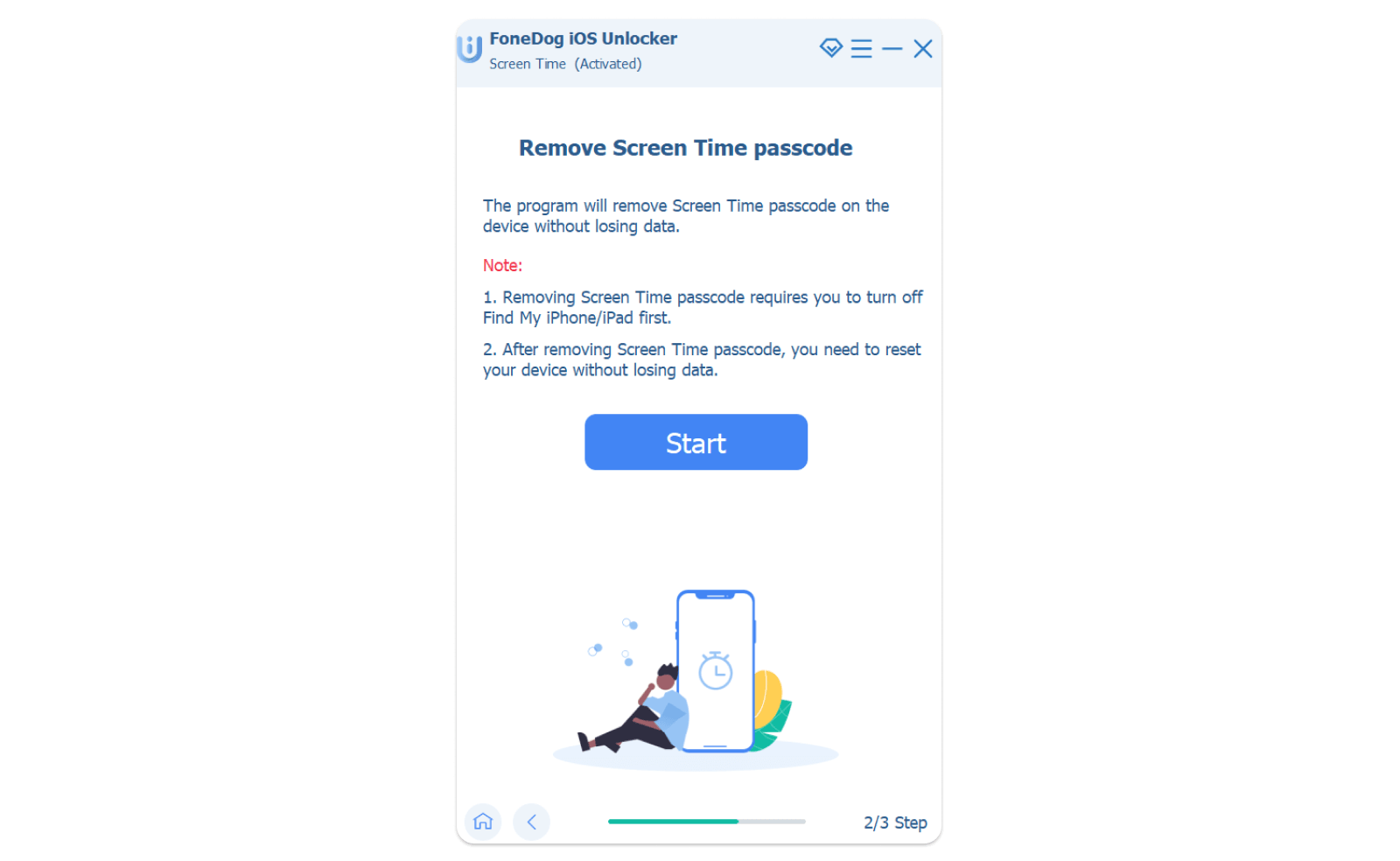
- Wait for a while until the passcode is removed or recovered. After that, you can reset your passcode for restrictions or screen time.
Part #2: Alternative Ways to Eliminate Screen Time Without Its Passcode
Solution #1: Signing Out Of iCloud
The screen time password of your account is associated with iCloud. So logging out of the iCloud account is one of the solutions of how to turn off screen time without password. Here’s how to log out of the iCloud to turn off screen time without password:
- Lancement iCloud Settings within the iOS device.
- Presse Se déconnecter.
- Input your credentials including the username and its corresponding password.
- Presse éteignez.
- Assurez-vous que votre data is backed up within the iClou d storage platform.
- Presse Se déconnecter.
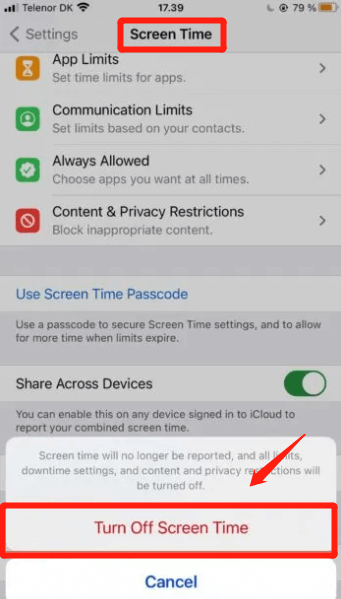
- Allez dans Paramètres > "Temps d'écran". > Désactiver le temps d'écran
Solution #2: Passcode Recovery
This is another way of how to turn off screen time without passcod. You will be opting for the Forgot Passcode route, in this case. The steps to follow on how to do it for iOS version 13.4 or later include the following:
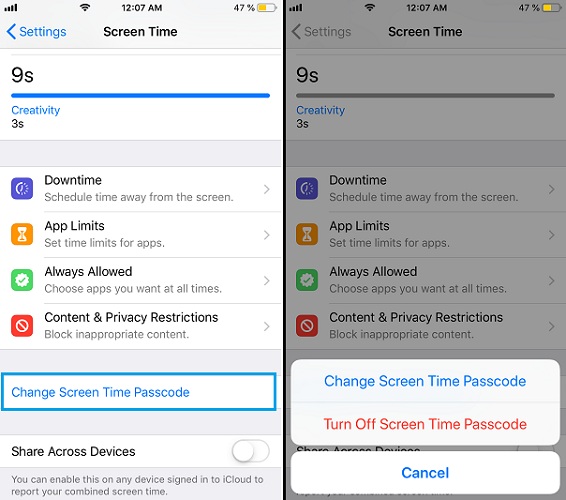
- Allez dans Paramètres > "Temps d'écran". > Changer le code d'accès au temps d'écran > Mot de passe oublié
- Input your Apple ID details including its corresponding password.
- Press four new digits for your new screen time passcode.
- Press the four digits again to confirm.
- The device will now ask you to place your Apple ID and its corresponding password one more time.
- Allez dans Paramètres > "Temps d'écran". > Changer le code d'accès au temps d'écran > Désactiver le code d'accès à l'écran. When you have finished this, you have the ability to access the function of screen time, including its settings, without the need to input your passcode.
Les gens LIRE AUSSIComment désactiver le contrôle parental sur iPhone sans mot de passe ?[Résolu] Comment débloquer l'iPhone 6 Sprint gratuitement en 2024
Partie n° 3 : Conclusion
Ce guide vous a donné les meilleurs moyens de how to turn off screen time without password. We talked about how to do it with screen time passcode recovery. In addition, we taught you how to sign out of iCloud to eliminate the need for placing your screen time passcode.
However, the best way to do so is through iOS Unlocker. That’s because you can use it to remove your screen time passcode without loss of data. In addition, you can use the tool on second-hand devices to help you remove Apple ID and main passcode, among others. Get the tool today to have no limits imposed on your iOS device!
Écrit par Rosie
Dernière mise à jour: 2022-06-02