


It's critical to be well-informed before deciding on the security versus convenience debate. It's not just about the data on your phone: anyone who has your phone may access all kinds of personal information about you if you lose it or it is stolen. When you realize how much of your digital life relies on your smartphone and the phone number associated with it, the stakes become significantly greater.
If you forget your iPhone 12 passcode and don’t know Comment déverrouiller un iPhone 12 sans code d'accès, don't worry, there are still various options for regaining control of your valued iPhone 12. There are several options you can achieve this, however, bear in mind that using these methods may result in the loss of data that was not saved in your cloud storage.
Guide des matières Part #1: Using Recovery Mode on Computer [Windows/MAC]Part #2: How to Unlock iPhone 12 without Passcode or Face ID or Computer [Using Find My]Part #3: Unlock iPhone 12 Without Passcode free Via Erase iPhonePart #4: The Most Effective Way to Unlock iPhone 12/12 pro maxPartie n° 5 : Conclusion
Part #1: Using Recovery Mode on Computer [Windows/MAC]
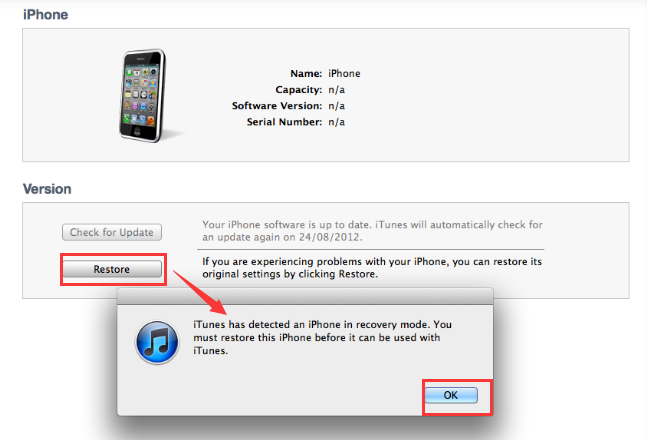
This is how to unlock iPhone 12 without passcode on the Pc. With iTunes or Finder, you may use Le mode de récupération to restore your smartphone to its original factory settings. This means that all of the information on your iPhone will be gone. After the iPhone has been reset to factory settings without passcode, you may simply restore your backup.
Suivez les étapes ci-dessous:
- Vérifiez que vous disposez de tout le nécessaire. Un câble USB compatible avec l'iPhone est requis, ainsi qu'un port USB. Un iPhone et un ordinateur (Windows ou Mac) sont également nécessaires. Assurez-vous d'avoir le la plus récente iTunes version installé sur votre ordinateur.
- Vous pouvez alors simplement éteindre votre iPhone. Ensuite, Contact Connectez votre iPhone à votre ordinateur Mac ou Windows à l'aide du câble USB.
- It's now time to put your iPhone into mode de récupération. Maintenez le Side (right side) et l'un ou l'autre des Volume (left side) buttons jusqu'à ce que le la mise hors tension slider shows on the screen. To switch off your iPhone 12, faites glisser le curseur de gauche à droite. Continuer à appuyer buttons until you can see the recovery mode logo (a laptop connected to a USB connection).
- Si vous utilisez un Mac, allez sur l'ordinateur et ouvrez FinderSi vous utilisez Windows, vous devrez ouvrir iTunes. Dans le volet gauche, cliquez sur l'iPhone que vous venez de connecter à l'ordinateur.
- On your computer, Finder or iTunes should display a notice stating that your iPhone is having issues et que you should upgrade to the newest iOS software or restore to factory settings.
- Choisir Restaurer. Wait for it to finish and you are now done.
Part #2: How to Unlock iPhone 12 without Passcode or Face ID or Computer [Using Find My]
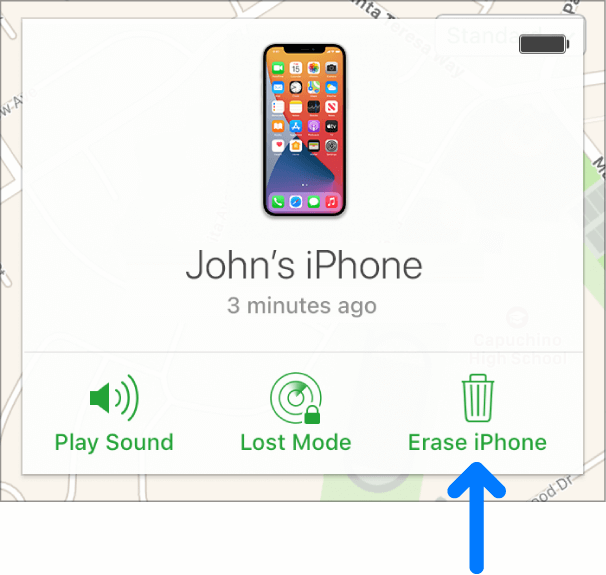
This approach is only available if your iPhone is connected to the Internet. You can also use iCloud's Find My iPhone feature to recover an iPhone 12 if you oublier le mot de passe de l'iPhone and don’t know how to unlock iPhone 12 without passcode. This is designed to find stolen or lost Apple devices, but it will also work if your iPhone 12 is deactivated.
- Connexion to your iPhone's Apple ID account at iCloud.com.
- Select the option for Tous les dispositifs on the iCloud main screen.
- Ensuite choisissez the iPhone from the list of devices that displays.
- Choisir Effacer l'iphone Dans le menu déroulant.
- Tu peux soit entrer le mot de passe associated with your Apple ID or answer the browser's questions de sécurité.
- Wait for the erasing procedure to finish.
- Vous avez l'option de restauration d'une sauvegarde from your computer or iCloud or Recommençant avec un nouvel iPhone.
Part #3: Unlock iPhone 12 Without Passcode free Via Erase iPhone
When you are unable to unlock your iPhone 12 with the above 2 methods, don’t be disappointed, there is still a reliable solution for how to unlock iPhone 12 without passcode: perform the “Erase iPhone” procedure. We'll guide you through the necessary steps to safely and securely unlock your iPhone 12. Before the detailed steps, you should first check whether your iPhone 12 meets the unlocking requirements mentioned below.
- iOS 15.2 or later is required to be installed on the locked iPhone 12.
- Find My function must be activated before the phone locked.
- You must be logged in with your Apple ID and know your password.
- Make sure that the iPhone 12 is connected to Wi-Fi or cellular data.
If your iPhone 12 meets the unlock requirements, then you can keep reading for the steps:
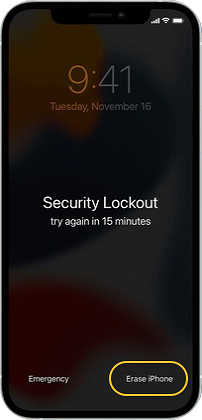
- Enter an incorrect passcode on your iPhone 12 seven times continuously untile you see a pop-up window "Security Lockout try again in 15 minutes".
- Press the "Erase iPhone" button in the lower-right corner of the screen.
- Tap on the "Erase iPhone" button again to confirm.
- Enter your Apple ID password to sign out.
- Wait for a while when the white apple logo appears. After completion, your iPhone 12 will automatically restart.
Part #4: The Most Effective Way to Unlock iPhone 12/12 pro max
Don’t know how to unlock iPhone 12 without passcode? Déverrouilleur iOS is a tool that allows users to unlock their iPhones by bypassing the passcode. Not only can you disable your device's passcode, but it also provides solutions to problems with your iPhone, such as:
Téléchargement gratuit Téléchargement gratuit
- iOS Device Is Locked & Disabled
If you input the wrong passcode too many times, your device will automatically be locked or worst, disabled. With iOS Unlocker, you can bypass this so no need to wait
- The screen is broken.
If your iOS device has a cracked or broken screen, making it hard to see your iPhone screen, you may use this method to bypass the passcode requirement.
- Face ID and Touch ID are not properly working.
If Face ID or Touch ID isn't working properly, you may use iOS Unlocker to unlock it.
Before you use this software, keep the following in mind:
- Removing the passcode clears your iPhone's data.
- Your iPhone will be immediately upgraded to the la version la plus récente d'iOS.
- Finally, make sure the iPhone and computer are connected through USB during the operation.
Simply follow the instructions below to unlock your iPhone without a passcode:
- iOS Unlocker is available for download, installation, and use on both Mac and Windows computers.
- Wipe Passcode is selected, and the Commencez button on the interface is pressed.
- Se connectez your iPhone to your computer via a USB cable, and then touch the Confiance bouton sur votre iPhone.
- Your device's information will appear. Confirm your choice and press the Commencez
- Wait for the required firmware package to finish downloading.
- When the download is finished, tap the Débloquer button to unlock the phone. Then type the 0000 Wait for it to finish and you are done!

Les gens LIRE AUSSIComment déverrouiller l'iPhone 12 sans identifiant de visage ni code d'accèsGuide rapide sur la façon de déverrouiller l'iPhone 13 sans mot de passe
Partie n° 5 : Conclusion
This post has provided you with multiple ways Comment déverrouiller un iPhone 12 sans code d'accès. We looked at four possible approaches to getting around the passcode of the iPhone 12. You can choose to Find My iPhone, Recovery Mode and Erase iPhone to restore your iPhone to factory settings, or a third-party tool especially to solve this problem.
Even though all the methods above allow you to unlock your iPhone 12 by wiping its contents, iOS Unlocker is without a doubt the best out of the three. iOS Unlocker has the advantage since it can also assist you to delete the Apple ID from used devices plus more. It lets you erase passcodes, Apple IDs, and screen time passwords.
Get iOS Unlocker today and unlock all of your iOS device's features! To check out our product right now, go to FoneDog.com/iOS-Unlocker. We provide a free trial to demonstrate how it works.
Écrit par Rosie
Dernière mise à jour: 2022-03-22