


If you have failed to put the right passcode on your iPhone multiple times, it will be disabled. You can try again after a certain period of time. But if you really 아이폰 비밀번호를 잊으셨나요?, your efforts will be futile.
이 가이드는 당신을 가르 칠 것입니다 how to undisable an iPhone without iTunes. We will help you unlock a disabled iPhone after you forgot the passcode to it. This will be done through a tool called iOS Unlocker. We will teach you how to use the tool in the sections below.
Part #1: How to Undisable An iPhone without iTunesPart #2: The Best iPhone Unlocking Application3부: 요약하자면
Part #1: How to Undisable An iPhone without iTunes
If you want to implement how to undisable an iPhone without iTunes, then you must use a Mac computer instead of a Windows PC. So, if you forgot your passcode, you can reset your iPhone using a Mac computer. In addition, you can also use Find My iPhone to remove all the contents on your iPhone and place it back in its factory settings.
Solution #01: Recovery Mode Using Mac Computer
Here are the steps to reset your iPhone using your Mac computer if you forgot the passcode:
- Ensure Everything Is Prepared. You should have a Mac computer ready for the process. In addition, you should have the lightning cable or USB cable compatible with your iOS device. We will be connecting the iPhone to the computer with this cable.
- Turn Your iPhone Off. The next step is to turn off your iPhone. The steps to do this are fairly simple.
- Connect The iPhone To The Computer. After the second step, you must connect the iPhone to the computer using its USB or lightning cable.
- Put iPhone In 복구 모드. Now, you should place the iPhone in recovery mode. To do that, you have to press certain buttons depending on the model of your iPhone. Check the buttons you have to press below:
- 1에 대한stgeneration iPhone SE, press and hold the 홈
- For iPhone 6s and earlier versions, press and hold the 홈
- For iPhone 7 Plus and iPhone 7, press and hold the button for 아래 볼륨.
- For iPhone X, iPhone 8 Plus, iPhone 8, 2ndgeneration iPhone SE, 3rd generation iPhone SE, and other versions, press and hold the 사이드 버튼.
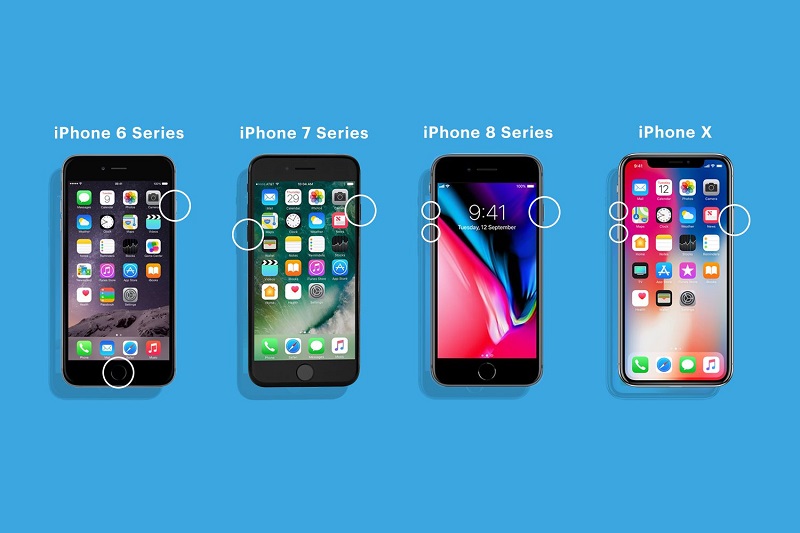
- Hold Until Recovery Mode Shows Up. Hold your press on the respective buttons until the recovery mode screen shows up. The recovery mode logo looks like a Mac computer with a lightning cable being connected to it. Once the recovery mode logo shows up, you can let the button(s) go.
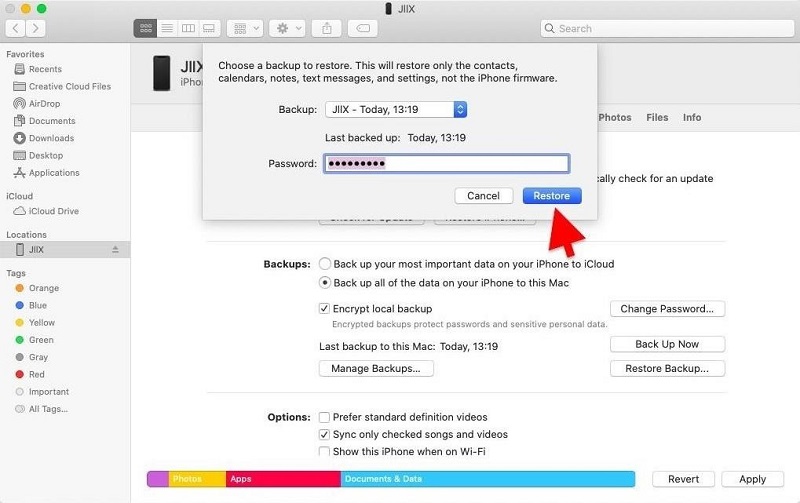
- Locate iPhone. On Mac’s 파인더, locate the iPhone you wish to reset. After that, click it.
- 왼쪽 메뉴에서 복원. Choose the option to restore your iPhone when it shows up. The computer will now download software for the device. The restoration process will begin afterward. Wait for the restoration process to complete. Once done, you can disconnect the iPhone and the computer. After that, you can set your iPhone up as a new device or set it up from a backup file.
Solution #02: Using Find My iPhone
You can use the Find My iPhone feature to reset your iPhone and implement how to undisable an iPhone without iTunes. Resetting the iPhone will allow you to use it back to its normal state, however, it will erase all of the contents of your device.
So, these are the things that will happen when a device is erased using Find My iPhone:
- An email that will confirm the process is sent to the email address of your Apple ID.
- The feature called Activation Lock will still be activated to protect the device. In order to reactive your iOS device, you need an Apple ID and its corresponding password.
- When you have activated two-factor authentication, the erased devices will be removed from your Trusted Devices list.
- You can restore data from a backup you have previously made with iCloud or with a computer.
So, here are the steps to erase your device remotely using Find My iPhone:
- 웹 사이트를 방문하십시오 iCloud.com
- Within the login page, you must sign in to your account.
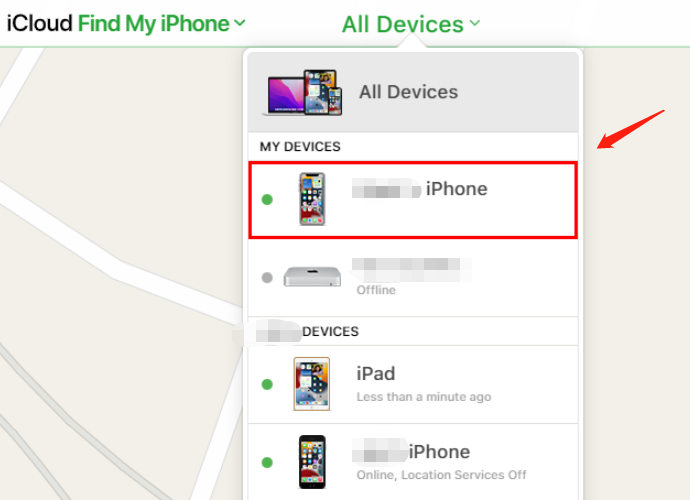
- 왼쪽 메뉴에서 내 아이폰 찾기. After that, press All Devices. Now, you should choose the specific device you wish to erase.
- "라고 표시된 옵션을 클릭하십시오.Erase [DEVICE NAME] ".
- Place your Apple ID account’s corresponding password. If the browser you use is not trusted, you must answer the security questions prompted on the screen. Or, it may prompt you to input a verification code that has been sent to the other trusted devices on the list.
- Wait until the erasure process is complete.
It is important to note that the erasure process will begin immediately after the onscreen prompts are followed IF the device is online. However, if the device is not online, the remote erasure process will begin the time the device starts to connect online.
What Happens When You Reset An iPhone?
If you forgot the passcode to your iPhone, the only way you can use it again is to reset it through the methods we have outlined above. These two methods are the Recovery Mode and Find My iPhone methods.
So, what happens when you reset an iPhone to its factory settings? Simply put, the iPhone will be back to its pre-purchase state. This means that all the data you have placed in the iPhone will be deleted. You can either set up the device as a new one. Or, you can set the device from a backup you have on iCloud or a computer.
Part #2: The Best iPhone Unlocking Application
Here, we will discuss how to undisable an iPhone without iTunes through an unlocking application. This application is iOS 언 락커. It’s a tool that can help you remove the passcode on your iOS device. It can also help remove Apple ID including its respective iCloud account. In addition, it helps remove screen time passwords from your device. It works on iPad, iPhone, and iPod Touch.
The application is available on both Windows PCs and macOS computers. Plus, a free trial is available, so you can check it out before your purchase it. Some of the problems you may encounter that iOS Unlocker can fix include the following:
- When you forget the passcode of your iOS device, the tool can help you wipe out the passcode easily.
- If the iOS device is disabled due to multiple failed password input attempts, the tool will unlock the device for you.
- You can now bypass the passcode of your iOS device, especially if the screen is broken. The tool will help you bypass it by wiping out the passcode.
- You can use iOS Unlocker to remove the passcode, especially if Touch ID or Face ID isn’t working on your device.
- If you got a second-hand device, you can use the tool to remove the passcode or the Apple ID from it.
The advantages of using the tool include the following:
- You can use the device with no limitations.
- You will not be detected or tracked by the old Apple ID account.
- The old Apple ID account won’t have the ability to remotely wipe out the iOS device.
- You can get all the services you want from Apple, including features from the Apple ID and iCloud.
- You won’t be interrupted by the old Apple ID account.
- You can utilize iTunes in order to back up your iOS device using iCloud or the computer.
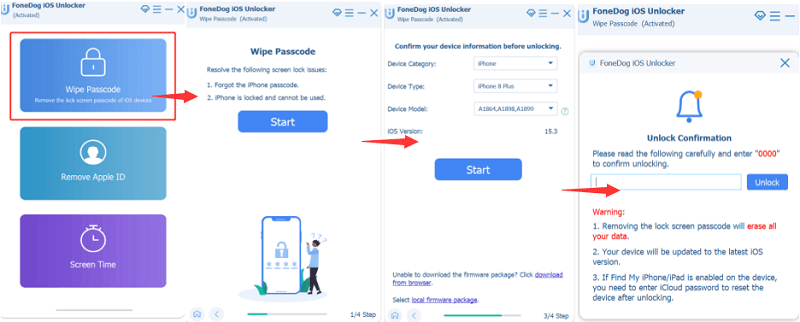
Here’s how to undisable an iPhone without iTunes using the iOS Unlocker:
- Launch iOS Unlocker on your computer.
- 기본 인터페이스에서 다음을 선택합니다. 비밀번호 지우기.
- Press the button for Start. After that, connect the iPhone to the computer using its lightning cable or any compatible USB cable.
- On your iPhone, tap the button for Trust in order to make the connection between the iPhone and the computer stable.
- Make sure the device information displayed is correct. After that, press the button for 스타트.
- Wait until the downloading process of the firmware package is complete. After that, press the button for 자물쇠를 열다. Input the code “0000 ” in order to confirm the unlocking process. After that, the device screen passcode will be removed.
사람들은 또한 읽습니다Face ID 또는 암호 없이 iPhone 12 잠금 해제 방법암호 없이 아이폰 13 잠금 해제하는 빠른 가이드
3부: 요약하자면
This guide has taught you how to undisable an iPhone without iTunes. We talked about how to do it manually through the Recovery Mode on your Mac computer. In addition, we gave you steps on how to remove the disabling technology by wiping out the contents of the device using Find My iPhone.
Finally, we talked about using iOS Unlocker to remove the disabling technology on your device. To do that, you can use the said unlocking app to remove the passcode on your device. In addition, you can use it to remove the screen time password, the 애플 ID, and its corresponding iCloud account.
To ensure that you can control your iPhone without limitations, grab iOS Unlocker from iOS-Unlocker.com and gain access to your locked or second-hand device!
Rosie 작성
최종 업데이트 : 2022 년 06 월 02 일