


It's critical to be well-informed before deciding on the security versus convenience debate. It's not just about the data on your phone: anyone who has your phone may access all kinds of personal information about you if you lose it or it is stolen. When you realize how much of your digital life relies on your smartphone and the phone number associated with it, the stakes become significantly greater.
If you forget your iPhone 12 passcode and don’t know 암호 없이 iPhone 12 잠금 해제하는 방법, don't worry, there are still various options for regaining control of your valued iPhone 12. There are several options you can achieve this, however, bear in mind that using these methods may result in the loss of data that was not saved in your cloud storage.
컨텐츠 가이드 Part #1: Using Recovery Mode on Computer [Windows/MAC]Part #2: How to Unlock iPhone 12 without Passcode or Face ID or Computer [Using Find My]Part #3: Unlock iPhone 12 Without Passcode free Via Erase iPhonePart #4: The Most Effective Way to Unlock iPhone 12/12 pro max5부: 결론
Part #1: Using Recovery Mode on Computer [Windows/MAC]
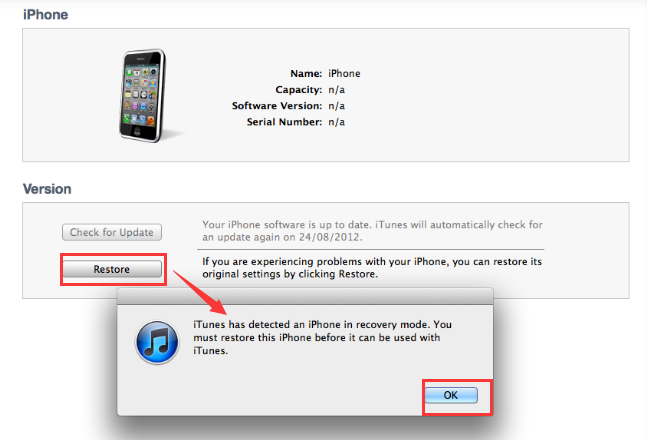
This is how to unlock iPhone 12 without passcode on the Pc. With iTunes or Finder, you may use 복구 모드 to restore your smartphone to its original factory settings. This means that all of the information on your iPhone will be gone. After the iPhone has been reset to factory settings without passcode, you may simply restore your backup.
아래 단계를 따르십시오.
- Check to be sure you have everything you need. A USB cable that is compatible with the iPhone is required, as well as a USB port. An iPhone and a Windows or Mac PC are also required. Make sure you have the 가장 최근 iTunes 버전 컴퓨터에 설치되어 있어야합니다.
- You may then just 끄다 your iPhone. After that, 잇다 the iPhone to your Mac or Windows computer using the USB cable.
- It's now time to put your iPhone into 복구 모드. 누르고 Side (right side) and either of the Volume (left side) buttons 까지 전원 끄기 slider shows on the screen. To switch off your iPhone 12, 슬라이더를 드래그 왼쪽에서 오른쪽으로. 계속 누르기 buttons until you can see the recovery mode logo (a laptop connected to a USB connection).
- If you're using a Mac, go to the computer and open 파인더. You'll need to open the iTunes program if you're using Windows. On the left side, click the iPhone you just connected to the computer.
- On your computer, Finder or iTunes should display a notice stating that your iPhone is having issues 그 you should upgrade to the newest iOS software or restore to factory settings.
- 왼쪽 메뉴에서 복원. Wait for it to finish and you are now done.
Part #2: How to Unlock iPhone 12 without Passcode or Face ID or Computer [Using Find My]
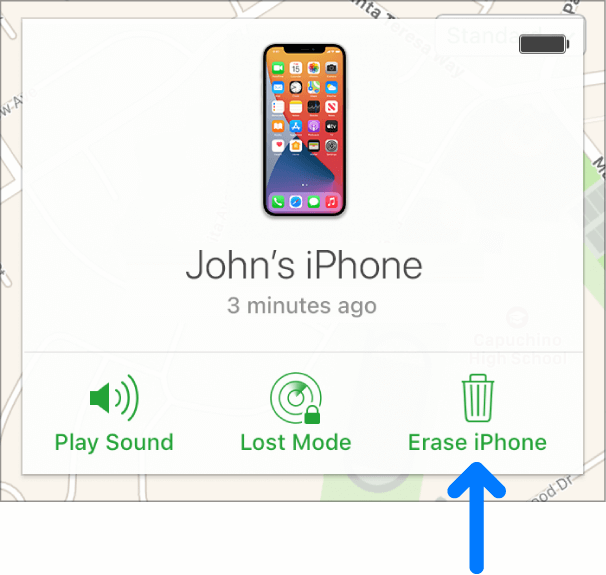
This approach is only available if your iPhone is connected to the Internet. You can also use iCloud's Find My iPhone feature to recover an iPhone 12 if you iPhone 암호를 잊어 버리십시오 and don’t know how to unlock iPhone 12 without passcode. This is designed to find stolen or lost Apple devices, but it will also work if your iPhone 12 is deactivated.
- 로그인 to your iPhone's Apple ID account at iCloud.com.
- 옵션을 선택하십시오 모든 장치 on the iCloud main screen.
- 그때 선택 the iPhone from the list of devices that displays.
- 클라임웍스와 함께 하늘과 닿는 여정을 시작하세요 iPhone 지우기 드롭 다운 메뉴에서
- 다음 중 하나를 수행 할 수 있습니다 비밀번호를 입력하십시오 associated with your Apple ID or answer the browser's 보안 질문.
- Wait for the erasing procedure to finish.
- 당신은 백업 복원 from your computer or iCloud or 출발 with a new iPhone.
Part #3: Unlock iPhone 12 Without Passcode free Via Erase iPhone
When you are unable to unlock your iPhone 12 with the above 2 methods, don’t be disappointed, there is still a reliable solution for how to unlock iPhone 12 without passcode: perform the “Erase iPhone” procedure. We'll guide you through the necessary steps to safely and securely unlock your iPhone 12. Before the detailed steps, you should first check whether your iPhone 12 meets the unlocking requirements mentioned below.
- iOS 15.2 or later is required to be installed on the locked iPhone 12.
- Find My function must be activated before the phone locked.
- You must be logged in with your Apple ID and know your password.
- Make sure that the iPhone 12 is connected to Wi-Fi or cellular data.
If your iPhone 12 meets the unlock requirements, then you can keep reading for the steps:
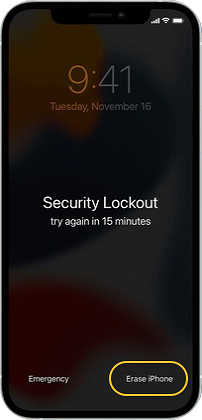
- Enter an incorrect passcode on your iPhone 12 seven times continuously untile you see a pop-up window "Security Lockout try again in 15 minutes".
- Press the "Erase iPhone" button in the lower-right corner of the screen.
- Tap on the "Erase iPhone" button again to confirm.
- Enter your Apple ID password to sign out.
- Wait for a while when the white apple logo appears. After completion, your iPhone 12 will automatically restart.
Part #4: The Most Effective Way to Unlock iPhone 12/12 pro max
Don’t know how to unlock iPhone 12 without passcode? iOS 언 락커 is a tool that allows users to unlock their iPhones by bypassing the passcode. Not only can you disable your device's passcode, but it also provides solutions to problems with your iPhone, such as:
- iOS Device Is Locked & Disabled
If you input the wrong passcode too many times, your device will automatically be locked or worst, disabled. With iOS Unlocker, you can bypass this so no need to wait
- The screen is broken.
If your iOS device has a cracked or broken screen, making it hard to see your iPhone screen, you may use this method to bypass the passcode requirement.
- Face ID and Touch ID are not properly working.
If Face ID or Touch ID isn't working properly, you may use iOS Unlocker to unlock it.
Before you use this software, keep the following in mind:
- Removing the passcode clears your iPhone's data.
- Your iPhone will be immediately upgraded to the most recent version of iOS.
- Finally, make sure the iPhone and computer are connected through USB during the operation.
Simply follow the instructions below to unlock your iPhone without a passcode:
- iOS Unlocker is available for download, installation, and use on both Mac and Windows computers.
- Wipe Passcode is selected, and the 스타트 button on the interface is pressed.
- 연결하기 your iPhone to your computer via a USB cable, and then touch the 믿어 버튼을 클릭합니다.
- Your device's information will appear. Confirm your choice and press the 스타트
- Wait for the required firmware package to finish downloading.
- When the download is finished, tap the 자물쇠를 열다 button to unlock the phone. Then type the 0000 Wait for it to finish and you are done!

사람들은 또한 읽습니다Face ID 또는 암호 없이 iPhone 12 잠금 해제 방법암호 없이 아이폰 13 잠금 해제하는 빠른 가이드
5부: 결론
This post has provided you with multiple ways 암호 없이 iPhone 12 잠금 해제하는 방법. We looked at four possible approaches to getting around the passcode of the iPhone 12. You can choose to Find My iPhone, Recovery Mode and Erase iPhone to restore your iPhone to factory settings, or a third-party tool especially to solve this problem.
Even though all the methods above allow you to unlock your iPhone 12 by wiping its contents, iOS Unlocker is without a doubt the best out of the three. iOS Unlocker has the advantage since it can also assist you to delete the Apple ID from used devices plus more. It lets you erase passcodes, Apple IDs, and screen time passwords.
Get iOS Unlocker today and unlock all of your iOS device's features! To check out our product right now, go to FoneDog.com/iOS-Unlocker. We provide a free trial to demonstrate how it works.
Rosie 작성
최종 업데이트 : 2022 년 03 월 22 일