


It's normal to lock your iPad. You can forget the password, or the screen can be unresponsive or disabled, or your loved one can key in a wrong password thinking it's right and automatically locks itself after six attempts.
Whatever the case. "iPad locked up ” is a common menace among Apple users that can be restored in several easy discussed below. Whatever the choice of the options, it all depends on some conditions; the faster the process, the better for you.
The digital market has several toolkits explicitly designed to manage these functions. Moreover, the iPad- an Apple-based device, also uses Apple toolkits to get full access to the iPad when it's locked. At the end of this article, you'll get to know the simplest and the easiest way to help you unlock your locked iPad.
The only cause for worry, in this case, is your iPad data. However, the iPad data or iPad back to normal working condition is essential. Some methods restore backed data, but others cannot, especially when you lack a backup toolkit before locking the iPad. Keep reading.
Part 1: Unlock iPad Using iTunesPart 2: Unlock iPad Using Find My iPhonePart 3: Unlock iPad Using iOS Unlocker결론
Part 1: Unlock iPad Using iTunes
Did you know that the passcode is part of iPad data? Therefore, when the iPad locked up is your issue. You must strive to restore the device to factory settings to reset the iPad. iTunes is an Apple-based software that acts as a media player and an iDevice support solution. iPad unlock is a function that this toolkit can easily handle.
However, the only condition you need to have is that you must have backed up the iPad or linked the iPad to iTunes before the unlock menace. Otherwise, you might have to look for another option. Here is the procedure to solve the iPad locked-up challenge. If you have backed up, it will restore the iPad to factory settings but get back all your data apart from the passcode from the cloud storage device.
- 다운로드, 설치 및 실행 iTunes.
- Open the toolkit and connect the iPad to the computer via USB cable.
- If you have the Face ID as the passcode, set the iPad to recovery mode by pressing the 볼륨 업 및 아래 볼륨 buttons simultaneously. Press the 힘 button and hold the two buttons until the screen gets to recovery mode.
- On the computer, click 복원 down on a notification window.
- When complete, you have full access to your iPad
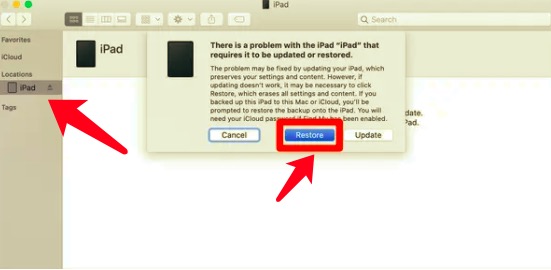
The conditions prove that you need to connect your iPad to iTunes. It comes in handy to save you when the iPad locked up is a notification on your screen.
Part 2: Unlock iPad Using Find My iPhone
iPad has a Find my iPhone feature that is important to activate when in full control of your iDevice. The feature is linked to an iCloud account that most people know for tracking a lost iDevice.
However, it comes with also an unlock feature that will explore in this article to unlock the locked up iPad. When you haven't installed iTunes on your computer, this is also a feature to look out for. Like iTunes, you must have enabled the marker on your iPad before unlocking.
Otherwise, you are still on the lookout for another option to unlock the iPad without a computer. Here is the procedure
- Using another iOS device, open the iCloud.com 웹 사이트
- Log in the Apple ID and password details
- 클릭 모든 장치 icon and choose the iPad locked up from the available list
- Confirm the iPad details and Choose" 삭제 " and further Erase iPad and confirm
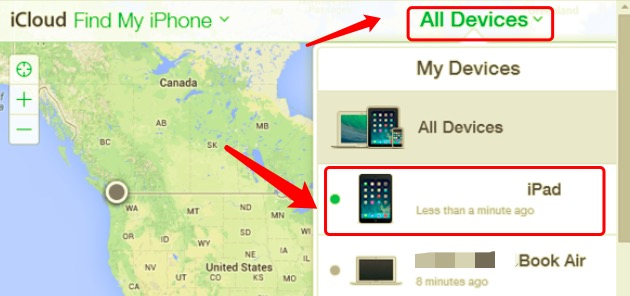
The iPad erases from the system, including the iPad data and passcode. You now need to reset afresh to continue enjoying the Find My iPhone services.
There is a possibility you still didn't link the iPad to your iCloud account. If yes, you are still on the search to unlock the iPad. At this point, specific software for the function comes in handy. Continue reading to get the step-by-step guide on a recommended application for the function.
Part 3: Unlock iPad Using iOS Unlocker
iOS 언 락커 is an application that has no conditions. When you get the iPad locked up, notification that this is your go-to application will solve the challenge with minimal hassle.
The application has no limit on the type of password; whether it's a Face ID or a pattern password, or a digit password, all are functional on this application. It runs on three modes – wipe passcode. Remove Apple ID and Screen time management.
Moreover, it gives you complete control of the iDevices, including access to iCloud settings with no conditions. Its advantage is that the old Apple ID has no space on this application. That means that no one can use the old Apple ID remotely once you erase it from the system using the application. For the iPad locked up function, here are the steps you should follow
- iOS Unlocker를 다운로드, 설치 및 실행하세요.
- "비밀번호 지우기 ".
- 를 누르십시오 스타트 button and connect the locked iPad to the computer via USB cable and accept the trust agreements.
- 기기 정보를 확인하고 클릭하세요. 스타트 단추
- 잠시 후 펌웨어 다운로드 패키지가 설치되면 잠금 해제 버튼을 클릭하고 "를 입력하십시오.0000 " 확인.
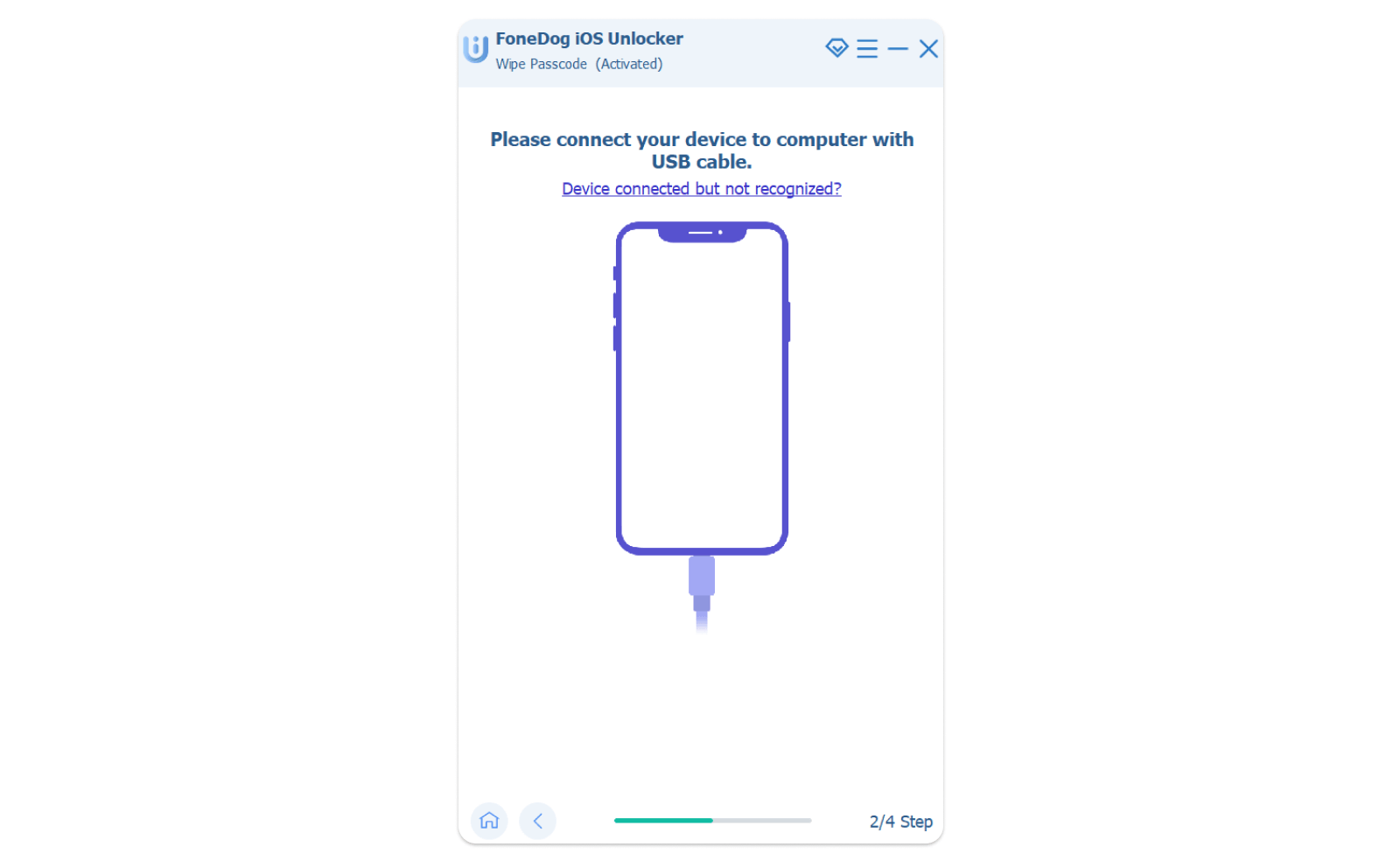
The screen will be unlocked. As simple as that. This is a must-have toolkit for all Apple users; you never know when you need it now that iPad locked up is an inevitable function.
사람들은 또한 읽습니다간편 가이드: 암호 없이 iPad 잠금 해제하는 방법iPad를 닦는 방법: 최고의 가이드
결론
iPad locked up is not something to panic or worry about when you have unlimited options to manage it in a few clicks. We have only looked at one software, but the web has several applications available. There is no harm in exploring them to get the best to unlock iPad.
Moreover, you have to choose the best application to suit the unlock toolkit. The first two discussed has conditions; if you do not meet either of the requirements, then software comes in handy. iOS 언 락커 is a must-have thanks to its powerful and comprehensive functions.
Rosie 작성
최종 업데이트 : 2022 년 03 월 31 일