


There can be a lot of reasons why someone would resort to knowing the process of how to bypass Apple ID. If you have bought a second-hand phone and the previous owner is not around anymore, and you cannot access the device, it is when you look for ways how to bypass the Apple ID. It could also happen that you have forgotten your passcode on your iPhone and you have tried so many options until the phone was locked, and the only thing that you must do to access it is to bypass the Apple ID.
In this article, there is no room for your feet getting cold, or your hands being shaken up, there are always solutions to these things and we just have to figure out the dilemma well. Here, we will give you a tour of the proper and strategic ways to bypass Apple ID so that you can still be able to access your device and continue with your normal life as it is. Let us begin!
Część 1: O nie! Mój Apple ID został zablokowany!Part #2: What Should We Do to Bypass Apple ID?Part #3: How to Bypass Apple ID Using A Third-Party Tool?Część 4: Podsumowanie wszystkiego
Część 1: O nie! Mój Apple ID został zablokowany!
Before learning about the methods to bypass Apple ID, it's necessary to figure out the reasons why your Apple ID got locked. When you are in a rush or when you have a lot of things on your mind, there can be a time that you occasionally forget some passwords, and it would only be difficult to resolve if the situation has been crucial.
If you are an Apple user ever since you would know that it is very important to have your apple ID intact as it is the identification of your Apple device or your Apple account. When you have forgotten your Apple ID there is no way that you can be able to access Apple services such as iCloud, App Store, FaceTime, and even Apple Support which is considered one of the most important.
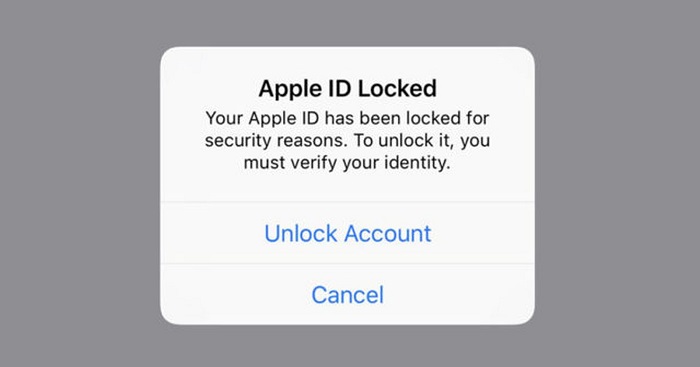
A jeśli zdarzyło się, że Twój Apple ID został zablokowany, prawdopodobnie oznacza to, że wielokrotnie próbowałeś wprowadzać hasła, które Twoim zdaniem pasują do tego, które ustawiłeś. Ponieważ jednak nie pamiętasz go dobrze, Apple ID został zablokowany. To funkcja bezpieczeństwa urządzeń Apple, która blokuje Apple ID, uniemożliwiając nieautoryzowane transakcje i zezwalając tylko prawowitemu właścicielowi na wykonywanie czynności na swoim urządzeniu Apple.
- Wystąpił problem z połączeniem internetowym i nie można kontynuować przetwarzania identyfikatora Apple ID.
- W używanych przez Ciebie urządzeniach z systemem iOS włączono ograniczenia.
- Usługi Apple są naprawdę niedostępne i nie ma możliwości, aby Twoje Apple ID było znów aktywne, dopóki serwery nie zostaną uruchomione.
- Twój iCloud przywraca obecnie aplikacje z kopii zapasowej.
- Istnieje prawdopodobieństwo, że urządzenie Apple, którego używasz (iPad, iPod lub iPhone), jest nadzorowane.
Part #2: What Should We Do to Bypass Apple ID?
And if your Apple ID got locked and you cannot access it anymore you have to bypass the Apple ID so that you can use your device. There are some tools that we can use in case we have to bypass the Apple ID to use our iDevices. We will have the list of the tools and methods that we can try, and see if they can be possible solutions in case our devices get locked.
iCloud
One of the tools that we can use which is commonly installed on iPhone or Apple devices is the iCloud. You can use it to bypass the Apple ID, however, you must contact the previous owner of the device as there are details needed to be able to proceed. The previous owner can provide the username and the password that you can use to bypass Apple ID. Here’s what you have to do:
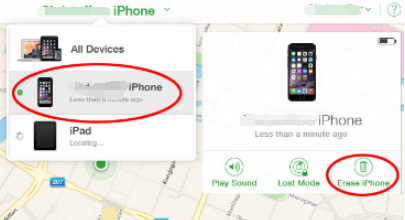
- Launch the web browser on your device and go to icloud.com. You have to sign in using your Apple ID username as well as the password. And then go tap “Znajdź iPhone'a ".
- Once you have opened the iCloud, you have to tap “Wszystkie urządzenia ".
- Then you have to choose the model as well as the name of the device that you wanted to bypass. You have to tap “Wymaż iPhone'a ” or iPad if you are using an iPad and then click “Usuń z konta ".
Once you are done with the said steps, the device that you have chosen will be deleted from your Apple ID, and then bypass Apple ID.
DNS
You can also use DNS to bypass Apple ID, let us take a look at the steps that you have to do if you opted to use DNS.
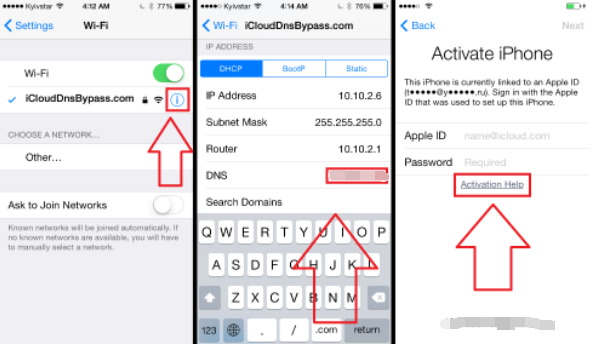
- The initial step that you have to do is to restart your iDevice, and then select the country and also the language, and then you have to enter the DNS server that you will use, it must be a new one, samples of these servers are:
- Europa: 104.155.28.90
- USA/ North America: 104.154.51.7
- Azja: 104.155.220.58
- DNS of the rest of the world: 78.109.17.60
- Następnie dotknij „Wstecz ”, and you have to connect your device to the Wi-fi network, and then tap “Don e”, and then click “Pomoc aktywacyjna ”. Once you have successfully connected the device, you will receive a message that it is successfully connected to the server.
- Następnie należy kliknąć „Menu ”, and then have a preview of the apps that are available and then you have to choose a thing or option that you can verify from the previous owner of the device.
Permanently Bypass Your Apple ID
For the third method, we will teach you how to bypass Apple ID permanently. If you have opted to use DNS you should know that it is just a temporary solution, here’s how you do it permanently.
- Kliknij "Menu ”, a następnie przejdź do „Zastosowania ”, a następnie dotknij „Crash ”, if you have followed it right, your device will restart.
- Then you have to choose the language, and also the country, and then click the “Strona Główna ” button then select “Więcej ustawień Wi-Fi ”, and then click the “I ” symbol which you will see beside the Wi-Fi network. You then have to go down and tap the “Menu ".
- You have to clear the address bar and then tap “Glob ”, and then you have to type random numbers from 15-30 that you will see in the “Port Zone ”, and then you have to click “Wstecz ” i wybierz „Next Option ”. Then you will see the language option and also the unlock screen, it will appear repeatedly. You just have to unlock the device, and then click the options for language and you just have to stop until you are able to see the “Strona Główna ”.
Part #3: How to Bypass Apple ID Using A Third-Party Tool?
Now that we already have an idea of some methods and tools on how to bypass Apple ID, we will now discuss a third-party tool that we can use in case all the previous methods and tools failed. This time, if we use the Odblokowywanie iOS, we are definite that the result will be good and useful.
Darmowe pobieranie Darmowe pobieranie
It is a powerful tool that can help you unlock your iPad or iPhone through the process of erasing your passcode. Aside from the deleting passcode, you can also use it to erase the Apple ID without using a password on your device and also get rid of your password with regards to “Screen Time”. This tool is compatible with both Mac and Windows computers, and it has a very easy-to-understand user interface.
Once you have decided to use the iOS Unlocker, there are things that you have to put into mind first.
- Once you proceed with the process, all the data that are present on your device will be deleted, so you must have backup data.
- When you proceed with the process, the operating system of your device will be updated to the latest version.
- You have to make sure that your device is connected to a computer before you bypass the Apple ID.
Let us see the steps on how to bypass Apple ID using the iOS Unlocker.
- Launch the iOS Unlocker on your personal computer, and tap “Wyczyść kod dostępu ".
- Kliknij "Rozpocznij ” then connect your device to the computer via cable.
- Confirm all the details that you will see, and then tap “Rozpocznij ".
- The downloading of the firmware package will commence, and then you have to tap “Odblokować ”, and type “0000 ”. After some minutes, you can now be able to access your device.

Ludzie również czytająJak odblokować wyłączonego iPada bez iTunes [Poradnik 2023]Najlepsze sposoby na odblokowanie starego iPhone'a
Część 4: Podsumowanie wszystkiego
We hope that you have learned the proper things to do prior to the process of bypassing your Apple ID. We also have shared important notes that you should take into mind so that you can still protect the data that are present in your device before you bypass Apple ID.
Napisane przez Rosie
Ostatnia aktualizacja: 2022-06-02