


It's normal to forget our passcode. Moreover, it's also natural to try the wrong password. Little do people know that when you key in the wrong passcode many times for iDevices, it automatically locks itself. That's when you have no option but to understand how to reset passcode on iPad.
This is simple if and only if you have the correct information to zresetuj wyłączonego iPada. Many people would ask whether it's necessary to put a passcode now that it comes with challenges when you forget your passcode. Security is of the essence in any gadget since this is the place where all your confidential information is kept.
Moreover, you want to be at peace knowing very well that unless someone has your passcode, they cannot access your gadgets. Your work is to widen your knowledge of what to do during such eventualities. Read on and get some of the options you need to have at your fingertips.
Part 1: How to Reset Passcode on iPad Using iTunesPart 2: How to Reset Passcode on iPad Using iCloud.comPart 3: How to Reset Passcode on iPad Using Recovery ModePart 4: How to Reset Passcode on iPad Using iOS UnlockerPodsumowanie
Part 1: How to Reset Passcode on iPad Using iTunes
Every Apple device owner must familiarise themselves with iTunes. iPad being an entertainment gadget, iTunes comes in handy as a media library and a toolkit to access multimedia content online. Little do people know that the application also comes inconveniently as one of the approaches on how to reset Passcode on iPad.
Despite this, you can only use it for this specific function when you have synched your locked iPad to iTunes before; if not, it may not be able to detect the device- a condition for it to restore it to factory settings.
If yes, then here is the procedure:
- Pobierz i zainstaluj iTunes na swoim komputerze
- Connect the locked iPad to the PC using a USB cable
- Open the iTunes App and click the iPhone on the left corner
- Select the locked iPad from the list
- Kliknij Przywracanie iPada and confirm it, wait for some minutes, and the iPad is password-free.
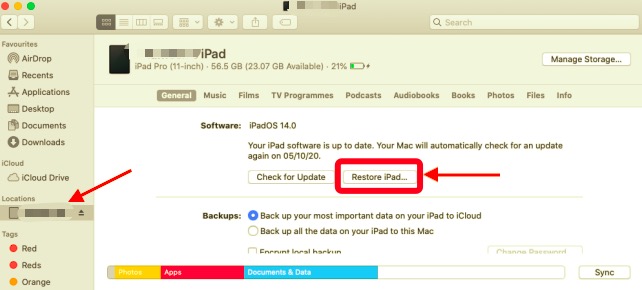
This is one of the most straightforward ways to reset passcode on iPad. However, it can only work when you have already linked the device to iTunes before the lock operation.
Part 2: How to Reset Passcode on iPad Using iCloud.com
Like iTunes, the iCloud account also requires initial synchronization since the application must detect the device in the unlock process. If this is not the case, then a third-party solution should be your next option, discussed in Part 4 of this article. The advantage of an iCloud account is that you have to be physically present with the Pad to unlock it. Your Apple ID details and an internet connection are enough.
Moreover, it's an advantage to second-hand owners. You may not be at liberty of the original owner to show you how to reset passcode on the iPad.
Oto procedura:
- Using a reliable browser, open the iCloud Zbieranie danych analitycznych o stronach internetowych lub aplikacjach (aby sprawdzić, czy strona działa poprawnie lub które sekcje strony są najbardziej atrakcyjne dla odwiedzających).
- Sign in the Apple ID details and login
- Kliknij Wszystkie urządzenia a select the locked iPad
- Kliknij Wymaż iPad and re-enter the asked logins
- Potwierdź szczegóły
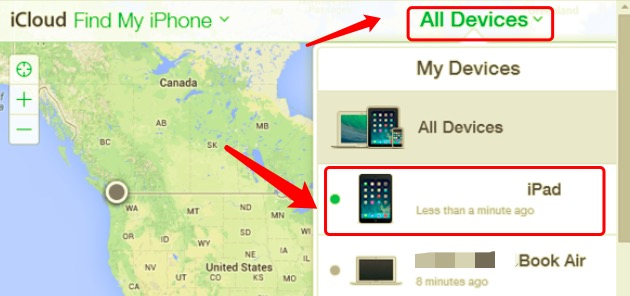
Wait for some minutes and switch n the iPad; you'll notice that it lacks all iPad data, including the password. You can reset it and set the backup and enjoy its usage.
Part 3: How to Reset Passcode on iPad Using Recovery Mode
When you have no internet connection or have no idea of reliable software to help you. With this method, you can reset your iPad without an iCloud password. Use the device to run the unlock function. Set the iPad to recovery mode, which also enables you to set it to factory settings. The procedure depends on your iPad since you can use the home button or the volume buttons for the iPad that lacks the home button.
Oto procedura:
- Switch off the iPad
- For an iPad with a home button, long-press the home button until you get the Apple logo
- Click on it and two menus appear, Update iPad and Restore iPad, click Przywracać password
- Confirm and wait for the results within seconds
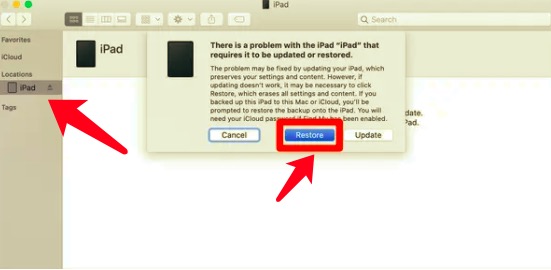
For the iPad with no home button, use the volume up and down, press them simultaneously until you get the Apple Logo, and continue with the third procedure above until you can have the iPad with no password.
Part 4: How to Reset Passcode on iPad Using iOS Unlocker
Odblokowywanie iOS is your to-go application when looking for how to reset passcode on iPad. This is software with no conditions. All you need is to install it on your PC and use its procedure to have full control of your iPad. Moreover, it gives you full control of The iOS device.
The three modes supported on the interface include Wipe Passcode. Remove Apple ID and Screen Time management. Its unique advantage is that it can erase the Old Apple ID, which is a plus to second-hand owners who are at liberty of the original owner now that they have the exact details.
Darmowe pobieranie Darmowe pobieranie
Here is the procedure to get off the iPass Passcode:
- Download, install and open iOS Unlocker.
- Kliknij Wyczyść kod dostępu
- Using a USB cable, connect the locked iPad to the computer, click Rozpocznij and admit the trust conditions.
- Potwierdź szczegóły urządzenia i kliknij Rozpocznij przycisk
- Within minutes, the firmware download package will be installed, and click the unlock button and key in "0000" potwierdzać.
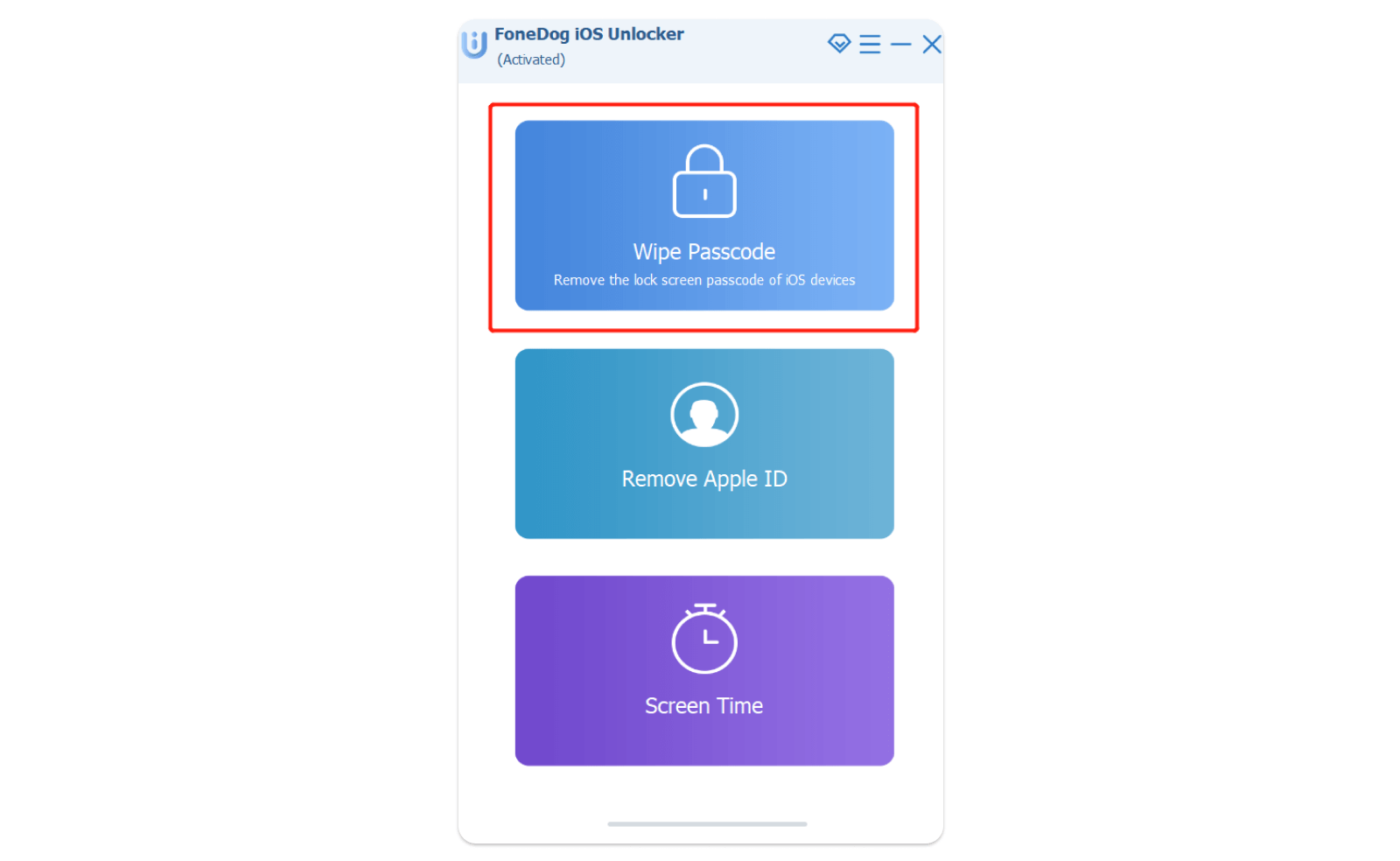
What a pretty simple toolkit with no condition to give you full control of your iPad.
Ludzie również czytająŁatwy przewodnik dotyczący przywracania ustawień fabrycznych iPhone'a bez kodu dostępuDoes a Hard Reset Erase Everything on iPhone?
Podsumowanie
You now have several ways that you can use as one of the ways how to reset passcode on iPad. The choice of the method depends not only on the use but the ability to meet the conditions.
Although we have only looked at Odblokowywanie iOS, several other applications also support the unlock functions you need to explore. It's evident that you are more advantaged as an Apple user if you link your devices to iTunes and iCloud. You never know when you'll desperately need the services.
Napisane przez Rosie
Ostatnia aktualizacja: 2022-04-14