


Video Downloader allows you to download videos or audios from YouTube, Facebook, Instagram, Vimeo, and more sites for offline viewing. Let's read and learn how to easily download, register and use this software.
Przewodnik po zawartości Part 1. Download and Install Video DownloaderPart 2. How to Register Video DownloaderPart 3. How to Use Video Downloader Step By StepMasz więcej pytań? Skontaktuj się z nami teraz
Part 1. Download and Install Video Downloader
Krok 1. Ściągnij Video Downloader on your computer by clicking the download link below.
- Dla użytkowników Windows: https://www.ios-unlocker.com/download/video-downloader.exe
- Dla użytkowników komputerów Mac: https://www.ios-unlocker.com/download/video-downloader.pkg
Darmowe pobieranie Darmowe pobieranie
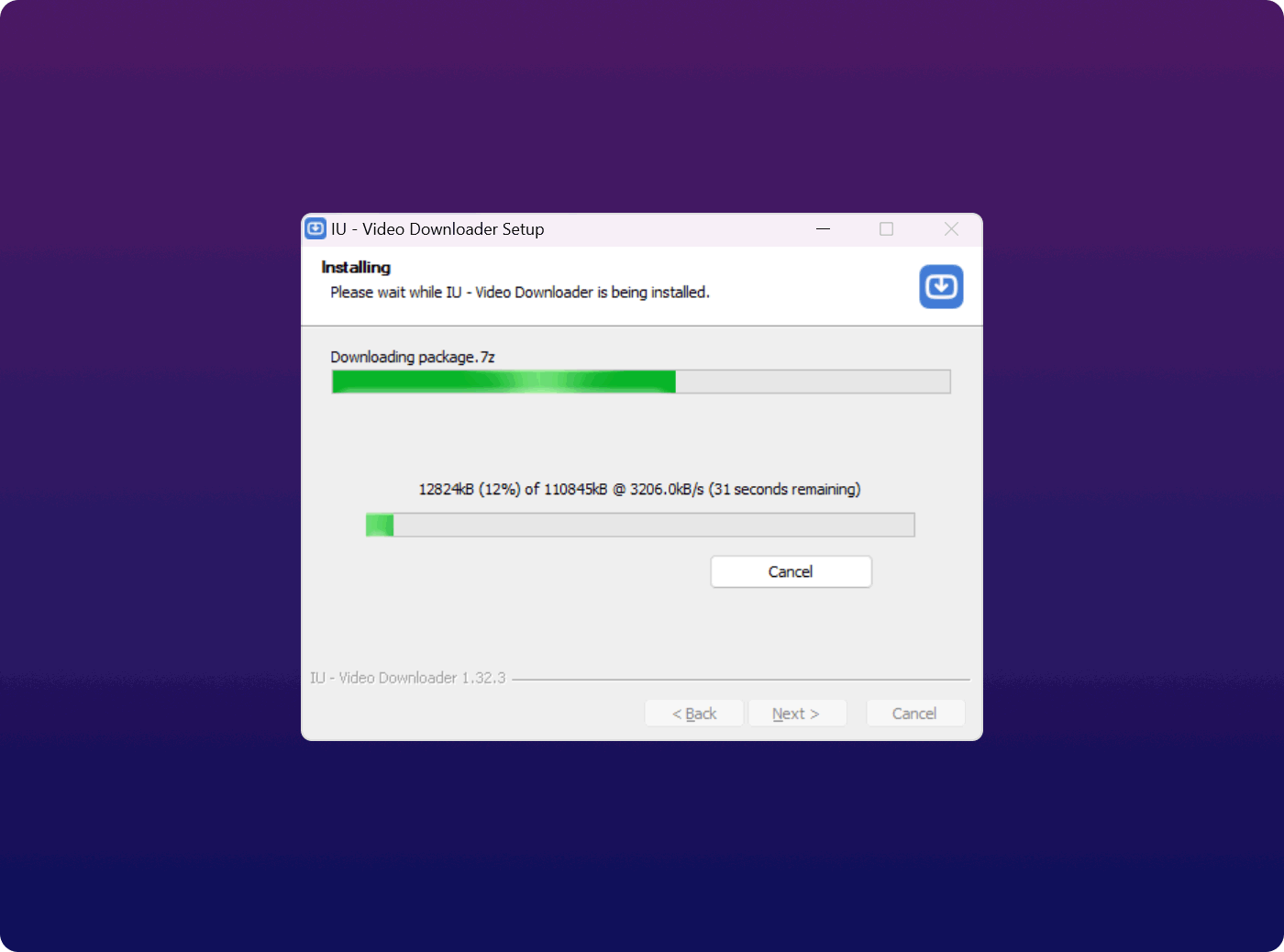
Step 2. When the downloading process is finished, simply open the download package. Then, follow the instructions and start the installation.
Step 3. After installing Video Downloader, run it on your computer.
Part 2. How to Register Video Downloader
Video Downloader provides both a free trial version and a registered version for all users to experience all functions.
Jaka jest różnica między wersją próbną a wersją zarejestrowaną?
All users can use Video Downloader for free within 15 days. The free trial only allows users to download 10 UHD full videos in 2K, 4K, and 8K. If you want to remove the limitations, you can purchase a license from our website and then register the software to obtain the full version.
Steps to register Video Downloader
Your license key will be sent to your email inbox once you have purchased a license from our website. Then, you can register Video Downloader by following the steps below:
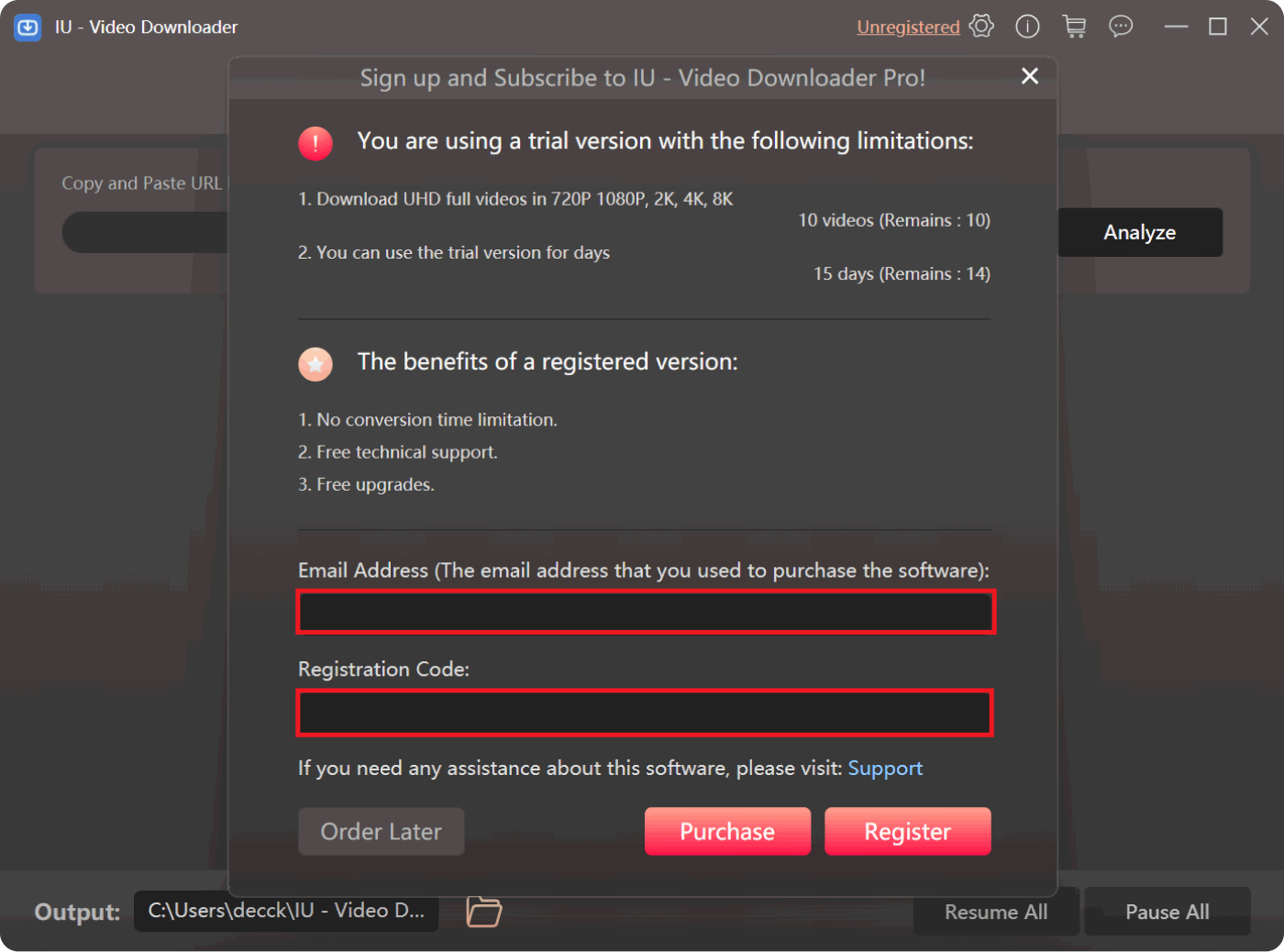
- Step 1. Launch Video Downloader and click "Unregistered".
- Krok 2. Wypełnij swoje Adres e-mail (używane do zakupu licencji) i Klucz licencyjny(i.e. Registration Code). Simply go to your email inbox and copy your license key to the software.
- Krok 3. Kliknij „Zarejestruj się" to unlock the full version.
Uwaga: If you want to use the full version but haven't purchased a license, please press "Zakup" to buy a license first.
Rejestracja może się nie powieść z kilku powodów:
- Przypadkowe dodanie spacji przed lub po kodzie rejestracyjnym lub adresie e-mail.
- Zakupiono niewłaściwą wersję licencji. Na przykład użytkownicy systemu Windows kupili wersję na Maca zamiast na Windowsa.
- Podano nieprawidłowy adres e-mail.
Jeżeli zakupiłeś niewłaściwą wersję lub nie możesz dowiedzieć się, dlaczego rejestracja się nie powiodła, skontaktuj się z naszym centrum pomocy technicznej za pośrednictwem wsparcie@ios-unlocker.com.
Part 3. How to Use Video Downloader Step By Step
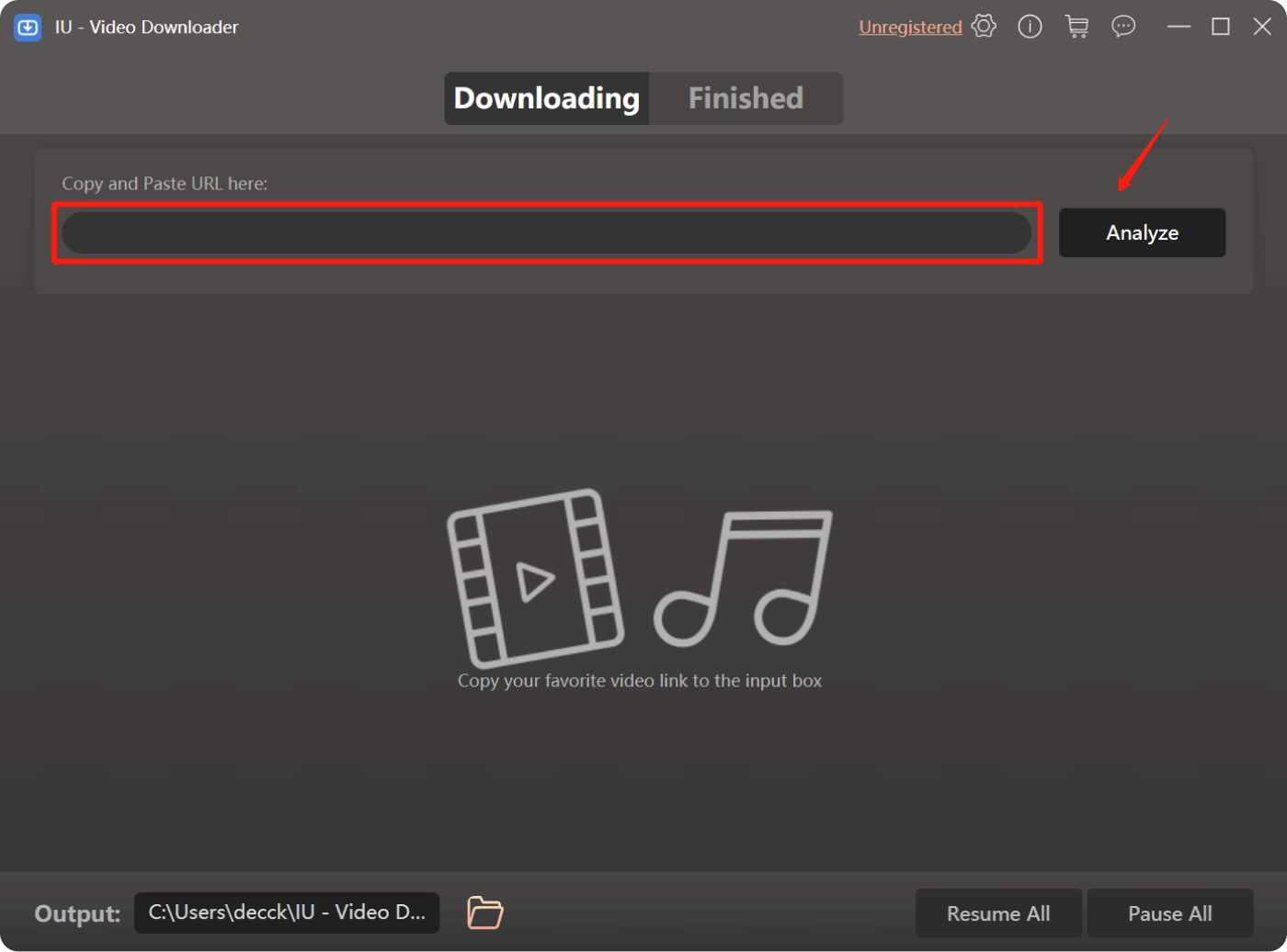
Krok 1. Skopiuj adres URL wideo
Copy the Video URL to the bar and click the Analizować button. You can select an output folder if you want before downloading the video.
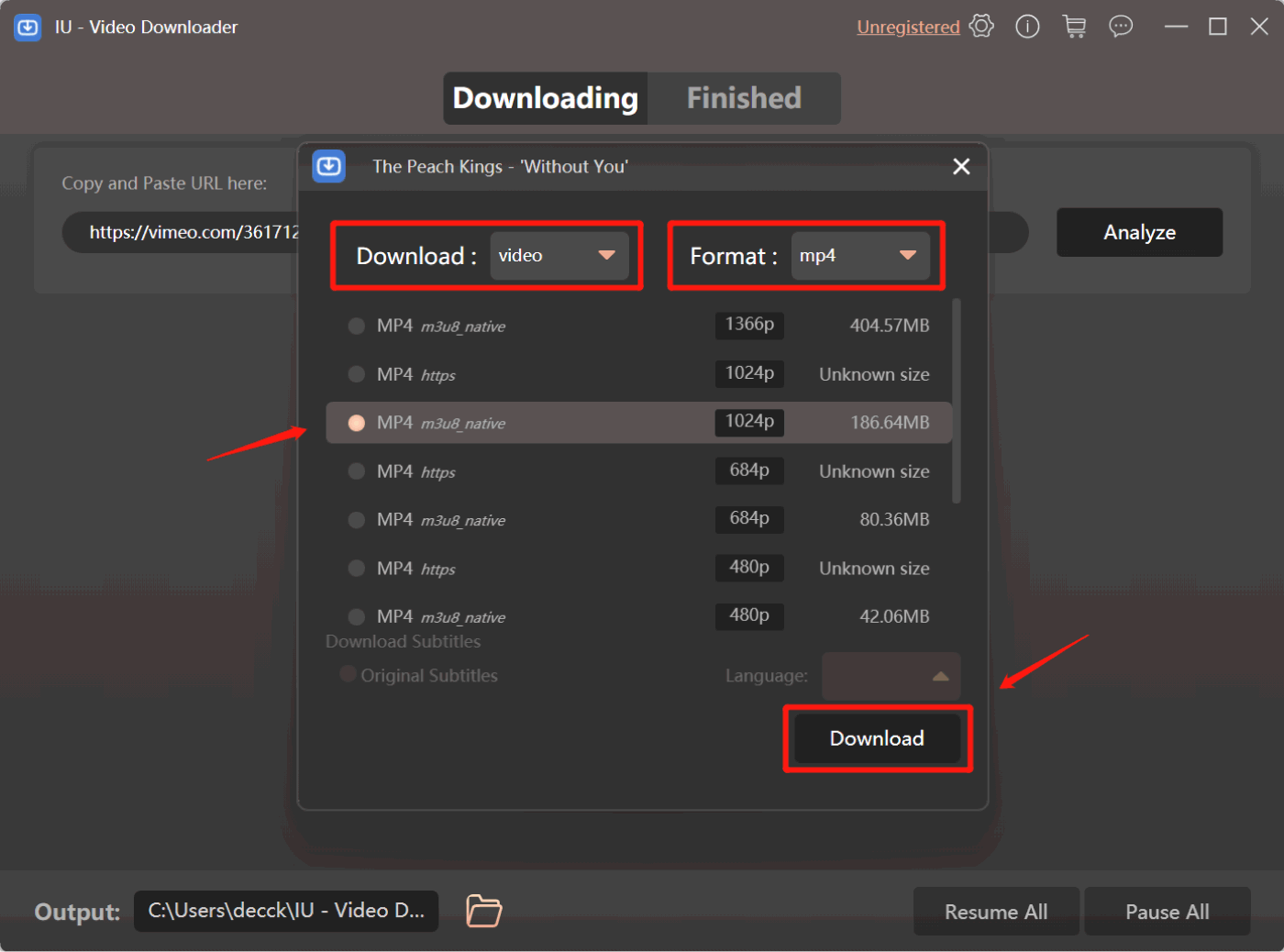
Krok 2. Wybierz Format wyjściowy
Select your desired output format, including different video or audio formats. Press the one you like and then click "Do pobrania".
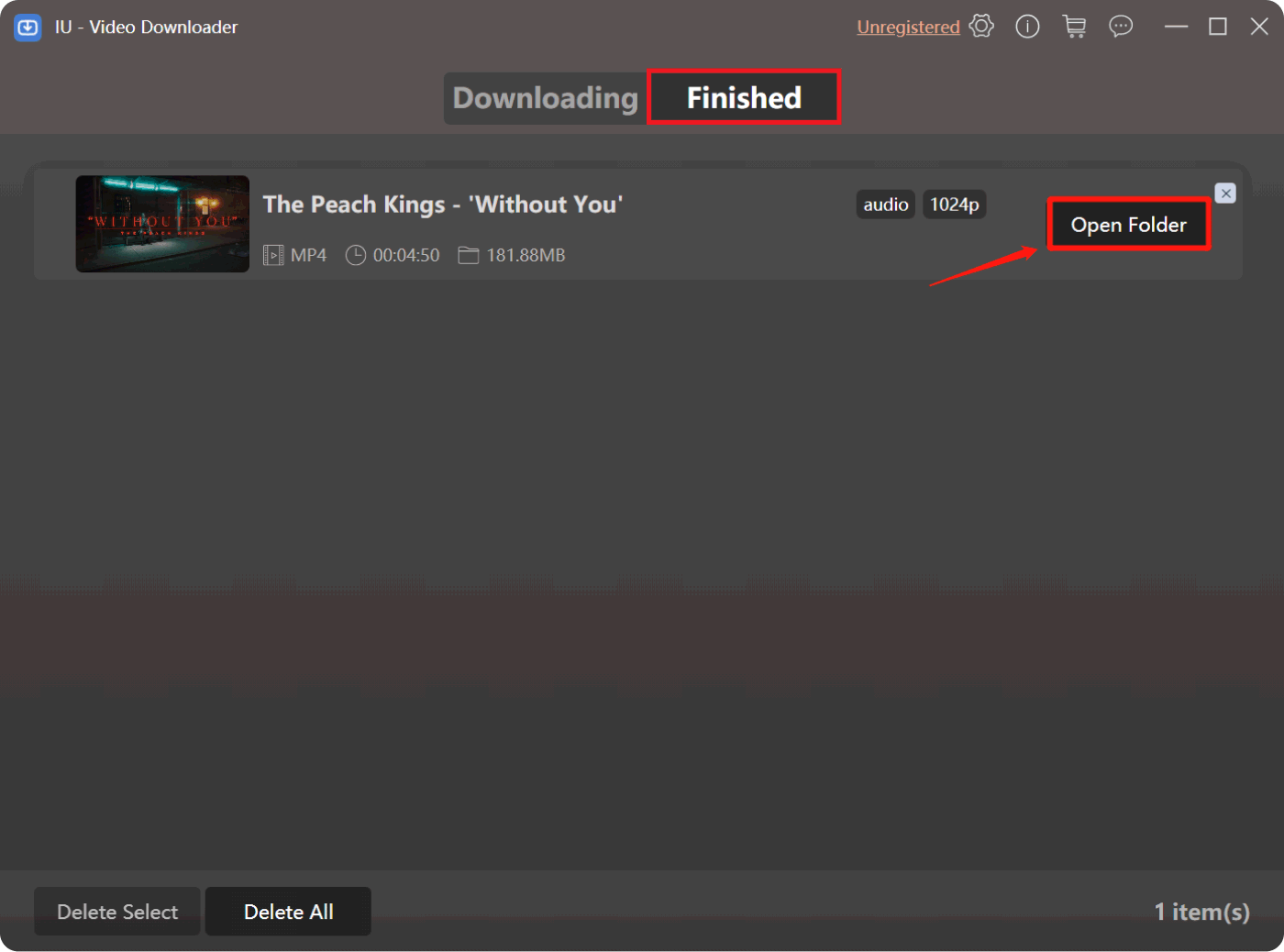
Step 3. Download Process Complete
Wait for the download process to finish and go click "Otwórz folder„pod”Gotowy" to enjoy the downloaded video offline.
Masz więcej pytań? Skontaktuj się z nami teraz
Obiecujemy zapewnić najlepsze rozwiązania dla wszystkich użytkowników. W razie dodatkowych pytań prosimy o kontakt z naszym zespołem wsparcia. wsparcie@ios-unlocker.comNasz Zespół Wsparcia odpowie Ci w ciągu 48 godzin od sprawdzenia Twojej poczty e-mail.
Napisane przez Rosie
Ostatnia aktualizacja: 2023-05-10