


Every phone allows you to lock your screen, so you won’t make accidental taps on the screen while it is in your pocket. In addition, you can put a lock screen passcode so that no one can open and see the important information on your phone.
But what if your Apple phone keeps going to lock screen ? What will you do? This will hamper your ability to use the phone in case you really need to make a call or send an email. Thus, if your phone goes to lock screen every now and then without your intervention, you may want to read this article.
This guide will teach you how to fix the issues by odblokowanie twojego iPhone'a. We will talk about the best fixes for the scenario so you don’t have to ever deal with it again.
Part #1: Reasons for The Issue Apple Phone Keeps Going to Lock Screen Part #2: How to Fix the IssuePart #3: Top Way to Fix Apple Phone Keeps Going to Lock Screen
Part #1: Reasons for The Issue Apple Phone Keeps Going to Lock Screen
Like any other problem out there, there are reasons why your iPhone keeps reverting back to the lock screen mode. First, there may be malware inside the phone itself. If you have visited a dubious or shady site, you may have caught it from a particular page or file within that site.
Sometimes, if magnets are near, the Apple iPhone will think that it’s contained within a case that’s closed. As such, it will revert back to the lock screen mode every now and then. In addition, if the feature called Auto-Lock is set to a short period of time, then your iPhone may keep going to its mode for a locked screen.
Part #2: How to Fix the Issue
Here are the top fixes you can implement to fix the problem that your Phone keeps going to lock screen every now even if your iPhone home button is not working.
Solution #01: Restart the iPhone
The first solution you can do is to simply restart the iPhone you’re using. To do that, you have to close the iPhone first. Wait for about five minutes before opening it back again. Check to see whether the problem persists. If it does, move to the next solution.
Solution #02: Update iOS to Latest Version
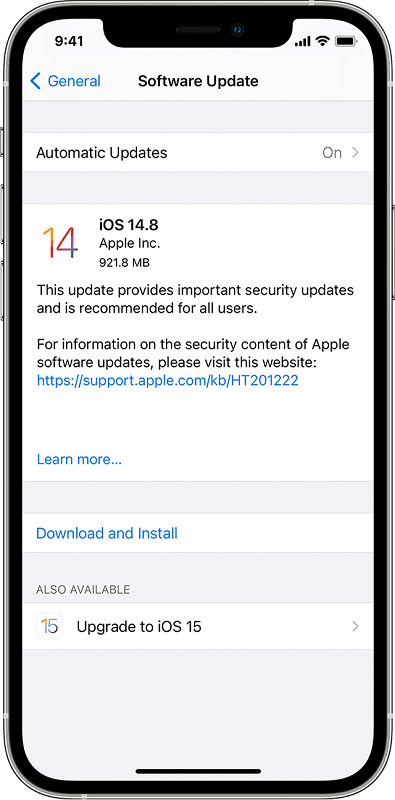
The next solution you can implement is to update the iPhone to the latest version of its operating system. Sometimes, there are bugs within the current operating system you’re using which may be fixed by updating it to the latest version. You can do this by following the steps below:
- Odwiedź Ustawienia aplikacja na Twoim iPhonie.
- Następnie kliknij Ogólne i naciśnij Aktualizacja oprogramowania.
- Choose the particular software update version you wish to be installed on your iPhone.
- Naciśnij zainstaluj teraz button. Or, you can press Pobierz i zainstaluj.
- Wpisz swój Kod dostępu and then tap the label stating zainstaluj teraz.
Solution #03: Modify Auto-Lock Feature Settings
Another thing for phone keeps going to lock screen is to modify the time interval settings of your Auto-Lock Feature. This Auto-Lock feature enables your iPhone to lock itself when not in use for a certain period of time. It helps to avoid accidental tapping while your phone is in your pocket. In addition, it helps to prevent iPhone screen burn.
Here’s how to modify your Auto-Lock feature settings:
- Odwiedź Ustawienia aplikacja na Twoim iPhonie.
- Naciśnij przycisk Wyświetlacz i jasność.
- Scroll towards the bottom until you find Auto-Lock. Tap this setting.
- Adjust settings to a longer time interval.
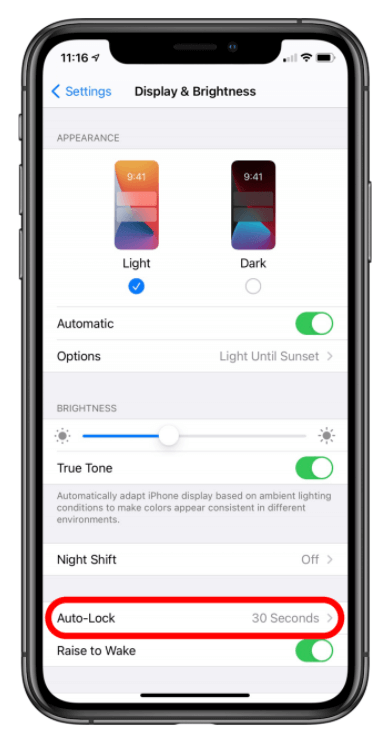
It is important to note that when you cannot modify the Auto-Lock feature, you must deactivate Low Power Mode first. That’s because they said Low Power Mode will set the Auto-Lock feature automatically to thirty seconds.
Solution #04: Make Sure Your Date & Time Settings Are Correct
Some consumers have reported that they fixed the issue by ensuring that the date and time on the iPhone are correct. There’s a simple fix for this. You simply have to set the date and time to set automatically. Here’s how to do that:
- Odwiedź Ustawienia aplikacja na iPhone'a.
- Naciśnij przycisk Ogólne.
- Now, you should choose Data i czas.
- After that, toggle on or activate the option that says “Ustaw automatycznie ".
Solution #05: Change Your iPhone Case
iPhones and iPads have built-in detectors allowing them to enter Lock Screen mode when inside the case. There may be an issue with your iPhone case causing the problem of entering Lock Screen mode every now and then without human intervention.
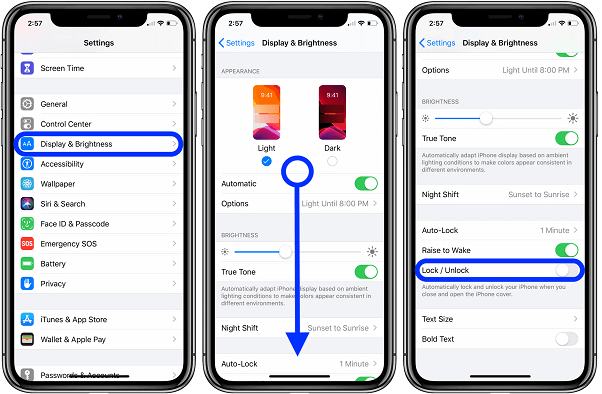
One thing you can do is to remove the iPhone from its case first. These include smart covers for iPhones. If your phone keeps going to lock screen without human intervention, you can try changing the Lock/ Unlock settings when your iPhone is within a closed case. To do that, follow the steps below:
- Odwiedź Ustawienia na iPhone.
- Iść do Wyświetlacz i jasność.
- Now, deactivate the setting that says Lock/ Unlock.
Solution #06: Reset iPhone Settings
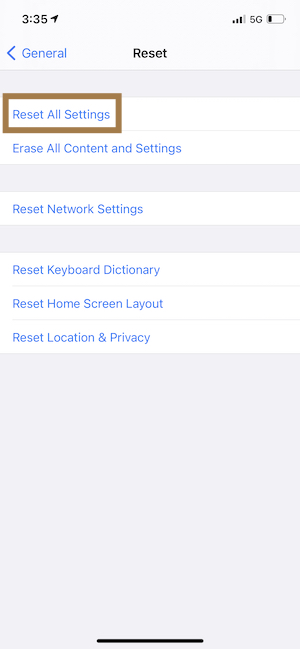
Resetting the settings will usunąć the saved passwords within your Wi-Fi. To reset your settings without deleting the data within the iPhone, you can follow the steps below:
- Odwiedź Ustawienia a następnie dotknij Ogólne.
- Kliknij opcję, która mówi Zresetuj.
- Naciśnij przycisk Resetuj wszystkie ustawienia.
- Confirm that you really want to reset your iPhone’s settings.
Part #3: Top Way to Fix Apple Phone Keeps Going to Lock Screen
The best way to fix this issue is to use Odblokowywanie iOS. You can use it to remove the passcode from your iPhone. Apart from that, this tool helps to remove screen time passcode, Apple ID, and its related iCloud account.
Darmowe pobieranie Darmowe pobieranie
Before we give you the steps, you must take note of the following:
- When removing the passcode, cała kolekcja iPhone data will be wymazany.
- Removing the passcode will update the iOS to Najnowsza wersja.
- The iPhone should be połączony to the computer all throughout the deletion process.
Oto jak z niego korzystać:
- First, launch iOS Unlocker and choose Wyczyść kod dostępu.
- Następnie naciśnij przycisk Rozpocznij. After that, connect the iPhone to the computer using a USB cable.
- On the iPhone, make sure you press the Zaufaj przycisk.
- Make sure the device information presented on the interface of FoneDog is correct. To confirm it, press Rozpocznij.
- The firmware package will be downloaded, wait for it to finish. After that, press the button for Odblokować i wpisz „0000 ” without the quotes in it. After this, the lock screen passcode will be removed from the iPhone.

Ludzie również czytają6 Proven Tricks on How to Bypass Android Lock Screen4 Tips on How to Fix iPhone Stuck on Charging Screen
As you can see, iOS Unlocker is a great way to fix the issue, especially if your iPhone keeps reverting back to the Lock Screen mode without intervention. You can grab it from ios-unlocker.com today!
Napisane przez Rosie
Ostatnia aktualizacja: 2022-03-01