


Updating your Apple ID is supposed to be an easy task. However, this basic setting has become a nightmare for those who were stuck on this web. This issue has reached the Apple community and has later on released a few workarounds to fix the problem.
When the iOS 15 was released, one of the few notable issues is the update Apple ID settings stuck and until today, many are still finding their way out.
If you are one of those affected, we have shortlisted the methods we think are better and more efficient. Find out below.
Part 1. 4 Ways to Fix Update Apple ID Settings StuckPart 2. How to Remove Apple ID with EaseCzęść 3. streszczenie
Part 1. 4 Ways to Fix Update Apple ID Settings Stuck
It all started by entering your Apple ID and password and the loading icon goes on and on forever. Others had it by entering iCloud and got stuck. Sometimes you even meet the issue that your Apple ID suddenly greyed out. It seemed that there was a glitch with the Apple ID settings and most of those who experienced it just updated to the recently released iOS 17.
And yes, this issue is already resolved using various troubleshooting measures. However, we would like to trim down your agony and head over to the 4 effective and easy methods to get rid of the updated Apple ID settings stuck problem.
Solution 1. Use A Different Wi-Fi Network
If doing a force restart didn’t work out, you should also consider your network connection. Apart from the Apple ID settings itself, there might be an interruption with your wireless network.
You can possibly use a different Wi-Fi network to test if you are able to sign in to your Apple ID or not. If you are stuck on updating your apple ID settings on both networks, then you must proceed with the rest of the troubleshooting steps.
Solution 2. Force Restart your iOS Device
A force restart is different from a simple restart or reboot. When you force restart an iOS device, it cuts off the power and all the software processes and reboots with a clean start. The process to force restart an iPhone varies on the model.
- Jeśli używasz iPhone 8 and later models, you quickly hold and release the Volume Up button. Do the same with the Volume Down button. Hold the Side button until the Apple logo appears.
- Dla litu szacuje się iPhone 7 i 7 Plus, tap and hold the Side and Volume Down buttons until the Apple logo comes on your screen
- I dla earlier iPhones, press and hold the Home and the Side or Top buttons until the Apple logo appears on our screen
After you have successfully performed a force restart, check if you are now able to update your Apple ID settings. Otherwise, you may continue to troubleshoot below.
Solution 3. Restore iOS Device to Factory Settings
This next method is quite harsh and upfront but restoring your iPhone to its factory settings can definitely fix the update Apple ID settings stuck issue. Doing a factory restore will delete your data including all the information you have saved and settings you have customized.
But, you can always restore your backup right after the factory reset. Follow these steps on how to completely perform a factory reset on your iPhone:
- Premiera Finder or iTunes na twoim Windowsie lub Macu
- Connect your iPhone via USB cable
- Find and click on your device in the Finder or iTunes window
- Wybierz Przywracanie iPhone. If necessary sign out from Find My before hitting the Restore button
- Kliknij Przywracać to confirm the request
- Wait until the process is complete
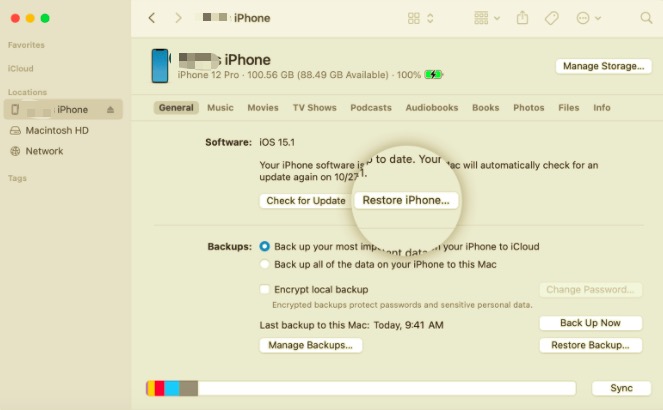
After your device has been reset to its factory defaults, you can now set it up as a new iPhone or you can restore your iTunes or iCloud backup.
Solution 4. Use an iOS System Repair
If the issue is getting more complex, you need an advanced solution to resolve it quickly. Try resolving the iOS system itself so you can get down to the root cause. There are plenty of software solutions out there that can assist you in repairing the iOS software.
One of the crowd favorites is Odzyskiwanie systemu iOS FoneDog. This software has an efficient method to fix various iOS problems including the update Apple ID settings stuck. Just go ahead and download this software and try it for free.
Part 2. How to Remove Apple ID with Ease
The update Apple ID settings stuck issue is fixable. But what if you got a used iPhone and the previous owner forgot to remove the Apple ID and iCloud account? It can be frustrating since you’ve paid an incredible amount just to get this unit yet you are unable to use it still. But here is a great way for you to bypass your Apple ID password.
Nie martw się, Odblokowywanie iOS is your solution. This software provides a Remove Apple ID feature that can quickly get rid of the previous account registered on the iPhone.
Darmowe pobieranie Darmowe pobieranie
All you have to do is run this software and do the following:
- Uruchom iOS Unlocker
- Kliknij Usuń Apple ID
- Connect the iPhone via USB cable
- Wybierz Rozpocznij przycisk
- Jeśli Find My iPhone feature is turned off, iOS Unlocker will quickly proceed with the Apple ID removal. Otherwise, you need to reset all the settings on the iPhone. Go to Settings, then tap General. Choose Reset and scroll to Reset All Settings. You will be asked to provide the passcode and confirm.
- Włącz Uwierzytelnianie dwuskładnikowe in Settings, Apple ID, and then select Password & Security
- Wchodzę 0000 i potwierdź
- Verify the device make and model and click Rozpocznij
- Wait for the firmware package to be fully downloaded and installed and the Apple ID will be removed shortly
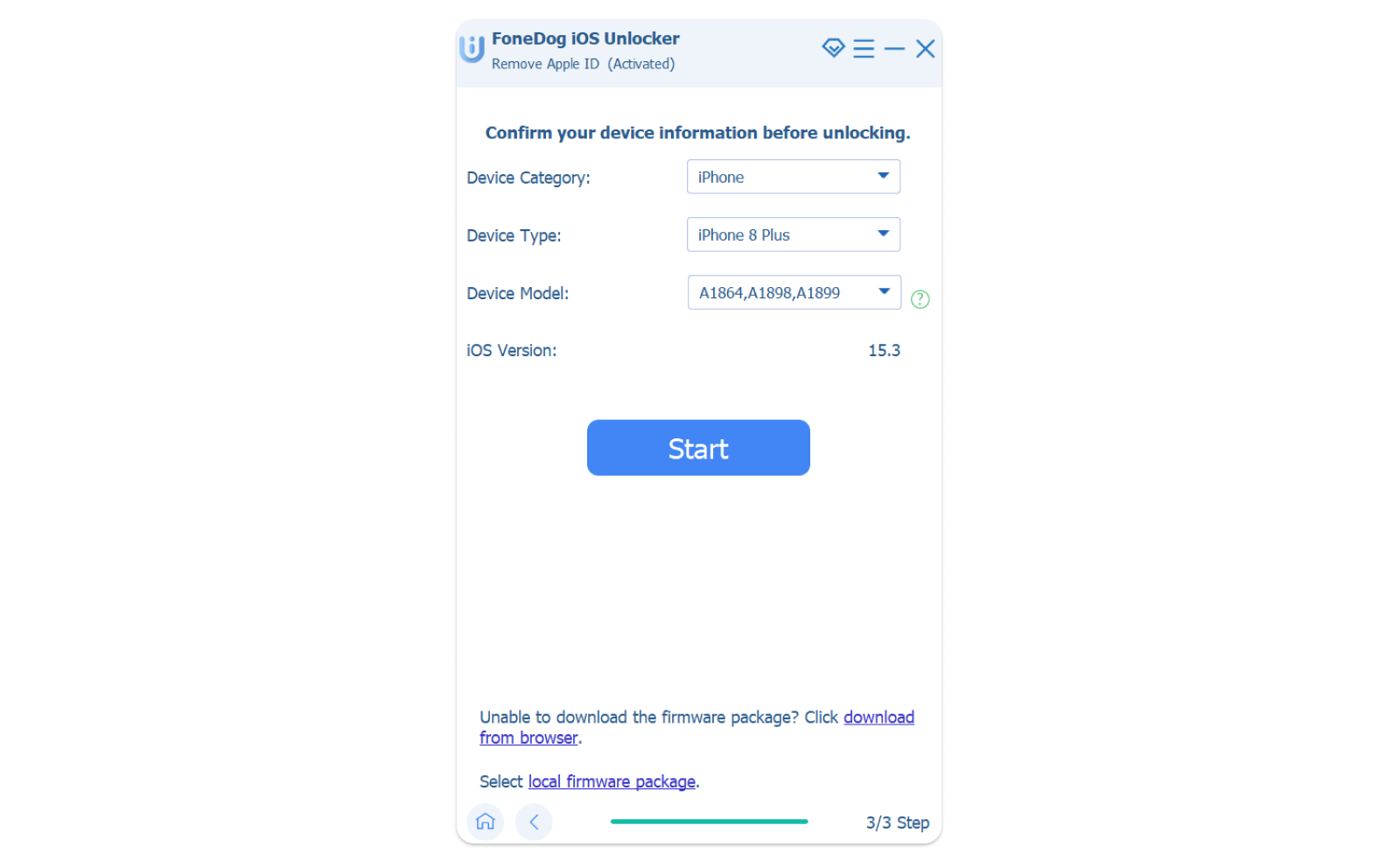
The best part in using iOS Unlocker is that the steps are pretty straightforward and you only need to follow the onscreen instructions.
Ludzie również czytająJak aktywować iPhone'a bez Apple ID: Poradnik dla Ciebie3 Ways to Factory Reset iPad Without Apple ID
Część 3. streszczenie
You should be able to update your Apple ID settings by now if you carefully followed the various troubleshooting methods we shared.
Ponieważ Update Apple ID settings stuck is a common issue, rest assured that there is a working solution to this. Just choose what method you think is best for you.
And in the event that you need to remove the Apple ID or the iCloud account on the iOS device, use Odblokowywanie iOS. This software has a user-friendly solution to a complex and challenging situation.
Napisane przez Rosie
Ostatnia aktualizacja: 2022-01-27