


To protect iTunes backups of your iPhone, iPad, or iPod touch, you can use set a password to encrypt and protect it. Many people may be confused between iTunes backup password and iTunes password.
This post will show everything about iTunes backup passwords. In addition, if you forget your iTunes backup password, you can get some tips here as well.
You may be confused between the iTunes password and iTunes backup password. Keep reading and distinguish between the two passwords.
Co to jest hasło zapasowe iTunes?
It is a password to protect and encrypt backup files of your iPhone, iPad or iPod in iTunes.
Przewodnik po zawartości Part #1: The Difference between iTunes Password and iTunes Backup PasswordPart #2: What Data and Information Can You Encrypt in iTunes?Part #3: iTunes Backup Password: Encrypt Your Backup in iTunes
Part #1: The Difference between iTunes Password and iTunes Backup Password
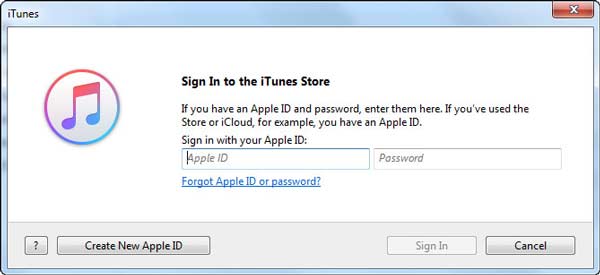
iTunes password: It is a password when you need to sign in to iTunes Store. In other words, the iTunes password equals the Apple ID password. iTunes password is along with the Apple ID account. If you forgot your iTunes password, you can change your Apple ID.
iTunes encrypted backup password: Also named as iTunes backup password, it is used when you want to protect iTunes backups of your iPhone, iPad, or iPod. When the password is created, the feature of encrypted backup will automatically lock and encode your files in iTunes. Compared with the iTunes password, no account is needed for an iTunes backup password.
Możesz czytać dalej i dowiedzieć się więcej o szyfrowanej kopii zapasowej iTunes i sposobie ustawiania szyfrowanego hasła iTunes.
Part #2: What Data and Information Can You Encrypt in iTunes?
You can choose to encrypt backup in iTunes to lock and encode your data, and this feature can do more than other backups (those unencrypted ones). Besides contacts, videos, music, and other regular data, it can back up other information:
- Ustawienie Wi-Fi
- Wszystkie zapisane hasła
- Dane dotyczące zdrowia
- Historia strony internetowej
iTunes nie szyfruje twoich kopii zapasowych automatycznie. Aby zaszyfrować kopię zapasową w iTunes po raz pierwszy, musisz włączyć opcję szyfrowania kopii zapasowej chronionej hasłem. Następnie iTunes domyślnie tworzy szyfrowane kopie zapasowe dla tego urządzenia.
Zwróć uwagę:
No Way to recover your information or turn off Encrypt Backup when you forget or lose the password.
Part #3: iTunes Backup Password: Encrypt Your Backup in iTunes
Here we will show you how to set an iTunes backup password for you to encrypt your backup in iTunes. Also, we share some tips for turning off such a feature if you want to unencrypt the backup.
How to create an encrypted backup password in iTunes
iTunes won't automatically set an encryption feature. If you want to encrypt a backup of your iPhone, iPad, or iPod touch for the first time, you need to turn on the feature by creating iTunes backup password. After that, iTunes will automatically help you make encrypted backups.
Step #1: Download and launch the latest iTunes.
Step #2: Plug your iOS device into a computer with a USB cable, and then iTunes will detect it. Click the device icon in the top-left corner to enter the "Podsumowanie„okno.
Step #3: From the main interface, you will not miss the "Zaszyfruj kopię zapasową iPhone'a / iPada / iPoda" opcja.
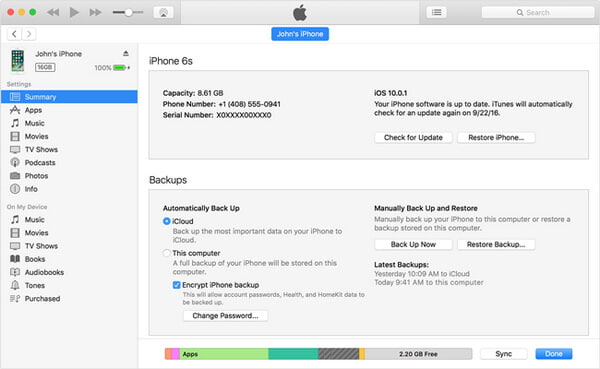
Step #4: iTunes will prompt you to create an iTunes backup password. Make an easy-to-remember password, or it will be difficult to recover the iTunes backup password and then get access to iTunes backups.
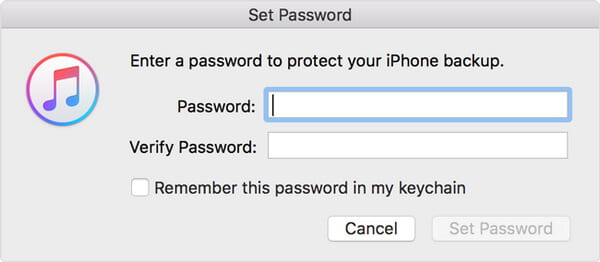
Step #5: Confirm the password. Then iTunes will overwrite your previous backups and make an encrypted backup afterward.
Sprawdź, czy uda Ci się zaszyfrować kopię zapasową
Wybierz "Edytuj" (dla Windowsa) lub "iTunes" (dla Maca) > „Preferencje„>”Urządzenie", and then a lock icon appearing right of your device name, as well as the date and time of iTunes backup.
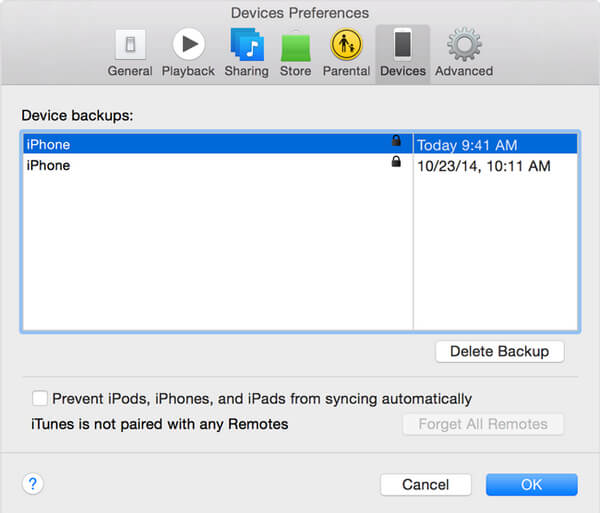
Wyłącz szyfrowanie kopii zapasowej iTunes
Aby wyłączyć funkcję szyfrowania iTunes, musisz wprowadzić hasło i odznaczyć pole zaszyfrowanej kopii zapasowej.
The iTunes backup password is a must-have. If you don't remember it, you have to recover your iTunes backup password, make an iCloud backup instead, or reset your iPhone/iPad/iPod to factory settings.
What if you lose your iTunes backup password?
FoneDog - odzyskiwanie danych iOS to recover data from iOS devices, iTunes, and iCloud.
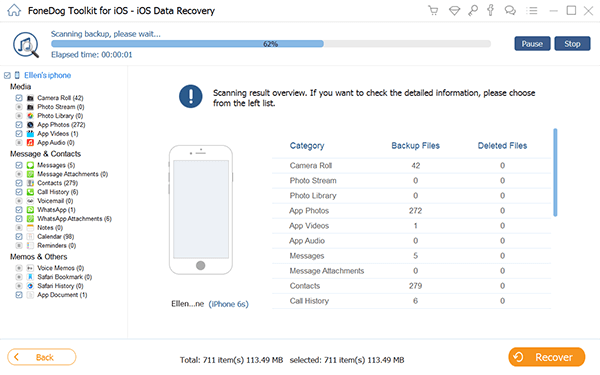
An iTunes backup password is necessary when you want to get access to an encrypted backup. If you lose the iTunes backup password:
Sugestie Apple dotyczące odzyskiwania hasła do kopii zapasowej iTunes
Nie możesz przywrócić zaszyfrowanej kopii zapasowej bez jej hasła. Ale nie martw się. Na urządzeniu z systemem iOS 11 lub nowszym możesz utworzyć nową zaszyfrowaną kopię zapasową swojego urządzenia w iTunes, resetując hasło.
Step #1: On your iOS device, go to Ustawienia > Ogólne > Zresetuj.
Step #2: Tap Resetuj wszystkie ustawienia i wprowadź swój kod iOS.
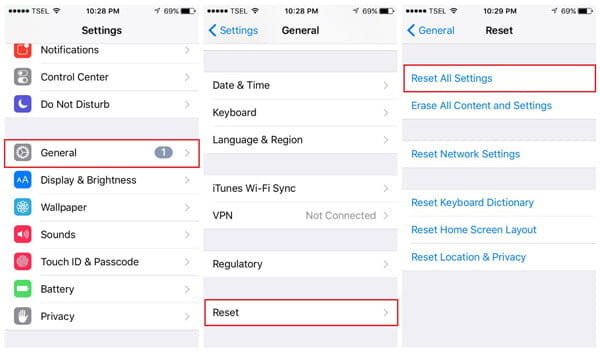
Step #3: Follow the steps to reset your settings. This won't affect your user data or passwords, but it will reset settings, including your old encrypted backup password.
Step #4: Connect your iOS device to iTunes again and make a new encrypted backup.
Poprzednie zaszyfrowane kopie zapasowe nie są ponownie dostępne, ale można wykonać kopię zapasową bieżących danych urządzenia za pomocą iTunes i ustawić nowe hasło kopii zapasowej iTunes.
For devices running iOS 10 or earlier, you can't reset the password. Maybe you can get backup the old iTunes backup password using the following hints:
- Siebie.
- Jeśli ktoś inny skonfigurował Twoje urządzenie, poproś go o hasło do iTunes.
- Zamiast tego użyj kopii zapasowej iCloud. Brak kopii zapasowej iCloud, zrób nową.
- Spróbuj użyć starszej kopii zapasowej iTunes.
Inne wskazówki dotyczące odzyskiwania lub resetowania hasła kopii zapasowej iTunes
Wypróbuj znane hasło
Popularne hasła obejmują:
- Identyfikator Apple ID
- Kod dostępu do iPhone'a lub iPada
- Główne hasło e-mail
- Hasło do konta użytkownika komputera
- Proste hasła, takie jak 0000 lub 1234
Użyj Keychain Access na Macu
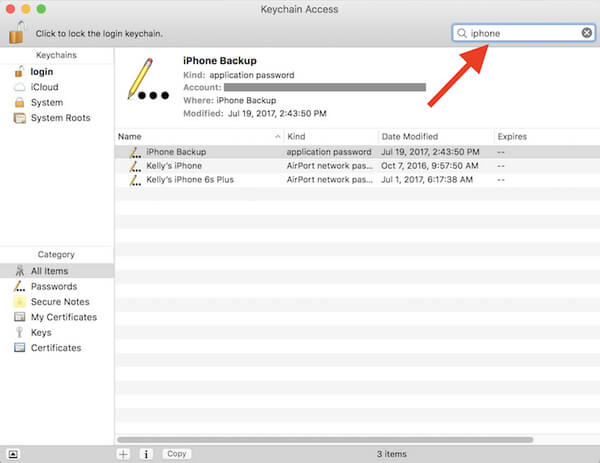
Maybe you save your iTunes backup password to Keychain if you are a Mac. Navigate to Keychain Access and find out if you can get the iTunes backup password.
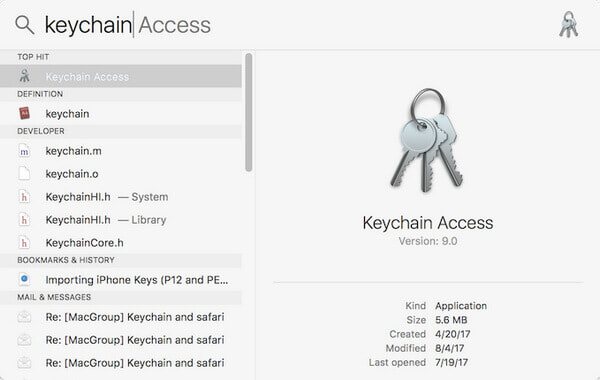
Step #1: On your Mac, open Zastosowanie > Użytkowe > Dostęp do pęku kluczy. Or you can search Keychain from the spotlight.
Step #2: Click on Wszystkie przedmioty z "Kategorie ".
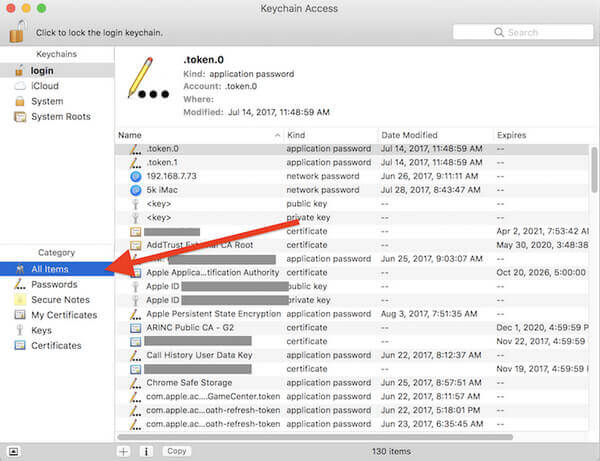
Step #3: In the upper right search field enter "iPhone" and look for an "Hasło aplikacji" named "iPhone kopii zapasowych". If you see it, double-click it.
Step #4: A new window will open, tick the checkbox of "Pokaż hasło", enter your keychain password, and click the "Dopuszczać".
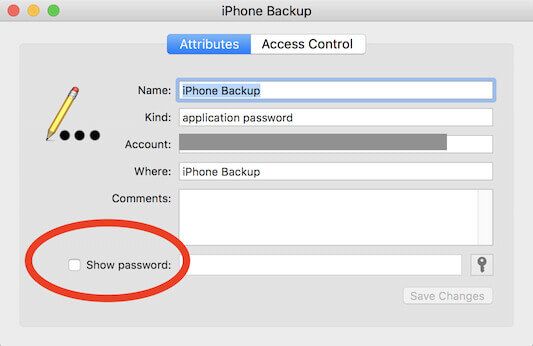
Then you will see the iTunes Backup password for your iPhone in the pop-up window.
Wypróbuj niektóre narzędzia do odzyskiwania hasła z kopii zapasowej iTunes
If all the above methods can't help you out, then you have no choice but to try some iTunes backup password recovery tools, which may help you access iTunes backup.
In this post, we let you know what iTunes backup password is and offer some tips if you forget your iTunes backup password. If you have something to say, welcome to tell us.
Napisane przez Rosie
Ostatnia aktualizacja: 2023-07-11