


Mobile Device Management controls on your school iDevices is an option to monitor and put employees accountable for their deeds. What happens when you no longer need the service, and you must delete device management on school iPad. That's the point you need a digital solution designed to run the function with minimal hassle.
The digital market has several solutions for this; you only need to research and get the best out of the market. Whether you go for a purely online option or software, as long as at the end of it, you have an MDM-free iPad. Continue reading to get the steps and conditions to remove MDM from your school iPad.
Part #1: How to Delete Device Management on School iPad Using PasswordPart #2: Can You Delete Device Management on The School Ipad without A Password?Part #3: Delete Device Management on School iPad Using iOS UnlockerPart #4: How to Delete Device Management on School iPad Using AnyUnlockParte #5: Conclusão
Part #1: How to Delete Device Management on School iPad Using Password
MDM protocols on the school iPad come with several limitations. Although it is also a security measure, you're at the mercy of the administrator with the passcodes to enable and disable some of the functions.
In most cases, they use this to limit sites that aren't child friendly, and also for employees, it makes one not access social media while at work. Although this is an old-school way of monitoring employees.
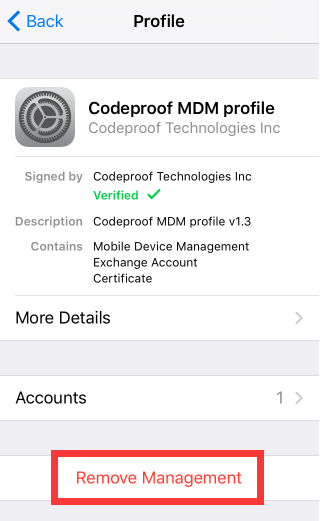
All in all, if you have the Password, you can quickly delete device management on school iPad using the following steps
- Get to the Settings of the iPad
- Clique no Device Management ícone
- Clique na Codeproof MDM Perfil
- Clique Remover Gestão
- It will prompt for a password; input it if you have it
- Critical in, and you have a free MDM iPad
This option only works when you have the passcode. If not, you must get the network administrator to share it. What if you want to remove it without their consent. That's when you need to try out other third-party solutions that come with the bypasses.
Part #2: Can You Delete Device Management on The School Ipad without A Password?
The only way to bypass the MDM function is to delete device management on school iPad. IF it's a security measure from the administration, you have no powers since you will not get the Password. Is there anything impossible in the digital market? The only way to bypass this function and have unlimited use of the school iPad is to use software without administrator rights to remove the limitation. The application works with the settings and terminates the network settings without notification, interfering with the school data stored on the iPad. Here are some of the Renowned Ones.
Part #3: Delete Device Management on School iPad Using iOS Unlocker
A Desbloqueador iOS is a renowned application and a household name in the Apple family. The toolkit is designed to remove passcodes, including the MDM, with no hassle. The toolkit runs on three modes – Wipe Passcode, Remove Apple ID, and Screen Time remover. In a few clicks, you have all these removed to have a passcode-free iPad.
Download grátis Download grátis
All iOS devices, irrespective of the iOS versions, are supported on the toolkit. The solution provides unlimited control and usage of the iDevice. You need no third-party integrations to run any of the functions. Moreover, you are at liberty to access the sensitive iCloud settings and Apple ID functions.
Uma vez que você run the Apple ID removal on the iDevice, the old Apple ID has no space. Here are the steps to delete device management on school iPad:
- Download, install and run iOS Unlocker on your PC
- Connect the school iPad to the PC using a USD data cable
- On the PC, click Limpar código de acesso modo e clique Início na janela pop-up
- Accept all the Confiança termos e condições
- Approve after you confirm the device information displayed and click Início novamente
- Wait for firmware download and click the unlock button
- Entrada "0000 " as the passcode and confirm
That's how you delete device management on a school iPad without network administrators' rights.

Part #4: How to Delete Device Management on School iPad Using AnyUnlock
Similarly, this is also an Apple-supported toolkit that helps remove the security parameters on iPad, iPods, and iPhones- including the school's iPad. All your MDM locks, passcode locks, and iTunes backup services have a stake in this application.
It runs on a simple interface without prior knowledge of lock removals. Moreover, the locked screens and the screen time passcode can be deleted with minimal effort. Have you lost your lock screen passcode? Have you forgotten your Apple ID details? Are you looking for a tool to delete device management on school iPad? This is equally a toolkit you can also explore using these steps.
- Download and install AnyUnlock
- Connect the Schools iPad using a USB cable to the PC
- Clique Ignorar MDM
- Clique Início
- Clique Ignorar agora na janela pop-up
- Aguarde resultados
What an equally simple application to delete device management on a school iPad?
As pessoas também leramComo desbloquear o ID Apple sem alterar a senha em 2024O melhor guia sobre como desbloquear o iPhone [Esqueci a senha]
Parte #5: Conclusão
The choice of the solution of choice solely depends on you. You are at liberty to make the right choice on what works for you. Moreover, there are several solutions in the digital market that you can explore when looking for toolkits to delete device management on school iPad. Try them out and make a wise choice on what suits the function.
Despite the availability of the functions, iOS Unlocker still takes the mantle as the best toolkit to support all the lock removals, including the screen time passcode. Its simplicity and flexibility in operations give it the highest rank. Are you still worried about the MDM lock on your school's iPad? With this information, you have unlimited device use with no limitations.
Escrito por Rosie
Última atualização: 2022-06-16