


As a result, your iPhone contains a great deal of personal and sensitive data. That alone is reason enough to choose a more secure password. The stakes get considerably higher when you understand how much of your digital life revolves around your smartphone and the phone number linked with it. But don't panic if you forgot Apple passcode and are unable to unlock your device; you still have several possibilities for regaining control of your valuable iPhone.
There are various ways to accomplish this, but keep in mind that employing these techniques may result in the loss of data not stored on your cloud storage. You may restore your iPhone to factory settings without passcode by entering recovery mode, which restores your iPhone to its original configuration. You can also use the Find My iPhone feature to solve this problem or use a third-party iPhone unlocking program to get into your locked iPhone.
Part #1: The Best iPhone Unlocking ToolPart #2: Using the Find My iPhone featurePart #3: Reset iPhone to default using Recovery ModeParte #4: Conclusão
Part #1: The Best iPhone Unlocking Tool
If you accidentally forgot Apple passcode, how do you unlock your iPhone? Desbloqueador iOS is designed specifically for iPhones and allows users to bypass the passcode on their devices. Not only can you disable your device's passcode but also offers to solve your iPhone problems such as:
Download grátis Download grátis
- Locked And Disabled iOS Device
Your iOS device will be locked and deactivated if you fail to enter the correct passcode many times. With iOS Unlocker, you won't have to wait for it to be enabled or unlocked again.
- Broken Screen.
If the screen on your iOS device is cracked which makes it impossible to see your iPhone screen, you can use this tool to circumvent the requirement to enter your passcode.
- Not working Face ID or Touch ID.
You can also use FoneDog to unlock Touch ID or Face ID if it isn't working properly.
Keep the following in mind before using this app:
- Removing the passcode clears the data on your iPhone.
- Your iPhone will be updated to the versão mais recente do iOS automaticamente.
- Finally, during the procedure, ensure that the iPhone is linked to the computer by USB.
To get into your iPhone without a passcode, simply follow the steps below:
- iOS Unlocker may be downloaded, installed, and operated on your Mac or Windows computer.
- Selecionar Limpar código de acesso e pressione o botão Início botão na interface.
- Conecte-se your iPhone to your computer via USB connection and tap the Confiança button that will appear on your iPhone.
- The information on your device will be shown. Confirm and hit the Início
- Wait until the needed firmware package has completed downloading.
- To unlock the smartphone when the download is complete, press the Destravar Em seguida, pressione o botão 0000 key. Wait a few minutes for the passcode on the device to be erased, and you're done!

Part #2: Using the Find My iPhone feature
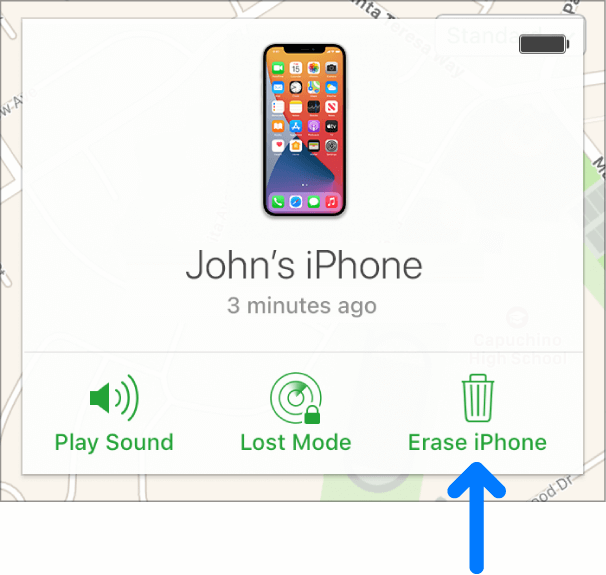
You can only use this method if you forgot Apple passcode and your iPhone is connected to the Internet. It will erase everything on your smartphone, including the passcode.
- Acesse iCloud.com and sign in to your iPhone's Apple ID account.
- On the iCloud main screen, select the option for Todos os dispositivos.
- Then, from the list of devices that appears, choose the iPhone.
- No menu suspenso, escolha Apagar o iPhone.
- Você também pode Digite a senha linked with your Apple ID or responder perguntas de segurança as suggested by the browser.
- Wait till the erasing process is completed. You may either restaurar um backup from your PC or iCloud or comece de novo com um novo iPhone.
Part #3: Reset iPhone to default using Recovery Mode
If you forgot Apple passcode, you may use Modo de recuperação to restore it to its original factory settings. This means that all of the information on your iPhone will be gone. After the iPhone has been reset to factory settings, you may simply restore your backup. To restore your iPhone to factory settings using recovery mode, you'll need a Mac or a Windows PC.
Siga os passos abaixo:
- Verifique se você tem tudo o que precisa. É necessário um cabo USB compatível com o iPhone, bem como uma porta USB. Um iPhone e um computador Windows ou Mac também são necessários. Certifique-se de ter o mais recente iTunes versão instalado no seu computador.
- Você pode então simplesmente desligar seu iPhone. Depois disso, connect Conecte o iPhone ao seu computador Mac ou Windows usando o cabo USB.
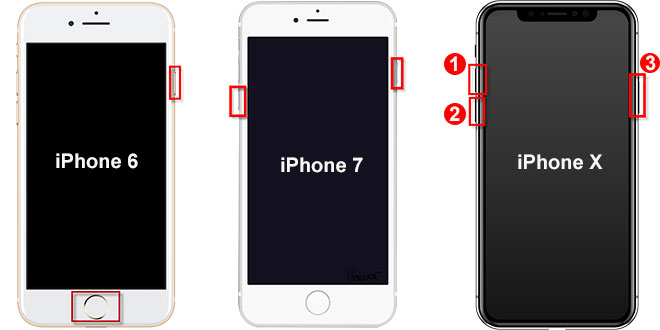
- It's now time to put your iPhone into recovery mode. Continuar pressionando buttons until you see the recovery mode logo (a laptop connected to a USB connection). Depending on the iPhone model, you'll need to hit different buttons. Take a look at these examples:
- On iPhone 8 Plus, iPhone 8, iPhone SE (3rd and 2nd generation), and iPhone X or later devices, long-press the botão lateral until the recovery mode logo shows.
- On iPhone 7 and 7 Plus, hold and press the “Volume Down” button until the recovery mode logo displays.
- On the first-generation iPhone SE, iPhone 6s, and previous models of iPhone hold down the Botão Home until the recovery mode logo displays.
- Se você estiver usando um Mac, vá até o computador e abra em destaqueSe você estiver usando o Windows, precisará abrir o programa iTunes. No lado esquerdo, clique no iPhone que você acabou de conectar ao computador.
- You will see a popup with several options to choose from. Restore should be chosen from this option. The iPhone software package will now be downloaded to the PC. After then, the restoration process will begin.
- Wait for the restoration to be completed. You may disconnect your iPhone from your computer and then configure it as a separate device (or restore it from a backup).
As pessoas também leramO melhor guia sobre como desbloquear o iPhone [Esqueci a senha]Como desbloquear completamente o iPhone se você esqueceu a senha
Parte #4: Conclusão
If you've ever been locked out of your iPhone because you forgot Apple passcode, this article has given you numerous options on how to unlock it. We looked at three different methods for bypassing the passcode. You can use the Find My iPhone feature, or reset it to default using Recovery Mode.
However, iOS Unlocker, an application that allows you to remove passcodes, Apple IDs, and screen time passwords, is the finest of the three. Visit fonedog.com/ios-unlocker/ to try out our product right now. We provide a free trial so you can see how it works.
Escrito por Rosie
Última atualização: 2022-03-22