


It's normal to forget your password. You might go through a lot, or you recently Redefina a senha do seu iPad and have no idea about the current one. Several attempts to access the iPad are futile. Apple – iPad developer invests in security systems that minimize unauthorized entry to the devices.
Moreover, you must know what to do if you forgot your iPad password. Leaving the iPad without a password is risky and can lead to data loss and unauthorized entry who may have ill intentions and access to all data, including your bank accounts. Are you ready to take care of the mess?
That means you have no option but to include security detail and have information on what to do when you have locked your iPad. The same developer also has inbuilt, online, and offline toolkits to come in handy when you have also locked your iPad.
Continue reading and get to have the solutions for forgetting your iPad password. You never know when they come in handy.
Part #1: How to Remove iPad Password Using iOS UnlockerPart #2: How to Remove iPad Password Using iTunesPart #3: How to Remove iPad Password Using iCloudPart #4: How to Remove iPad Password Using Recovery MethodParte #5: Conclusão
Part #1: How to Remove iPad Password Using iOS Unlocker
Desbloqueador iOS is your go-to toolkit when looking for a tool with no conditions. The application runs on three modes. It helps you with what to do if you forgot your iPad password and can remove your Apple ID and manage the screen time functions.
Download grátis Download grátis
Those are the three modes on which the digital solution runs. Besides, it gives you complete control of your iDevices. Its advantage is that you aren't able to remotely use the old Apple ID once you run the wipe passcode function.
It also has inbuilt iCloud account settings making you access it with minimal effort. That includes removing the iCloud account from second-hand devices, and limiting the original owner from accessing it. To remove the password from the iPad.
Aqui está o procedimento
- Baixar, install and run FoneDog iOs Unlocker
- Escolha o Limpar código de acesso modo
- Clique na Início button and use the USB to connect the iPad to the PC and accept the trust conditions.
- Confirm the iPod details and click Início novamente
- Wait for firmware download and click the unlock button, and input "0000 "como o código de desbloqueio
- Espere for some minutes for the password to be removed.
This is a straightforward application that needs no prior knowledge to operate. Moreover, it comes with no conditions for you to remove the password from the iPad.

Part #2: How to Remove iPad Password Using iTunes
As a digital solution developer, Apple solves issues of its devices through value-added applications. iTunes is one such toolkit renowned as a media library and comes with additional functions that help you with what to do if you forgot your iPad password.
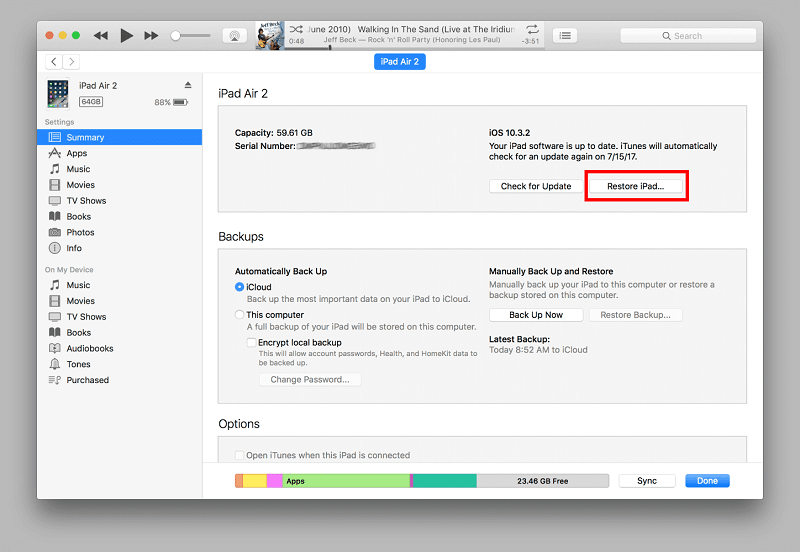
This method only works if you have once synchronized the locked iPad to iTunes. If not, you may have to look for more options discussed in this article. If yes, then this is the procedure to follow
- Baixar and install iTunes
- Using USB, connect the locked iPad to a computer
- Clique na dispositivo list and choose the locked iPad
- A notification window appears, and select Restaurar
- Follow the onscreen instructions and back up and reset the iPad once the process is complete.
You'll notice you lose all data, including the password, but you can still recover using the backup menu. iTunes is a must-have toolkit for all Apple users to enhance the functioning of its gadgets.
Part #3: How to Remove iPad Password Using iCloud
An iCloud account is also among the value-added functions developed by Apple to offer support to Apple users. It is also an option on what to do if you forgot your iPad password.
However, like iTunes, you also must have linked the locked iPad to the iCloud account before the unlock, if not. You have no option but to try another method to remove the password. The advantage of this method is that it backs up your data; hence data loss is something of the past.
If yes, then here is the simple procedure
- Using a different iDevice, open the iCloud.com Conta
- Faça login com os dados que incluem o ID Apple.
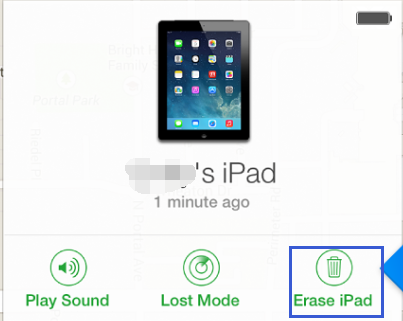
- Clique na Find My iPhone e escolha Todos os dispositivos
- From the list, select the locked iPad, and a notification window appears
- Clique na Erase iPad/iPhone from the menu, and you have your password removed from the iPad.
It's crucial to run a new setup and back up to restore iData. The data will recover information up to the last backup, but the advantage is that you don't have the password that limits access to the iPad.
Part #4: How to Remove iPad Password Using Recovery Method
When you have no internet connection and are looking for what to do if you forgot your iPad password, you can set the iPad to recovery mode and restore it. The disadvantage of this method is that you end up losing all data. If you have a backup plan, that should be a cause of worry. If not, you have no option since you need unlimited access to your iPad. Here is the procedure
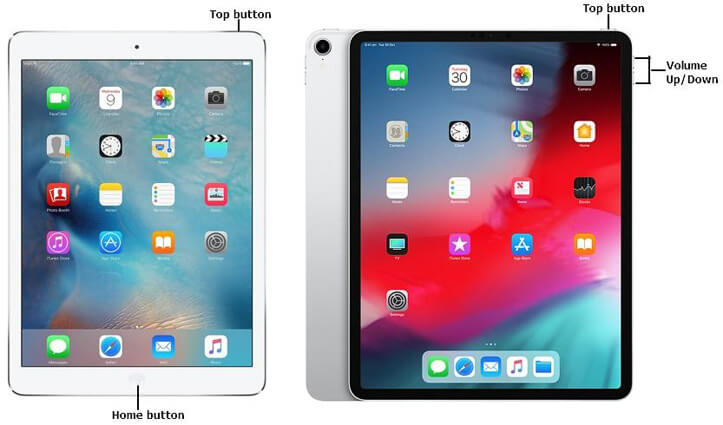
- Pressione durante cerca de XNUMX segundos os butões da Início botão até ver o logotipo da Apple.
- Pressione o botão Aumentar o volume e down button simultaneously until you get a notification window with Restore and update as the only icons
- Clique Restaurar, and you have the password and all data removed as if you had just bought it.
If you only have used the iPad for a short period of time, you might lose little data; if not, you will definitely lose data, but that acts as a learning lesson. You need to have a backup plan.
As pessoas também leramComo verificar o status de desbloqueio do iPhone de maneiras diferentes7 métodos fáceis para corrigir o slide do iPhone para desbloquear não está funcionando
Parte #5: Conclusão
It's evident that you have options on what to do if you forgot your iPad password. The solution depends on what you have at hand. Although we have discussed only four options, the market has many options for you to explore, especially third-party toolkit.
iOS Unlocker is among the best application to help you remove password with minimal effort. Moreover, it comes with additional functions making it a one-stop-shop. When you have forgotten the password, don't be in a hurry to restore. Take a walk and relax you might remember.
Escrito por Rosie
Última atualização: 2022-03-31