


“I am annoyed with the App Store keeps asking for password several times. I have entered the correct details but it still pops up. How do I get rid of this?”
It’s hard to determine the main reason why this issue is happening. However, many users have complained that their iPhones are acting strangely, especially the App Store不断要求输入密码 every time you open this app and browse.
Today, we will find out what are the possible causes of this issue and of course the best solutions we can use to fix it efficiently. We have gathered 5 ultimate methods that you can try to get rid of this problem sooner.
Part #1: What Causes App Store Keeps Asking for Password Issue?Part #2: 5 Ultimate Solutions to Fix App Store Keeps on Asking for PasswordPart #3: Bonus Tip - How to Remove Apple ID in Just A Few Clicks第 4 部分:总结
Part #1: What Causes App Store Keeps Asking for Password Issue?
Why do App Store keeps asking for password? There are plenty of reasons why this issue is happening on your iPhone. Perhaps, there is an update that needed to be installed. This update can be on the App Store itself or on iOS software.
We are also looking into a failed system software download. But whatever the reason is, one thing is certain, this issue is quite common and is easy to troubleshoot.
Find out what troubleshooting method works best for you!
Part #2: 5 Ultimate Solutions to Fix App Store Keeps on Asking for Password
The steps on how to fix this issue are not sophisticated. In fact, these are basic troubleshooting and can be done in just a few minutes.
Solution #1: Force Restart iPhone
If App Store keeps asking for password and this pop-up has been annoying you already, you can try a force reset your iPhone even without Apple ID. This will cut off all the software processes on your iPhone and start a fresh one.
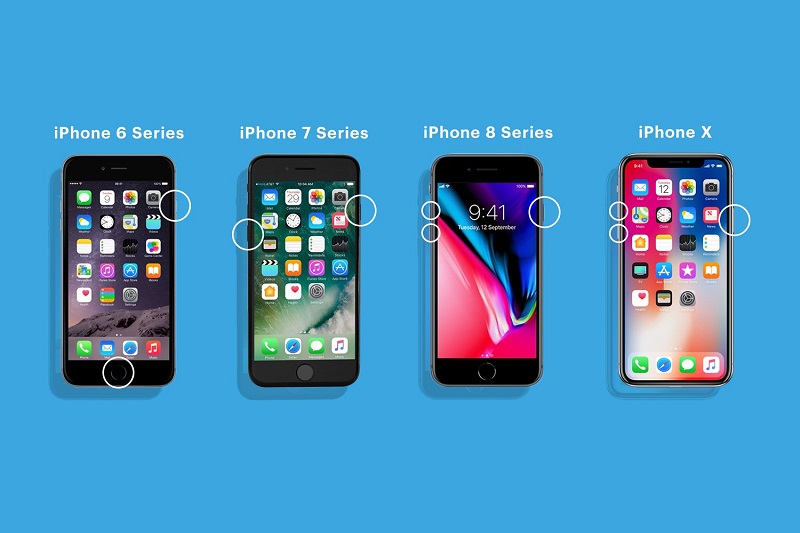
Doing a force restart is quite different depending on the iPhone model that you have.
For those using iPhone 8 and later: Quickly tap and release the 量高达 button. Then do the same on the 降低音量 button, then tap and hold the 侧 button. Release the side button once you see the Apple logo appears.
iPhone 7: Tap and hold both the 降低音量 和 睡觉 or 唤醒 buttons until the Apple logo appears. Only then release the buttons.
If you have an iPhone 6S and below: Tap and hold the 睡眠/唤醒 和 首页 buttons altogether and release them when the Apple logo appears.
After doing a force restart, check if this pop-up enter password issue still appears. If yes, continue to troubleshoot below.
Solution #2: Update Apps
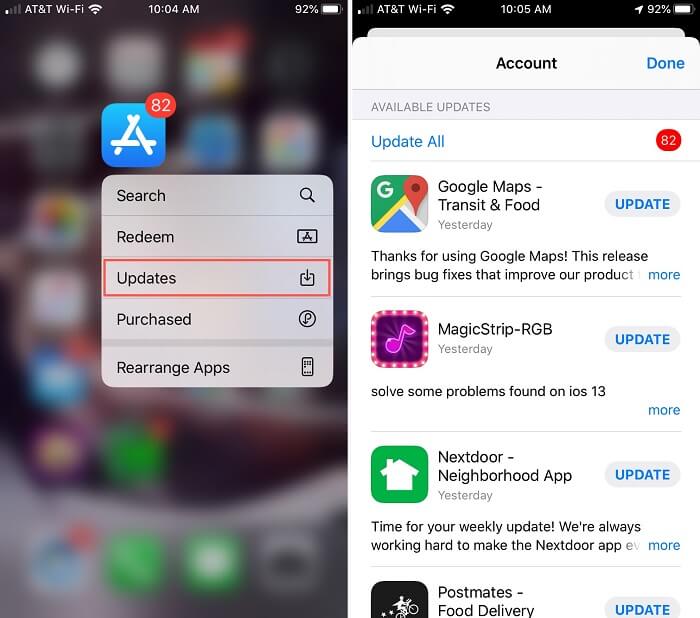
Perhaps this issue that App Store keeps asking for password can be also caused by misbehaving apps that an update can fix. You can update an app pr all of the apps and test if this resolves the issue. Here’s how to update your apps:
- 正式上线 App Store
- 查找并点按 最新动态
- 从我们的数据库中通过 UL Prospector 平台选择 全部更新 or 更新 on each app you see on the list
Solution #3: Turn FaceTime and iMessage On and Off
iMessage and FaceTime are directly associated with your Apple ID and whether you use them or not, these two will continue to use your account, This is the reason why sometimes it asks for the App Store password.
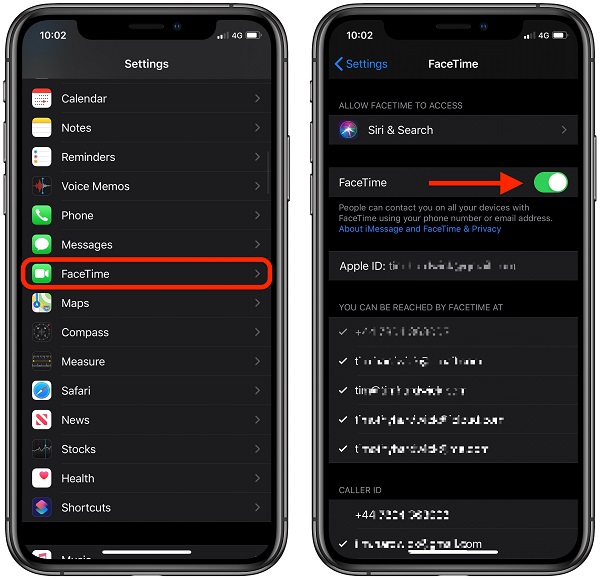
Follow these steps on how to turn FaceTime and iMessage on and off:
- On your iPhone, head over to 个人设置
- 向下滚动并找到 FaceTime公司
- Toggle the slider off
- Wait for a few seconds to let the device process the request
- Once the slider is totally 灰色的 out, slide it back on
You may be required to enter your Apple ID and password upon turning it on.
The steps are similar for iMessage, on the same Settings, scroll to Messages and toggle the slider off and then back on. Again, you may need to re-enter the username and password.
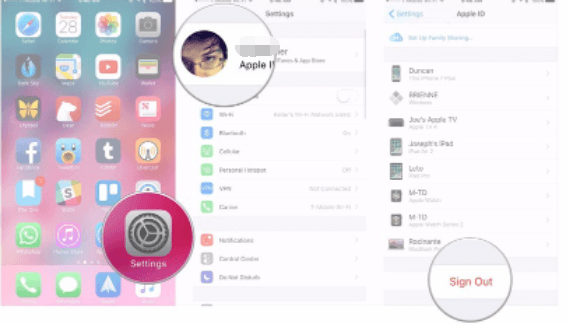
Solution #4: Sign Out of iCloud
If the App Store keeps asking for passwordeven after doing the above solutions, try to sign out of your Apple account in the meantime.
Doing this can resolve any annoying issues related to your 苹果ID. To sign out of your account, follow these:
- 在MyCAD中点击 软件更新 个人设置
- 点击你的 苹果ID
- 滚动到底部并点按 退出登录
Note: You have to make sure that you remember your Apple ID username and password before doing this solution.
Solution #5: Verify if Always Require for Password is Enabled
Have you recently changed your purchase settings in the App Store? There is a password setting that you can enable to Always Require for Password every time you buy and download apps even when you are logged in with your Apple ID account.
The same thing when you download free apps, there is also a setting called Require Password that you can turn on and off. And that might explain why App Store keeps asking for password.
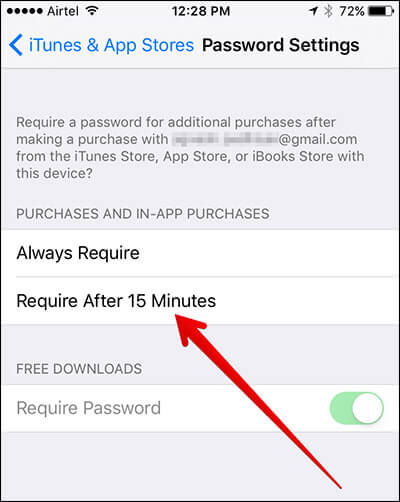
To disable the Password Settings for In-App Purchases, follow these steps:
- 启动 个人设置
- Tap your iCloud account
- 从我们的数据库中通过 UL Prospector 平台选择 iTunes和App Store
- 在MyCAD中点击 软件更新 密码设定. If you can’t see the Password Settings, check if you have enabled Touch ID/Face ID for app purchase
- 查找并点按 Require After 15 Minutes beneath purchase and in-app purchases
- Under Free Downloads, toggle off the option for 需要密码
- Provide your Apple ID password for confirmation
- 敲打 OK
Part #3: Bonus Tip - How to Remove Apple ID in Just A Few Clicks
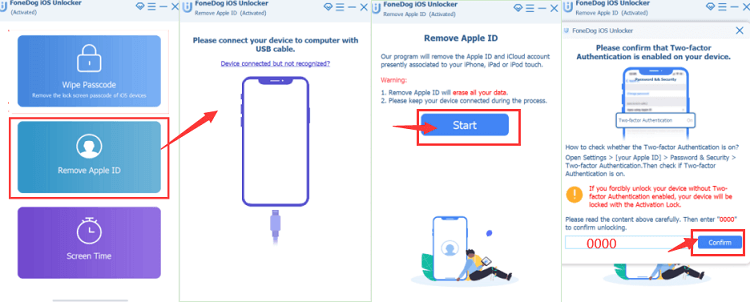
Considering that most of the solutions that were mentioned above to solve the problem of App Store keeps asking for password require an Apple ID, not using your own Apple ID? You can remove it in just a few clicks when you use a professional and reliable software called iOS解锁器。
This software easily erases all the content on your iPhone including the Apple ID, especially for those who got locked out or have forgotten their account. You can also take advantage of this software when you receive a used iPhone and wanted to remove the information of the previous owner.
iOS Unlocker comes with other unlocking features apart from Apple ID removal without password. You can also delete the passcode and restore the Screen Time Restrictions. Download this program for free and try it yourself!
人们也读How To Unlock Disabled iPad without iTunes in 2024Exodus Super Unlock Free in 2024: A Guide
第 4 部分:总结
It is extremely annoying when you see the App Store keeps asking for password every time you open it and download or purchase apps.
Fortunately, we have 5 ultimate solutions that you can do to resolve this issue. Rest assured that after trying any or all of these steps, you will surely get rid of the problem and continue using your iPhone without the password pop-up anymore!
And of course, in the event that you need an extra hand in removing the Apple ID on your device, use iOS Unlocker. It has an efficient and convenient option to erase the account in just a few minutes.
由罗西撰写
上次更新时间:2022-01-27