


本指南将教您如何 从 Spotify 下载音乐到 电话. We will talk about the top techniques and tips to help you get this job done.
Spotify is a great way to listen to music, but it can be frustrating when you're not connected to the internet and you want to listen to your favorite songs. That's where downloading music comes in. In this article, we'll show you how to download music from Spotify to phone so you can listen to it offline.
We will be covering different methods for implementing this. If you're going to be somewhere without internet access, you'll need to download your music beforehand so you can still listen to it.
If you're on a limited data plan, downloading music can help you save data by preventing you from streaming songs over the internet. If you have a Spotify Premium account, you can download music and listen to it without ads.
内容指南 Part 1. The Official Way to Download Music from Spotify to Phone [Spotify Premium Required]Part 2. The Best Way to Download Music from Spotify [No Premium Required]Part 3. How to Transfer Spotify Music to Your Phone结语
Part 1. The Official Way to Download Music from Spotify to Phone [Spotify Premium Required]
Spotify offers a legitimate and official way to download music for offline listening within the app itself. This feature is available to Spotify Premium subscribers, so if you haven't already, consider upgrading your account to enjoy this fantastic perk. Once you're a Premium user, follow these simple steps to download music directly from Spotify to your phone:
Step 1: Update the Spotify App
Ensure that you have the latest version of the Spotify app installed on your phone. Go to your app store (the Google Play Store for Android or the App Store for iOS) and check for any available updates.
Step 2: Choose Your Favorite Songs or Playlists
Open the Spotify app and browse through your favorite songs, albums, or playlists. You can even create a custom playlist containing all the tracks you wish to download.
Step 3: Enable Offline Mode
To begin the download process, turn on the "Offline Mode" feature in the Spotify app. This can be done by accessing the app's settings and toggling the "Offline" switch. When the Offline Mode is activated, Spotify will only display the content you've downloaded, saving you from using your mobile data.
Step 4: Download Music
Once you've enabled Offline Mode, navigate to the specific album, playlist, or song you want to download. You'll notice a download icon (a downward-facing arrow) next to each track. Tap on the download icon, and the song will start downloading to your phone.
Step 5: Enjoy Your Offline Music
After the download is complete, you can access your downloaded music by going to the "Your Library" section in the Spotify app. Here, you'll find the "Downloads" tab, where all your offline music is stored. Now, you can listen to your favorite tracks anytime, even without an internet connection!
Remember, the music downloaded from Spotify is encrypted and can only be played within the Spotify app. Also, make sure to connect your phone to the internet at least once every 30 days to validate your Premium subscription and keep your downloaded music accessible.
Part 2. The Best Way to Download Music from Spotify [No Premium Required]
Spotify 音乐解锁器 是第三方工具,可让您 download Spotify tracks, podcasts, and albums as MP3 files. The tool is free to use, but there is a premium version that offers additional features, such as the ability to download higher-quality audio files. The tool is compatible with Windows and Mac computers. In addition, the conversion process is typically very quick and easy.
Here's how to use Spotify Music Unlocker to download music from Spotify to phone. You can download Spotify tracks, podcasts, and albums as MP3 files.
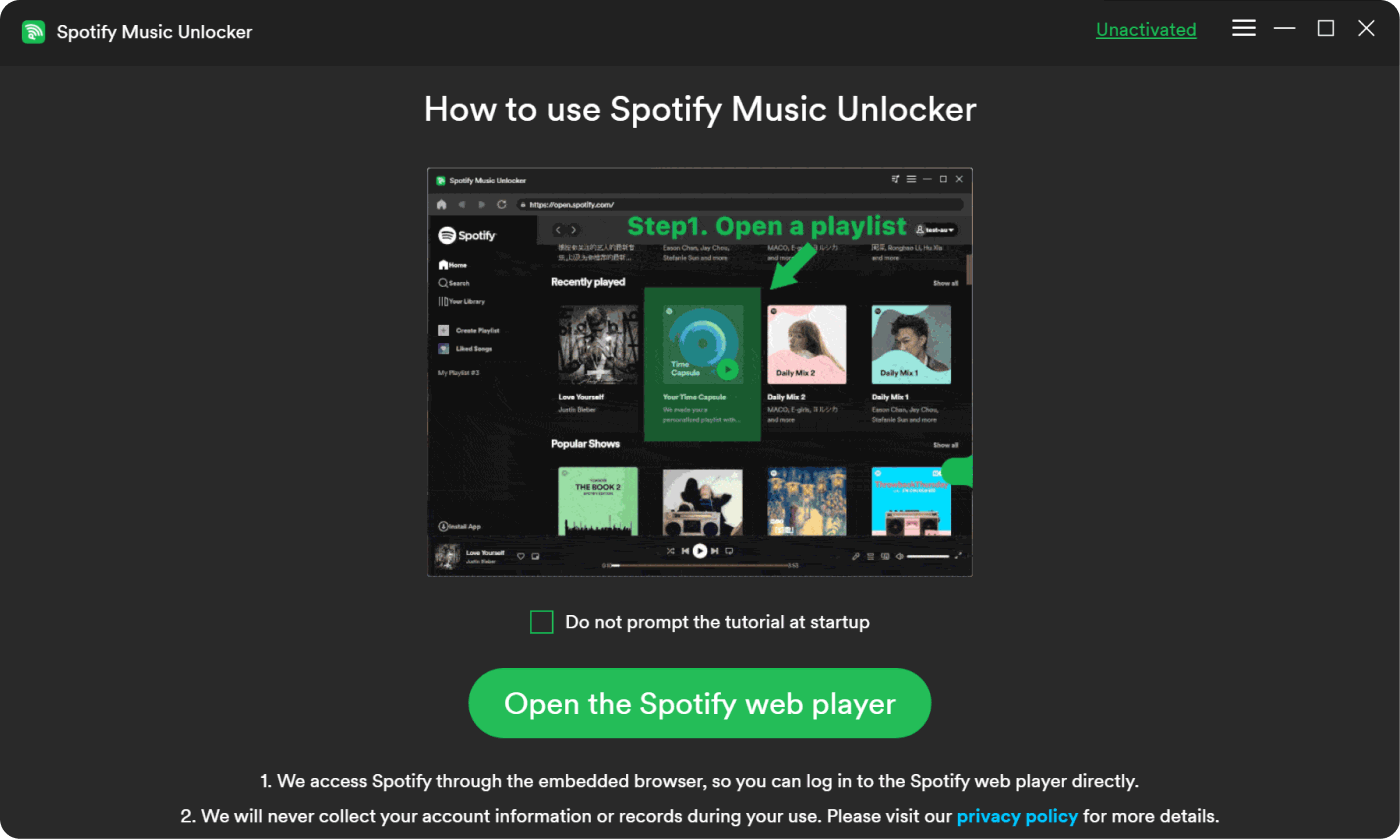
1. Launch Spotify Music Unlocker.
2. Click the green “Open Spotify Web Player” tab.
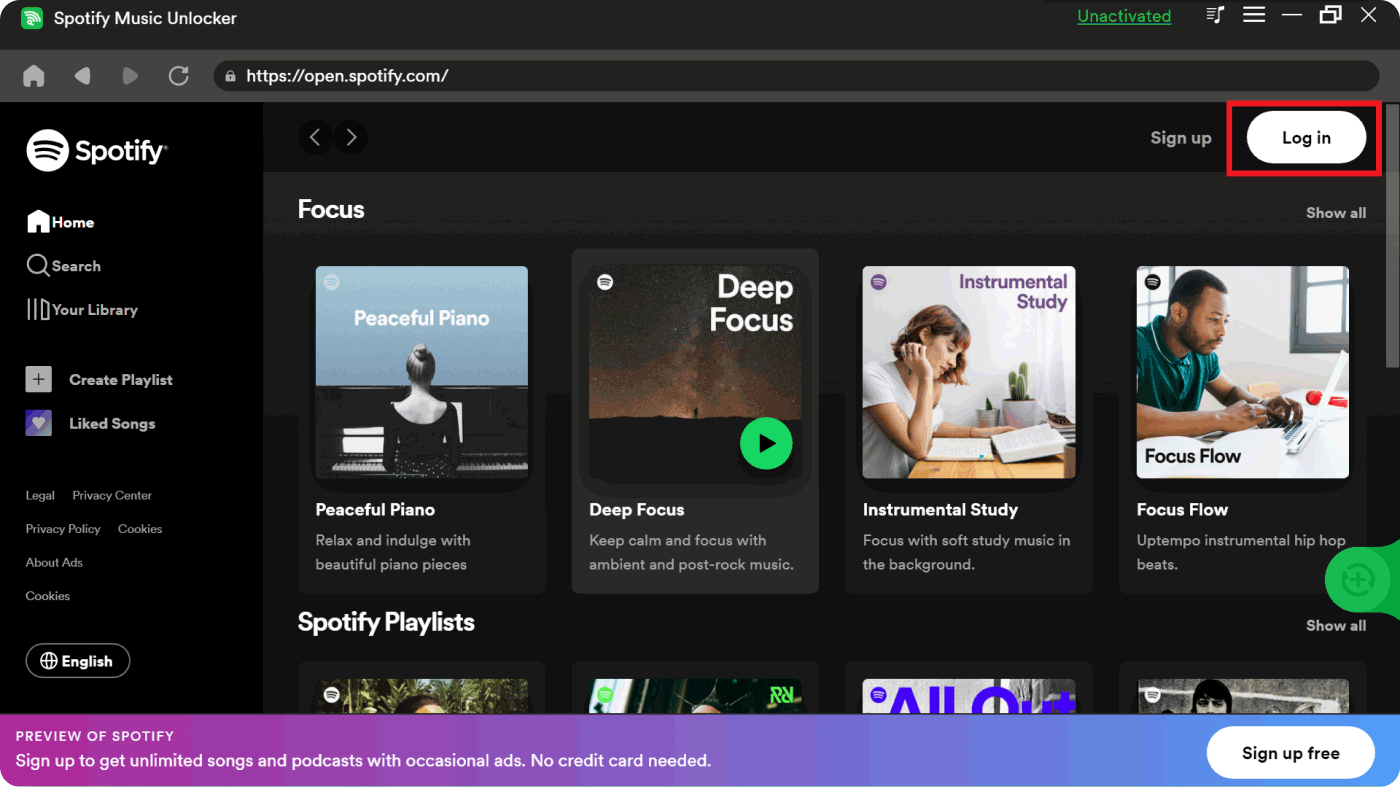
3. 登录您的 Spotify 帐户或创建一个新帐户。
4. To add a podcast, album, or playlist to the conversion list, click the green Add button or drag and drop it onto the green Add symbol.
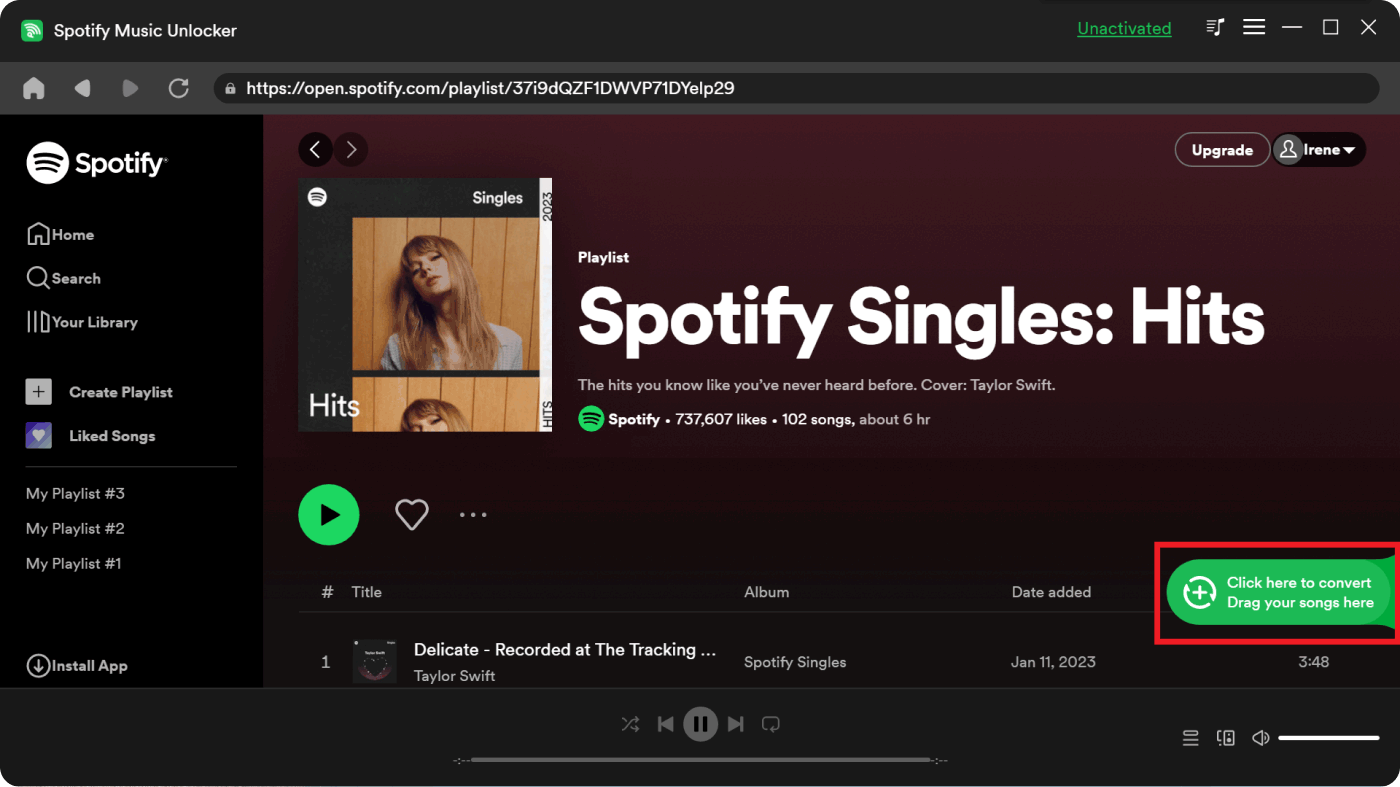
5. 要将单首歌曲或播客添加到转换列表,请将其拖放到蓝色符号上。
6. Select your desired output format, such as MP3, M4A, WAV, or FLAC. You can also specify the destination folder where the converted files will be saved.
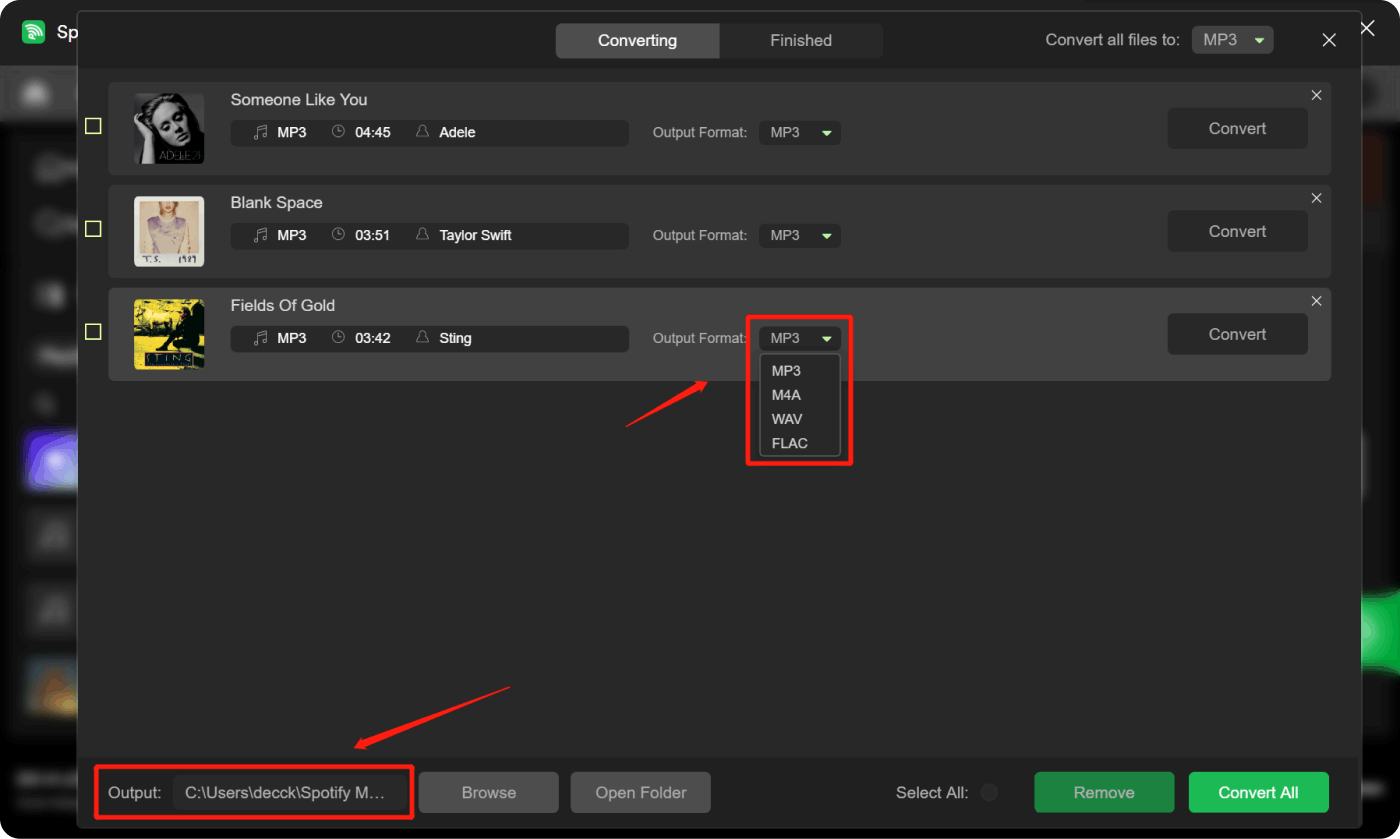
7. To start the conversion process, select one or more tracks from the conversion list and click the “Convert”
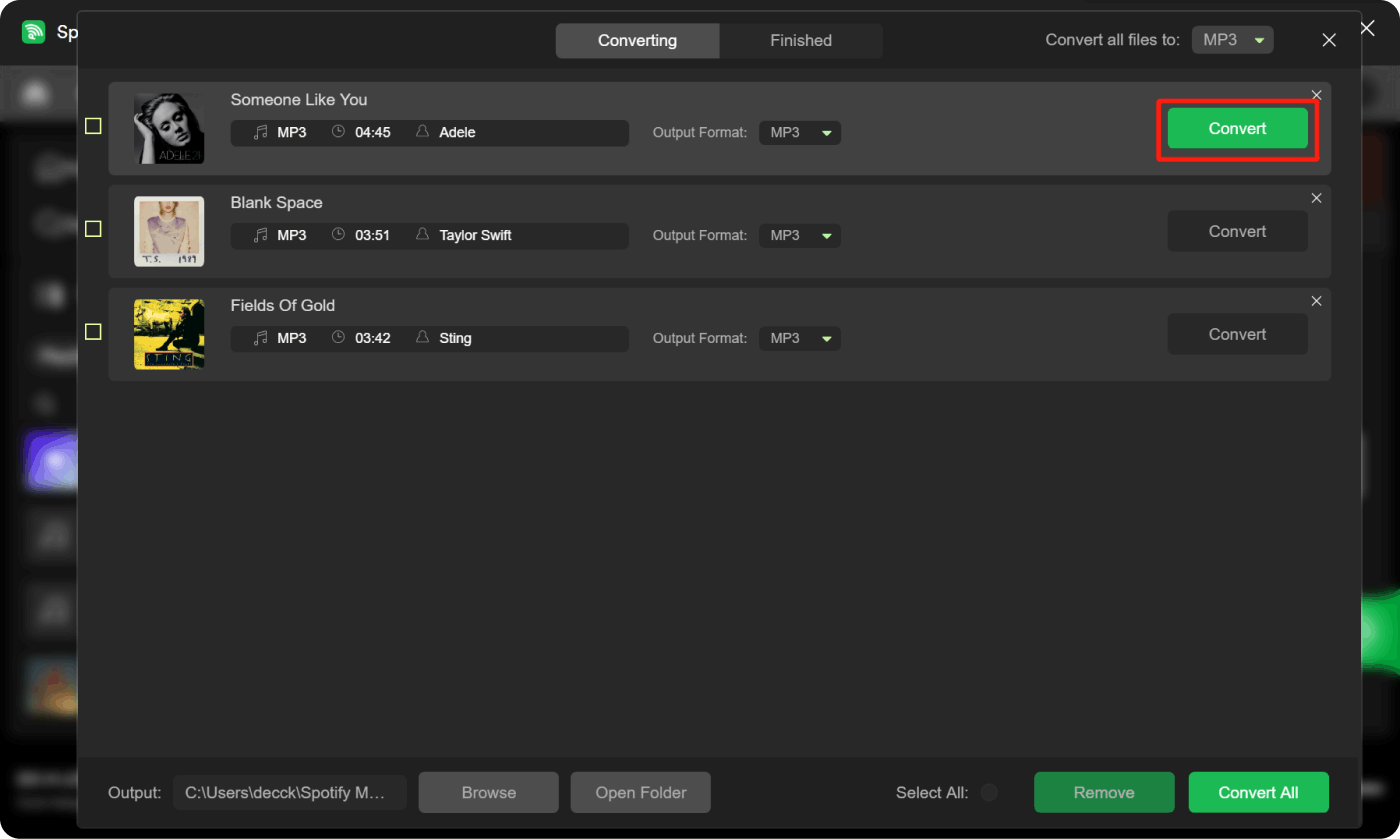
Part 3. How to Transfer Spotify Music to Your Phone
After the process of how to download music from Spotify to phone, you can transfer them to your Android or iOS device. Below are the steps to do so on both operating systems.
Transfer Music to Android Device:
- Connect your Android device to your computer using a USB cable. Make sure your phone is unlocked.
- On your Android device, you should see a notification about the USB connection. Drag down the notification bar and select "File Transfer" or "Transfer files" (MTP mode).
- Now, on your computer, open "File Explorer" (Windows) or "Finder" (Mac).
- Locate the folder where you saved the downloaded Spotify music files on your computer.
- Find the music files you want to transfer and copy them (Ctrl+C on Windows or Command+C on Mac).
- In the "File Explorer" or "Finder," navigate to your Android device's storage. Look for the "Music" folder and open it.
- Paste the copied music files into the "Music" folder on your Android device (Ctrl+V on Windows or Command+V on Mac).
- Safely eject your Android device from your computer.
- Open the music player app on your Android device. You should now see the transferred Spotify music in your library, ready for offline playback.
Transfer Music to iOS Device:
- Connect your iOS device (iPhone, iPad, or iPod Touch) to your computer using a USB cable.
- If prompted on your iOS device, “Trust” the computer.
- 在您的计算机上,打开 iTunes (if you don’t have iTunes, download and install it first).
- In iTunes, click on the device icon that appears near the top-left corner to access your device’s settings.
- Click on “File Sharing” in the left sidebar.
- In the “File Sharing” section, select the app that supports music playback (e.g., VLC, Documents by Readdle).
- Click “Add File” or “Add” in the file-sharing window.
- Locate and select the Spotify music files you downloaded on your computer.
- Click “Open” to start the transfer. The music files will now be copied to the app’s storage on your iOS device.
- Disconnect your iOS device from your computer.
- Open the app you used for file sharing on your iOS device. You should find the transferred Spotify music in the app’s library, accessible for offline listening.
结语
With these steps, you can easily download music from Spotify to phone and transfer your downloaded music from your computer to your Android or iOS device and enjoy your favorite tracks offline, anytime, anywhere. Now, rock on and experience the pleasure of uninterrupted music listening on the go!
人们也读 最热门的付费和免费 Spotify 转 MP3 转换器工具 如何更改 Spotify 播放列表中的图片:您的指南
由罗西撰写
上次更新时间:2023-07-20