


The beauty of an iPhone is that you can turn on and access it limitlessly. However, that is not usually the case. There are many reasons why this happens. In most cases, you choose to dispose of it to be sold second-hand, but you must erase iPhone that won't turn on before you make such a move. That is the point you have to get how to do this, so you are sure no one accesses your information and, of course, misuse it.
There are many reasons why the iPhone refuses to work. This could come from software malfunction or charging challenges. The iPhone could also still be okay, but the screen is what has the problem such that it can't display yet, that is the only way you can gauge whether the iPhone is working.
Alternatively, the cable could also have a problem; therefore, to rule out that, you can try a working charger to ensure that the issue doesn't originate from the charging cable and probably think of the charging system.
Part #1: Simple Ways to Try Before You Erase iPhone that Won't Turn OnPart #2: How to Erase iPhone that Won't Turn On Using iOS Unlocker第四部分:结论
Part #1: Simple Ways to Try Before You Erase iPhone that Won't Turn On
Before you run to judge whether the iPhone is spoilt or not, try some simple hacks and see if the iPhone can turn on. Here are some simple guides to try out, if any of them doesn't work, you have no option but to look for software.
Guide #1: Recharge The iPhone
Before you are going to erase iPhone that won't turn on, you can try and recharge it. Some iPhones with inbuilt batteries do not show a single sign of life when they are flat of charge. In that case, you need to leave it in the charger for some time, then come back and check if it still works. If that is the case, the charging signal should be out within 10 minutes, you can try and put it on if it has some life. One signal to show that it receives enough power is the red filler that blinks and goes off immediately.
Guide #2: Restart The iPhone
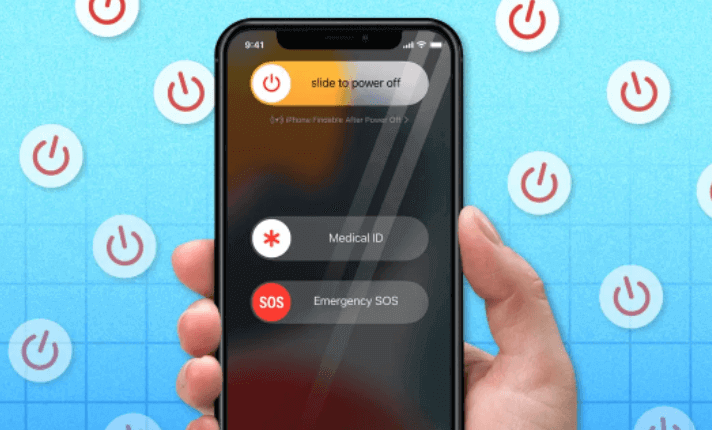
Software errors are easily solved with an iPhone restart, also, forcefully restart the iPhone to pick up signals fresh and see if you still need to erase an iPhone that won't turn on. Here are the simple instructions for iPhone 7 and above versions
- 按 主页 button and long hold the power button for at least 10 seconds
- Leave them when you see an Apple logo on the screen
- For iPhone 6 and lower versions, here is the procedure
- 按 提高音量 和 降低音量 图标
- 长按 侧 按钮至少10秒钟
- Release the side buttons until you see the Apple logo
Guide #3: Set The Device to Recovery Mode
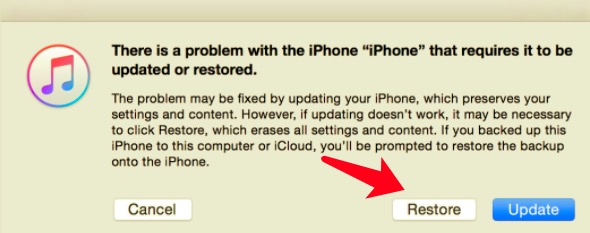
When all the above options fail to work, it's time to set the iPhone to recovery mode and see if t can have life. Although the feature is complex and challenging since you may lose all the data, it's the only
option when the first two fails. Moreover, to erase iPhone that won't turn on should be the last thing for it shows a sign of despair. How can you change it to recovery mode?
- 下载 iTunes 在你的电脑上
- Open iTunes and connect the iPhone to the computer using a USB cable
- Force a restart, as discussed in guide 2, said above, depending on the iPhone version
- 点击 Restore/ Restore update, and iTunes will back up your data and try and bring life to the device.
If either of the three guides fails to work, then it's time to use a third-party solution to erase iPhone that won't turn on. Read on
Part #2: How to Erase iPhone that Won't Turn On Using iOS Unlocker
Data loss is the only thing you may fear when your iPhone refuses to work, and you choose to erase iPhone that won't turn on. This is something simple that you can solve using a third-party solution like iOS解锁. This simple application runs on a simple interface with minimal complex functions. You need no external knowledge to run the toolkit with ease. Moreover, it gives unlimited access to iCloud settings to a point even the old Apple ID has no stake in the system. That means no one can use the old Apple ID to access the iPhone. Here is the simple procedure to use the toolkit
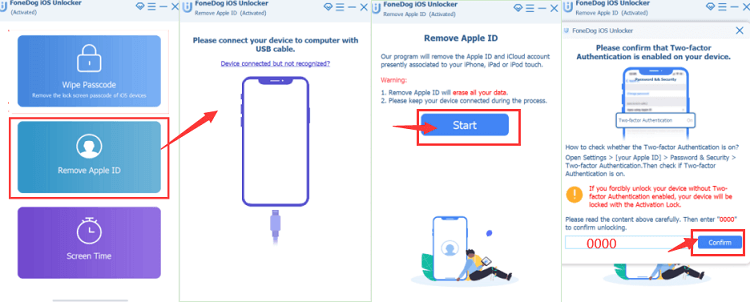
- 下载、安装并运行 iOS Unlocker。
- 选择 删除Apple ID - the second option.
- Connect the dead iPhone to the computer using a USB cable and accept the 信托
- 按钮
- 点击 开始 开始这个过程。
- Click the unlock code button and input "0000 " as the unlock digits
- Approve the device information on the screen and give it time to download the firmware package
- Once it's complete, both the Apple ID and the iCloud的 settings are erased from the iPhone.
人们也读如何解锁 iPhone 的最佳指南 [忘记密码]2024年无需密码即可擦除iPad的方法
第四部分:结论
The choice of the third-party application solely depends on you. There are several of them in the digital market that you need to choose and choose what is best. Moreover, you are at liberty to go for the application of choice.
iOS Unlocker is the best application to manage the function with minimum effort, it can help you wipe the password, erase your old Apple ID. The toolkit runs on a simple interface that needs no third-party integrations. Moreover, you need to check one with positive reviews to avoid dealing with a scam. Are you still looking for the option to go for when you need to erase iPhone that won't turn on? The decision is now on you.
由罗西撰写
上次更新时间:2022-06-16