


As a result, your iPhone contains a great deal of personal and sensitive data. That alone is reason enough to choose a more secure password. The stakes get considerably higher when you understand how much of your digital life revolves around your smartphone and the phone number linked with it. But don't panic if you forgot Apple passcode and are unable to unlock your device; you still have several possibilities for regaining control of your valuable iPhone.
There are various ways to accomplish this, but keep in mind that employing these techniques may result in the loss of data not stored on your cloud storage. You may restore your iPhone to factory settings without passcode by entering recovery mode, which restores your iPhone to its original configuration. You can also use the Find My iPhone feature to solve this problem or use a third-party iPhone unlocking program to get into your locked iPhone.
第三部分:最佳 iPhone 解锁工具Part #2: Using the Find My iPhone featurePart #3: Reset iPhone to default using Recovery Mode第四部分:结论
第三部分:最佳 iPhone 解锁工具
If you accidentally forgot Apple passcode, how do you unlock your iPhone? iOS解锁 is designed specifically for iPhones and allows users to bypass the passcode on their devices. Not only can you disable your device's passcode but also offers to solve your iPhone problems such as:
- 已锁定和已禁用的 iOS 设备
Your iOS device will be locked and deactivated if you fail to enter the correct passcode many times. With iOS Unlocker, you won't have to wait for it to be enabled or unlocked again.
- Broken Screen.
If the screen on your iOS device is cracked which makes it impossible to see your iPhone screen, you can use this tool to circumvent the requirement to enter your passcode.
- Not working Face ID or Touch ID.
You can also use FoneDog to unlock Touch ID or Face ID if it isn't working properly.
Keep the following in mind before using this app:
- Removing the passcode clears the data on your iPhone.
- Your iPhone will be updated to the 最新版本的 iOS 自动。
- Finally, during the procedure, ensure that the iPhone is linked to the computer by USB.
To get into your iPhone without a passcode, simply follow the steps below:
- iOS Unlocker may be downloaded, installed, and operated on your Mac or Windows computer.
- 从我们的数据库中通过 UL Prospector 平台选择 清除密码 然后按 开始 界面上的按钮。
- 连接 your iPhone to your computer via USB connection and tap the 信托 button that will appear on your iPhone.
- The information on your device will be shown. Confirm and hit the 开始
- Wait until the needed firmware package has completed downloading.
- To unlock the smartphone when the download is complete, press the 开锁 然后按 0000 key. Wait a few minutes for the passcode on the device to be erased, and you're done!

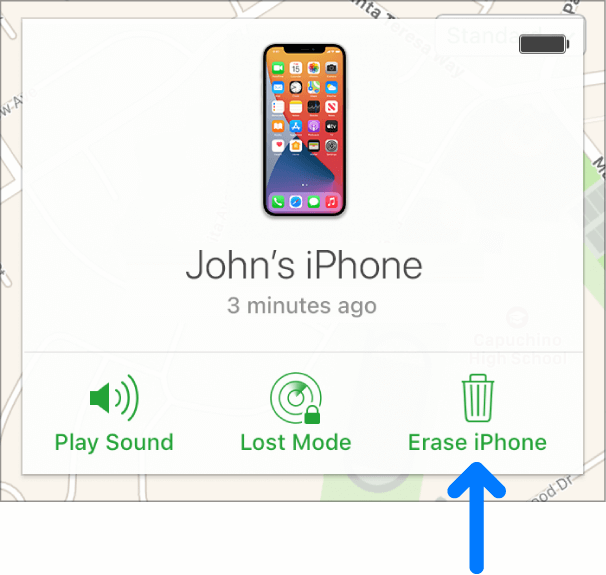
Part #2: Using the Find My iPhone feature
You can only use this method if you forgot Apple passcode and your iPhone is connected to the Internet. It will erase everything on your smartphone, including the passcode.
- 在MyCAD中点击 软件更新 iCloud.com and sign in to your iPhone's Apple ID account.
- On the iCloud main screen, select the option for 所有设备.
- 然后,从出现的设备列表中选择 iPhone。
- 从下拉菜单中选择 擦除iPhone.
- 你可以 输入密码 linked with your Apple ID or 回答安全性问题 as suggested by the browser.
- Wait till the erasing process is completed. You may either 恢复备份 从您的电脑或 iCloud 中或 重新开始 买了一部新iPhone。
Part #3: Reset iPhone to default using Recovery Mode
If you forgot Apple passcode, you may use 恢复模式 to restore it to its original factory settings. This means that all of the information on your iPhone will be gone. After the iPhone has been reset to factory settings, you may simply restore your backup. To restore your iPhone to factory settings using recovery mode, you'll need a Mac or a Windows PC.
请按照以下步骤操作:
- 请检查您是否已备齐所需物品。您需要一根与 iPhone 兼容的 USB 数据线和一个 USB 接口。此外,您还需要一部 iPhone 和一台 Windows 或 Mac 电脑。请确保您已准备好…… 最近 iTunes 版本 安装在您的计算机上。
- 然后你可能就…… 关掉 你的iPhone。之后, 联接 使用 USB 数据线将 iPhone 连接到您的 Mac 或 Windows 电脑。
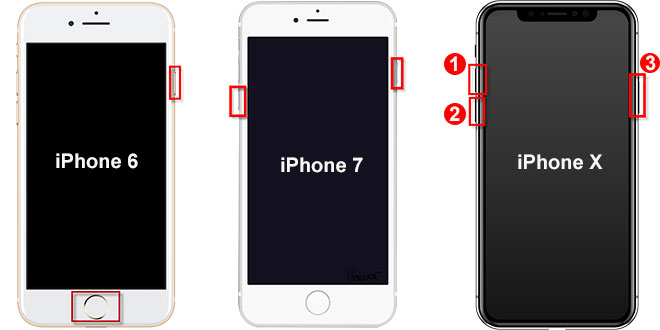
- It's now time to put your iPhone into recovery mode. 继续按 buttons until you see the recovery mode logo (a laptop connected to a USB connection). Depending on the iPhone model, you'll need to hit different buttons. Take a look at these examples:
- On iPhone 8 Plus, iPhone 8, iPhone SE (3rd and 2nd generation), and iPhone X or later devices, long-press the 侧键 until the recovery mode logo shows.
- On iPhone 7 and 7 Plus, hold and press the “降低音量” button until the recovery mode logo displays.
- On the first-generation iPhone SE, iPhone 6s, and previous models of iPhone hold down the 主页按钮 until the recovery mode logo displays.
- 如果您使用的是 Mac,请打开电脑并打开 发现者如果您使用的是Windows系统,则需要打开iTunes程序。在左侧,点击您刚刚连接到电脑的iPhone。
- You will see a popup with several options to choose from. Restore should be chosen from this option. The iPhone software package will now be downloaded to the PC. After then, the restoration process will begin.
- Wait for the restoration to be completed. You may disconnect your iPhone from your computer and then configure it as a separate device (or restore it from a backup).
人们也读如何解锁 iPhone 的最佳指南 [忘记密码]忘记密码如何完全解锁 iPhone
第四部分:结论
If you've ever been locked out of your iPhone because you forgot Apple passcode, this article has given you numerous options on how to unlock it. We looked at three different methods for bypassing the passcode. You can use the Find My iPhone feature, or reset it to default using Recovery Mode.
However, iOS Unlocker, an application that allows you to remove passcodes, Apple IDs, and screen time passwords, is the finest of the three. Visit fonedog.com/ios-unlocker/ to try out our product right now. We provide a free trial so you can see how it works.
由罗西撰写
上次更新时间:2022-03-22