


Passcodes are one of the iPhones security that keeps our personal information secured from being viewed by strangers. But you might be wondering how to change passcode on iPhone if forgotten ? There are many ways to approach this like restoring your phone back to its factory settings using recovery mode.
The Find My iPhone function is also a choice or you may also use an iPhone unlocking tool to take of it for you. If you forget your iPhone's passcode, we'll go over a few options for resolving the problem. Our solutions will let you regain complete control over your iPhone. Here are some of your options to regain control of your smartphone?
内容指南 Part #1: Use Recovery Mode to Change Passcode on iPhone if ForgottenPart #2: Change Passcode on iPhone Via Find My iPhone Without ComputerPart #3: The Easiest Way to Change Passcode on iPhone if ForgottenPart #4: How to Change Passcode on iPhone if Forgotten Using iTunes第四部分:结论
Part #1: Use Recovery Mode to Change Passcode on iPhone if Forgotten
Recovery Mode is a simple way to solve how to change passcode on iPhone if forgotten by returning your device to its default factory setting. But be warned, it also means all data that you have will be gone so make sure to back up all your data before proceeding so you can recover them after the factory setting reset.
以下是有关如何执行此操作的步骤:
- Get prepare. One USB cable that's compatible with your iPhone. You also need a Mac or Windows PC and connect it to your iPhone. Make sure to have the latest iTunes version on your PC installed.
- Turn your iPhone off and connect it to your Mac or Windows computer via a USB cord.
- Go to your iPhone’s Recovery mode. You will need to push different patterns of buttons until the recovery mode icon appears on the computer connected to your iPhone. The buttons you require to press will have different patterns depending on what iPhone model you have. Look for what buttons you need to press below:
- Hold the button on the side 如果你有 iPhone 8, iPhone 8 +, iPhone SE (second or third generation), or iPhone X or later version until you can see the recovery mode icon pop up.
- Long hold the Volume down on the side of your phone for version the iPhone 7 or iPhone 7 + until the recovery mode icon appears.
- Keep Holding down your iPhone’s Home button can also be found at the side of your device if you have a first-generation version of iPhone SE, iPhone 6s, and previous iPhone models, till the recovery mode icon appears.
- 打开你的 发现者. If have a Windows PC, download and open up iTunes that’s compatible with Windows. 点击 the name of the iPhone device connected to your computer on the small menu on the left side.
- 从我们的数据库中通过 UL Prospector 平台选择 恢复 on the menu. Your computer begins to download iPhone software bundles and the restoration process will then start.
- 删除 your iPhone from the computer. You can now have a fresh start with your iPhone or restore the files or data if you have a backup of it.
Part #2: Change Passcode on iPhone Via Find My iPhone Without Computer (iOS 16)
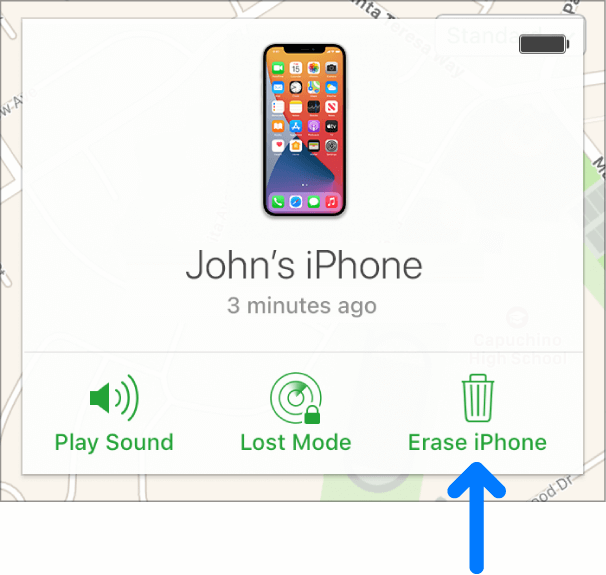
This method of solving how to change passcode on iPhone if forgotten is possible and quite easy as long as your iPhone is connected to the Internet. And just like the first one, the contents of your device will go together with your forgotten passcode. Just follow these steps:
- Log in your Apple ID on iCloud.com to get into your account.
- 点击“所有设备 ” and a list of connected devices to your account will appear.
- Find your iPhone and click the “擦除iPhone “ 选项。
- 输入 your Apple ID password or answer the security questions.
- You have the option of setting up your iPhone as a fresh device or restoring if you have a backup or iCloud.
Part #3: The Easiest Way to Change Passcode on iPhone if Forgotten
iOS解锁 是一种方式 how to change passcode on iPhone if forgotten it. You may use this tool to do four distinct tasks on your iOS device. It first allows users to disable the passcode on their Apple devices. Following that, there is a program that allows you to erase the Apple ID, which will also remove the linked iCloud account. Finally, it allows you to disable the Screen Time password on your device.
You must, however, keep the following in mind:
- Removing the passcode will result in the deletion of your iPhone's data.
- The iPhone will be upgraded to the most recent version of iOS as well.
- Finally, you must ensure that the iPhone is linked to the computer via USB connection during the procedure.
To delete the passcode, follow these steps:
- Install and launch iOS Unlocker on your PC.
- 点击 清除密码 按 开始 界面上的按钮。
- 连接 the iPhone to the PC after that. Press the 信托 button on your iPhone. Your device's information will pop up. Press 开始 确认一下。
- 命中的 开锁 按下解锁按钮,然后输入号码。 0000. Wait a few minutes for the device's passcode to be deleted and now you are done!

Part #4: How to Change Passcode on iPhone if Forgotten Using iTunes
You have an additional option to change your iPhone passcode via iTunes if you have previously synchronized your phone with iTunes and have enabled Find My iPhone. Here are the steps:
- Use a USB cable to link your iPhone to the PC that you synced it with. During this process, keep your phone connected.
- Make sure you are using the computer you previously synchronized on if your phone or computer asks for a passcode and you are unable to recall it. If so, you can bypass it by putting your phone in recovery mode.
- Wait for iTunes to sync and backup your device.
- The top left corner of your computer screen should be your device's icon. Click this icon to display your device information.
- On the Summary tab, choose “Restore iPhone”.
- After the restore operation, your phone will be entirely wiped. You can then set up the device and recover your data.
人们也读如果您忘记了 iPad 密码,以下 4 种方法可以解锁 iPad如何解决忘记 iPad 密码的问题
第四部分:结论
这篇文章是关于 how to change passcode on iPhone if forgotten it. We have offered three different ways to bypass the passcode which is using either Recovery Mode, Find My iPhone feature, or iOS Unlocker. The third option is not only more effective but also the wisest choice because it also offers an additional tool, features, and useful functions. You can acquire the tool right now at iOS-Unlocker.com, and solve all your iPhone-related problems with one app.
由罗西撰写
上次更新时间:2022-06-02