


You must slide to activate the unlock button for all smartphones, including iPhones. For some reason, the screen becomes unresponsive, which you do in such a case when the slide to unlock not working. It's worse when you try to 备份iPhone with unresponsive screen. You will only panic when you have no option. This is your go-to article. It discusses the online, offline, and manual ways of handling an unresponsive screen until you access the Apple device without limitation.
The solutions come in handy when managing the iOS device and terms and conditions for the same to avoid disappointments. Although this looks like a hardware problem, some are caused by software malfunctioning. Continue reading to know the dos and don'ts when the slide key refuses to work.
Part #1: Repair the Slide to Unlock Not Working Function Using Boot DevicesPart #2: Repair the Slide to Unlock Not Working Function by Removing the Screen ProtectorPart #3: Repair the Slide to Unlock Not Working Function by Cleaning of the DevicePart #4: Repair the Slide to Unlock Not Working Function Using iOS Unlocker结语
Part #1: Repair the Slide to Unlock Not Working Function Using Boot Devices
It is an unwritten rule that the moment an iDevice fails to work, the first thing that comes to your mind is to restart the iPhone. Like any smartphone, even to unlock an old iPhone, these come with two features: the power off and then restart option. We need a hard reboot iPhone approach which comes in handy when slide to unlock is not working.
All you need to do is to concurrently press the home button and the power button until you see the screen appears dark. After a few minutes, you can use the normal procedure to power the iDevice back until you get the Apple logo to appear on the screen. Try if the slide is working. If it doesn't, you have to look for another option.
Part #2: Repair the Slide to Unlock Not Working Function by Removing the Screen Protector
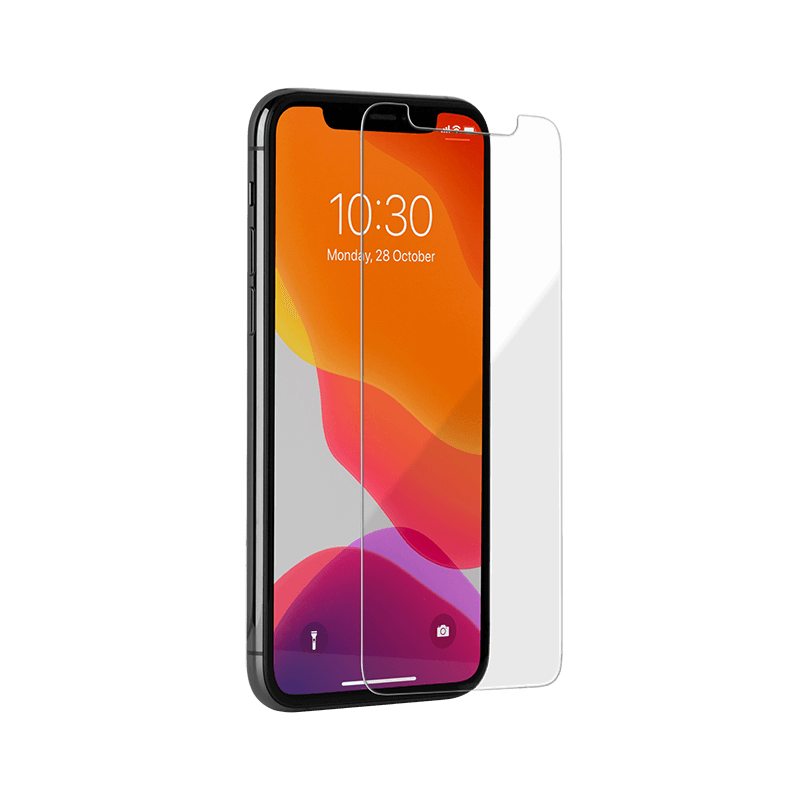
Screen protectors come in handy to ensure the original screen remains intact. It avoids unnecessary and costly repairs. The screen protectors are affordable compared to the original screens. However, the quality of the screen protector determines its functionality. A poor quality screen protector can cause it to malfunction. You can manually remove the screen protector and try the slide if it is working. If not, all is not lost; read on to look for workable approaches.
Part #3: Repair the Slide to Unlock Not Working Function by Cleaning of the Device
They say that one of the dirtiest gadgets after money is mobile devices. Everything you touch finds its way to the iPhone's screen. There could be a dirty layer of dirt that may cause the slide to unlock not to work. You can also choose to clean the device, but you have to take caution. You must use the recommended liquids or take them to professionals to run a deep cleaning of the device and enjoy unlimited access to the iDevice.

Part #4: Repair the Slide to Unlock Not Working Function Using iOS Unlocker
When you have tried all the options and still have the slide to unlock not working, it's time to reset the iPhone to factory setting. This is possible using several ways, but we want to introduce iOS解锁. This comprehensive toolkit has the wipe passcode function, the removal of Apple ID, and the reset of screen time. The toolkit is ideal for managing the unlock function irrespective of the cause. It runs this on a straightforward interface that makes it ideal even for novices and experts.
Moreover, It gives you unlimited access to iCloud settings, the backbone of all iOS features. The toolkit has no limit on the type of passcode, whether its Face ID or pattern, or digit locks. Irrespective of the number of times you have keyed in the wrong passcode, it will erase it in a few steps. The only disadvantage of this toolkit is that it deletes everything from the iDevices.
Suppose you haven't backed up your data, then too bad. If you have them, you have no cause for worry. If the latter is the case, then it's time always to back up data to avoid inconveniences when such things occur.
Here are the steps you can follow to reset the device when the slide to unlock is not working
- 在您的电脑上下载、安装并运行 iOS Unlocker。
- 选择“清除密码 “ 菜单
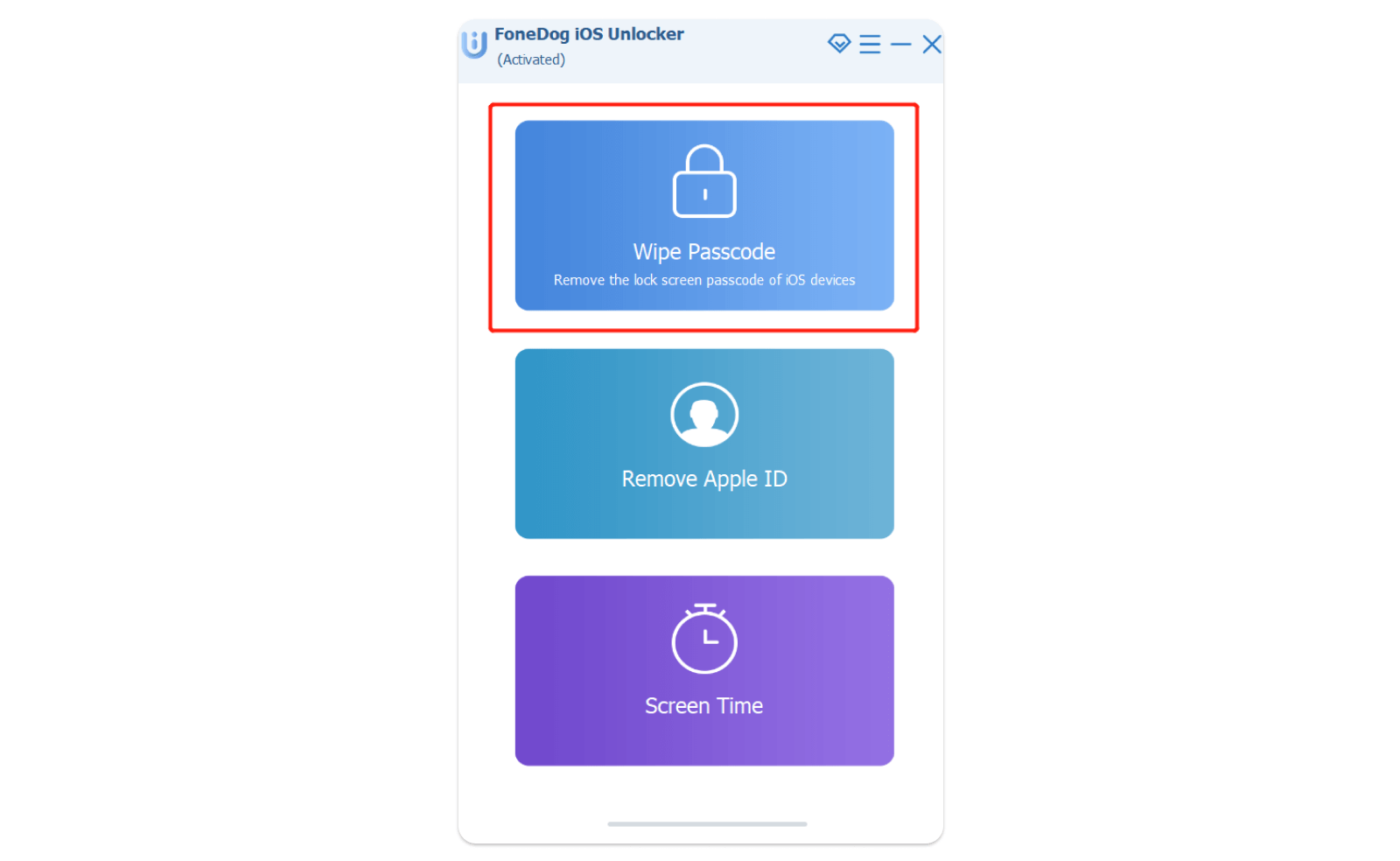
- 选择“开始 " button as you connect the locked device to the PC using a USB cable
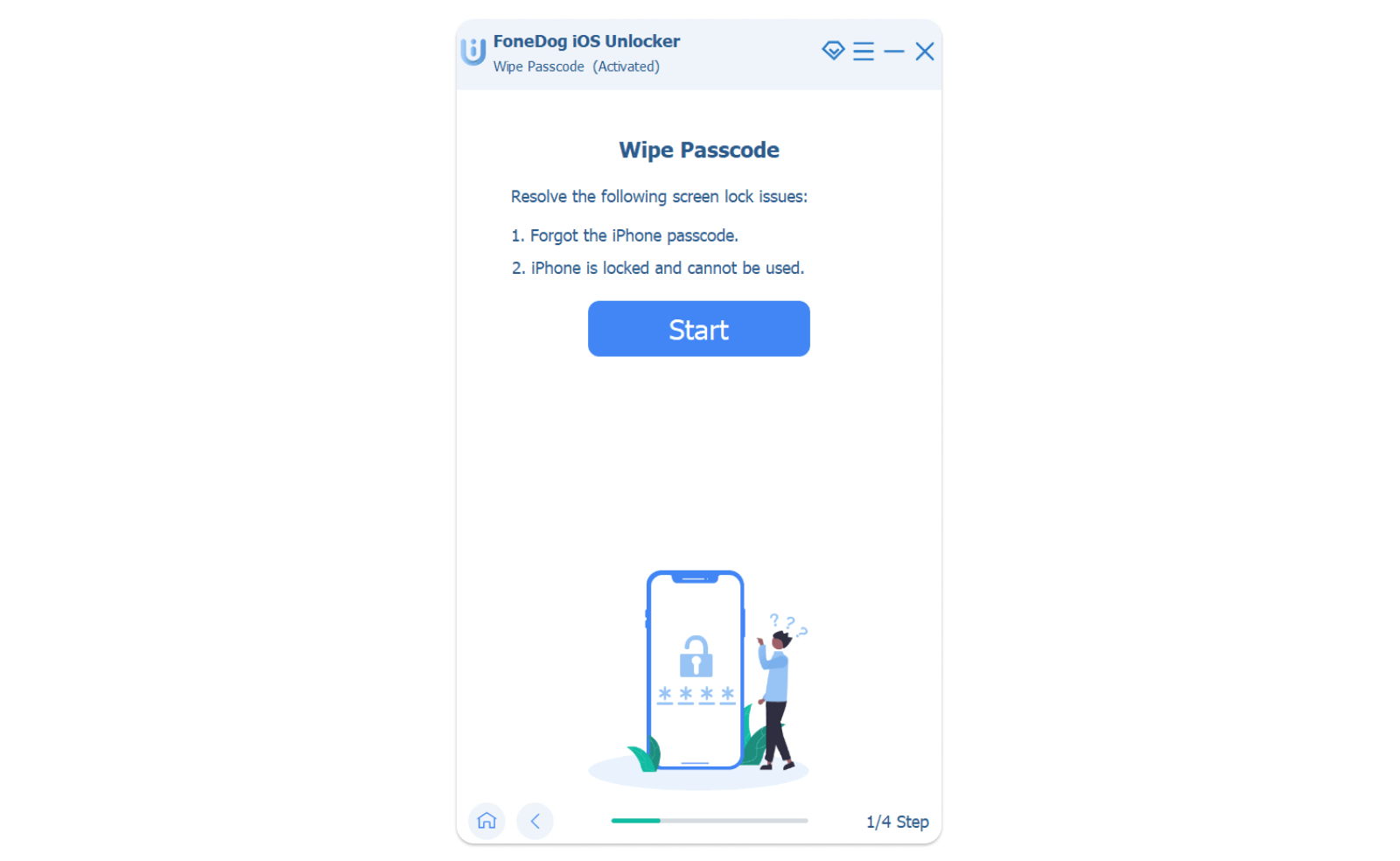
- Accept the trust agreements as you confirm the device details 和 press start again.
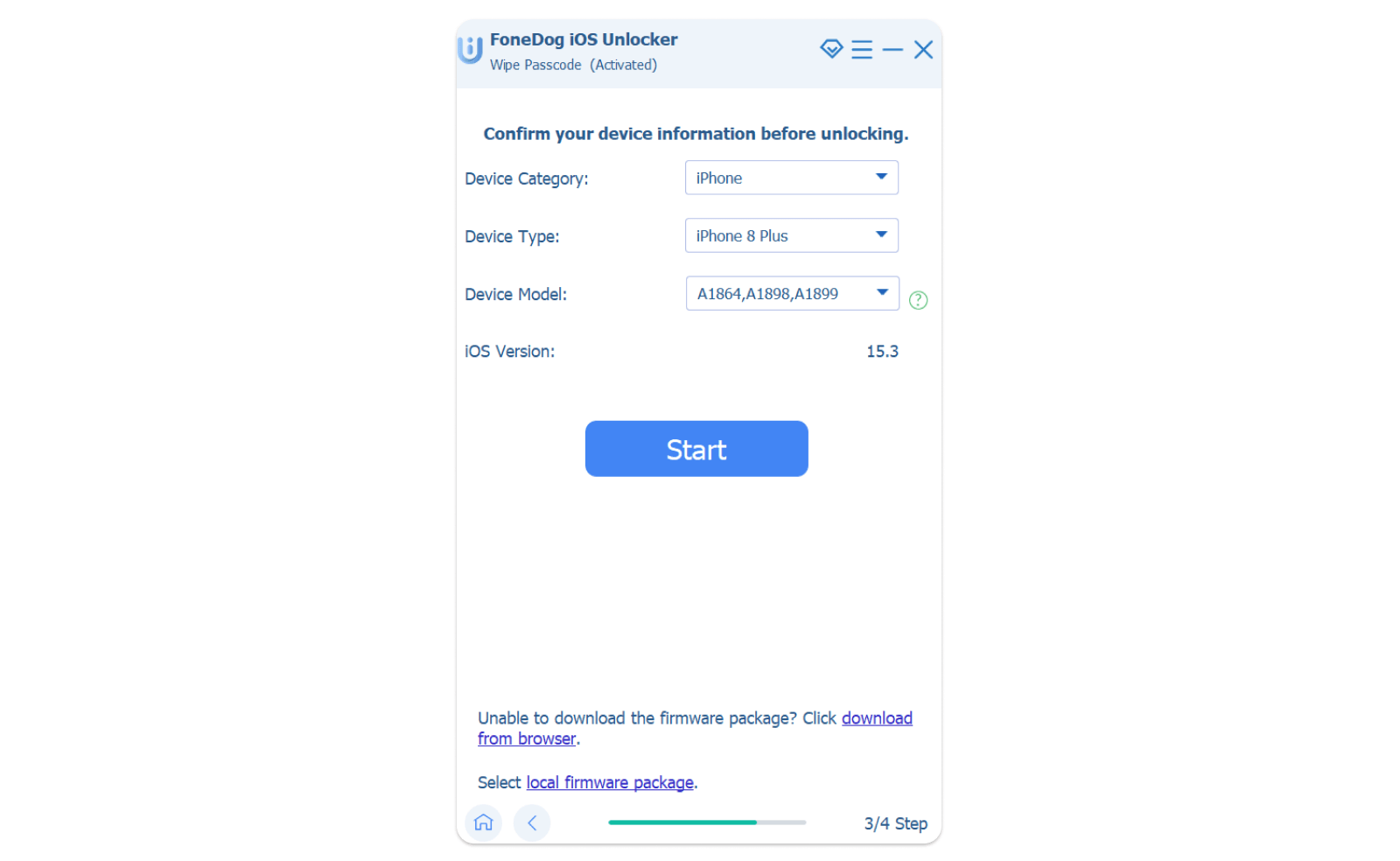
- Wait for a few minutes for the application to download the right firmware toolkit and click the 开锁 button. The unlock code is "0000 ".
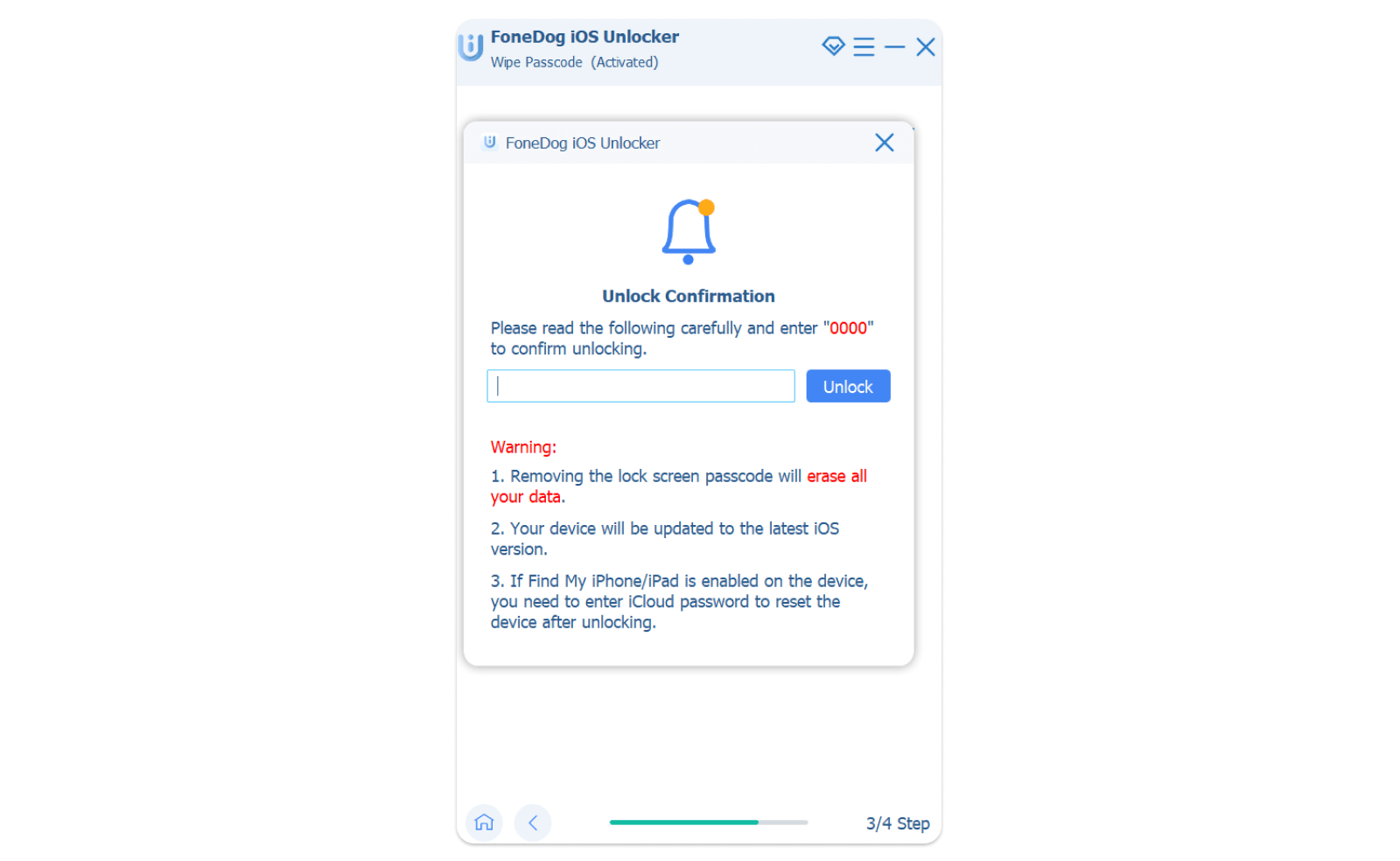
- That's how the iDevice is unlocked.
Can you get a simple application to manage such a complex function other than using iOS Unlocker?
人们也读7 Easy Methods to Fix iPhone Slide to Unlock Not Working[SOLVED]: Bottom Half of iPhone Screen Not Working
结语
You might think your device is spoilt, yet there are some simple procedures that you need to follow to avoid the misfortune of the slide to unlock not working. When you have tried all the ways in vain, it's important to go for third-Party integrations or digital solutions specifically to reset the iDevice to factory settings.
That's where iOS Unlocker takes the lead in the best toolkit when you are looking for a password wiper, unlock remover, Apple ID remover, and a screen time manager. The choice is yours. At the end of it, you want to have a working iDevice.
由罗西撰写
上次更新时间:2022-03-17