


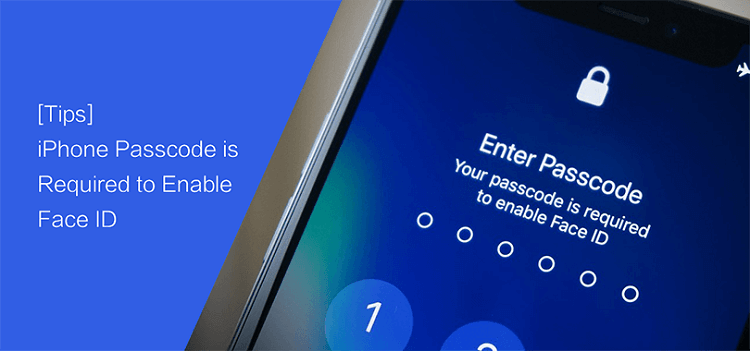
iPhones with Face ID have a common issue of ‘需要您的密码才能启用面容 ID和’ popup error. Usually, this message pops up randomly while the device is idle or has not been used for a few hours.
It’s annoying because you need to enter the passcode every time this happens. So, why does this happens, and how could you fix it? Today, we will find out the reason behind this annoying security feature issue and how we can rectify it.
Part #1: When Do You Need to Enter the Passcode to Enable Face ID?Part #2: 5 Quick Fixes to Resolve Your Passcode Is Required to Enable Face IDPart #3: The Ultimate Fix If You Forgot the Passcode to Enable Face ID第 4 部分:总结
Part #1: When Do You Need to Enter the Passcode to Enable Face ID?
The Face ID is a remarkable security feature of iOS that uses facial recognition technology just like the Touch ID. However, Face ID is more popular since it lets you unlock your iPhone like a Pro.
In just a glance, you will be able to gain access to your device without entering the passcode. However, this feature is not perfect all the time. There are instances where the Face ID fails to deliver its functionality.
Just like this known issue that we will be discussing ‘Your passcode is required to enable Face ID’. Usually, this error appears during any of the following scenarios:
- 之后 快速重启.
- Perhaps after doing a 强制重启
- Required during an Over-the-Air or OTA 软件更新
- If the iPhone is idled for over 48 个小时里
- The remote lock command is enabled
- The iPhone failed to match a face 5 时
- It entered an SOS模式
- You haven’t used the passcode for the last week
But, if the error message appears more frequently than these occurrences above, then you need to check if there is something wrong with your iPhone. Proceed to the next parts to troubleshoot ‘Your passcode is required to enable Face ID’.
Part #2: 5 Quick Fixes to Resolve Your Passcode Is Required to Enable Face ID
We gathered 5 of the best fixes that you can do to correct the issue of ‘Your passcode is required to enable Face ID和. Get your iPhone ready and follow these:
Tip #1: Verify Face ID Settings
如果 人脸辨识签到 has been acting up from the time it has been enabled, perhaps there might be some missing configurations.
You can verify the Face ID settings on your iPhone by going to the 个人设置 app, then tapping the 人脸ID和密码.
Check if the settings on your Face ID are set correctly and according to your desired option.
Tip #2: Clean Front-facing Camera (TrueDepth Feature)
The front-facing camera of your iPhone is known as the TruDepth feature which is has a Dot projector that feeds visual data in real-time. The design uses LEDs to cast a varying grid of around 30,000 infrared dots to register the depth within a point of milliseconds.
You must make it a habit to clean your iPhone camera on a regular basis to avoid issues including this.
Tip #3: Check for Available Update
The next thing you need to do is to check for available updates on your iPhone. Perhaps, you have missed checking the update notifications because you were too busy, the reason why some of the settings and features are now acting strange.
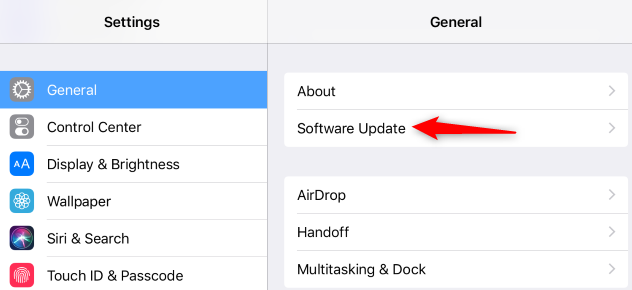
You can check if there is an available software update via 个人设置,然后点击 常规. Scroll to About and choose . It will automatically scan for available updates and if there are, it will ask you to download and install them.
Just follow the onscreen instructions on how successfully update the iOS.
Tip #4: Add Your Alternate Appearance
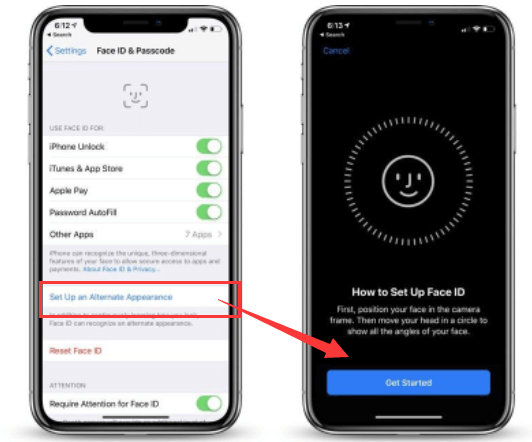
Did you get a haircut recently or shaved your face? Maybe the Face ID wasn’t able to recognize your new look. It will, however, try its best to recognize your face and features but it will ask you to enter the passcode otherwise, and it could be the reason why your passcode is required to enable Face ID.
To add an alternate appearance to iPhone, do these:
- 可选 个人设置
- 敲打 人脸ID和密码
- Enter your device passcode
- 从我们的数据库中通过 UL Prospector 平台选择 设置备用外观
- Follow the guide to save your alternate appearance. It may ask you to place your face in the given circle and move your head to capture your facial features better
- 敲打 继续 一旦完成
- 击中 完成 保存更改
Tip #5: Restore Face ID Settings And Set Up
If the above four tips failed, your last attempt to solve this annoying issue is to reset the Face ID. You can always do this via Settings and set up again.
- 在您的 个人设置 挖掘 人脸ID和密码
- 查找并点按 重设人脸ID
After resetting this feature, give your phone a quick power cycle and set up Face ID again after restarting. Check if your passcode is required to enable Face ID.
Part #3: The Ultimate Fix If You Forgot the Passcode to Enable Face ID
When it comes to security, the Face ID seems pretty convenient and cool, however, if we consider your data, your passcode is still more secured, especially when you use a 6-digit alphanumeric plus special character passcode.
This is because it can take a million more attempts to decode it and by that time, you already have secured your device. If you are searching for the best solution when you forgot the passcode and your passcode is required to enable Face ID, use iOS解锁.
iOS Unlocker is a special kind of program that is dedicated to unlocking various iOS locked scenarios. It has a Wipe Passcode feature that helps you remove the current passcode of the iPhone and allow you to set it up again.
您不再需要担心 forgetting your iPhone passcode again, you got iOS Unlocker handy! If you want to learn how to use this software, refer to this complete guide below.
- 运行 iOS 解锁器
- 从我们的数据库中通过 UL Prospector 平台选择 清除密码 从主菜单
- 点击 开始
- 连接 the iPhone using a USB cable
- Enter the device make and model
- 下载 the iOS firmware package
- 点击 开锁
Wait for the program to complete wiping out your passcode and restart a fresh device.
However, your data might be removed once you use iOS Unlocker. There is no official way to reset the passcode yet without data loss. Luckily, if you create regular phone backups, you can always restore them on your iPhone.

人们也读如何在没有密码的情况下解锁 iPhone 13 的快速指南已解决:如何在没有密码或面容 ID 的情况下解锁 iPhone?
第 4 部分:总结
In this article, you have learned how to fix ‘your passcode is required to enable Face ID’ issue. This is quite common to iOS devices with Face ID features. Sometimes, this error happens when the settings are misconfigured.
You have to carefully select and verify the Face ID settings to avoid this kind of annoying problem. But in case this issue still persists, you can use iOS Unlocker.
Simply use the Wipe passcode feature to ensure that it will give you a chance to set up your device again and create a new Face ID.
由罗西撰写
上次更新时间:2022-01-27