


Your Apple ID is the gateway to most of the features you can avail from having an Apple device. As such, you must change its password every now and then to keep your account secure. For this, you must know the Apple ID 密碼要求.
This guide will teach you all about the requirements of Apple ID password. In addition, we will talk about how to keep your password more secure through various tips. Finally, we will talk about the best iPhone unlocking client you can get if you 忘記了您的iPhone密碼 or Apple ID password.
內容指南 Part #1: What Are the Apple ID Password Requirements?Part #2: Tips to Keep Your Apple ID Account and Password SecurePart #3: How to Reset Apple ID Password If You Forgot It? [The Easiest Way]第五部分:結論
Part #1: What Are the Apple ID Password Requirements?
The user’s Apple ID is utilized for gaining access to the different services provided by Apple. These include the App Store, iCloud, FaceTime, iMessage, iCloud, Apple Music, and more. There are some pointers Apple gives it users when creating their Apple ID. These include the following:
- The Apple ID requires you create a password contains at least 八字.
- Within these eight characters, there must be one number, one lowercase letter, and one uppercase letter.
- Spaces cannot be included in your Apple ID password.
- 您 cannot place a previous password that has been used to access the account in the past year.
- 您 cannot use your Apple ID as your password.
- 您 cannot use the same character three times in a row.
These are the requirements of Apple when creating our Apple ID password. As such, you must follow these requirements to create a new password for your Apple ID account. In addition, you must change your password every now and then to keep your account safe and secure.
Part #2: Tips to Keep Your Apple ID Account and Password Secure
After knowing the Apple ID password requirements, you should pay attention to keeping your Apple ID account and password secure, here are some tips.
Tip #1: Choose Hard-to-Answer Security Questions
Apple utilizes security questions as a backup method of identifying yourself. In addition, you need it when you call Apple支持. Security questions are meant to be memorable for you but difficult to guess for others. They assist Apple to authenticate that you are the individual requesting access to your account when combined with other identifying information. You can go to the account page of your Apple ID to place security questions for it if you haven't already.
Tip #2: Use Two-Factor Authentication
Apple has strengthened its security with two-factor authentication, which ensures that you are the only one who can access your account. So, if another person is knowledgeable of your password, he or she can’t access your account due to 雙因素認證.
Once you’re logging into your account, we will prompt you to authenticate it through a verification number containing six digits. This is done when you place your Apple ID for the first time on a new device.
The code is displayed to devices you already trust. Or, it is emailed to a secure phone number you have trusted in the past. You should place this six-digit code to the new device, so you can access your Apple ID on it. It is important to note that you shouldn’t give your verification code or password to anyone else.
Tip #3: Check Pages for SSL or Encryption
Secure Sockets Layer (SSL) protects your privacy on all online pages where you can access, alter, or view your Apple ID. When accessing your Apple ID account page using the Safari browser, locate the encryption or Lock icon in the browser to ensure that your session is properly encrypted and secure.
Tip #4: Be Reminded of Safety and Security Policies
Except for Apple ID password requirements, Apple has tight policies and processes in place to prevent unauthorized access to your account. This is kept in place and is included with encryption, passwords, and other security technology to protect your account.
Apple Support will be unable to assist you with any account operations until you provide your support PIN which will be used to verify your identity. Other carefully-determined criteria to help use verify your identity is employed as well. As such, Apple regularly audits and evaluates our policies to help keep your account secure.
Tip #5: Other Tips to Keeping Your Account Secure
Good internet security necessitates a combination of Internet service provider practices and educated user behavior. Here are some security guidelines to keep in mind for your Apple ID and other accounts created online:
Other Tips for Creating Your Password:
- Use strong and secure passwords at all times.
- Never share your password and Account ID with anybody else.
- Regularly change your passwords and avoid repeating old Apple ID passwords.
- Select security questions that are difficult to answer. You may also employ answers that are difficult to guess. You can use nonsense answers while ensuring you remember what the answer to the questions is.
Other Tips for Securing Your Account:
- If you change your mind about a phone number or email address that’s linked to your Apple ID, ensure that you should update it on your account ASAP.
- To add an extra degree of security to your Apple ID, so you won’t have to answer security questions, you should activate two-factor authentication.
- Phishing scams should be avoided. You should not share your information on a particular website that you don’t deem as trustworthy. You should be knowledgeable or arm yourself with knowledge on how to spot phishing scams.
- Your Apple ID, if possible, shouldn’t be given to anybody. You shouldn’t give it to your loved ones of family members too.
- To prevent others from accessing your account on a public device, you should sign out all the time after your session is finished.
Part #3: How to Reset Apple ID Password If You Forgot It? [The Easiest Way]
If you can’t remember Apple ID password even after you read through the Apple ID 密碼要求, there is the best iPhone unlocking client you can use nowadays to solve the problem, iOS解鎖. It is used to unlock iPods, iPads, and iPhones through the erasure of its passcode. You can also use it to remove the screen time password of your device. It can also help remove the Apple ID and the corresponding iCloud account of a second-hand iOS device.
Here are some of the scenarios the tool can fix:
- You forgot your device passcode. Have you ever created a new passcode only to forget it? Have you forgotten the passcode to your old iPhone/iPad/iPod's lockout screen? Have many devices with different passcodes? iOS Unlocker can help you get out of it by quickly deleting the passcode.
- You have multiple failed attempts when placing your passcode. If you input the wrong passcode too many times, your iOS device will be locked and unusable. iOS Unlocker can assist you in unlocking your disabled iOS device without having to wait hours.
- You have a broken screen on your iOS device. Can't enter the passcode on a broken iPhone/iPad/locked iPod's screen? iOS Unlocker allows you to rapidly 如何在沒有電腦的情況下繞過 iPhone 密碼(2024 年指南).
- Your Face ID or Touch ID is not working. Touch ID and Face ID make unlocking an iOS smartphone much easier. If Touch ID or Face ID don't work, you'll need iOS Unlocker to unlock your iPhone, iPad, or iPod.
- You have a second-hand Apple device. If you buy a used iPhone and don't know the passcode, you should download iOS Unlocker to remove the passcode off the lock screen so you can use it properly.
With the tool, you can do the following:
- 你有 完全控制 over your iOS device.
- Get access to Apple ID 功能和 iCloud 偏好設定.
- The old Apple ID login will 不會 disrupt its functions.
- The old Apple ID will 不會 trace or detect you.
- The old Apple ID will 不會 be able to delete your data remotely.
- Back up your iPhone/iPad/iPod via iCloud or your computer with iTunes.
Before you use the tool, you should take note of the following:
- The Apple ID removal process will wipe out 全部 data from your device.
- During the removal process, the iOS device must be 已聯繫 to the computer entirely.
- You must ensure that you 別 utilize the feature called Erase All Content And Settings. That’s because the device will be linked to your old Apple ID permanently.
- Do 不會 use iTunes to restore or update your device. The consequence is your device will be permanently blocked from the old Apple ID.
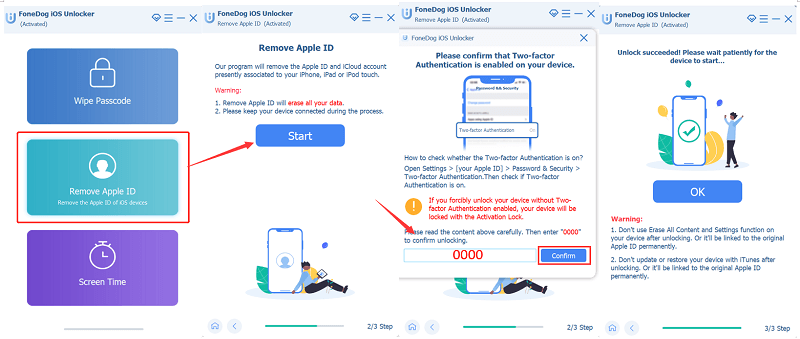
Here’s how to use the tool to remove the Apple ID if you forgot Apple ID password on your device:
- 發佈會 the iOS Unlocker tool. Click the mode called 刪除Apple ID 在主界面上。
- 連結 the iOS device to the computer using the USB cable. Click the 信任 button on the device to ensure a stable connection.
- 按下按鈕 開始 in order to begin the process of removing your Apple ID.
- If Find My is 停用, iOS Unlocker will remove the Apple ID automatically.
- If Find My is 活性,你應該 重置設置 within your device. To do that, you should go to 設定 > visit 關於你的刊登物: >點擊 Reset> 點擊 復位所有設置. You can place your passcode if prompted to confirm the action.
- If your device is running the iOS version 11.4 and later,你必須 啟用雙因素身份驗證. To do that, visit 設定 >點擊 蘋果ID > Password And Security > 雙因素驗證.
- 輸入 ”0000 ” to make sure that the Two-Factor Authentication feature is activated within your iOS device.
- 確認 the information about your device. Press the button for 開始 to begin the firmware downloading process. Wait until it is done.
- After the process is done, the Apple ID, including the iCloud account will be removed.
人們也讀無需密碼即可恢復 iPad 出廠設定的終極指南忘記Apple密碼?以下是如何解鎖iPhone的方法(2024年更新)
第五部分:結論
本指南已經談到 Apple ID 密碼要求. We talked about how to secure your Apple ID account and password too. Finally, we gave you a tool called iOS Unlocker to help you remove the Apple ID from your device if you can’t access it. Get the tool today and have no limits over the control of your iOS device!
羅西(Rosie)撰寫
上次更新時間:2022-06-02