


It’s quite annoying to get locked out of your iPhone and the only thing you can do to unlock this iPhone is to perform a hard reset. In today’s article guide, we will learn how to hard reset iPhone 11 沒有密碼。
There are two ways to reset an iPhone, one is a soft reset and the other is a hard reset. Doing a soft reset is only instructing your iPhone’s software processes to restart and it does not erase any data in it.
A hard reset, on the other hand, will completely wipe out the data on your iPhone. This troubleshooting process is usually done when the rest of the options are exhausted.
Under your device’s Settings, there is an option to Erase All Content and Settings under the Reset menu. This is the quickest way to wipe out your data completely from the iPhone. After hard resetting your iPhone 11, you can then restore your backup to start anew.
However, things can get messy if you get your devices disabled. If you want to know what more methods you can do on how to hard reset iPhone 11, then read this post for awesome tips and tricks!
內容指南 Part 1. Hard Reset Your Locked iPhone 11 without PasswordPart 2. How to Hard Reset iPhone 11/11 Pro/11 Pro Max with Buttons when FrozenPart 3. Hard Reset An iPhone 11 With iTunes or FinderPart 4. Reset iPhone 11 Without A Computer - iCloud部分5。 概要
Part 1. Hard Reset Your Locked iPhone 11 without Password
To avoid all the stress and hassles in hard resetting your iPhone 11, you can use a professional software called iOS解鎖.
Using iOS Unlocker bypasses all the pre-requisites of resetting your device and goes straight into unlocking your iPhone so you can use it right away. It has a user-friendly platform that even non-technical people can use.
It can unlock the passcode, remove the Apple ID/iCloud, and even erase the Screen Time restrictions. What makes iOS Unlocker even more convenient is the click-through process it offers.
Just download and install this software, prepare your iPhone 11, and learn how to hard reset iPhone 11 by following the steps:
步驟1.運行iOS Unlocker
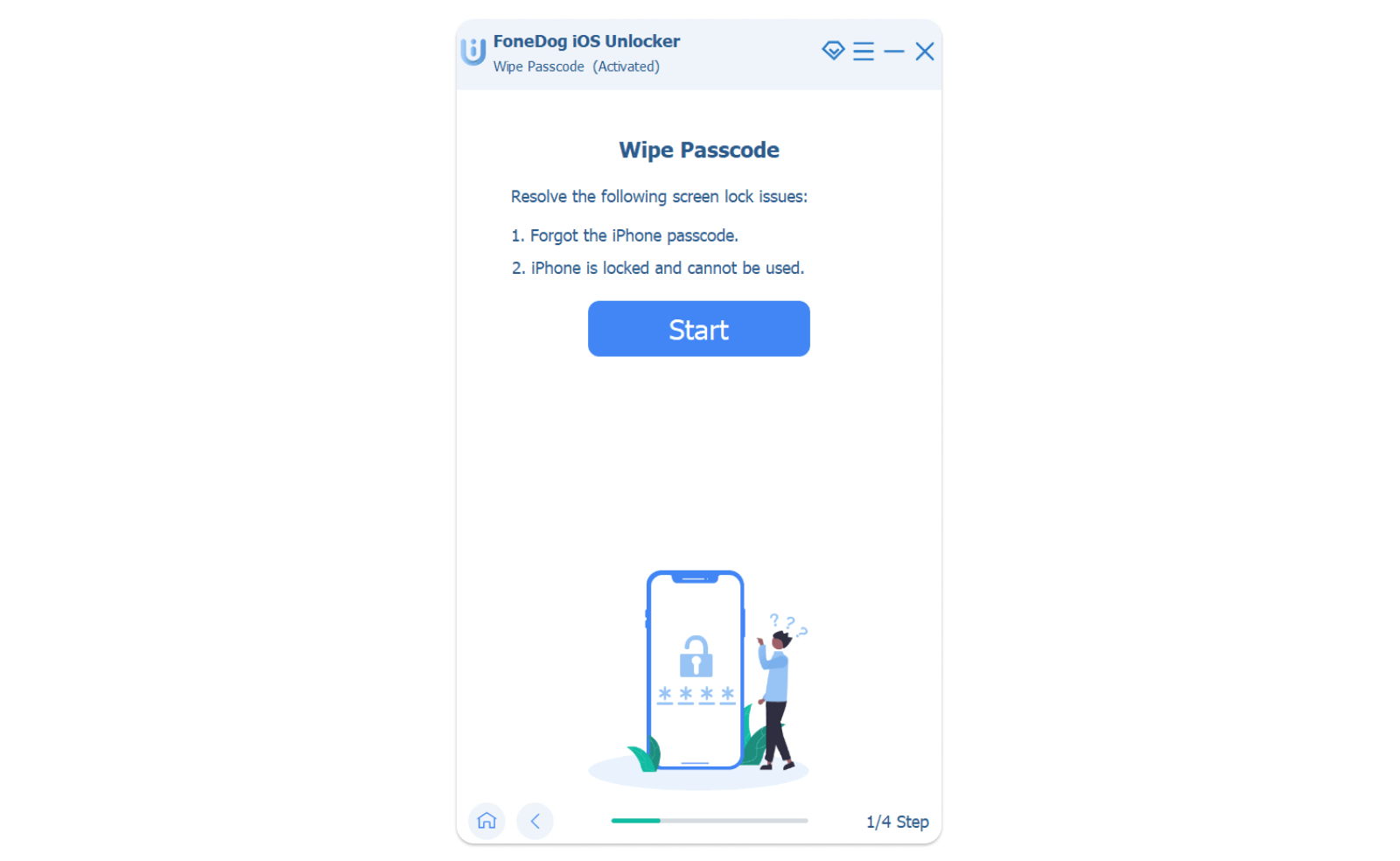
Download and install iOS Unlocker on your computer and once the application is open select the 清除密碼 feature from the main menu and click the 開始 按鈕。
Step 2. Connect the iPhone 11
Using a USB cable, connect your iPhone 11 to the computer. If the iPhone has been connected to the computer a few times already, it will directly display all the device information.
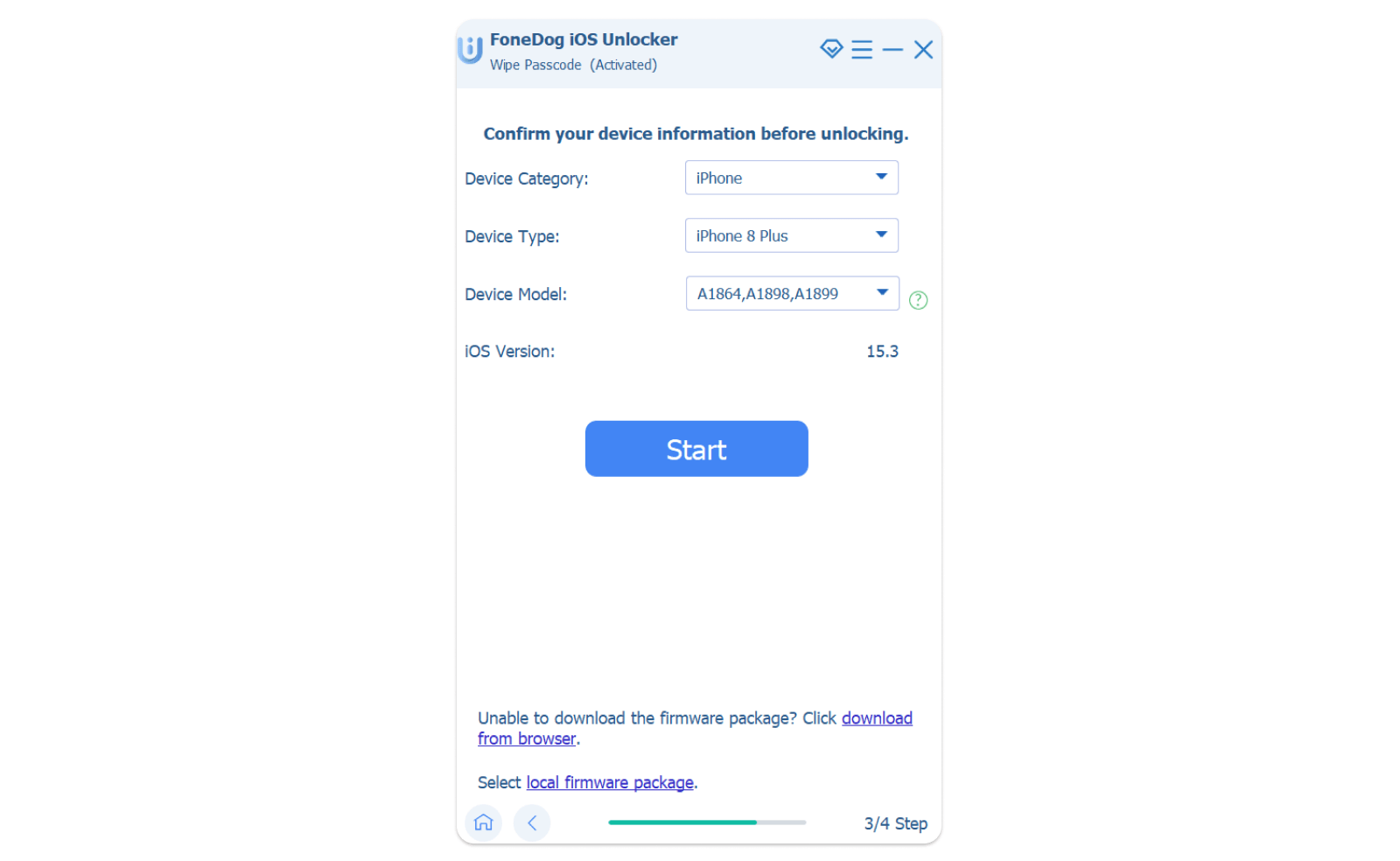
If this is the first time you have connected to the computer then you will be prompted to enter into recovery mode. To enter the recovery mode in iPhone 11:
- Disconnect the iPhone from the computer
- 關閉電源 the device by holding down the Side and either Volume Down buttons
- Continue pressing the Side button while connecting the iPhone to the computer
- Check on your computer screen if you see a cable pointing to a computer, if you see this, then you can now 釋放 the button. This is already the recovery mode
步驟3。 下載固件包
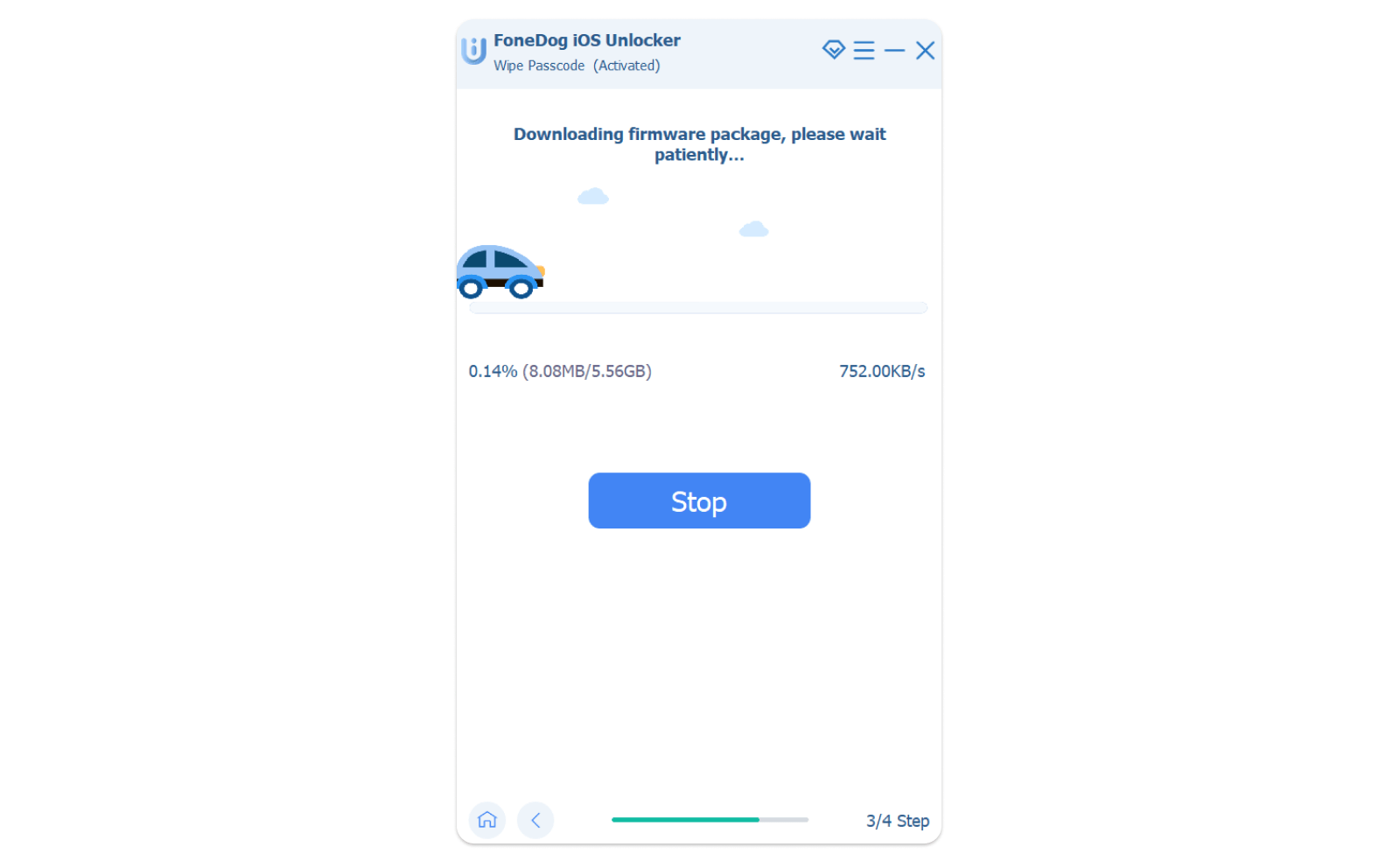
On the next part of the screen, you will need to enter or verify the device's make and model. Make sure that the information you enter is correct because this is vital in downloading the firmware package. Click the 開始 按鈕繼續。
Step 4. Hard Reset iPhone 11
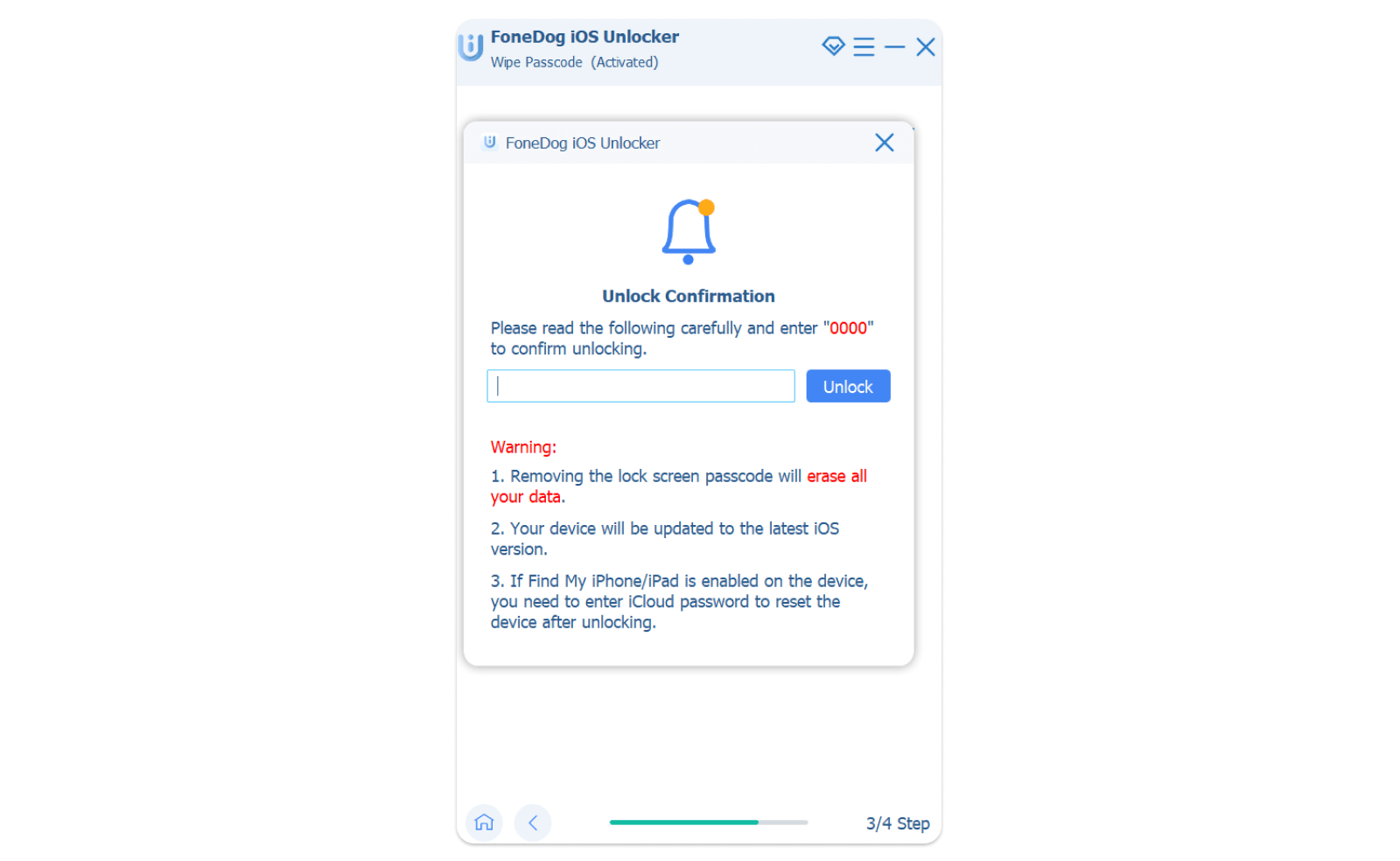
After the firmware package has been downloaded, you need to confirm the reset by entering the software passcode which is 0000. Wait for the resetting to be completed.
Now that your iPhone 11 is totally unlocked, you can then use the Setup Assistant to set up your device. At this point, you can restore your backup either from iTunes or iCloud.
Part 2. How to Hard Reset iPhone 11/11 Pro/11 Pro Max with Buttons when Frozen
Here's how to hard reset iPhone 11 if it's locked or not responding to touches or swipes:
步驟 1 : 按 調高音量 button and then release it. Then, press and quickly release 音量減小 按鈕。
步驟 2 :按住 電源按鈕 until the Apple logo displays. Finally, let go of the button.
By following the steps, the iPhone will be restarted. The lock will be unlocked. It is not always possible. Most of the time, resetting does not work, and you are tempted to use iTunes to solve the problem.
Part 3. Hard Reset An iPhone 11 With iTunes or Finder
Using iTunes is another way to hard reset an iPhone 11. What makes this method convenient is when you already have an iTunes backup where you can easily restore after the reset.
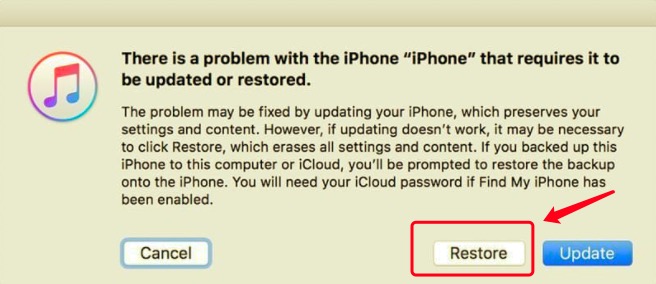
Usually, you can simply plug the iPhone into the computer where it syncs, enter your passcode and click the Restore option in iTunes. You may also encounter the situation that your iTunes cannot connect to your iPhone for lacking a passcode. But since you don’t have the passcode, you may need to place the iPhone into recovery mode.
Follow these steps on how to hard reset iPhone 11 using iTunes or Finder:
- 進入恢復模式. Do this by making sure no cables are currently attached to your iPhone. Find and press the Side button plus the Volume Up or Down and turn off the unit. When the screen is black, immediately connect the iPhone to the computer while keeping the Side button. Release the button when you see a graphic display of a USB cable and a laptop. This is the recovery mode
- Locate your iPhone in iTunes or Finder
- 點擊 恢復 option to hard reset the iPhone 11
- 等待過程完成
Part 4. Reset iPhone 11 Without A Computer - iCloud
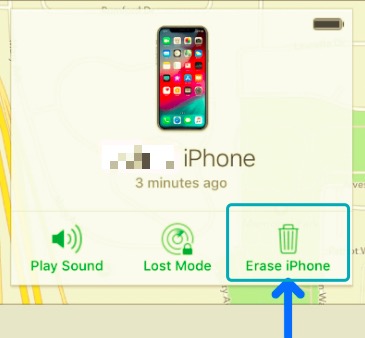
You may also consider using the iCloud Find My iPhone feature if you don’t have any access to a computer. There is an option inside this feature wherein you can erase the data remotely.
This feature is dedicated when the iPhone is lost or stolen, however, if this is the only option left, then you can also utilize this to hard reset your device. iCloud provides an easy-to-use method to keep track of your device, manage its files, and even support backup.
Here’s how to hard reset iPhone 11 with the help of iCloud:
- 在任何瀏覽器上,轉到 iCloud.com
- Enter your login details. This should be the same info on your iPhone 11
- Navigate to your device
- 選擇 擦除iPhone 從給定的選項
- Select Continue and wait for the reset to be completed
Now if the Find My feature is disabled prior to getting your iPhone 11 locked out, you can reset your device through iOS Unlocker or via iTunes/ Finder.
人們也讀iPhone 重新啟動時 Touch ID 需要輸入密碼Top 6 iCloud Remove Software to Remove iCloud Account Easily
部分5。 概要
會心 how to hard reset iPhone 11 is essential especially when things go out of hand. A hard reset is needed in many troubleshooting methods and is usually given as one of the final steps. This is because doing a hard reset removes all the data on your iPhone.
In today’s article guide, we learned the 3 effective ways to hard reset the iPhone 11. The most efficient so far is iOS Unlocker. This unlocker provides a quick and easy way to bypass your iPhone so you can use it right away.
It comes with a Wipe passcode feature that is helpful in situations like forgetting the device passcode. Since you are unable to go through your Settings without the passcode, iOS解鎖 will bypass this for you and let you reset the iPhone completely.
Other methods include using iTunes or Finder and iCloud. These, however, have certain limitations and restrictions. It’s all up to you to choose which method will work best!
羅西(Rosie)撰寫
上次更新時間:2022-01-27