


Restrictions are a setting on your iPhone which is also known as Parental Controls. This feature lets you manage certain apps, monitor screen time, limit web content, privacy settings, games, downloads, purchases, and more.
Parents who want to check on their kids’ phone use can simply toggle on the Enable Restrictions via Settings. This can be done via Family Sharing or on the device itself. Also, children who know 如何解鎖iPhone may accidentally get access to unhealthy content on their parent's iPhone. In this article guide, we will further learn what does enable restrictions mean on the iPhone and other important things you need to know about it.
Part #1: What Does Enable Restrictions Mean? And How to Enable/Disable Restrictions on iPhone?Part #2: What Can Restrictions on iPhone Do?Part #3: How to Wipe Out Screen Time Passcode第 4 部分:總結
Part #1: What Does Enable Restrictions Mean? And How to Enable/Disable Restrictions on iPhone?
What does enable restrictions mean and why should we do that? The internet is full of everything and most of the content visible online may be too explicit for your kids to handle. Games can be addicting and music may sound too mature for them.
While you can search for almost anything on the internet, you may want to filter what they can find and browse. Having full control over what your kids can access on their phones is vital in having healthy mental and social development.
This is why Apple came up with the Parental Controls feature known as Restrictions or also called Screen Time Restrictions in later iOS versions. As the guardian, you need to set up the device first before letting your kid use it.
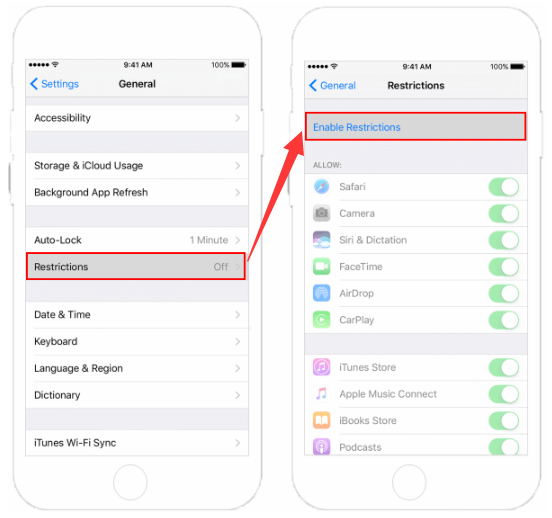
Follow this guide on how to enable the restrictions on your iPhone:
- On your kid’s iPhone, go to 設定
- 敲打 關於你的刊登物:
- 查找並選擇 限制
- 選擇 啟用限制
- 設置一個 限制密碼. Re-enter to confirm
Note that you can set a different passcode for the Restrictions feature other than the lock screen passcode so that your child won’t be able to decode it.
To disable the Restrictions, you simply need to go to the same settings and just tap on Disable Restrictions. Don’t forget to enter the passcode to completely turn off this feature.
Part #2: What Can Restrictions on iPhone Do?
Having learnt about what does enable restrictions mean, it's time to know about what can restrictions on iPhone do. Restrictions on the iPhone can do more than what you can imagine. Apple already studied and tested what are the important attributes to include in this feature. Here are some of the notable qualities of Screen Time Restrictions:
Establish Content & Privacy Restrictions
To oversee the apps that your child can visit and access, you can customize the Content & Privacy Restrictions.
- 造訪 設定
- 查找並點按 屏幕時間
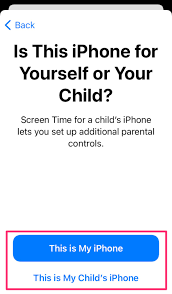
- Choose Continue, then select whether ‘This is My (Device) ' 要么 'This is My Child's (Device)
- To set up the Screen Time on your child's iPhone, follow the on-screen guide until you reach the Parent Passcode. Create and re-enter a passcode, and if needed, you need to provide your Apple ID and password.
- 查找並點按 內容和隱私限制 and turn it on
Control iTunes & App Store Purchases
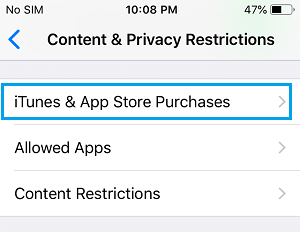
Another important part of the Restrictions that you need to enable is the iTunes & App Store purchases. This is where you can disable your child’s access to getting in-app purchases and downloads.
- In Screen Time, select 內容和隱私限制.
- If requested, enter the passcode you have created
- 敲打 iTunes和App Store購買
- Pick a setting and select 不允許
Furthermore, you can also revise the password settings from the iTunes & App Store for additional purchases.
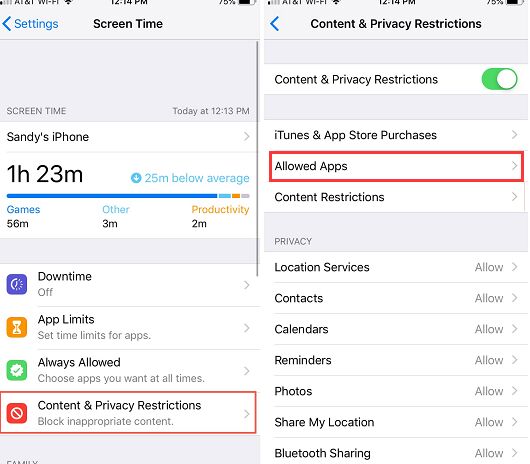
Restrict The Use of Built-in Apps And Features
To limit the use of built-in apps and features on your kid's iPhone, you can restrict them via Restrictions too. These apps will be temporarily concealed from the Home Screen.
- 再次轉到 屏幕時間,下 設定
- 選擇 內容和隱私限制
- Provide the Screen Time passcode
- 敲打 允許的應用
- Go over the apps that you want to authorize
Manage Explicit Content And Content Ratings
There are plenty of adult content online that may sneak into your child’s device. You can manage them using the Explicit Content & Content Ratings.
Here are a few apps that you can control:
- 應用程式
- 應用剪輯
- 聽讀叢書
- 電影
- Music, Podcasts, News, & Workouts
- 音樂視頻
- Music Profiles
- 電視節目
You can customize each set to prevent your child from accessing these profiles with explicit content and ratings.
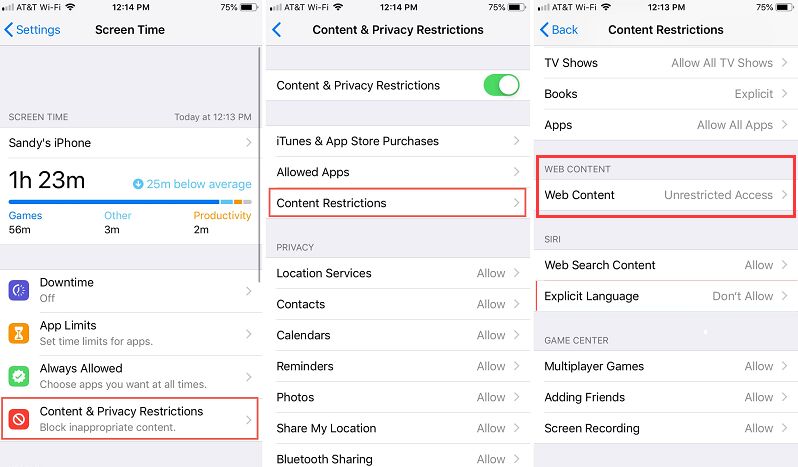
Filter Web Content
Parent should learn how to filter web content after knowing what does enable restrictions mean. Setting up a blocked list and approved sites only via Web Content keeps you assured that they don’t get to view and open suspicious sites on their phones.
- 造訪 設定 on your child’s iPhone
- 敲打 屏幕時間
- 選擇 內容和隱私限制 and enter the Screen Time passcode
- 選擇 內容限制,然後點擊 網頁內容
- 選擇 無限制訪問, Limit Adult Websites, or Allowed Websites Only
Choose and set up depending on the access you authorize, If necessary, you need to add more details such as the specific website that you want to prohibit.
Limit Game Center
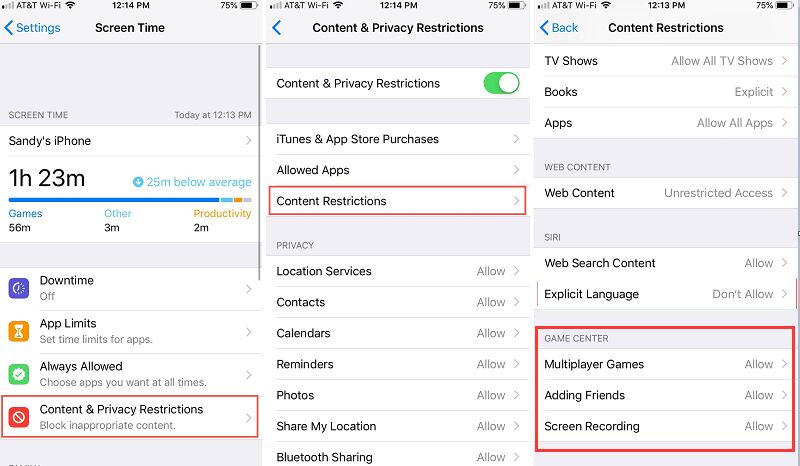
The Game Center is also a useful feature that you can customize on your child’s device in order to limit access.
You can set up the following in Game Center:
- 添加朋友
- Avatar & Nickname Changes
- 與朋友聯繫
- 多人遊戲
- Nearby Multiplayer
- 私人消息
- Profile Privacy Changes
- 屏幕錄製
要進行設定:
- 再次打開 屏幕時間
- 媒體推薦 內容和隱私限制
- 敲打 內容限制
- 向下滾動到 遊戲中心, and choose your desired settings
Deny Siri Web Search
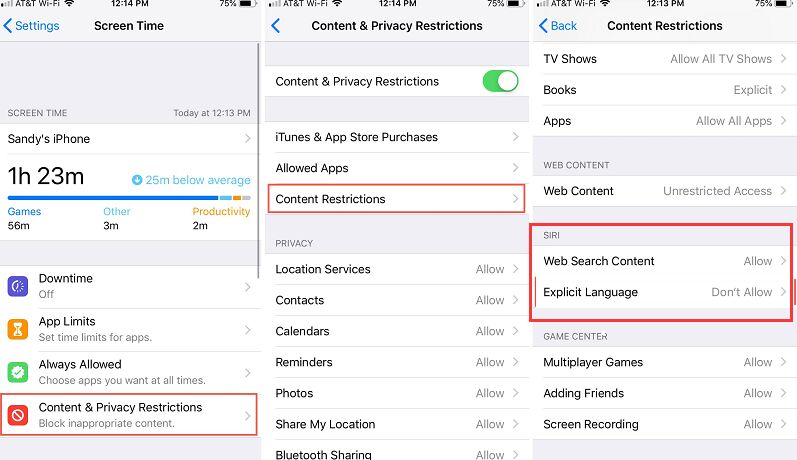
Siri的 is also customizable when it comes to your child’s safety and privacy. You can prevent Siri from displaying and searching for specific content and languages.
- 網頁搜索內容
- 明確的語言
To set up Siri Search:
- 造訪 內容和隱私限制 in Screen Time under Settings
- 敲打 內容限制
- 發現 Siri的 and then select your desired settings
Other features you can customize in Screen Time Restrictions are privacy settings and other settings and features.
Part #3: How to Wipe Out Screen Time Passcode
Having known what does enable restrictions mean, here is the additional tips for you. Forgetting the passcode is common and can be fixed right away. However, if you have also forgotten the other details associated with the passcode then you might have a hard time resetting.
iOS解鎖 gives you peace of mind in situations like this. This program can smoothly remove the Screen Time passcode.
You may also clear the device from the Screen Time Restrictions when your child has outgrown all the limitations you have set. iOS Unlocker will clean your iphone for free by resetting the settings to a clean and fresh start.
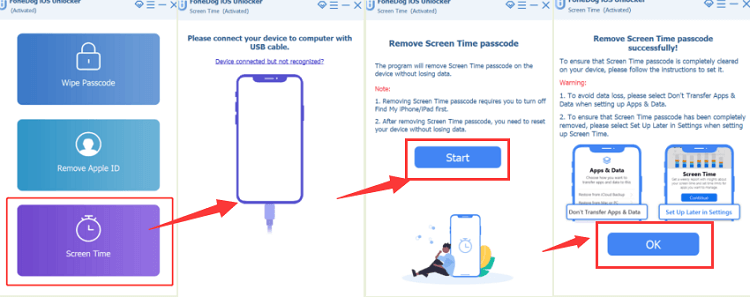
Here’s how to use iOS Unlocker, Remove Screen Time Restrictions:
- Install iOS Unlockeron your computer
- 點擊 屏幕時間 menu from the main program screen
- Plug the iPhone using a USB cable
- 命中的 開始 按鍵
- For complete removal of the passcode, follow the on-screen instructions to re-setup your iPhone. If you want to avoid losing data, select 不要傳輸應用程序和數據 ,詳見 應用和數據 選擇 稍後在設置中設置 when managing the Screen Time feature.
Please note that you need to have iTunes installed on your computer for this process to commence. And you should also turn off the Find My iPhone in your Settings.
人們也讀2024 年指南:Exodus Super 免費解鎖及最佳替代方案免費永久解鎖 AT&T iPhone 4
第 4 部分:總結
So what does enable restrictions mean on your iPhone? A lot. It gives you the full freedom to restrict, limit, and allow certain apps, settings, and features that your child can access.
And just in case you want to disable the Restrictions without a passcode, use iOS Unlocker. It will reset all your Screen Time settings in just a click and without data loss. Remember, the world is already full of unwanted and dangerous things, we all want our children to be safe even while they are on their devices.
羅西(Rosie)撰寫
上次更新時間:2022-01-27