


Apple ID is your personal pass to all iOS applications and settings. Without this, you won’t be able to fully use your iPhone, even unlock it once you have forgotten or Apple-ID kann nicht überprüft werden.
Apple syncs all your devices, settings, accounts, and other services with just one Apple ID per iOS device. Although you can register multiple accounts, it only needs one account for each of your iOS devices and it will then sync all your data inside this.
But what could have gone wrong why you cannot verify your Apple ID? It could be possible that your password is incorrect, you don’t have an internet connection and many more. For example, you may forgot your password on your ipad oder andere iOS-Geräte.
In this article, we will go over some of the tested and fool-proof methods to fix this annoying problem.
Part #1: Fool-proof Methods to Fix “Cannot Verify Apple ID”Part #2: Use An iOS Unlocker to Fix the “Cannot Verify Apple ID” IssueTeil 3: Zusammenfassung
Part #1: Fool-proof Methods to Fix “Cannot Verify Apple ID”
Fixing the cannot verify Apple ID is easy when you understand what may have caused this issue. Here are some of the fool-proof fixes that you can try!
Method #1: Restart Device
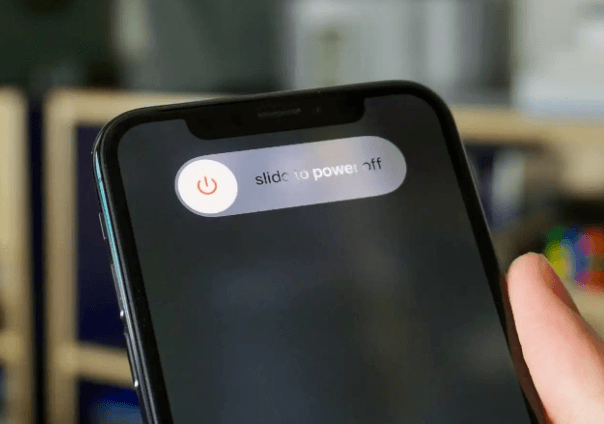
Give your iPhone a quick rest if you have been trying to get into your apple ID for quite some time. A soft restart will reboot your devices and stop all the software processes it has been going through.
Once you have turned off your iPhone, let it rest for about a couple of minutes and turn it back on. Retry to sign in if it will now let you verify your account.
Method #2: Check Internet Connection
One of the main reasons why you cannot verify Apple ID even though you have entered the password correctly is due to a poor internet connection.
Make sure that you have an excellent internet signal and are preferably connected to your home Wi-Fi and not just on mobile data.
Method #3: Get Verification Code
Wenn Sie eine iPhone that’s running on iOS 11.4 and above, it will use the two-factor authentication to verify if it’s you.
You can sign in and get a verification code from different scenarios and devices, here are some:
Anruf oder Text
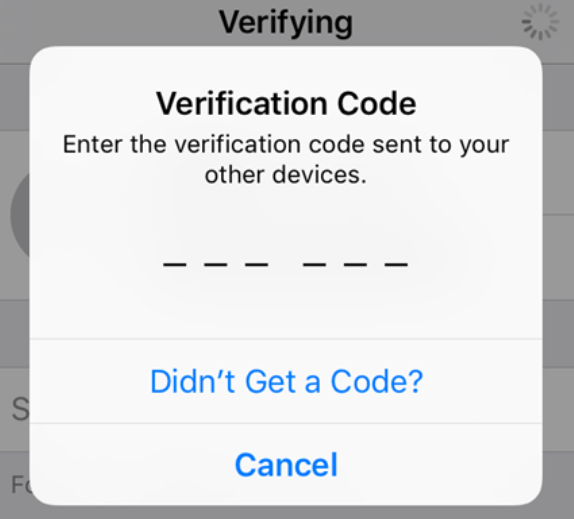
- Zapfhahn "Didn’t get a verification code ” from the sign-in screen
- Select the option to send a code to your phone number
- Depending on your cellular network and traffic, you’ll receive the code either by text or phone call
- Enter the verification code and sign in
Use iPhone Settings
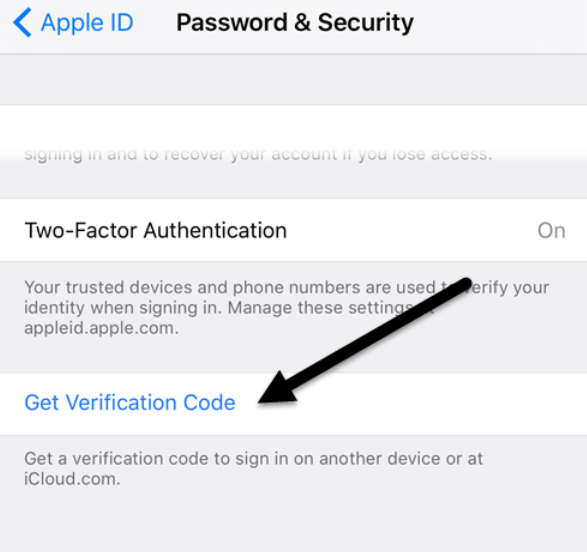
- Öffnen Sie den Microsoft Store auf Ihrem Windows-PC. Einstellungen App
- Tap your name
- Auswählen Passwort und Sicherheit
- Wählen Bestätigungscode erhalten
Über Browser
- Open a browser and sign in on an app for the first time using your Apple ID and password
- You will get a notification on your trusted Apple devices
- Zylinderkopfschrauben Erlauben
- Provide the code and sign in
Use your Mac
- Klicke Systemeinstellungen
- Auswählen apple ID
- Gehe zu Passwörter & Sicherheit
- Klicke Bestätigungscode erhalten
Method #4: Set Date & Time Automatically
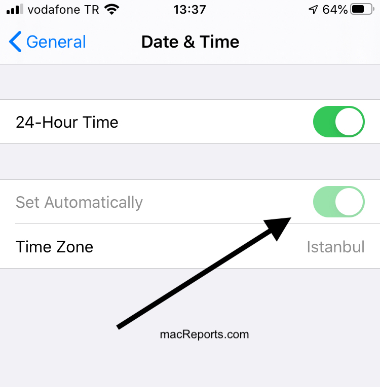
Your system’s date and time pretty much affect the way your phone behaves. It confuses your device when the date and time are different from the timezone settings. This can lead to a lot of possible problems including the “cannot verify Apple ID”.
To fix this, just set your date and time to automatic by heading over to your Einstellungen und klopfen Allgemein und dann das Datum & Zeit. Turn the bar on for Automatisch einstellen.
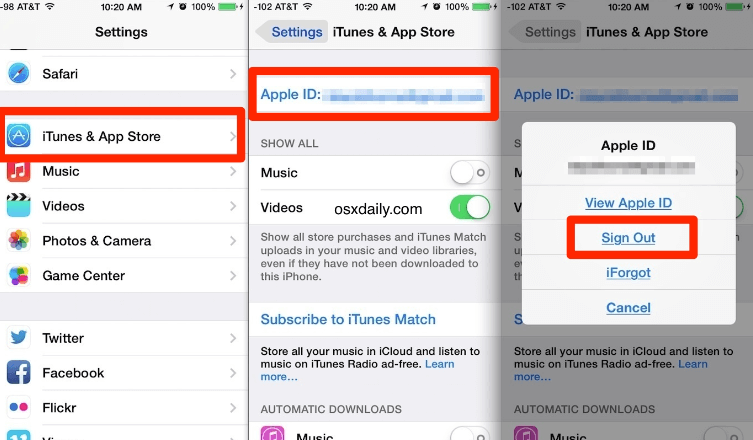
Method #5: Sign Out of Apple ID
If it’s really kicking you out and unable to prove that you are the owner of that account, try to sign out of your Apple ID first.
Then after a few minutes, try to sign back in and check if the issue has been resolved.
Method #6: Reset Network Settings
Perhaps, your connection is still a cache from your previous network which is causing the verification issue of your Apple ID. You can perform a network reset to fix it.
- Öffne deine Einstellungen App
- Gehe zu Allgemein
- Zylinderkopfschrauben Zurücksetzen
- Suchen und auswählen Netzwerkeinstellungen zurücksetzen
- Enter your passcode if asked
- Zylinderkopfschrauben Netzwerkeinstellungen zurücksetzen to confirm the request
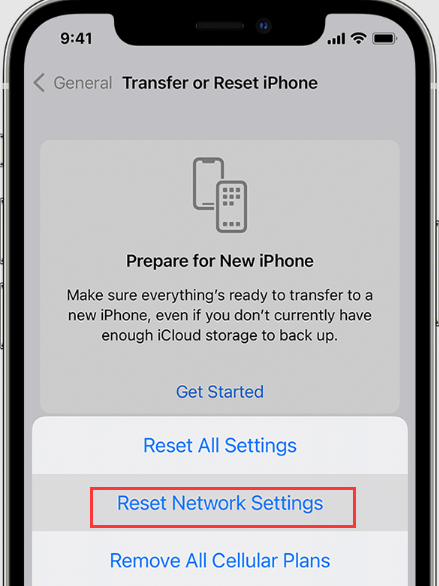
Check to see if you are now able to verify your Apple ID. Otherwise, proceed to the next step.
Method #7: Force Restart
Doing a force restart on the iPhone can help fix the cannot verify Apple ID issue since this process will reset your user settings.
You can perform a force restart according to your device’s make and model.
If you own an iPhone X/XS/XR/11/12/13/8/SE:
- Drücken Sie kurz die Taste und lassen Sie sie los Lauter button, do the same with the Volumen nach unten Taste und halten Sie dann die Taste gedrückt Seite drücken, bis das Apple-Logo angezeigt wird.
iPhone 7:
- Drücken und halten Sie die Volumen nach unten und der Schlaf / Wach buttons until the Apple logo appears
If you have an iPhone 6 and lower:
- Drücken und halten Sie die Schlaf / Wach und der Startseite buttons and release when the Apple logo appears.
Part #2: Use An iOS Unlocker to Fix the “Cannot Verify Apple ID” Issue
When all else fails, the final step we recommend would be using an iOS unlocker. You can remove the Apple ID from your iPhone and start anew. iOS-Entsperrer gives you various unlocking options such as:
Kostenlos herunterladen Kostenlos herunterladen
- Passwort vergessen
- Multiple Attempts Files
- Kaputter Bildschirm
- Entfernen Sie den Screen Time Passcode
- Face ID/Touch ID not working
- Apple ID entfernen
- Second-hand iOS device unlock
All these can be unlocked with the top passcode bypass software for iPhone using easy-to-navigate software. If after a series of attempts you still get the incorrect Apple ID iOS Unlocker can remove it and get you a new one to activate.
All it takes is for you to download the program and check out this guide:
Step #1: Run iOS Unlocker on Your Computer and Select The Remove Apple ID Menu
To be able to use iOS Unlocker to fix the "cannot verify Apple ID" error, you first need to download and install it on your computer. Follow the instructions included during installation.
Once the software has been successfully installed, launch it and select the Apple ID entfernen menu. This will take you to another screen with corresponding guides.
Step #2: Connect iPhone via USB Cable
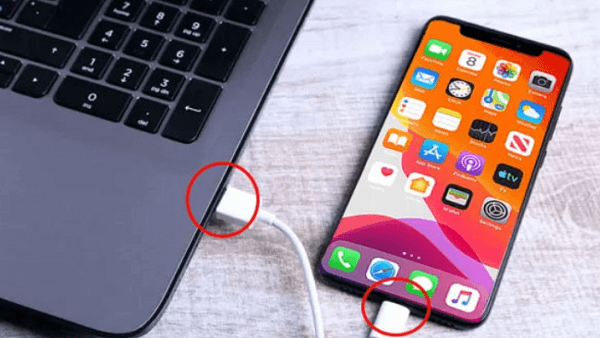
Using the USB cable that came along with your device or a compatible one, connect your iPhone and wait until the software recognizes it.
If this is the first time you have connected both devices, you may need to click the Vertrauen können this Computer. Click the Start button to begin the Apple ID removal.
Step #3: Enter Default Code for Confirmation iOS 11.4 and Above
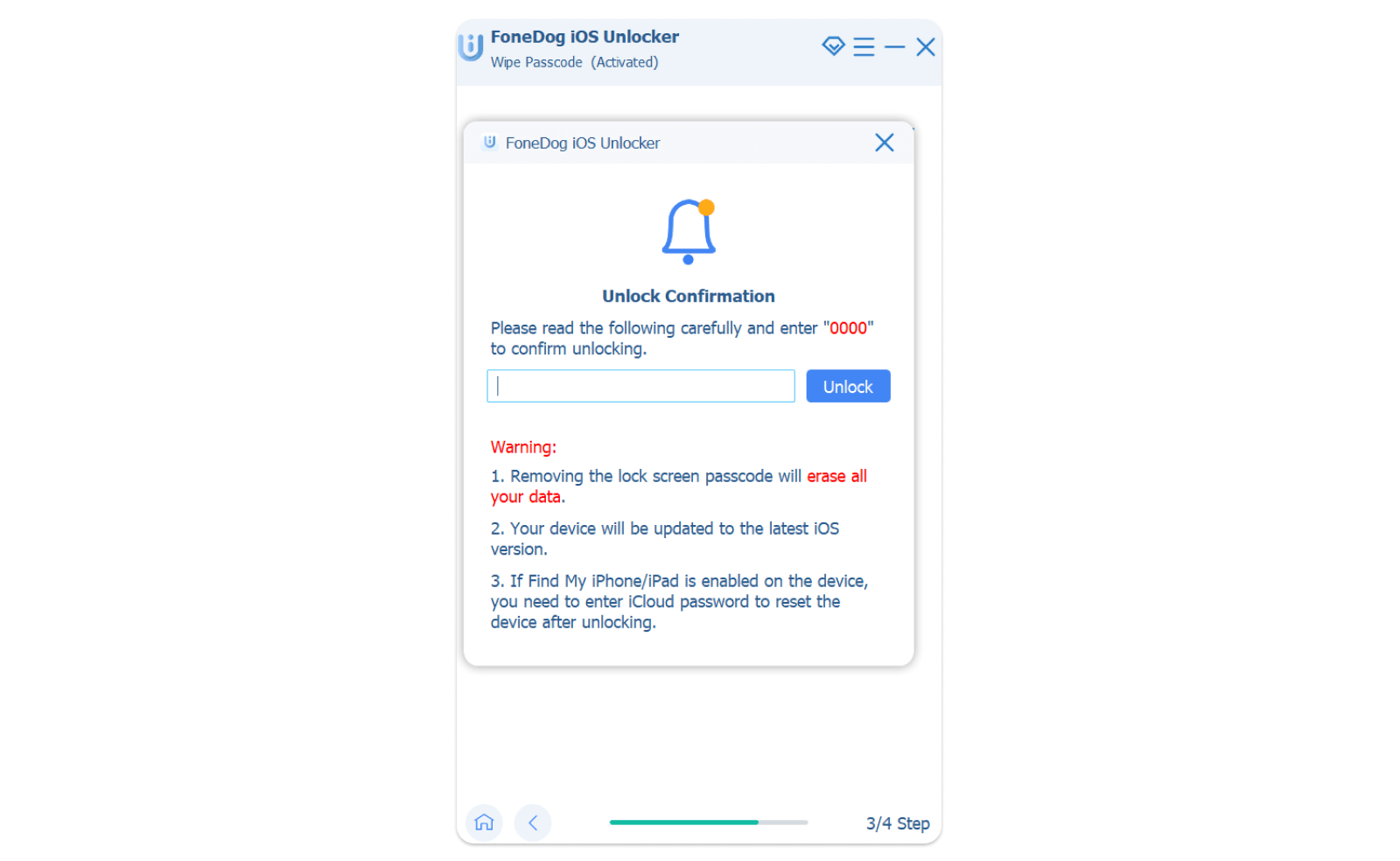
iOS 11.4 and above requires two-factor authentication to be enabled to ensure your privacy and phone protection. If this is already turned on from your Settings, just enter 0000 as the default code and click the Schichtannahme .
Otherwise, you need to enable the two-factor authentication first by going to Settings, then select Apple ID and tap Passwort und Sicherheit. Finden Sie die Zwei-Faktor-Authentifizierung feature and toggle it on.
HINWEIS: Wenn die Find M y is currently turned off on your iPhone, it will directly proceed to remove your Apple ID. If this feature is on, you need to perform the Alle Einstellungen zurücksetzen first. Go to Einstellungen , Zapfhahn AllgemeinUnd wählen Sie dann Zurücksetzen, und wähle Alle Einstellungen zurücksetzen. Enter your device passcode to confirm the reset.
Step #4: Download Firmware Package
On the next screen, you will be shown your phone details, including the make and model, if the information is correct, proceed to download the firmware package.
Step #5: Wait for iOS Unlocker to Remove The Old Apple ID
Downloading the firmware package can take a while, wait until this process is completed. Once the Apple ID is removed, you will receive an onscreen message that the unlocking is successful and your iPhone will restart on its own.
After the device restarts, you will be able to set up a new Apple ID and verify it smoothly.
Menschen Auch Lesen[2024 Guide] So beheben Sie: Apple ID funktioniert nicht auf dem iPhoneApple ID kann nicht verwendet werden, um dieses iPhone zu entsperren [2024 gelöst]
Teil 3: Zusammenfassung
Finally, you have been able to resolve the issue of “cannot verify Apple ID”. Using just any of the methods we have recommended above, you are surely confident that you can get over this headache and move on to getting the most from your iPhone.
If by any chance, the issue escalated and you were unable to verify it, you can use iOS Unlocker to get this fixed by removing the old Apple ID from your iPhone so you can register and activate a new one.
Geschrieben von Rosie
Letzte Aktualisierung: 2022-06-09