


Parental controls within iPhones and other iOS devices can help ensure parents that their children are safe and secure. However, you may want to know how to remove parental controls on iPhone if you’re going to use the Apple smartphone yourself.
Here, we will discuss the details on this question. We will teach you how to tweak the settings as well. Finally, we will give you the best tool you can get to unlock your iOS devices through various methods.
Part #1: How to Remove Parental Controls on iPhonePart #2: The Best Way to Remove Screen Time PasscodeTeil 3: Fazit
Part #1: How to Remove Parental Controls on iPhone
The steps below will teach you how to remove parental controls on iPhone easily:
- Start Einstellungen > Bildschirmzeit > Inhalts- und Datenschutzbeschränkungen > Deaktivieren Sie die Bildschirmzeit
- Toggle the slider of Content & Privacy Restrictions off. This will enable you to deactivate parental controls.
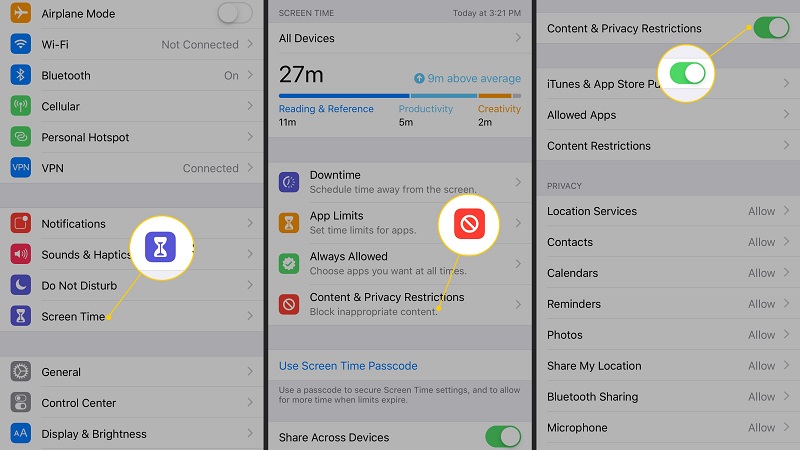
How to Tweak Parental Control Settings on Your iPhone
If you don’t need the way of how to remove parental controls on iPhone but just want certain parental controls to be available, try the steps below to tweak the options on your iPhone.
- Gehe zu Einstellungen > Bildschirmzeit > Inhalts- und Datenschutzbeschränkungen
- In the Content & Privacy Restrictions, you have the option of changing the settings of each section. It may be required to place your screen time passcode before changing the settings of each part of the Content & Privacy Restrictions.
- Presse Einkäufe im iTunes & App Store if you want to manage whether the child can buy from the App Store or whether the child can install applications. You can set Nicht zulassen or Erlauben depending on what you want for In-App Käufe und Installiere Apps.
- You can also set whether certain apps are allowed or not. This can be done in the Zulässige Apps You can turn the slider off for the apps you don’t want your child to use.
- Presse Inhaltsbeschränkungen. In this section, you can set the content maturity that your child has access to.
-
- Spielezentrum. You can use Game Center in order to control whether the child can play games that are multiplayer in nature. This can be used to set whether the child can record their screen or add friends within the Game Center.
- You can change Siri settings allowing or not allowing the child to use it to search online. In addition, you can set whether Siri uses or doesn’t use explicit language.
- Internetinhalt. In the Web Content section, you can block your child from accessing adult websites. In addition, you can control particular websites that your child can only access.
- Allowed Store Content. In this section, you can choose a level for the rating of your region or country. In addition, you can set the rating for maturity of content from the App Store, iTunes, and the store for Apple Books. You can also set the content maturity rating for podcasts and music.
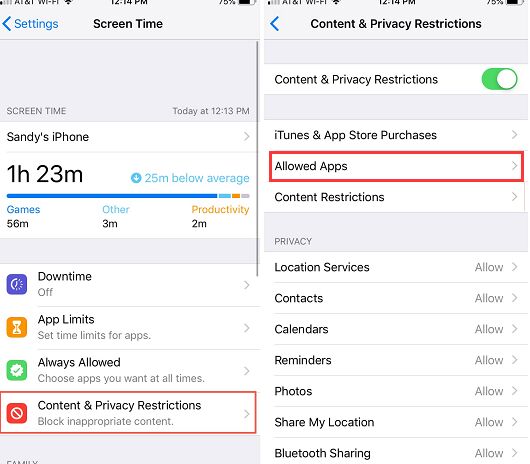
- Verwalten Datenschutz In this section, you can manage whether certain applications can access particular data on your iPhone.
- Go to the section labelled Änderungen zulassen. In this section, you can control whether the kid can or cannot make changes to the settings associated with the device passcode, do not disturb mode while driving, and volume limit, among others.
Part #2: The Best Way to Remove Screen Time Passcode
In the steps of how to remove parental controls on iPhone, screen time passcode removal is part of it. So iOS-Entsperrer is recommended here as the best thing you can implement to remove the screen time passcode from your iPhone. Apart from that, you can use it to remove your iPad passcode, Apple ID, and its associated iCloud account. The tool works on iPhones, iPod Touch, and iPads and is available in both macOS and Windows platforms, so you don’t have to worry about which operating system to use.
Kostenlos herunterladen Kostenlos herunterladen
Zudem hat auch Frau it works to help you with the following situations below:
- It helps you when you forgot the passcode on your iPhone.
- If you have disabled the iPhone due to multiple failed attempts to put the right passcode, iOS Unlocker can help you unlock the device.
- If you cannot place the passcode due to a broken iOS device screen, it can help you access your device again.
- You can use it for second-hand devices to remove Apple ID, iCloud account, Screen Time passcode, and main device passcode.
Here are the steps on how to use the tool to remove Screen Time passcode:
- Make all of the appropriate arrangements. Deaktivieren Finde meine Feature on your device and Verbesserung iTunes to the most recent version are two of them.
- Launch iOS Unlocker on your PC.
- Wähle aus "Bildschirmzeit "Modus.
- Using the USB cord, connect the iOS device to the computer. Click the Vertrauen können button on your iOS device.
- Remove the screen time passcode by pressing the Start There will be two alternative scenarios:
-
- If the Find My function is turned off in iOS 12 and subsequent versions of the operating system, the software will sofort begin removing the screen time passcode. If this is the case, choose Übertragen Sie keine Apps und Daten while configuring your device's apps and data. Then, when the Einstellungen section appears, select Später aufstellen.
- If the backup on iTunes isn't password-protected or encrypted, iOS Unlocker will begin removing the passcode instantly for iOS 11 and older versions of the operating system. On the other hand, if the encryption is present, you should input the password to decrypt the backup from iTunes.
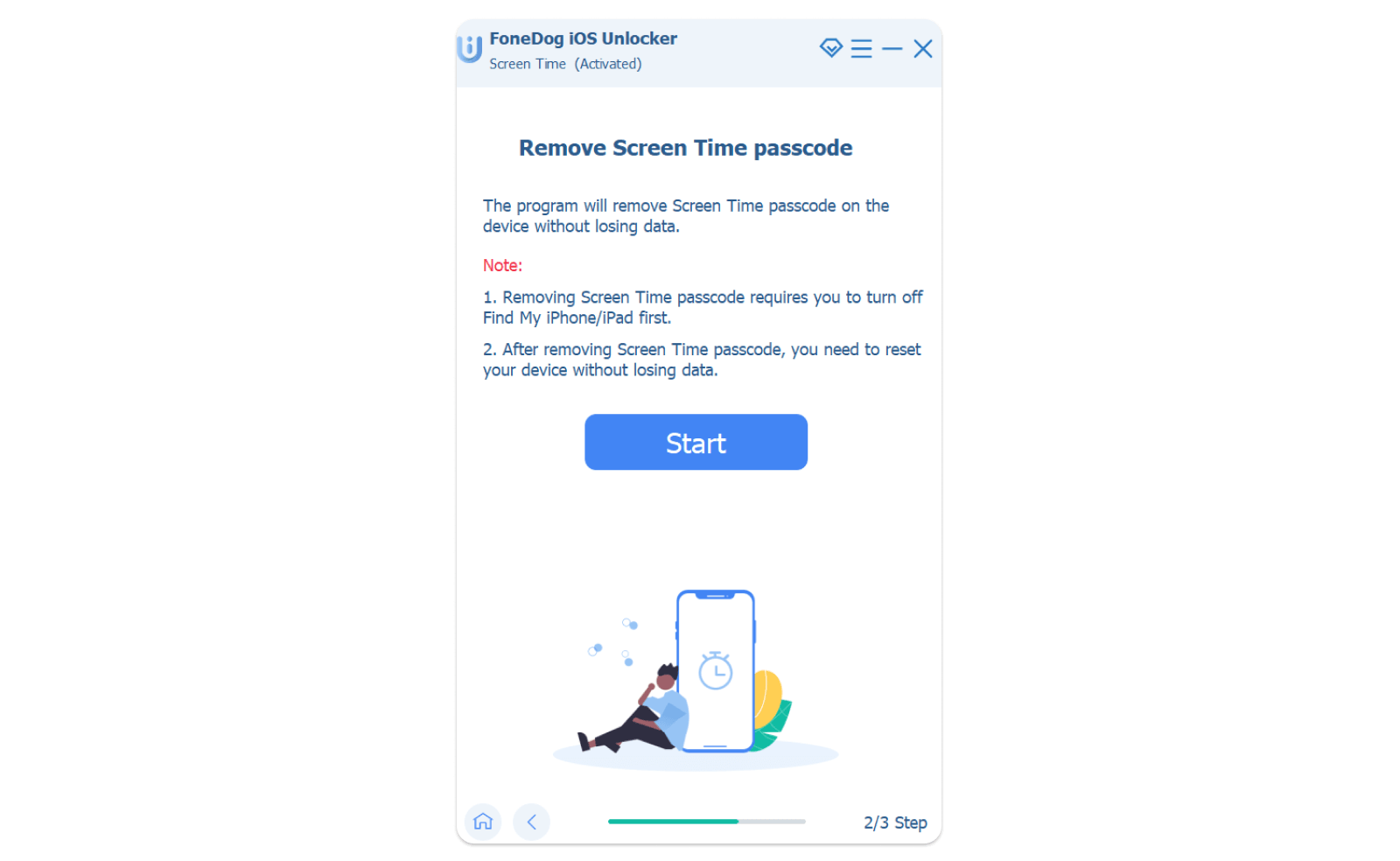
- Wait until the screen time passcode is retrieved. Once that is done, you can reset it to a new one.
Menschen Auch LesenWie kann ich die Kindersicherung auf dem iPhone ohne Passwort deaktivieren?So entfernen Sie die Aktivierungssperre ohne Vorbesitzer [Anleitung 2024]
Teil 3: Fazit
This guide has given you the methods you need to follow on how to remove parental controls on iPhone. In addition, we have given you a tool to help you remove the screen time passcode on your iOS device. This tool is iOS Unlocker, a great iOS device unlocking client you can use for second-hand iOS devices. Grab the tool today and have no limitations on your iOS device!
Geschrieben von Rosie
Letzte Aktualisierung: 2022-06-02