


Children must be monitored, primarily when they use gadgets that have access to the internet. There is a lot of uncontrolled content online that may hinder a child's moral and social upbringing. Therefore, to disable restrictions without passcode is one function you need to activate to protect your child from not-so-go online content.
A restriction passcode is a tool for you as a parental guidance feature. What happens when you forget the restriction code? You may want to turn off the restriction, especially when you are the one now handling the iDevice, but too bad you don't have the restriction passcode. This article simplifies and gives you the step-by-step procedure on what to do to alleviate it.
Part #1: What Is Data Restriction?Part #2: How to Disable Restrictions without Passcode Using iOS UnlockerPart #3: Why You Need to Enable/ Disable Restrictions on Your iPhone4부: 결론
Part #1: What Is Data Restriction?
You need to explore many features on the iPhone to enhance the device's usage. In simple terms, what is the Restrictions on iPhone? restrictions and control are set by an adult to allow only relevant content for a child. It comes with several features that include parental controls, among others. Moreover, it helps one avoid explicit content but still enjoy watching TV, listening to music, and downloading apps relevant to one's age.
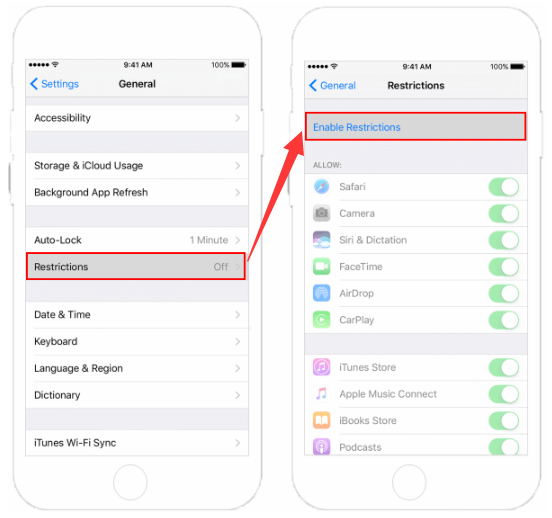
Enabling the restriction is one thing but to disable restrictions without passcode is also an exercise. Here is a simple procedure to activate the restrictions on your iPhone.
- 로 이동 설정 메뉴
- 일반
- 를 클릭하십시오 제한, 다음을 살짝 누르십시오. 제한 활성화
- Create a restriction passcode using the window that appears and re-enter the passcode to verify
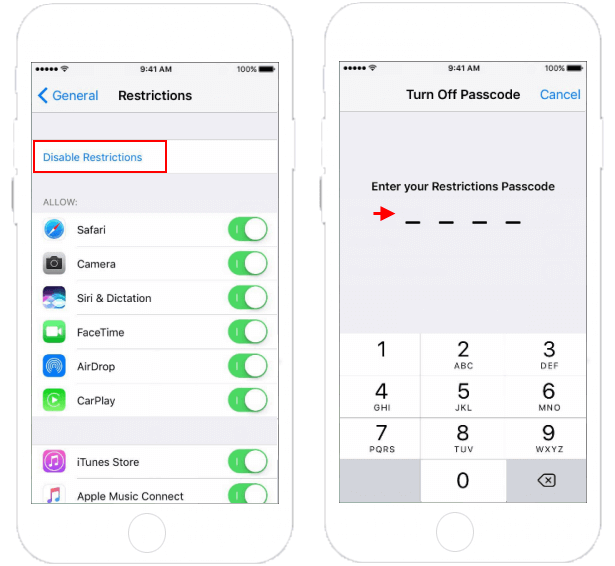
What happens when you also choose to disable the restrictions. It's essential to have the information at your fingertips; you never know when you will need it. Have a look at what you need to do
- Go to the Settings menu and click General and further 제한
- 클릭 암호 비활성화 and enter the correct passcode
Within minutes your iPhone is free from the restriction passcode.
Part #2: How to Disable Restrictions without Passcode Using iOS Unlocker
One simple and cost-effective way to disable restrictions without a passcode is to remove the passcode from the system altogether. Unfortunately, you Can do this on the iPhone using the procedure discussed in Part 1 of this article.
Still, software like iOS 언 락커 comes in handy when you don't have the password. This simple toolkit comes in handy when you want to remove the passcode or Apple ID or screen time passcode. It's an ideal toolkit for all iOS users, irrespective of the versions.
Moreover, it gives you unlimited access to iCloud settings and maintains the content of the iPhone. It also has iTunes integrations within the interface to allow you also enjoy all the services that come with iTunes.
To disable restrictions without passcode, you need to use a simple procedure to achieve it. Read on
- iOS Unlocker를 PC에 다운로드, 설치 및 실행하세요.
- 선택 비밀번호 지우기 menu- the first in the list.
- USB 케이블을 사용하여 iPhone을 컴퓨터에 연결
- 클릭 스타트 button and accept all the Trust agreements on the screen.
- Confirm and approve the device details that appear if they coincide with the connected iPhone
- 클릭 스타트 icon and wait for some minutes for the firmware download; click the unlock code and input "0000 " as the unlock digit.
- 프로세스가 완료될 때까지 몇 분 동안 기다리십시오.
Just like that, you disable restrictions without passcode with minimal hassle.

Part #3: Why You Need to Enable/ Disable Restrictions on Your iPhone
The moment you possess an iPhone, apart from the essential functions- calling, texting, and access to the internet- other functions also come in handy with this toolkit. If you share the iPhone with your children or the iPhone is meant for someone who needs parental guidance, you may not want to expose them to explicit content; in such a scenario, you have to enable the restrictions on the device.
However, when you are in complete control of the iDevice, then in such a case, you have no option but to disable restrictions without passcode.
If you are a naturally forgetful person who easily forgets password on iPhone, then there is no need to create a restriction; instead, you need to disable restrictions without passcode and enjoy life as long as it doesn't affect whoever gets access to the iPhone in terms of access to harmful online content.
There are many advantages than disadvantages when you enable the restrictions on your iPhone; the developer did not design the feature in vain. It had a purpose.
사람들은 또한 읽습니다'제한 활성화'란 무엇을 의미하나요? [2024년 해결]Face ID 또는 암호 없이 iPhone 12 잠금 해제 방법
4부: 결론
What is your choice? Do you want to disable restrictions without passcode or enable them? You now have all the information you need to do o either disable the restrictions without passcode or enable them. The only dilemma is which method to use to achieve either of the functions. The choice of the function depends on what is available at that time and what you are conversant with. iOS Unlocker is your go-to application for such functions, including the 애플 ID 제거.
Moreover, the application supports all iOS versions with no limits or restrictions. Despite the app being approved and highly recommended, there is no harm in looking for several other options to spread your risks; just in case you aren't able to hack it using iOS Unlocker, you also have a plan B. The digital market has several toolkits that you only need to try out and explore and finally decide on what is best. Do you still doubt that you can disable restrictions without passcode?
Rosie 작성
최종 업데이트 : 2022 년 06 월 16 일