


The iPad is an iDevice that comes in handy when you want to access multimedia content on one gadget. Ever thought of when you forget or lose the password? How to unlock iPhone when you forget the password? When you look for articles like this that show you how to wipe an iPad without passcode. However, security is of the essence when using such machines.
That's why the password comes as an inbuilt function of the toolkit. It's like an unwritten rule; if you want to minimize unauthorized access to your iPad, you need to lock it using a password. At this point, you have to have several approaches, some act as a backup plan when one fails because of internet connectivity or the prevailing conditions. Here are some of the methods you need to use. Read on
Part #1: How to Wipe An iPad without Passcode Using iOS UnlockerPart #2: How to Wipe An iPad without Passcode Using iCloudPart #3: How to Wipe An iPad without Passcode Using Recovery Mode파트 #4: 요약
Part #1: How to Wipe An iPad without Passcode Using iOS Unlocker
The moment you are stuck with a software challenge, the software is the solution. iOS 언 락커 is your go-to application on how to wipe an iPad without passcode. The toolkit is simple and can wipe passcode, remove Apple ID and manage the screen timings. This makes it a comprehensive toolkit when managing the security features.
It operates on a simple interface. Moreover, it gives you full control of any of the iOS devices irrespective of the OS version. A unique advantage of the application is that it erases the old Apple ID, making the original owners lose remote control over the devices. That's a plus for the new owners. The iCloud settings supported on the application are ideal for Ios management devices.
절차는 다음과 같습니다.
- 다운로드 iOS Unlocker를 설치하세요
- 왼쪽 메뉴에서 비밀번호 지우기
- 선택 스타트 icon as you connect the locked iPad via USB to the computer and accept the 믿어 계약
- 확인하기 the device details and select Start, and wait for the firmware download to complete.
- Select the Unlock button and input "0000 " as the unlock code, and 기다리다 for a passcode free iPad

Are there any other ways to unlock iPad if you forgot the passcode other than iOS Unlocker? It is your one-stop shop when it comes to removing Apple ID and passcode when you accidentally key in the wrong one several times or forgot the passcode.
Part #2: How to Wipe An iPad without Passcode Using iCloud
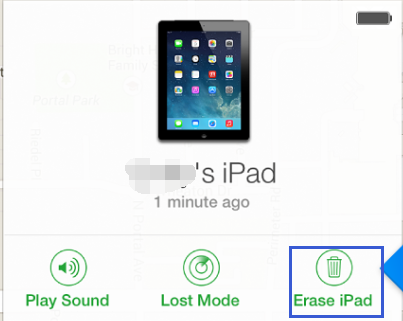
iCloud.com is an Apple-based website that supports several hardware and software challenges for iDevices. How to wipe an iPad without passcode is not excluded in the functions. The only condition you need to fulfill to use this method is that you must have synched the locked iPad to the iCloud account before.
If not, you have no option but to look for another approach. Similarly, you can back up your data. Once you sync the iPad to the iCloud account, you have a backup automated within the function. Hence losing data is something not to worry about. If you have, then follow this procedure
- Using a PC or another iDevice open the iCloud. Com website
- Key in the login details, which include the Apple ID
- 클라임웍스와 함께 하늘과 닿는 여정을 시작하세요 내 아이폰 찾기 클릭 모든 장치
- From the list, choose the locked iPad and finally select the Erase iPad /iPhone
The iPad is set to 공장 설정 within minutes, and you can access it without a passcode. As long as you have met the conditions, you are at liberty to use the method.
Part #3: How to Wipe An iPad without Passcode Using Recovery Mode
In most cases, when faced with a permanently locked iPad, your first course of action is to power off and restart the device. That only comes in handy to solve the hardware challenges of the device. If it's software, then you need to look for another approach.
Putting the iPad to recovery mode is one of the ways how to wipe an iPad without passcode. It changes the device to factory settings, which means all the iPad data is erased; you are set if you have a backup plan. If not, too bad; you have to compromise the iData but have complete control of your iPad.
Here is the procedure to out the iPad to recovery mode
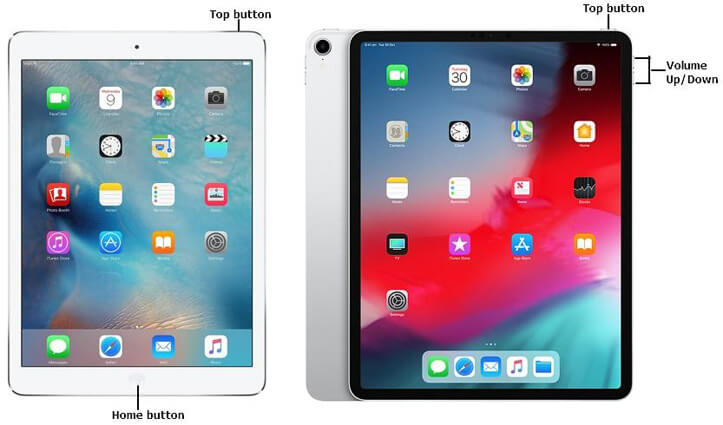
- 길게 눌러 홈 버튼 until you see the Apple logo
- Tap on the Apple logo and simultaneously press the 볼륨 업 및 아래 볼륨 button until it reaches the recovery mode
- 가볍게 두드리다 아이 패드 복원
You have access to your iPad without putting in the passcode. This is one of the simple ways to use it since it needs no external plugins or the internet. You only need to arm yourself with the knowledge, and you are good to have full control of your iPad.
사람들은 또한 읽습니다아이패드 암호를 잊어버렸을 때 해결 방법해결됨: iPad가 잠긴 경우 iTunes에 연결이 나타남
파트 #4: 요약
This article clearly proves that forgetting your passcode is not the end of the use of the device. You have several options you can explore to have your iPad back to service. Security of essence in digital devices. You must guard it against uninvited guests. It's also evident that it's also vital to register your devices with iCloud.com and iTunes, for they come in handy when looking for how to wipe an iPad without passcode.
When you lack options, the software should be your following line of thought. Although we have only discussed one software, the digital market has several options that you need to take time and explore to have an article that educates people on the same. In our search, iOS Unlocker takes the lead as a digital package that manages both the Wipe Passcode and Remove Apple ID utility. You don't have to have two applications for the two functions; instead, you need a toolkit to serve both purposes. It saves you a great deal on hard disk space. You know all it takes to access your iPad without a passcode.
Rosie 작성
최종 업데이트 : 2022 년 04 월 07 일