


It's an unwritten rule when any gadget fails to work, most people switch off or restart the device in a bid to reset its settings. That only works when it's a hardware issue. For Software, you must have the proper guidelines. When I forgot passcode on iPad제 iPad가 잠겨 있습니다 and I looked for information on the web and realized everything was at the tips of my hands.
I can look for third-party solutions, online toolkits, or Apple-supported digital solutions to bring my iPad back to functionality. It's normal to forget the password; you might have changed it recently and forgotten about it.
Someone might get access to your iPad and key in the wrong password more than six times, which automatically locks the gadget. Whatever the case, look at some of the approaches you can use to have full control of your device.
컨텐츠 가이드 Part 1: How to Enable Your iPad When Forgot Passcode on iPad [Using Recovery Mode]Part 2: How to Enable Your iPad Using iTunesPart 3: How to Enable Your iPad When Forgot Passcode on iPad [Using iCloud]Part 4: How to Enable Your iPad Using iOS Unlocker [All iPad Models]결론
Part 1: How to Enable Your iPad When Forgot Passcode on iPad [Using Recovery Mode]
A passcode is part of iPad data. Therefore, the only way to remove it when you have no access to your iPad is to restore the gadget back to factory settings. When you forgot passcode on iPad, the challenge is that you can't access the iPad altogether. One of the ways to solve this is to set the iPad as if you bought it from the shop.
The challenge with this method is that you will lose all data, including the Passcode- what you want. Therefore, it's advisable to have a backup plan for all your gadgets to avoid the loss of sensitive and vital data. At this point, you choose between your data and iPad functioning. The latter wins.
Here is the procedure to set the gadget back to factory settings:
- Long press the Home button until you get the power off the menu and switch it off
- Disconnect it from the computer if it's connected; see the Apple logo
- 긴 보도 the Home button until you get the Apple logo
- Click on the logo, and the iPad sets to recovery mode
- 복원 among the menu icons
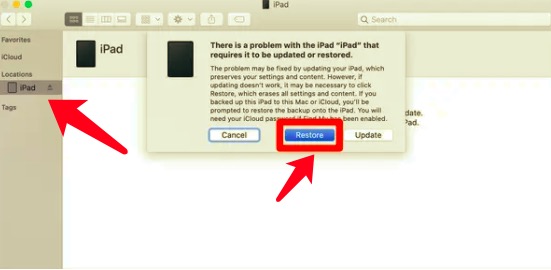
Different iPad models have different ways of changing them to recovery modes. When available, use the manual to get information on how the specific model gets back to recovery mode. When the iPad lacks a home button. Here are the steps when he forgot Passcode on iPad:
Press the volume up and volume down simultaneously until you get the Apple logo and follow the above-mentioned procedure.
Part 2: How to Enable Your iPad Using iTunes
You could be wondering why this comes up at this point. It is not misplaced; most people know iTunes as a multimedia content manager. However, it also comes in handy to solve the forgot Passcode on iPad issues.
However, it comes with a condition- you must have linked the locked iPad to iTunes before unlock. Moreover, you also can access all your data if you enable the data backup. All in all, here is the procedure:
- Download, install and set iTunes 컴퓨터에서
- Connect the iPad to the PC using a USB device
- Open the iTunes application and click 디바이스
- Click on the locked iPad from the list of Devices
- 복원 결과를 기다립니다
Confirm by trying to open the iPad; you'll notice you can access it without the Passcode. You now need to back up and set it up to your desire.
Part 3: How to Enable Your iPad When Forgot Passcode on iPad [Using iCloud]
When you can't meet the conditions, you can also try the iCloud option, which also comes with a similar situation. You must have synched your locked iPad with iCloud before you forgot passcode on iPad to use this toolkit.
Also known as Find My iPhone, this method allows you to remotely access and unlock the iPad as long as you have the Apple ID details. Find out how:
- Using another device, go to the iCloud에 website or use the Find My iPhone App
- Log in the Apple ID details
- 모든 장치 and choose the locked iPad from the drop-down menu
- 클라임웍스와 함께 하늘과 닿는 여정을 시작하세요 iPad 지우기 and confirm from the new window that appears and click 삭제
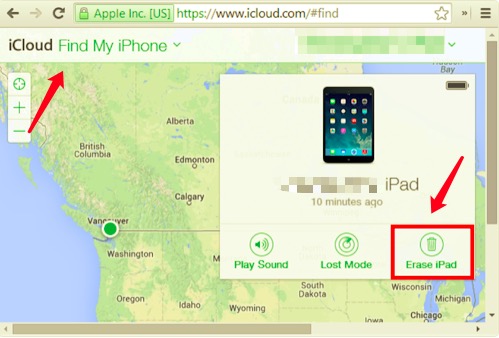
Within seconds, you can access the iPad without a passcode. Has it solved the forgot Passcode on iPad challenge? You can set and back up your data if you have the backup data plan.
Part 4: How to Enable Your iPad Using iOS Unlocker [All iPad Models]
When looking for a digital solution that works with no condition and comes with additional functions, iOS 언 락커 is your go-to application to solve the forgot Passcode on iPad error. The application runs on three modes- Remove Apple ID, Wipe Passcode, and screen time Manager.
The toolkit supports unlimited access to any iOS device such as iPhone, iPad, iPod and Apple Watch, and can delete the old Apple ID to avoid remote use by previous owner of second-hand iDevices. Moreover, it runs on a simple and straightforward interface.
Furthermore, it runs on a simple and clear interface and is compatible with both Windows and Mac. Simply click the button below to download the toolkit to your computer for free.
Here is the procedure to unlock your iPad:
- Download and open iOS Unlocker.
- 클라임웍스와 함께 하늘과 닿는 여정을 시작하세요 비밀번호 지우기
- Via USB connect to the PC and click the 스타트 icon and admit the 믿어 조건
- Verify the device information and choose 스타트 다시
- Download the firmware package after some time
- Select the unlock icon and use "0000 " as the unlock code and confirm.
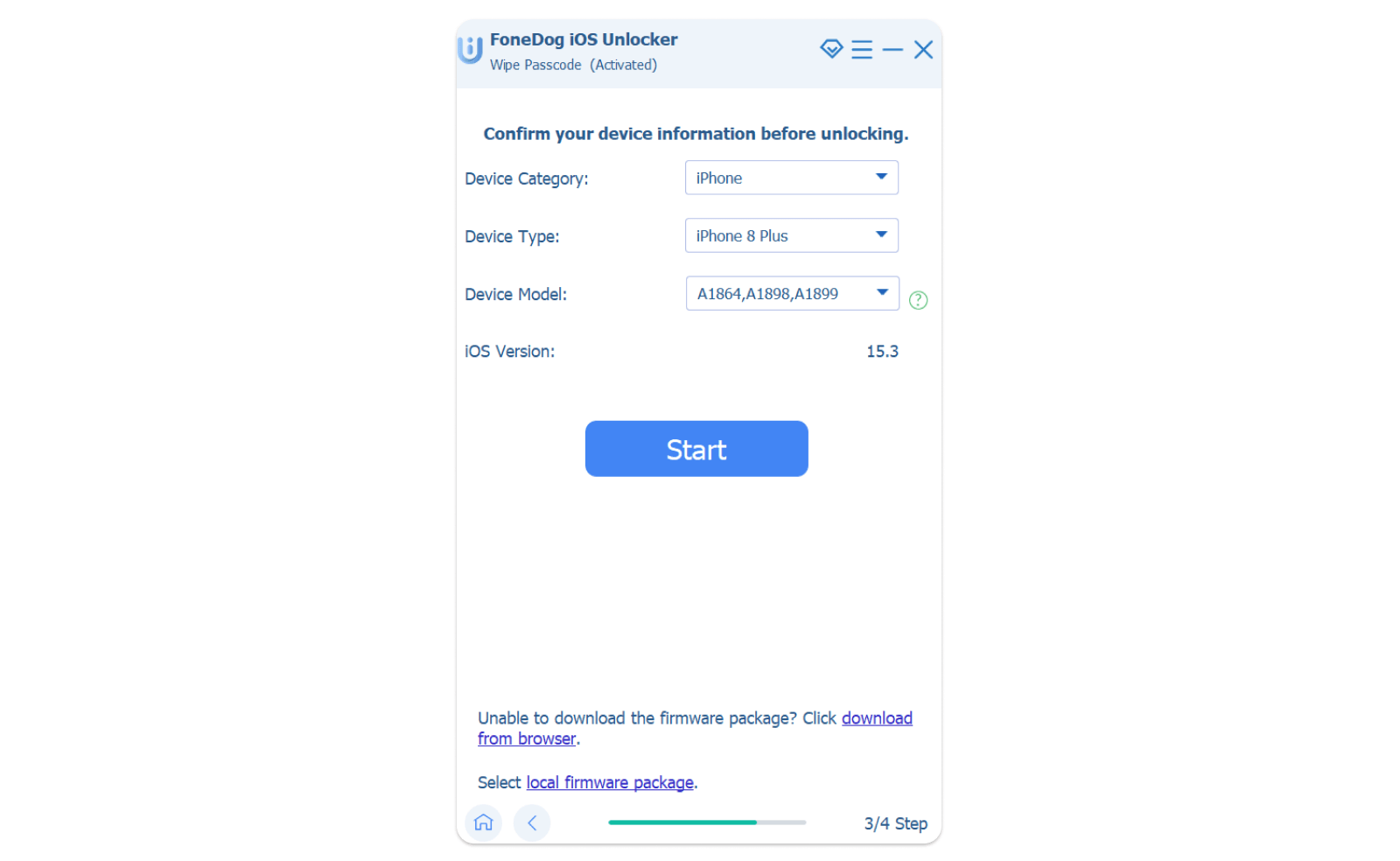
This is a must-have application if and only if you're a frequent iOS user. It comes in handy during such times when you have not only when have the Forgot Passcode on iPad' issue but also when you have no control of the Apple ID.
사람들은 또한 읽습니다4가지 방법으로 iPad에서 암호를 제거하는 방법컴퓨터 없이 iPad 암호를 잠금 해제하는 방법에 대한 지침
결론
Are you still worried that you can't have access to your iPad when you are faced with the 'forgot passcode on iPad' error? You have unlimited options to get out of the mess. However, on third party toolkits, we have only looked at iOS Unlocker; you need to explore several other options on the web market.
Take time, try and test them, but still, you'll notice that iOS 언 락커 comes with value-added functions making it a one-stop-shop for all your unlocking needs, not only for Passcode also for Apple ID. It is essential to always have a backup plan such that when you have such eventualities, you do not lose data. The iTunes and iCloud applications are also toolkits that you cannot ignore as a vivid Apple user.
Rosie 작성
최종 업데이트 : 2022 년 04 월 14 일