


Locking your iPad is for your security. Having someone else access your iPad jeopardizes your security since this is where you save all your contacts, private documents, and bank account details. But if you set a passcode and enter it incorrectly six times, iPad locks automatically, so you'll have to figure out how to iPad에서 암호 제거.
If you inadvertently change your passcode, entering your old one can make your iPad locked. Whatever the situation, there is nothing to cause an alarm.
You only need to arm yourself with information on how to remove passcode from iPad without jeopardizing iPad data. We look at several options for online and offline toolkits to get you full access to your iPad with minimal effort.
On the other hand, you may have set a passcode on your iPad but want to remove it for personal reasons. You may be forgetful, or it may not have sensitive information, mainly because the kids only use it. In this case, you don't need a passcode.
At this point, the password can be easily removed using the settings option discussed in Part 1 of this article. For cases where the ipad is permanently locked out to the point of inaccessibility, there are options in Part 2, Part 3, and Part 4. Continue reading to learn more.
컨텐츠 가이드 Part 1: Remove Passcode from iPad SettingsPart 2: Remove Passcode from iPad Using iTunesPart 3: Remove Passcode from iPad Using iOS-Unlocker [All iPad Models Supported]Part 4: How to Remove Passcode from iPad Using iCloud결론
Part 1: Remove Passcode from iPad Settings
From your iPad, go to the settings menu and remove the passcode from your iPad using the following procedure:
- 열기 설정 앱을 탭하고 Touch ID 및 암호
- Put in the active Passcode
- 선택 탑 Passcode Off 메뉴
- 끄기 확인
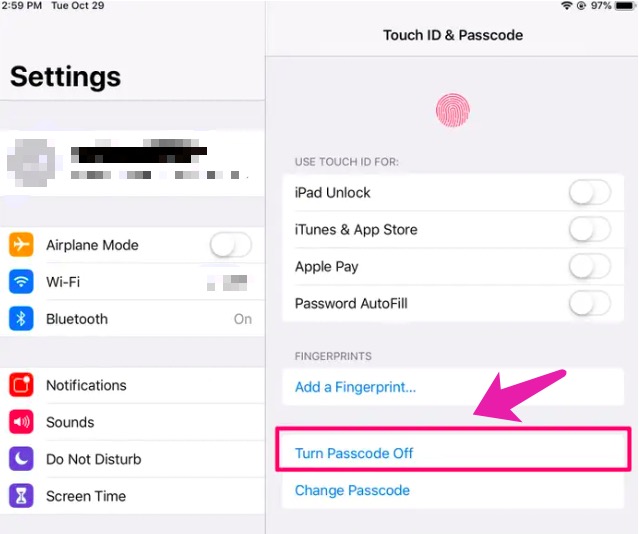
Although this is a simple procedure, you must take heed of the Apple Pay conditions that may at one point need you to verify using the Apple ID details. If that is asked in the process of removal, then you have no option but to key in the Apple ID login details.
Part 2: Remove Passcode from iPad Using iTunes
iTunes is an application that doubles as a media player and an Apple manager. The application supports Apple devices like the iPad, our area of concern is how to remove passcode from iPad. The function is relevant to the following conditions.
You must have synched the app using the iPad before unlocking; if not, you must look for other ways. Moreover, as part of iPad, passcode is considered data, and when using the application for this operation to return, the iPad to factory settings, meaning it deletes everything.
That should not be caused to worry. The fact that you use iTunes means that you can always get the information because as part of the function. Back-up is mandatory. Here are some of the steps you need to follow:
- 다운로드, 설치 및 실행 iTunes 어플리케이션
- Use the USB cable to connect the iPad to the computer
- "복원 " button from the notification window that appears
- Confirm the functions, and you have access to your iPad without a passcode.
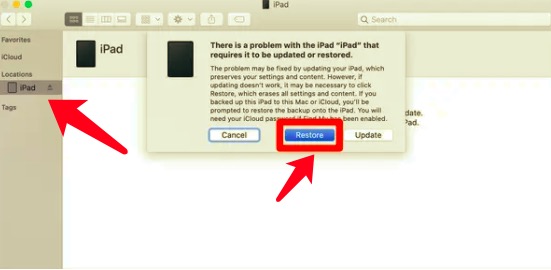
This is a simple application when you have linked the iPad to iTunes before locking. Otherwise, you have to look for more options discussed below.
Part 3: Remove Passcode from iPad Using iOS-Unlocker [All iPad Models Supported]
Software is now a savior at this point. iOS 잠금 해제 is your go-to application when you want to remove not only the passcode but also the Apple ID and the screen time manager.
This application runs on any device, including sensitive Apple devices. Moreover, it gives you full control of the iDevices with no limitations. The restrictions that come with iCloud settings are all passed with this application. Once you run the remove Apple ID mode of iOS-Unlocker, the device forgets the old Apple ID. In addition, it is compatible on both Windows and Mac systems. Click the button below to download it for free!
Here are the steps to follow to remove passcode from iPad:
- Download, install and run the FoneDog iOS-Unlocker
- 왼쪽 메뉴에서 비밀번호 지우기
- 클릭 스타트 button and connect the iPad using the USB cable to the computer and accept the 믿어 조건
- Confirm the device information and click the 스타트 다시 버튼
- After some time, input "0000 " as the unlock button after the firmware package download is complete
- That's how you have an unlocked iPad.
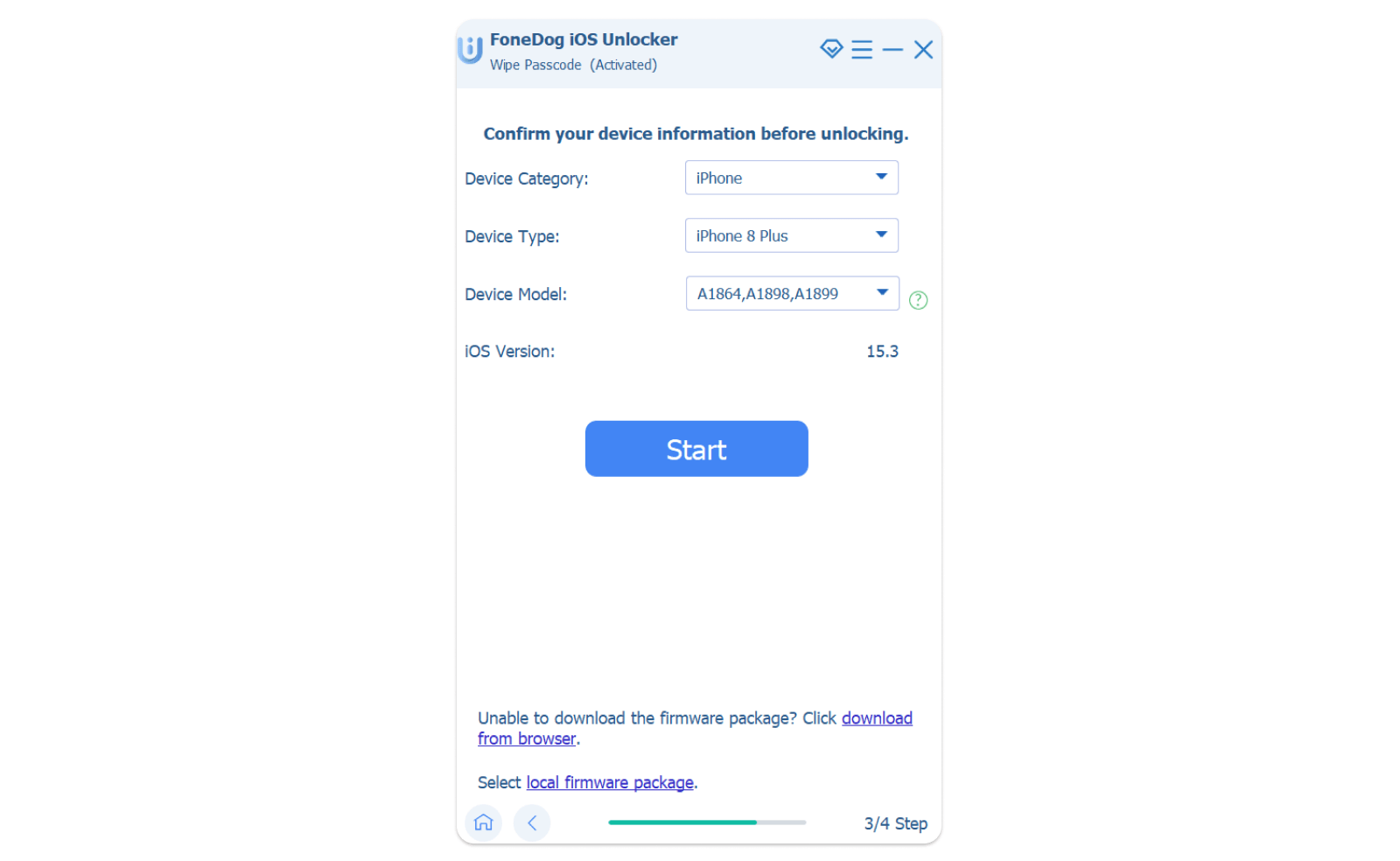
What a pretty simple digital solution! You can remove passcode from iPad in just 4 simple steps. This comprehensive application with no conditions and restrictions makes it a must-have application for all iDevice users.
Part 4: How to Remove Passcode from iPad Using iCloud
When looking for more options, the iCloud account comes in handy to permanently remove the passcode using the Apple ID and login details. You can unlock your iPad without a computer using this method. This function also comes with conditions. The iPad must have been linked to the iCloud account before unlocking if not.
You're still on the lookout for other options. Its unique advantage is that it backs the iPad data making data loss something impossible. Here are the steps for you to enjoy its services:
- 열기 iCloud에 account using a different Apple device
- Log in using the Apple id and password details
- 고르다 "모든 기기 " and choose the locked iPod from the drop-down list
- Confirm the details and click "삭제 ", and confirm the operation.
With the simple steps, you have your iPad free from any passcode. What if you still haven't linked the iPad to your iCloud account to remove passcode from your iPad. Read on for yet a better option.
사람들은 또한 읽습니다간편 가이드: 암호 없이 iPad 잠금 해제하는 방법아이패드 비밀번호를 해제하는 3가지 효과적인 방법
결론
당신은 필요한 모든 것을 가지고 있습니다 iPad에서 암호 제거, whether you want to use iDevice settings or the online toolkits or digital solutions. The choice is all at your discretion as long as you meet the conditions. When you want to remove the passcode, not because the iPad is wholly locked, then part 1 gives you straightforward instructions.
If not, iOS-Unlocker, the easiest way to remove iDevices passcode, is your best choice. However, this article doesn't exhaust all the applications at hand. There are several others that you can explore and test to be a statistic. As long as at the end, you can remove passcode from iPad.
Rosie 작성
최종 업데이트 : 2022 년 03 월 31 일