


Recently, there have been reports circulating on online forums regarding an iPhone keeps on going to lock screen even after being unlocked a few times already. Many users assumed that this is a software glitch, particularly with iPhone 11.
It might be too early to conclude that this is a software glitch unless you get to the bottom of the issue. We have collected 5 effective easy fixes that will resolve the issue of an iPhone keeps going to lock screen. One of the methods may also guide you if your ipad keeps asking for passwaord.
If you have the same concern, check these tips so you can use your phone sooner!
Part #1: 5 Easy Fixes for iPhone Keeps Going to Lock ScreenPart #2: Bonus Fix - Unlock Your iPhone with iOS Unlocker파트 #3: 요약
Part #1: 5 Easy Fixes for iPhone Keeps Going to Lock Screen
Although the root issue could be the software of your iPhone, however, we need to determine what caused the software to act this way.
Here are some of the possible reasons:
- Software Update available
- Poor iOS unlocking - if you have recently used an iOS unlocking software, the process may have been poorly executed
- Jailbroken iPhones
- 손상된 iOS 설정
- Downloaded apps - some apps may have software issues that have affected your device
Understanding these possible causes, you can then create a flow of troubleshooting to fix this annoying problem. Here are the 5 easy fixes we have listed:
Fix #1: Turn Off App Notification
If you have determined that your iPhone keeps going to lock screen every time a certain app notifies you, you can try to turn it off and test.
To turn off the app notification, try these steps:
- 를 실행 설정
- 채널 이전 공지사항
- Choose the specific app you think causes the issue
- 끄기 알림 허용 바
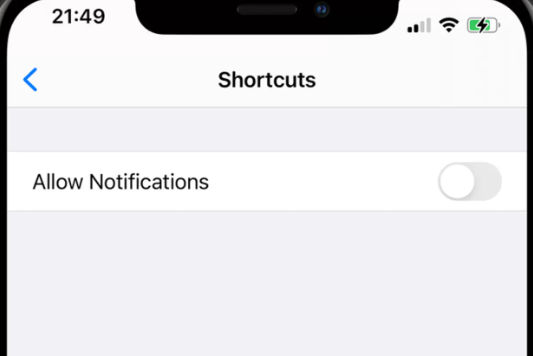
After turning off the app notifications, check if your iPhone is still going back to its lock screen. If yes, you may proceed with the rest of the fixes below.
Fix #2: Force Restart iPhone
Perhaps a force restart will resolve your iPhone issue. A force restart will not erase your data, it will only cut off software processes and give your device a fresh start.
Doing this step, however, depends on the model of your iPhone. Here are the steps:
If you own an iPhone 8/X/11
- 를 누르십시오 Volumes Up 및 아래로 버튼
- Quickly press and hold the 측면 Apple 로고가 나타날 때까지 버튼
iPhone 7 / 7 Plus
- Hold the buttons Side Volume Down for a few seconds and release them when the Apple logo displays on the screen
iPhone 6/earlier
- 를 누르고 출력 및 홈 buttons and release them when the Apple logo appears and the iPhone will restart once it's ready, try to check if the issue still occurs
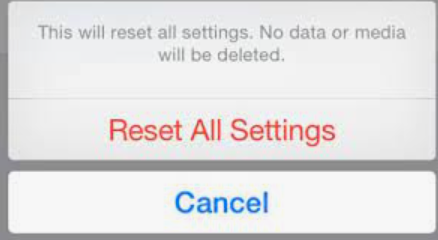
Fix #3: Reset All Settings
Another possible cause is a corrupted iOS setting. You can simply reset the settings of your iPhone to get rid of it.
Doing a setting reset will default all the customizations you have done on the iPhone Settings only. To reset all the settings on your iPhone, do these:
- 당신을 엽니 다 설정 앱
- 가볍게 두드리다 일반
- 클라임웍스와 함께 하늘과 닿는 여정을 시작하세요 다시 쓰기
- 스크롤 및 탭 모든 설정 재설정
- Enter your passcode if asked
- Confirm the reset
Fix #4: Change Timezone to A Later Time
An incorrect timezone may also cause your iPhone to go back to its lock screen. Review your phone settings if you have the correct timezone.
One trick that you can do is to set your timezone a day later than where you are to fix the problem. The device will restart one more time but it will then work smoothly.
- 로 이동 환경
- 클라임웍스와 함께 하늘과 닿는 여정을 시작하세요 일반
- 왼쪽 메뉴에서 날짜 시간
- 해제 자동으로 설정
- 클라임웍스와 함께 하늘과 닿는 여정을 시작하세요 시간 영역
- Find a city/country that’s a day later than yours
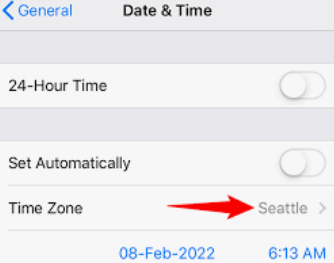
It will now resolve the iPhone that keeps going back to the lock screen issue. However, this is only temporary. This method is not 100% guaranteed to work.
수정 #5: iOS 업데이트
Lastly, you can check if you have a pending software update on your iPhone. An outdated iOS may affect the way you use your phone due to incompatibility.
- 엽니다 설정 아이폰에서
- 다음으로 스크롤하십시오. 일반
- 가볍게 두드리다 소프트웨어 업데이트
- 클라임웍스와 함께 하늘과 닿는 여정을 시작하세요 다운로드 및 설치 if there is an update available
- Enter the device passcode and follow the onscreen guide to complete the update
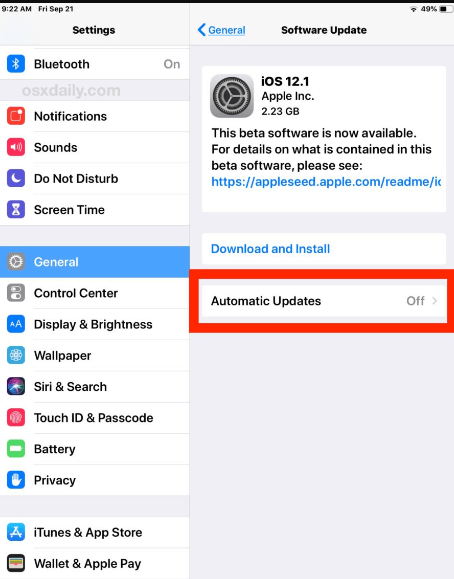
Updating your iPhone to the latest iOS will keep your phone from bugs and other software glitches. Making it a habit to update is a good thing. You can turn on the automatic update feature on your settings so you won’t have to do it every now and then.
- 너의 설정, 탭 일반
- We Buy Orders 신청서를 클릭하세요. 소프트웨어 업데이트
- 클라임웍스와 함께 하늘과 닿는 여정을 시작하세요 자동 업데이트
- 전원을 켜십시오 iOS 업데이트 다운로드 및 iOS 업데이트 설치
Part #2: Bonus Fix - Unlock Your iPhone with iOS Unlocker
In the event that the issue has escalated into a more serious one, such as forgetting your lock screen passcode and getting your iPhone disabled, you can use iOS 언 락커.
iOS Unlocker is the top iPhone passcode bypass software that gives you the convenience of unlocking any iOS device including:
- Multiple failed to unlock attempts
- 비밀번호를 잊어 버렸습니다
- Touch/Face ID not working
- Unlock broken iPhone
- 2nd-hand iOS unlocking
- 화면 사용 시간 제한 해제
- And Remove Apple ID
Here is a complete guide on how to use iOS Unlocker:
Step #1: Install and Connect iPhone
First, you need to download and install iOS Unlocker on your computer. Activate the software if needed and connect your iPhone via a USB cable.
If this is your first time connecting both the iPhone and the computer, you need to select the 믿어 This Computer from the iPhone to allow and establish a connection.
Step #2: Select Wipe Passcode and Start
Once your device has been detected, click the 비밀번호 지우기 from the main menu and click the 스타트 버튼을 클릭합니다.
Step #3: Provide iOS Make and Model
On the next screen, you will be asked to enter your device information like the make and model number. You can use the 드롭 다운 option to find the correct details. Click 스타트 계속합니다.
Step #4: Unlock
iOS Unlocker will now download the firmware package on your iPhone. Once the download is complete, you will be asked to enter a passcode. Use the default 0000 code and click the 자물쇠를 열다 버튼을 클릭합니다.
You will then get a notification that your lock screen passcode is now removed.
중요 사항 :
공연하기 비밀번호 지우기 method will completely remove all the phone content. We highly recommend that you create a regular backup of your data in case any of these incidents happen.
You can always restore your backup after your iPhone has been wiped out.
사람들은 또한 읽습니다2024 해결: 비밀번호 없이 화면 시간을 끄는 방법iOS 기기의 스크린타임 암호를 복구하는 방법 [2024]
파트 #3: 요약
You have finally fixed your iPhone keeps going to lock screen using the 5 easy fixes we have suggested above.
However, if you need further unlocking, you can always refer to iOS 언 락커. It has complete unlocking options to help you use your iPhone in just a few minutes.
Rosie 작성
최종 업데이트 : 2022 년 06 월 09 일