


“I am a fan of using both Spotify and iOS devices. Plus, I love to go on road trips. I am trying to find a tutorial that would explain the detailed process of how to use and control Spotify with Apple CarPlay. I hope I can find the most reliable one to use.”
Since the year 2015, car manufacturers have been trying to incorporate Apple CarPlay on their units, and indeed, having so is definitely an advantage for iOS users as they can easily and conveniently see their messages and logs, allowing them to send quick or urgent texts, make phone calls, check maps, and even listen to music the safer way.
Since our goal in this post is to share how one could be able to control Spotify with Apple CarPlay, it is important to confirm and mention that among the many music streaming service providers, Spotify is one of those you can use with your Apple CarPlay.
This platform is one of the most popular and most used, and it even has millions of active users around the globe. If you are either a first-time Spotify user or someone who’s been using it but has zero knowledge of how to use and control Spotify with Apple CarPlay, this article will give you all the related information you need regarding the topic.
Find out how you can control Spotify with Apple CarPlay right away as you head over to the first part of this article.
Przewodnik po zawartości Part 1: How to Use and Control Spotify with Apple CarPlay [With a Mobile Device]Part 2: How to Use and Control Spotify with Apple CarPlay [Without a Mobile Device]Part 3: How to Listen to Spotify Songs on Your Car [Without Apple CarPlay]Part 4: Additional Tip: Basic Ways to Fix Issues on Apple CarPlay SpotifyCzęść 5: Podsumowanie
Part 1: How to Use and Control Spotify with Apple CarPlay [With a Mobile Device]
Before we go deeper into the procedure of how to control Spotify with Apple CarPlay, it is important for you to make sure that the iPhone device that you are using is compatible with this feature. Updating your iOS to the latest version available is an important step that must also be looked into. To see if an update is available, you just need to head over to your iPhone’s “Settings” and look for “Software Updates”. Download and install the needed updates while your iPhone is connected to a stable Wi-Fi network.
Here are the steps to control Spotify with Apple CarPlay.
Krok #1. On your iPhone, open the “Settings” menu and then look for the “General” option. Tap “CarPlay” afterward.
Krok #2. You must then select your car next and choose to press the “Customize” menu. This will let you add Spotify so it can be shown on CarPlay’s home screen.
Krok #3. Connect your iPhone to your car via a USB cable.
Krok #4. You may now start browsing tracks, albums, and playlists on your Spotify library or from the available contents from the platform, and then just listen to them while driving!
Additionally, it is also vital that you are well aware that, for ease of playing music, you can take advantage of Siri. You can also use this to control Spotify with Apple CarPlay. Make sure that the “Hey Siri” function is enabled. To do so, go to “Settings”, tap “Siri & Search”, and then listen for “Hey Siri”.
To proceed with the activation of voice commands, you may just say “Hey Siri, play this (song) on Spotify”. Even if you can’t control Spotify with Apple CarPlay using the built-in functions on your car or on your iPhone, you can still listen to your favorite Spotify songs with ease.
Part 2: How to Use and Control Spotify with Apple CarPlay [Without a Mobile Device]
After sharing with you how you can control Spotify with Apple CarPlay in the first part, we believe it would also be worthwhile to share how you can enable CarPlay for listening to Spotify songs even without your phone with you. If you have the “App2car” device, you can also take advantage of that.
Krok #1. You need to first connect your App2Car with your car (after ensuring that your car is compatible).
Krok #2. Simply enable “CarPlay Spotify”.
- In order to view “More Apps”, simply swipe right.
- Browse and look for “Spotify”.
- Choose “Spotify” once found.
Part 3: How to Listen to Spotify Songs on Your Car [Without Apple CarPlay]
Though our main goal in this article is to find out how you can use and control Spotify with Apple CarPlay, there could be other users who won’t be interested in this topic if they do not have the resources available to enjoy it.
To still be able to listen to your Spotify favorites via your car’s stereo, apart from taking advantage of the Apple CarPlay function, you would surely like to know how you can be able to download Spotify songs and then save them to an external drive like a USB. Well, that’s what we prepared in this section.
Spotify songs are known to be protected with DRM, which makes it impossible for people to directly access them outside the app itself or on unauthorized devices. Unless Spotify premium is active, one won’t be able to listen to songs in offline mode. Of course, with DRM protection present on them. But as long as you can get rid of this encryption, you’ll be able to enjoy listening to the tracks as you like. But how can this be done?
Na szczęście istnieją aplikacje takie jak Narzędzie do odblokowania muzyki Spotify that can help us unlock Spotify songs from this DRM protection. With this great feature, listening to the songs would be more seamless, as one would be able to access the songs on any device or media player. Additionally, the Spotify Music Unlocker can also help convert the tracks to common formats like MP3, FLAC, WAV i M4A.
Darmowe pobieranie Darmowe pobieranie
If you’d like to try using this tool, you need to download it first and then install it on your PC. Once you have gotten the app active and running, below are the steps that you have to complete next.
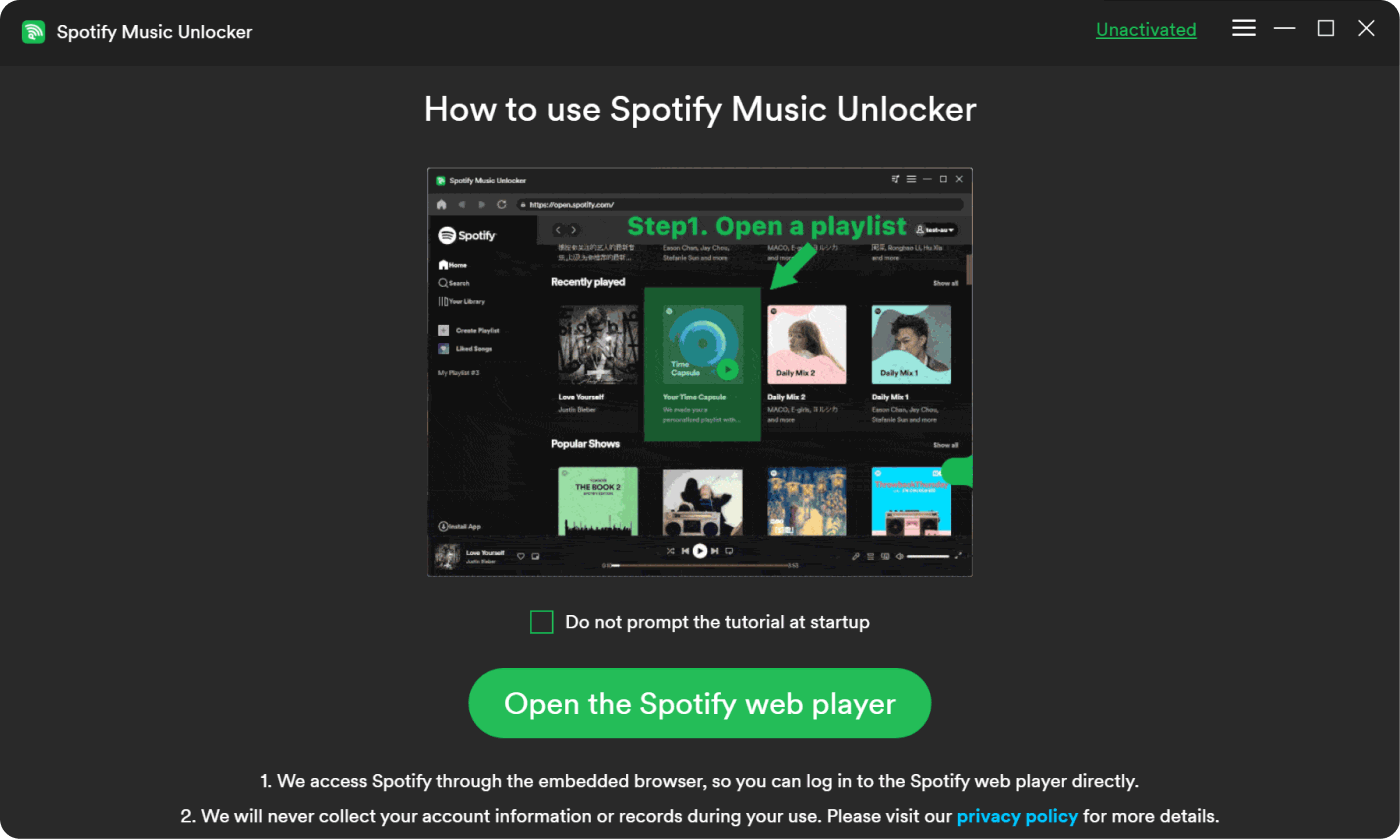
Krok #1. You have to access the Spotify Web Player first. To do so, just simply tap the “Open the Spotify web player” option that you’ll immediately see on the main screen once the Spotify Music Unlocker has been launched.
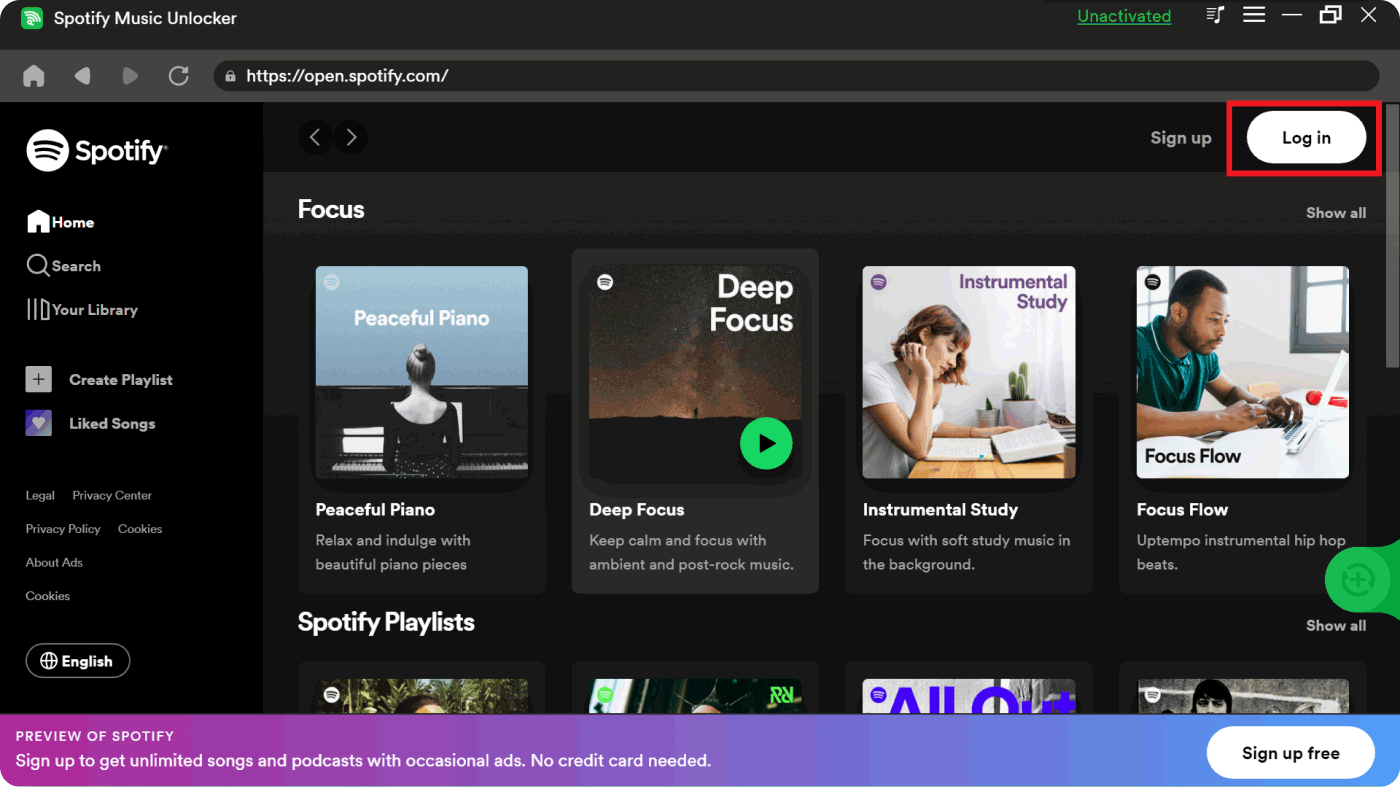
Krok #2. By providing your Spotify account credentials, sign into your account by tapping the “Sign in” menu that’s at the top of the screen. If you don’t have an account yet, then hit the “Sign up” button to create one.
Krok #3. Upon logging into your account, you may now begin to browse and choose which albums or playlists you wish to be processed. Upon selecting them, tap them and press the green “add” icon on the side so all songs in them can be added to the platform. Dragging and dropping them will absolutely work. So, for ease of adding, you may do this if you’d like to. Adding individual songs is possible as well.
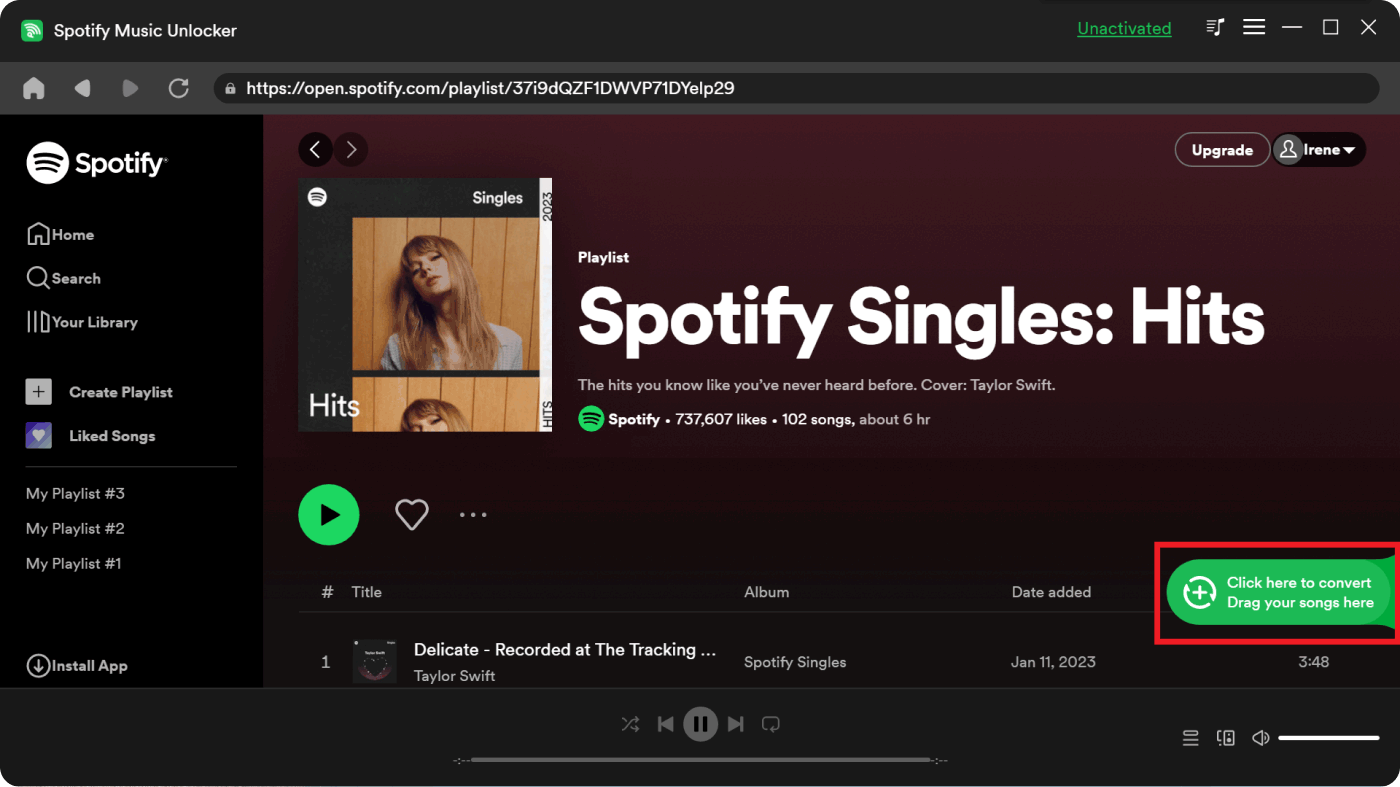
In case you are worried about duplicated songs, you don’t have to think about that since this tool has the power to detect doubled-up tracks. Thus, this won’t surely happen.
Krok #4. From the available output formats, choose the one that you’d like to use and set it up. You may also define an output folder as needed.
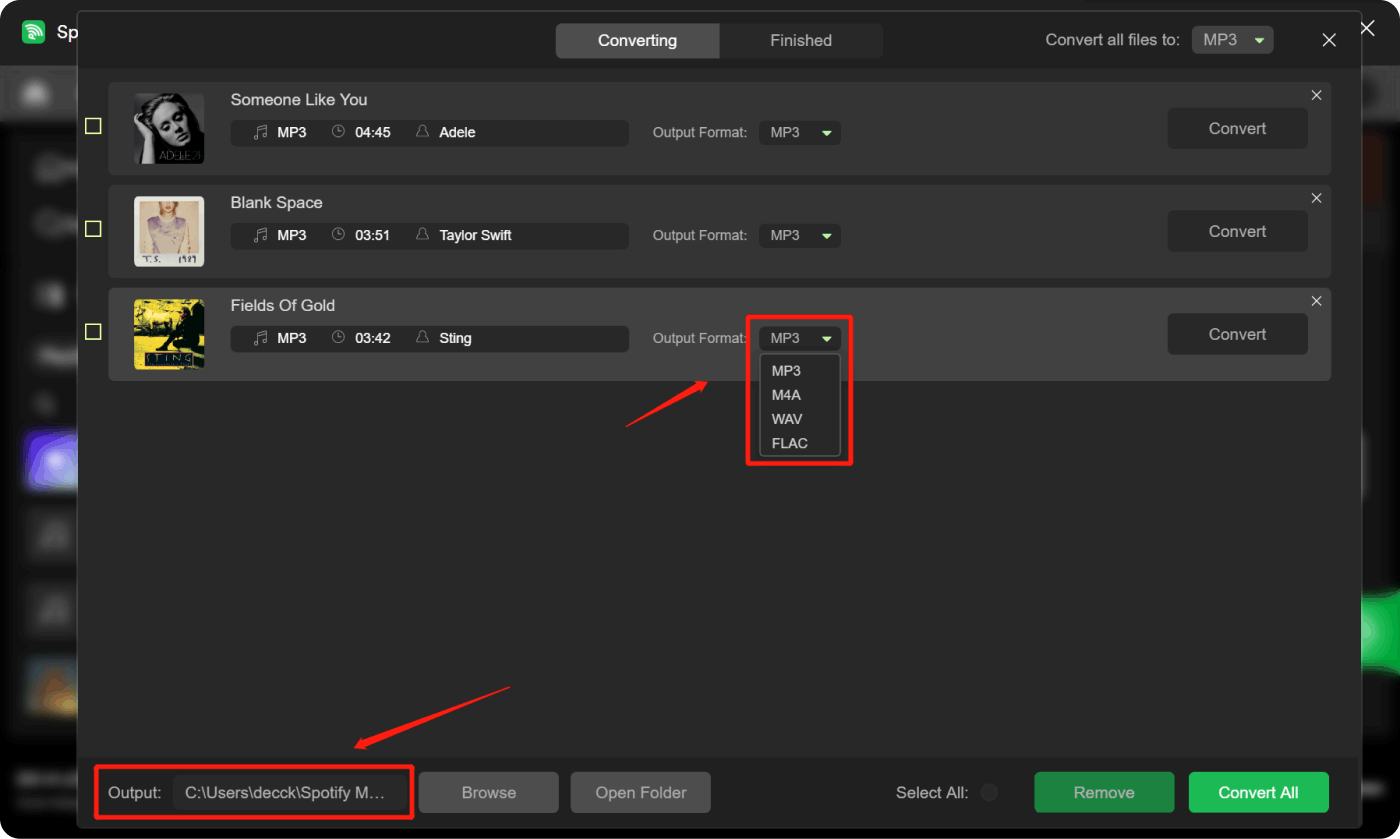
Krok #5. The conversion process shall begin once the “Convert” or “Convert All” option has been pressed. The songs will also be odblokowany z zabezpieczenia DRM w tym samym czasie.
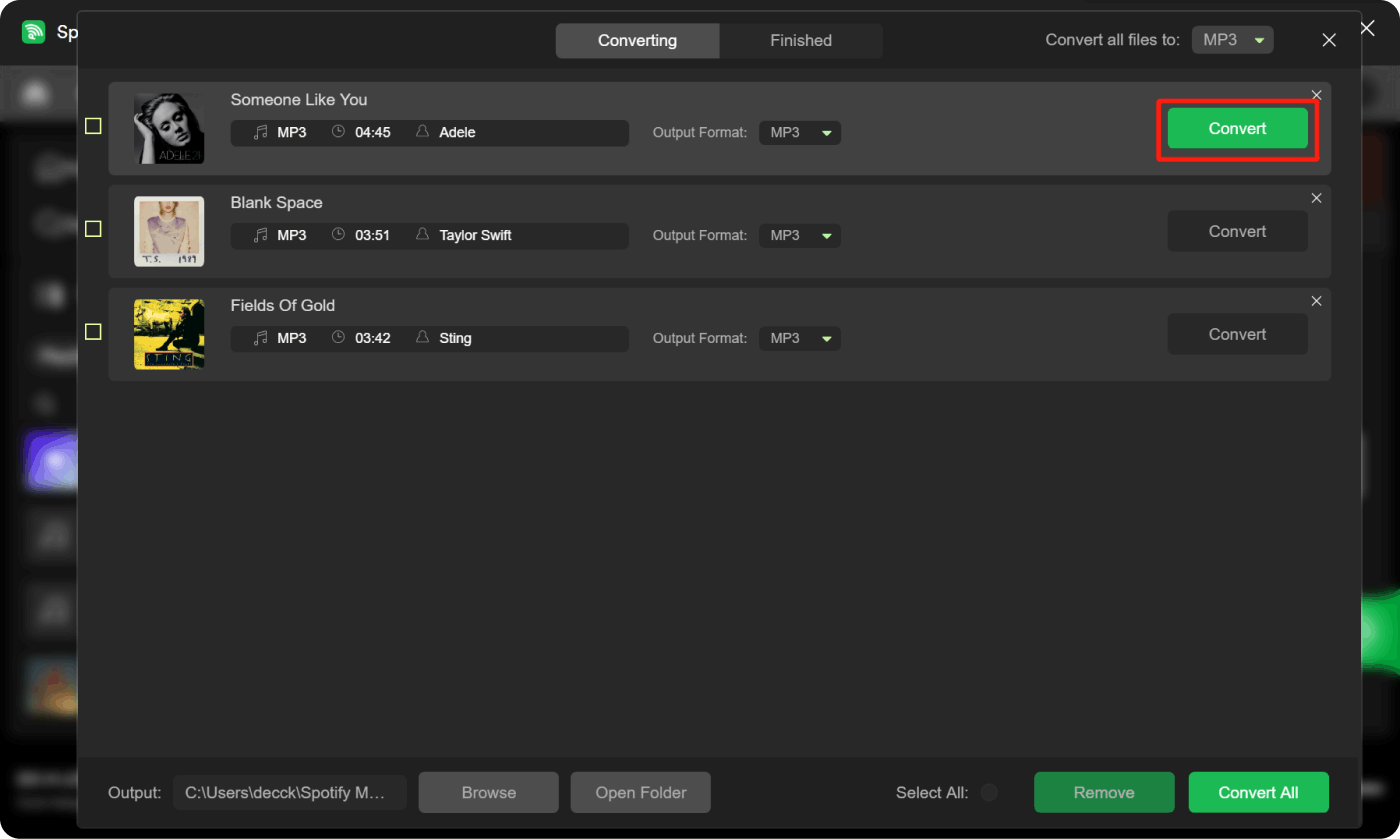
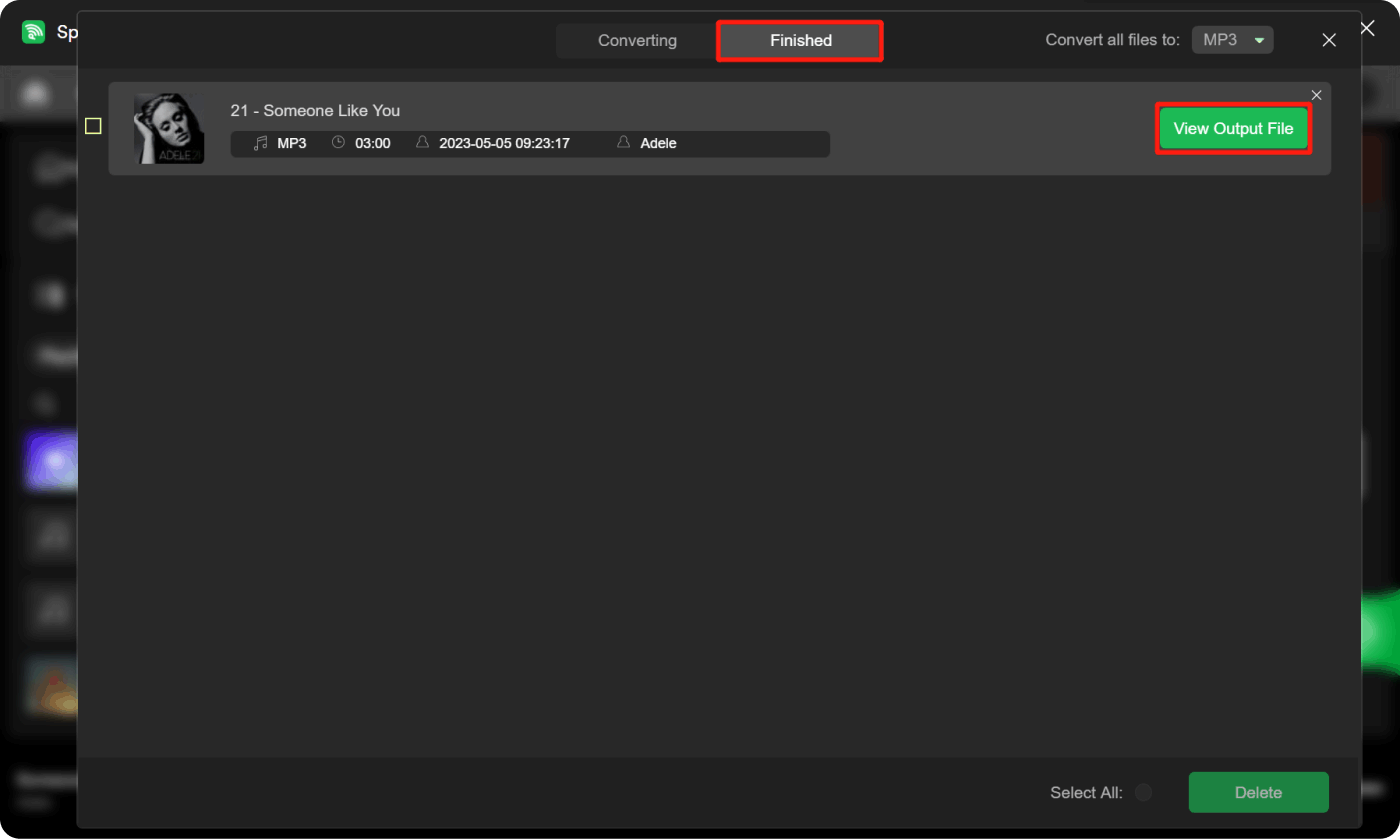
For ease of viewing the list of the converted tracks, you may go to the “Finished” tab and then choose the “View Output File” option. The processed songs can now be accessed on any gadget, that you have or can be kept as long as you want to (on any device or external drives like USBs) without thinking about the need to subscribe to a premium plan.
Once you have the songs saved on your USB, you could be able to listen to them via your car’s stereo just by plugging the USB drive into your car stereo’s port.
Part 4: Additional Tip: Basic Ways to Fix Issues on Apple CarPlay Spotify
Just in case you have encountered issues when trying to access Spotify via Apple CarPlay, below are some simple workarounds that you can apply.
- Try to restart your iPhone and then connect it again to your car.
- Ensure that you have updated your iPhone to the latest iOS version that’s available.
- Try reinstalling the Spotify app.
- Force Spotify to close or stop running. Wait for a few minutes before launching it again.
Część 5: Podsumowanie
It is just so simple to use and control Spotify with Apple CarPlay. In order to get your iPhone connected to your car and begin listening to the Spotify songs that you love via CarPlay, you just have to follow the procedure that was highlighted in this article. Additionally, to avoid interruptions and possible issues, you may also resort to saving the Spotify songs on your USB drive by downloading and converting them through apps like the Spotify Music Unlocker.
Ludzie również czytają Odblokuj swoją ulubioną muzykę: Przewodnik po konwersji Spotify do formatu MP3 ROZWIĄZANY: Jak pobierać utwory Spotify bez Premium
Napisane przez Rosie
Ostatnia aktualizacja: 2023-08-10