


In the ever-expanding world of music streaming platforms, SoundCloud and Spotify have emerged as fan favorites. While both offer unique features and content, the desire to consolidate playlists and enjoy a consistent listening experience often leads users to transfer SoundCloud playlist to Spotify.
In this article, we will guide you through the process, providing a comprehensive step-by-step guide and highlighting the benefits of embracing Spotify's extensive music library plus with a tutorial on how to use a free third-party Spotify to MP3 converting tool to grab songs. Say goodbye to scattered playlists and embrace a harmonious transition from SoundCloud to Spotify.
When it comes to the process to transfer SoundCloud to Spotify, you have several options at your disposal. Let's explore five popular methods to help you seamlessly migrate your music collection.
Przewodnik po zawartości Part #1: Using Manual Recreation to Transfer SoundCloud to SpotifyPart #2: Using SoundiizPart #3: Using FreeYourMusic to Transfer SoundCloud Playlist to Spotify Part #4: Using TuneMyMusicPart #5: Using Sidify to Transfer SoundCloud Playlist to SpotifyPart #6: Extra Tips: Download Spotify Playlist to MP3 FormatPodsumowanie
Part #1: Using Manual Recreation to Transfer SoundCloud to Spotify
The manual recreation method involves searching for each track from your SoundCloud playlist and manually adding them to a new playlist on Spotify. While this method can be time-consuming, it gives you complete control over the transfer process. Here's how you can do it:
- Open SoundCloud and locate your playlist.
- Search for each track on Spotify individually.
- Add the matching tracks to a new playlist on Spotify.
- Repeat the process until you've transferred all your desired tracks.
Part #2: Using Soundiiz
One widely used and user-friendly option is Soundiiz. It simplifies the transfer process and offers additional features for managing your music collection. Here's how you can transfer your SoundCloud playlist to Spotify using Soundiiz:
- Visit the Soundiiz website (soundiiz.com) and sign up for an account.
- Once you're signed in, select the "Platforma do platformy " opcja.
- Connect your SoundCloud and Spotify accounts by following the on-screen instructions.
- Choose SoundCloud as the source platform and Spotify as the destination platform.
- Select the SoundCloud playlist you want to transfer.
- Customize the transfer settings if desired (e.g., exclude duplicates, and choose a specific destination playlist).
- Initiate the transfer process, and Soundiiz will handle the rest, matching and transferring the tracks to Spotify.
Part #3: Using FreeYourMusic to Transfer SoundCloud Playlist to Spotify
To transfer SoundCloud playlist to Spotify using FreeYourMusic, you can follow these steps:
- Visit the FreeYourMusic website and sign up for an account if you don’t already have one. They offer both free and premium plans.
- Once you’re logged in, you’ll see a list of music streaming platforms. Select SoundCloud as the source platform.
- Grant FreeYourMusic access to your SoundCloud account so that it can retrieve your playlists.
- After connecting your SoundCloud account, you’ll see a list of your SoundCloud playlists. Choose the playlist you want to transfer to Spotify.
- Now, select Spotify as the destination platform.
- Grant FreeYourMusic access to your Spotify account. This will allow it to create a new playlist and add the transferred songs.
- Once your Spotify account is connected, choose the destination playlist or create a new one where you want the SoundCloud playlist to be transferred.
- Na koniec kliknij przycisk "przelew "Lub"Rozpocznij " button to initiate the transfer process. FreeYourMusic will start transferring the songs from your SoundCloud playlist to your chosen Spotify playlist.
- Wait for the transfer to complete. The time required depends on the number of songs in your playlist and the speed of the transfer process.
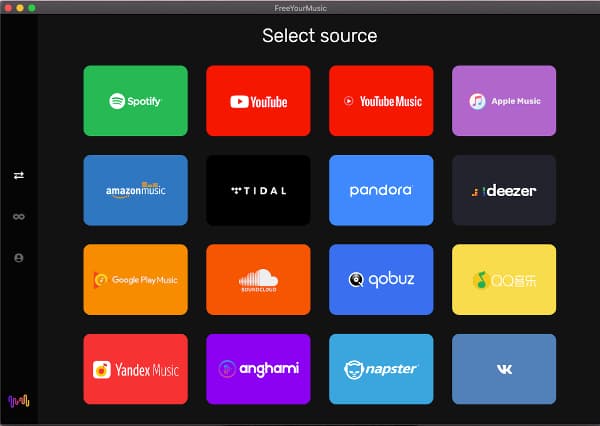
Once the transfer is finished, you should see the songs from your SoundCloud playlist in your chosen Spotify playlist. Remember that FreeYourMusic is a third-party service, so there may be occasional limitations or changes to their process.
Part #4: Using TuneMyMusic
To use TuneMyMusic to transfer playlist from SoundCloud to Spotify, follow these steps:
- Using your web browser, navigate to the TuneMyMusic website.
- To begin the transfer procedure, go to the TuneMyMusic site and click the "Zaczynajmy "Lub"Zacznij teraz " opcja.
- On the following screen, you’ll see a list of music streaming services. Choose SoundCloud as your source platform.
- Follow the prompts to provide TuneMyMusic access to your SoundCloud account. TuneMyMusic will now be able to access your SoundCloud playlists.
- You’ll get a list of your SoundCloud playlists after linking your account. Select the playlist you wish to move to Spotify.
- Choose Spotify as the destination platform now.
- Allow TuneMyMusic to access your Spotify account. This enables it to create a new playlist and import the transferred tracks.
- After connecting your Spotify account, select the destination playlist or create a new one to which you want the SoundCloud playlist to be moved.
- Finally, use the “Zacznij przenosić moją muzykę ” or equivalent button to begin the transfer. TuneMyMusic will begin transferring music from your SoundCloud playlist to the Spotify playlist of your choice.
- Wait for the transfer to finish. The amount of time required is determined on the number of songs in your playlist as well as the speed of the transfer process.
- When the transfer is complete, the music from your SoundCloud playlist should appear in your chosen Spotify playlist.
Part #5: Using Sidify to Transfer SoundCloud Playlist to Spotify
Sidify is a professional music downloader that can help you download music from SoundCloud to MP3, M4A, AAC, WAV, FLAC, and other formats. It also allows you to transfer SoundCloud playlist to Spotify playlistby. To use Sidify to transfer SoundCloud playlists to Spotify, follow these steps:
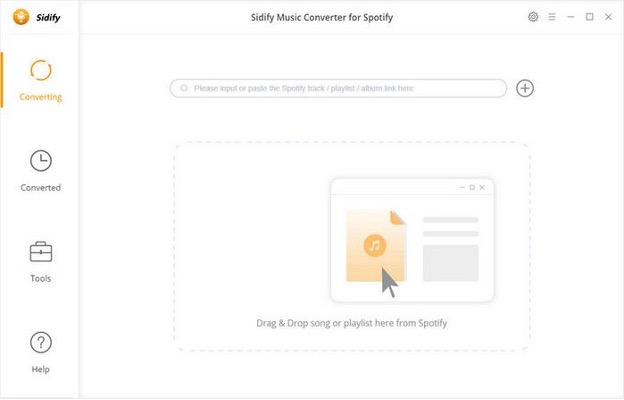
- Download and install Sidify on your computer.
- Launch Sidify and click on the "Dodaj muzykę ".
- In the pop-up window, enter the URL of the SoundCloud playlist you want to download.
- Kliknij na "Dodaj " button to add the playlist to Sidify.
- Select the output format as MP3, M4A, AAC, WAV, or FLAC.
- Kliknij na "konwertować " button to start downloading the playlist.
- Once the download is complete, open Spotify and import the downloaded music.
Here are some of the features of Sidify:
- It can download music from SoundCloud in high quality.
- It can convert SoundCloud playlists to Spotify playlists.
- Jest łatwy w użyciu i ma przyjazny dla użytkownika interfejs.
- It is a reliable and safe software.
If you are looking for a way to transfer SoundCloud playlists to Spotify, Sidify is a great option. It is a reliable and easy-to-use software that can help you download music from SoundCloud in high quality and convert it to Spotify playlists.
By utilizing these methods, you can easily transfer your SoundCloud playlist to Spotify, saving time and ensuring a smooth transition. Whether you prefer a hands-on approach or rely on the efficiency of third-party services like Soundiiz, these options will help you enjoy your curated tracks on Spotify's feature-rich platform.
Part #6: Extra Tips: Download Spotify Playlist to MP3 Format
Teraz, kiedy już się tego nauczyłeś transfer SoundCloud playlist to Spotify, we’ll give you a bonus tip. Narzędzie do odblokowania muzyki Spotify is a powerful and user-friendly software designed to help users easily convert and download music from Spotify.
Darmowe pobieranie Darmowe pobieranie
This dedicated tool enables users to remove the limitations of Spotify's DRM (Digital Rights Management) protection, allowing them to enjoy their favorite tracks on any device without any restrictions.
Spotify Music Unlocker allows users to convert multiple Spotify tracks simultaneously. This batch conversion feature saves time and effort by converting entire playlists or albums at once. The software also utilizes advanced technology to ensure fast conversion speed without compromising the audio quality.
Oto jak korzystać z tego narzędzia:
- Open the Spotify Music Unlocker and click on the button labeled "Otwórz odtwarzacz internetowy Spotify ".
- Sign in to your Spotify account. If you don't have an account, click on the "Zarejestruj się ”, aby go utworzyć.
- Choose an album or playlist. Click the zielony "Dodaj " przycisk to include all the songs from the album or playlist in the list. Alternatively, you can drag the album or playlist title onto the green "add" icon.
- Aby przekonwertować pojedynczy utwór, wystarczy przeciągnąć jego tytuł na niebieską ikonę.
- Select your desired output format, such as MP3, M4A, WAV, or FLAC. You also have the option to choose an output folder.
- Rozpocznij proces konwersji, klikając „konwertować ".
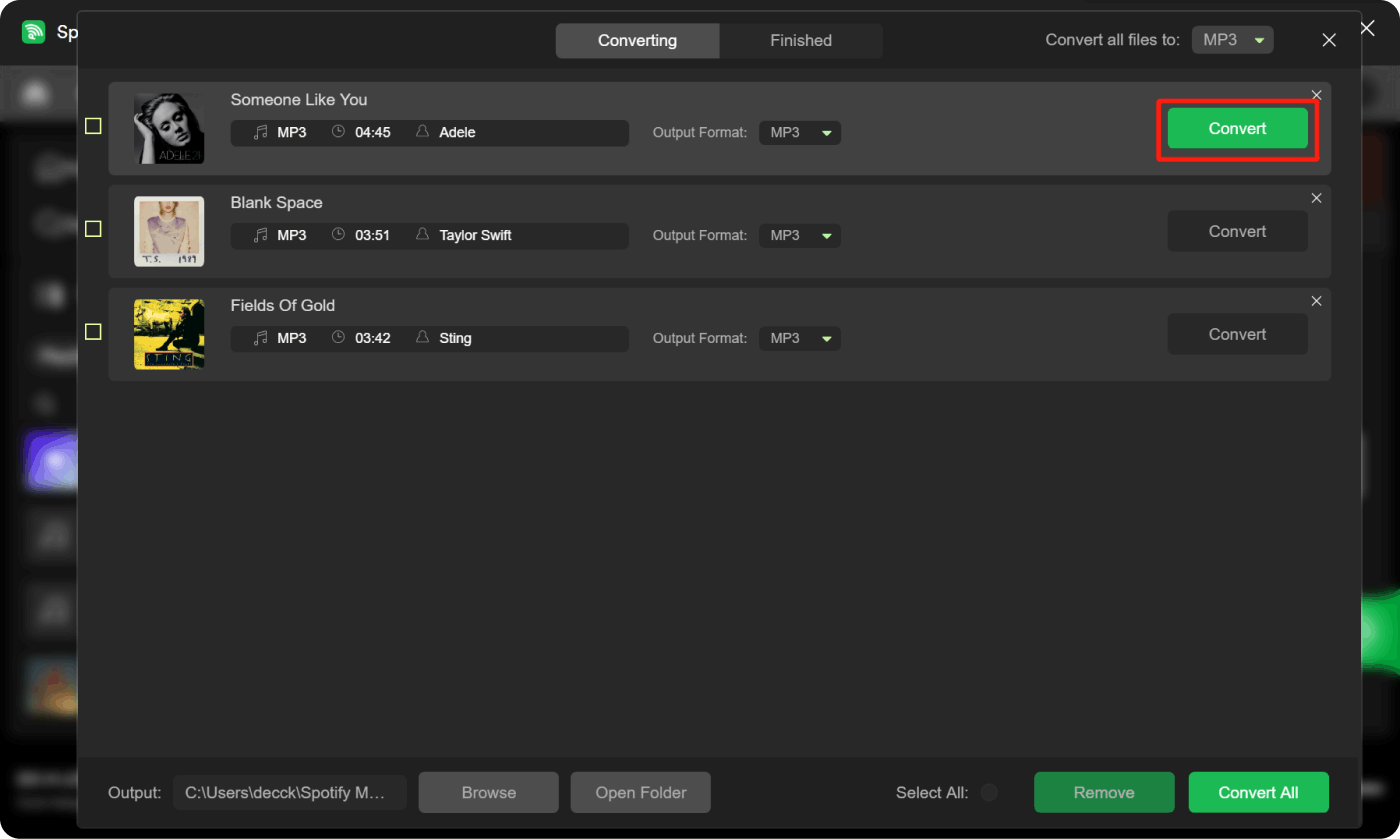
The tool offers a convenient solution for Spotify users who want to enjoy their music offline and on multiple devices. By converting Spotify tracks to common audio formats, users can break free from DRM restrictions and have full control over their music collection.
Ludzie również czytają Jak dodać YouTube Music do Spotify: przewodnik krok po kroku 10 najlepszych płatnych i darmowych konwerterów Spotify na MP3 w 2024 roku
Podsumowanie
Proces do transfer SoundCloud playlist to Spotify opens up a world of possibilities for seamless music streaming. By following the outlined methods and utilizing tools like Soundiiz, you can enjoy a consistent music library and personalized experience on Spotify.
Transferring your playlist to Spotify offers numerous benefits, including access to a vast music library, curated playlists, and enhanced features like collaborative playlists and offline listening. With Spotify's extensive collection of major releases and its advanced recommendation system, you can discover new artists and genres while enjoying your favorite tracks.
In addition, Spotify Music Unlocker offers a straightforward and intuitive interface, making it easy for users, even those with limited technical knowledge, to navigate and operate the software. With just a few simple steps, users can convert their Spotify music effortlessly.
Napisane przez Rosie
Ostatnia aktualizacja: 2023-05-18