


Are you tired of interruptions to your Spotify playlists when navigating through other apps or using your device for different tasks? In this comprehensive guide, we'll delve into the art of how to play Spotify in background, unlocking a world of uninterrupted musical bliss.
Whether you're an avid multitasker or simply looking to play your Spotify music offline, we've got you covered with practical tips and step-by-step instructions. Let's dive into the realm of seamless tunes and make the most of your Spotify journey.
Przewodnik po zawartości Part 1. Can You Play Spotify in Background on Different DevicesPart 2. How to Play Spotify in Background on Different DevicesPart 3. How to Play Spotify in Background on Any DeviceCzęść 4. streszczenie
Part 1. Can You Play Spotify in Background on Different Devices
Absolutely! The flexibility of Spotify allows users to enjoy their favorite music in the background across a variety of devices. Whether you're using a smartphone, tablet, computer, or a smart speaker, Spotify offers options to keep the music playing while you navigate through other apps or perform different tasks.
In Part 1 of our guide, we'll explore the possibilities of playing Spotify in the background on different devices, providing you with a comprehensive understanding of how to maintain that harmonious soundtrack to your life. Stay tuned for the specific details on each device platform in the upcoming sections!
Part 2. How to Play Spotify in Background on Different Devices
Platform 01. On iOS and iPadOS Devices
For Apple enthusiasts who find joy in the seamless integration of music into their daily lives, playing Spotify in the background on iOS and iPadOS devices is a breeze. Follow these steps to keep the tunes flowing while navigating through other apps:
- Start by Launching Spotify: Open the Spotify app on your iOS or iPadOS device and log in to your account.
- Select Your Favorite Playlist or Song: Choose the playlist or song you want to play in the background.
- Rozpocznij odtwarzanie: Tap the play button to start the music.
- Minimize the App: Swipe up or press the home button to minimize the Spotify app. The music will continue playing in the background.
- Control from Lock Screen or Control Center: Access the lock screen or Control Center to manage playback controls without reopening the Spotify app.
With these simple steps, you can now enjoy uninterrupted music on your iOS or iPadOS device while you chat, browse, or perform any other tasks. Stay tuned for more platform-specific guides on playing Spotify in the background!
Platform 02. On Android
Android users, rejoice! Playing Spotify in the background on your Android device is straightforward and enhances your multitasking experience. Here's how to do it:
- Otwórz aplikację Spotify: Launch the Spotify app on your Android device and log in if prompted.
- Wybierz swoją muzykę: Select your preferred playlist, album, or track that you want to play.
- Commence Playback: Tap the play button to start the music.
- Minimize or Switch Apps: Navigate to your home screen or switch to another app while keeping Spotify running in the background. The music will continue playing.
- Access Playback Controls: Pull down the notification shade or use the lock screen controls to manage playback without reopening the Spotify app.
Now you can enjoy your favorite tunes on Spotify while checking emails, texting, or using any other app on your Android device. Stay tuned for more insights on playing Spotify in the background across various platforms!
Platform 03. MacOS Computers
For Mac users, ensuring a harmonious soundtrack to your work or leisure is a breeze with Spotify. Here's a guide on how to play Spotify in the background on macOS:
- Uruchom Spotify: Open the Spotify app on your Mac and log in to your account.
- Select Your Music: Choose the playlist, album, or track you want to play.
- Start Playback: Click on the play button to begin streaming your selected music.
- Minimize the App: Simply click the yellow minimize button at the top left of the Spotify window, or use the Command + M shortcut to send the app to the background.
- Control from the Menu Bar: Access the menu bar at the top of your screen, click on the Spotify icon, and use the playback controls to manage your music without bringing the app to the forefront.
Now you can keep the beats going while you work or explore other applications on your Mac. Stay tuned for additional insights on playing Spotify in the background across diverse platforms!
Platform 04. On Windows Systems
Windows users, rejoice in the continuous flow of music as you navigate through tasks on your computer. Here's a step-by-step guide on how to play Spotify in the background on Windows systems:
- Uruchom Spotify: Open the Spotify app on your Windows computer and log in.
- Wybierz swoją muzykę: Select the playlist, album, or track you wish to play.
- Commence Playback: Click the play button to start the music.
- Minimize the App: Either click the minimize button (-) in the top-right corner of the Spotify window or use the Windows key + D shortcut to minimize all open windows, keeping Spotify running in the background.
- Use Taskbar Controls: Access the taskbar at the bottom of your screen. Right-click on the Spotify icon to control playback or skip tracks without reopening the app.
Now you can enjoy your favorite tunes on Spotify while working or browsing on your Windows system.
Platform 05. Using Spotify Web
For those who prefer the convenience of Spotify Web, playing music in the background is still an option. Follow these steps to keep the beats going while you surf the web:
- Open Spotify Web Player: Visit the Spotify Web Player at spotify and log in to your account.
- Select Your Music: Choose the playlist, album, or track you want to play.
- Rozpocznij odtwarzanie: Click on the play button to initiate music playback.
- Continue Browsing: Navigate to other tabs or websites without worrying about interrupting your music. Spotify Web will keep playing in the background.
- Access Playback Controls: Control playback by switching back to the Spotify Web tab or using your browser's audio playback controls.
Part 3. How to Play Spotify in Background on Any Device
For those looking to take their Spotify experience to the next level, iOS-Unlocker’s Narzędzie do odblokowania muzyki Spotify presents an innovative solution. This tool allows you to not only play Spotify in the background but also pobieraj utwory jako pliki MP3, providing you with the flexibility to transfer and enjoy your favorite music on any device, even when offline.
Darmowe pobieranie Darmowe pobieranie
Oto kroki, aby z niego skorzystać:
1. Otwórz narzędzie Spotify Music Unlocker: Launch the Spotify Music Unlocker application.
2. Uzyskaj dostęp do Spotify Web Player: Within the Spotify Music Unlocker interface, click the "Open Spotify Web Player" button. This action will open the Spotify web player in a separate browser window.
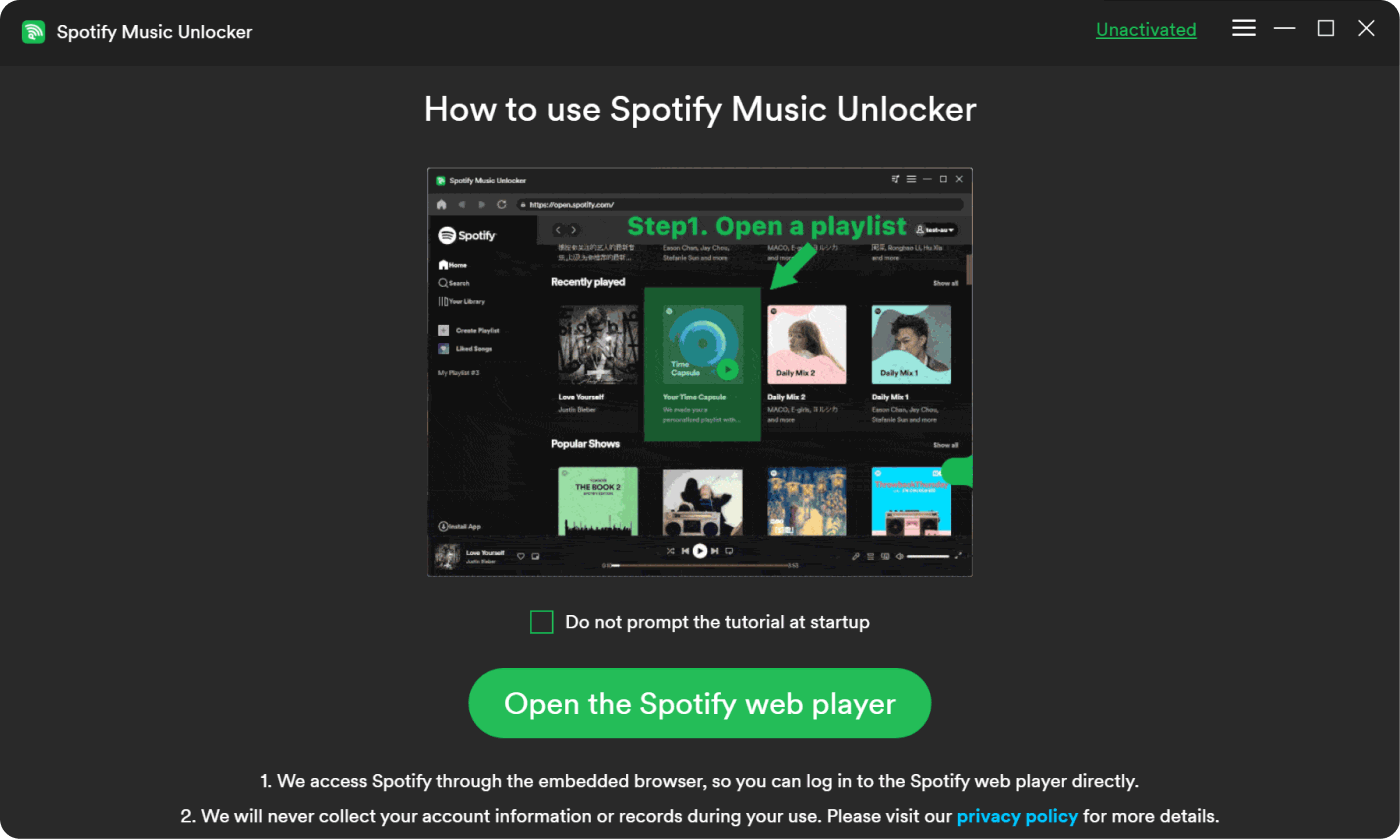
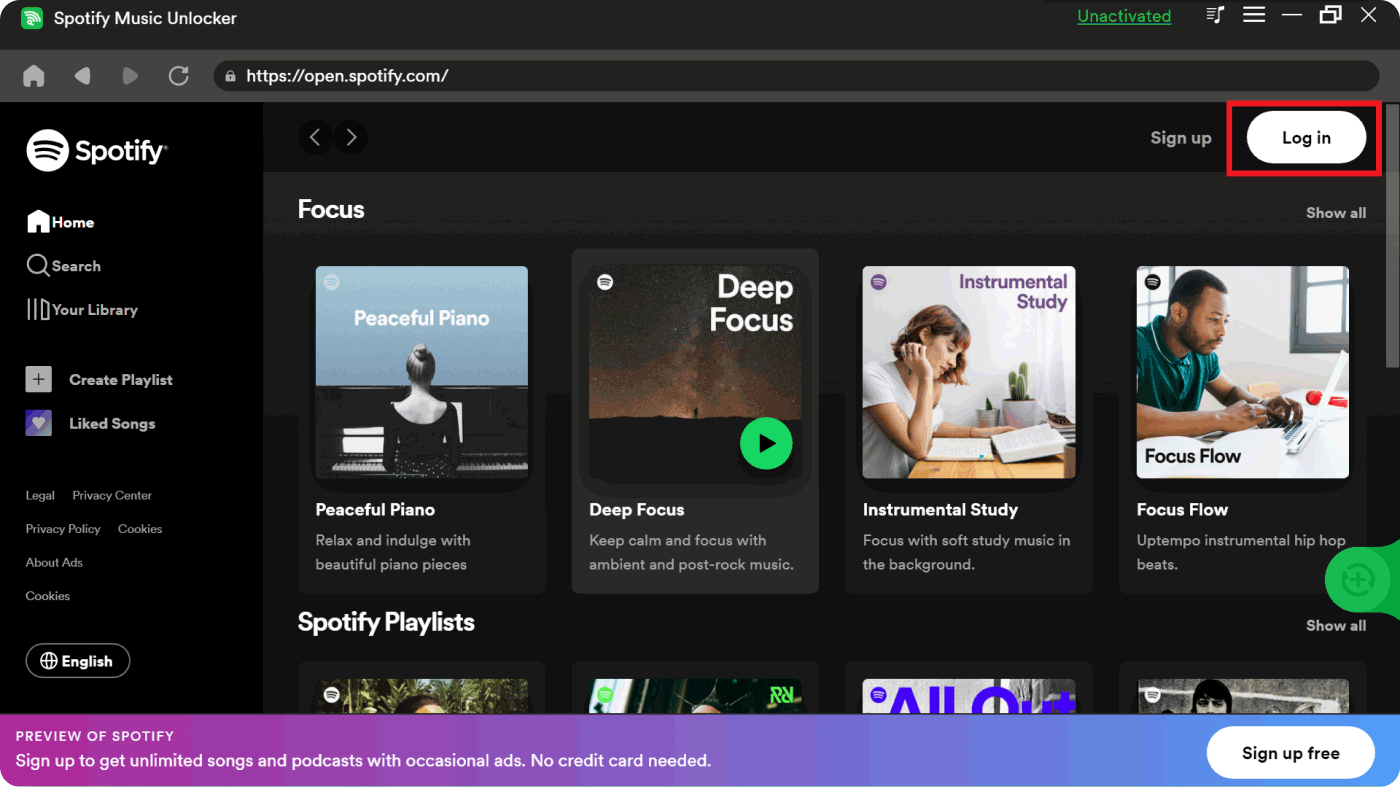
3. Zaloguj się na swoje konto Spotify: If not already signed in, log in to your existing Spotify account using your registered email address and password. For new users, click the "Sign up" link to create a new account.
4. Dodaj treść do konwersji:
- Kliknij zielony przycisk „Dodaj”, aby wybrać i dodać podcasty, albumy lub listy odtwarzania w celu konwersji.
- Możesz również przeciągnąć i upuścić wybraną treść na zielony symbol „Dodaj” w interfejsie Spotify Music Unlocker.
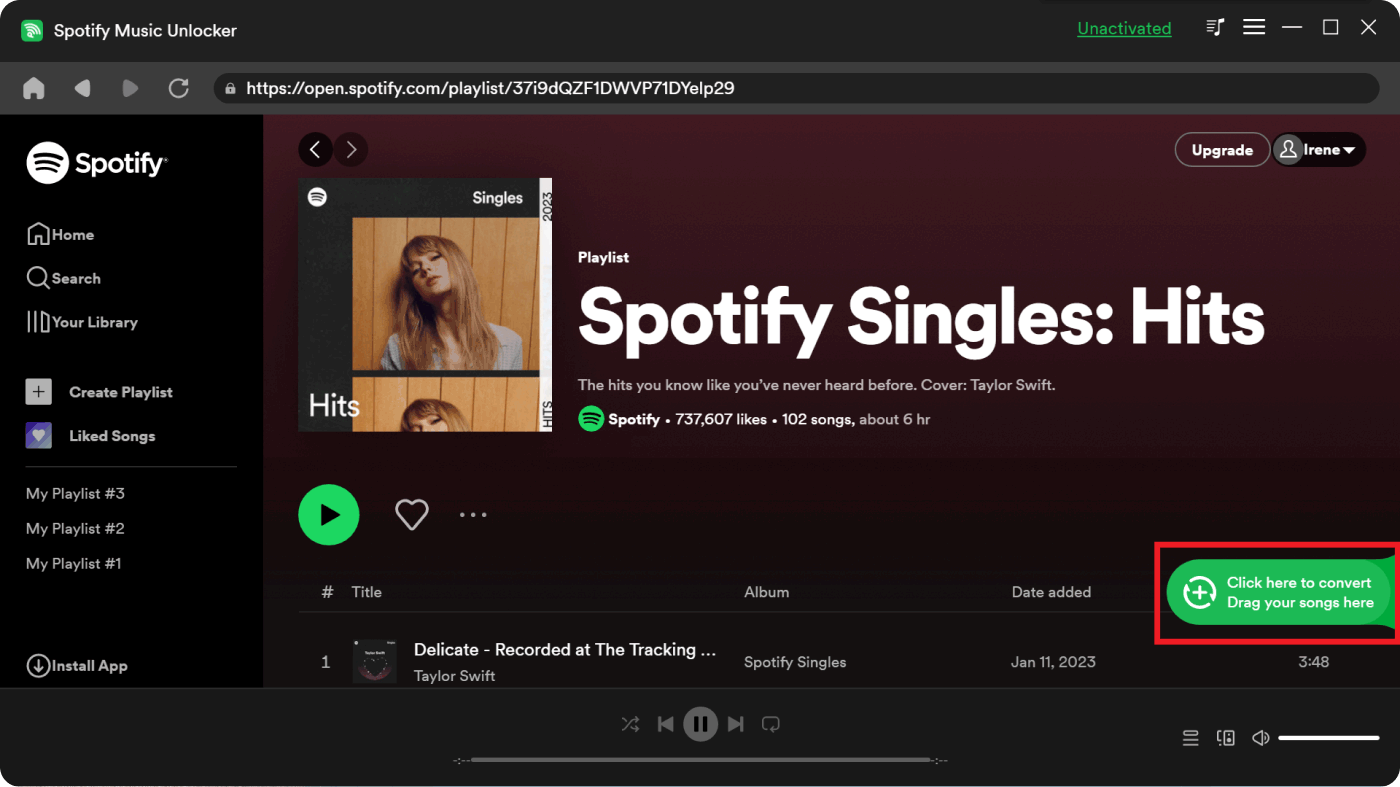
5. Dodaj pojedyncze utwory lub podcasty: Przeciągnij i upuść poszczególne utwory lub podcasty na niebieski symbol w interfejsie Spotify Music Unlocker, aby dokonać konwersji.
6. Wybierz format wyjściowy: Select your preferred output format (MP3, M4A, WAV, or FLAC) for the converted files.
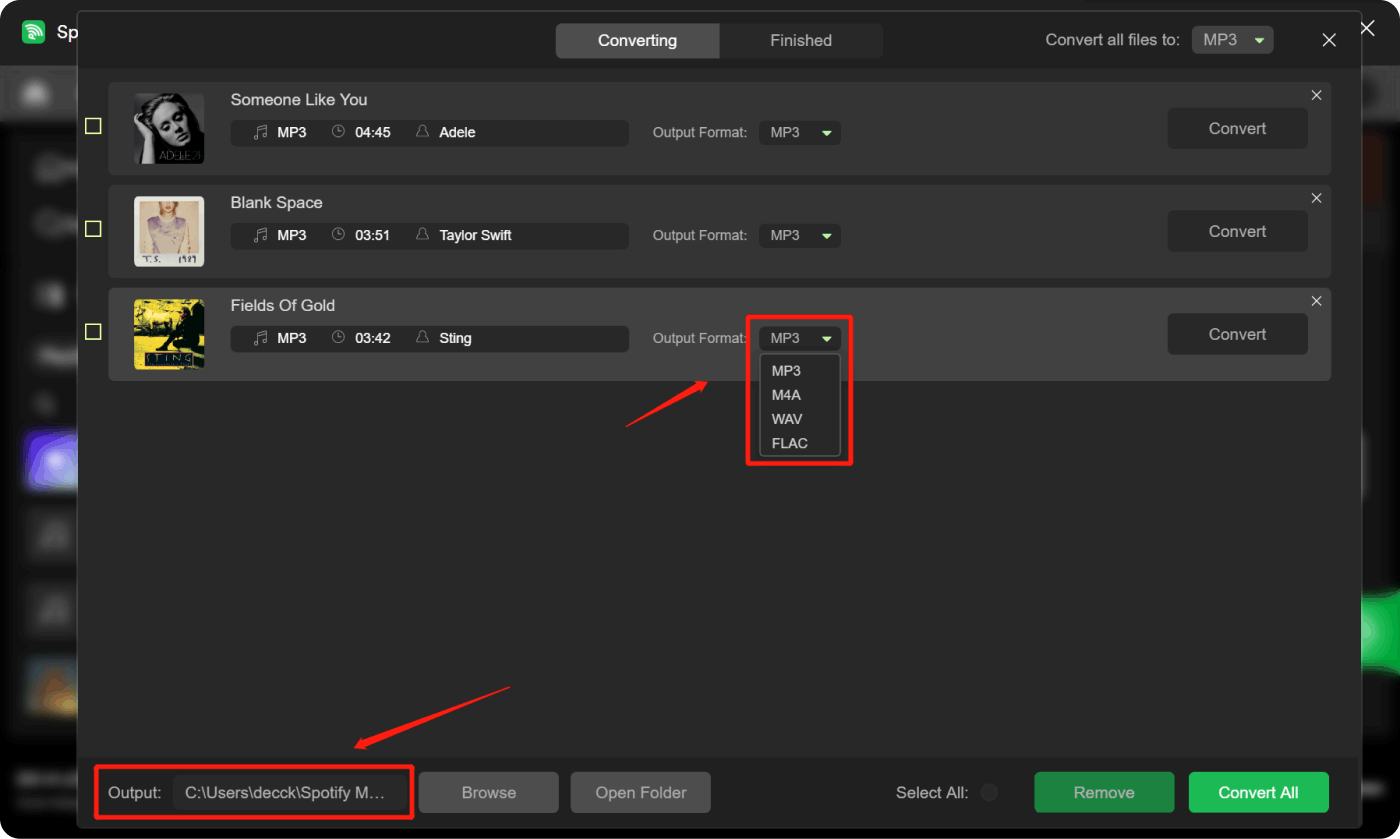
7. Określ folder docelowy (opcjonalnie): Jeśli masz na myśli konkretny folder, kliknij przycisk „Zmień”, aby wybrać miejsce docelowe, w którym zostaną zapisane przekonwertowane pliki na Twoim komputerze.
8. Rozpocznij konwersję: Wybierz utwory z listy konwersji i kliknij przycisk „Konwertuj”. Rozpocznie się proces konwersji, który przekształci wybrane utwory do wybranego formatu.
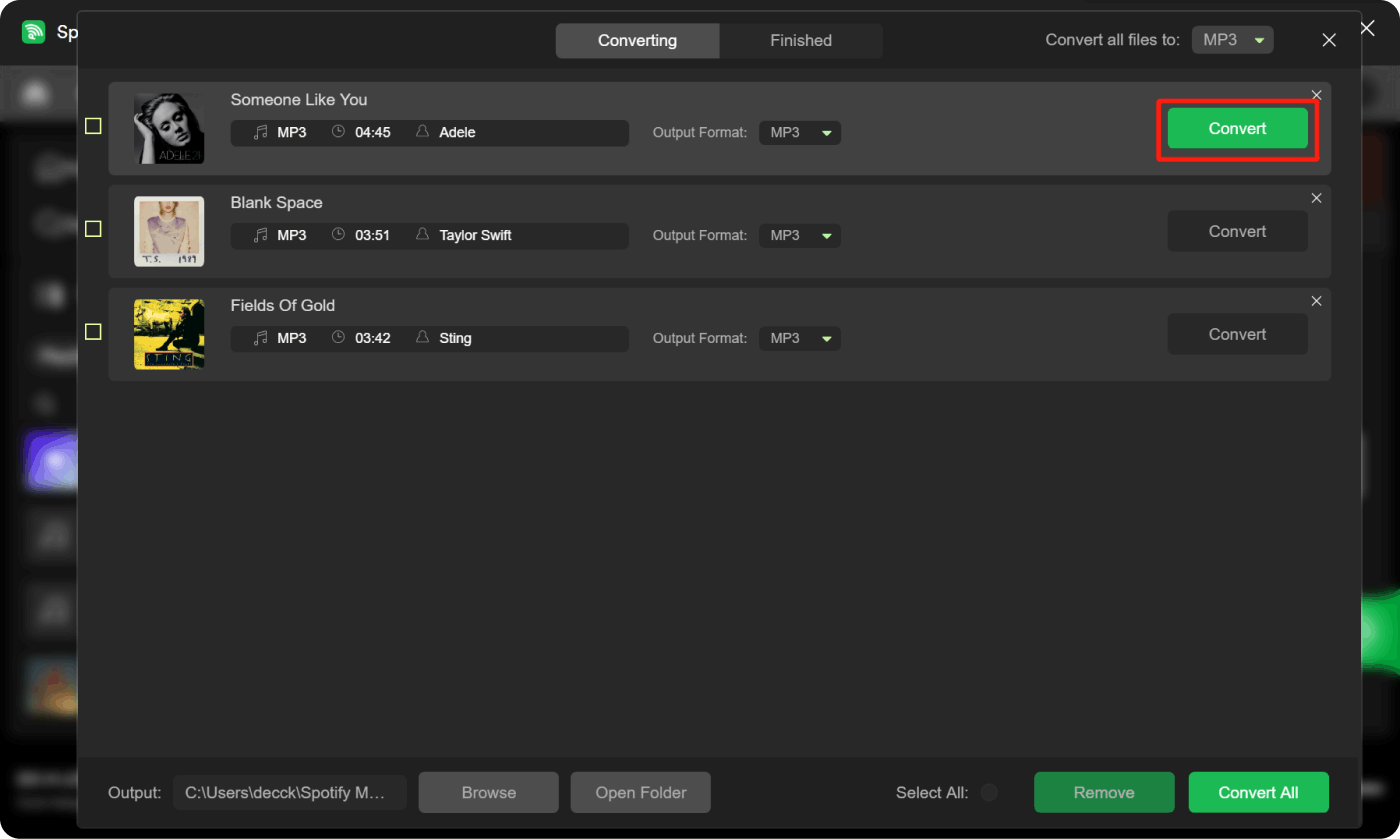
The iOS-Unlocker Spotify Music Unlocker caters to the needs of Spotify users seeking offline listening convenience. Offering a legal and user-friendly solution, it seamlessly allows music enthusiasts to enjoy their favorite tracks without the constraints of an internet connection.
By using iOS-Unlocker’s Spotify Music Unlocker, you not only gain the ability to play Spotify in the background but also unlock the freedom to take your favorite tunes with you wherever you go. Stay tuned for more tips and tricks on enhancing your Spotify experience!
Część 4. streszczenie
In summary, mastering the art to play Spotify in background opens up a world of uninterrupted musical enjoyment across various devices. Whether you're using iOS, Android, macOS, Windows, or the Spotify Web Player, the flexibility of the platform allows users to seamlessly integrate their favorite tunes into their daily activities.
For iOS and iPadOS devices, Android smartphones, and Windows computers, the process involves launching the Spotify app, selecting your music, commencing playback, and then minimizing the app to let the music play in the background. On macOS, a similar approach is taken, utilizing the menu bar controls for effortless background playback.
Additionally, for those who seek a more versatile solution, the iOS-Unlocker's Spotify Music Unlocker presents an innovative option. This tool not only allows users to play Spotify in the background but also enables the download of tracks as MP3 files. This way, music enthusiasts can transfer and enjoy their favorite tunes on any device, even in offline settings.
With these insights, users can now navigate the world of Spotify seamlessly, ensuring a harmonious musical backdrop to their daily endeavors. Whether you're working, browsing the internet, or simply multitasking, Spotify's diverse options empower users to curate the soundtrack to their lives effortlessly.
Ludzie również czytają [2024] Jak usunąć reklamy ze Spotify na Androidzie/iOS/PC/MAC Jak zmienić zdjęcie na liście odtwarzania Spotify: przewodnik dla Ciebie
Napisane przez Rosie
Ostatnia aktualizacja: 2023-11-29