


Passcodes on iPhones let us keep our personal information safe from any person who holds our phone and wants to open it but doesn't have permission to do so. It also prevents accidentally tapping the screen while it is in our pocket or bag. But if for some reason you 忘了 iPad 密碼 and can’t open your device don't worry, you still have some options for regaining control of your priceless smartphone.
There are several approaches to do this but remember that using these methods may result in losing some of your data that is not saved on your cloud storage. You can reset your iPhone to the factory setting without passcode by using recovery mode, which will revert your iPhone to its original state when you bought it. Find My iPhone feature is also available to address this problem or you can also use a third-party iPhone unlocking tool to get into iPhone without passcode.
Part #1: Using A Specialized Tool Part #2: Use Recovery Mode to Factory Reset Your iPhonePart #3: How to Use Find My iPhone第五部分:結論
Part #1: Using A Specialized Tool
Let us start with the easiest way to get into iPhone without passcode. Using a third party tool that is made for a specific task is the most efficient to do things. In this example, we will use iOS解鎖 which is one of the most trusted and secured brands to use. This tool is specially made for iPhones and allows users to disable the passcode on their Apple devices. Not only does it allow you to disable the passcode on your device, but this program can also erase Apple ID if you want and remove the linked iCloud account if you want to switch or make a new one.
Before using this app, keep the following in mind:
- Removing the passcode will 重置 your iPhone's data.
- Your iPhone will automatically update to the latest version of iOS.
- Finally, make sure the iPhone is 已聯繫 to the computer through the USB connection during the process.
Just follow the steps below to get into iPhone without passcode:
- Download, install and run iOS Unlocker on your Mac or Windows.
- 點擊 清除密碼 按 開始 界面上的按鈕。
- 連結 the iPhone to the PC using your USB cable and press the 信任 你的iPhone上的按鈕。
- Your device's information will be shown. Confirm and press 開始.
- Wait until the download of the required firmware package is finished.
- After the download is complete, hit the 開鎖 按下解鎖按鈕,然後輸入號碼。 0000. Wait a few minutes for the device's passcode to be deleted and now you’re done!

Part #2: Use Recovery Mode to Factory Reset Your iPhone
If you forget your iPhone's passcode but still want to get into iPhone without passcode, you can activate 恢復模式 to simply return the device to its factory-like condition when you first bought it. This implies that all of your iPhones data will be lost. If you have a backup, you may simply restore it after the iPhone has been reset to factory settings. You'll need a Mac or a Windows PC to use recovery mode to restore your iPhone to factory settings.
Follow these instructions below:
- Double-check that you have everything you require. A USB cable compatible with the iPhone and a USB port are required. You will also require an iPhone and a Windows or Mac computer. Make sure you have the most recent version of iTunes installed on your Windows PC.
- 然後你可能就… 關掉 your iPhone. After that is complete, use the USB cord to connect the iPhone to your Mac or Windows computer.
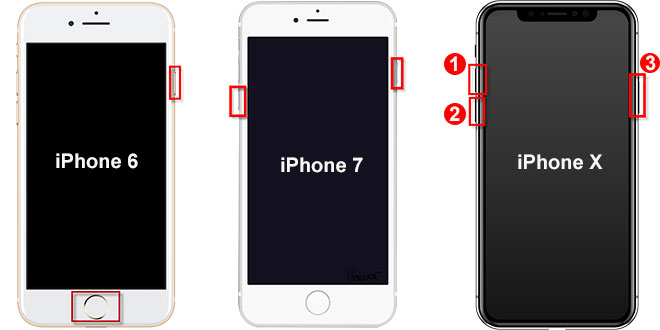
- It's now time to enter recovery mode on your iPhone. You'll keep pressing various buttons until the recovery mode logo (a laptop connected to a USB port) appears. The buttons to press will differ depending on the iPhone model. Take a look at the following:
- Long hold the 側鍵 on the iPhone 8 Plus, iPhone 8, iPhone SE (3rd and 2nd generation), and iPhone X or later devices until the recovery mode logo appears.
- 按 降低音量按鈕 on the iPhone 7 and 7 Plus until the recovery mode logo appears.
- 按住 主頁按鈕 on the first-generation iPhone SE, as well as the iPhone 6s and prior iPhone models, until the recovery mode logo appears.
- If you have a Mac, you should then go to the computer and open 發現者. If you're using Windows, you'll need to launch the iTunes application. Click the iPhone you just linked to the computer on the left side.
- A window will appear with many options for you to pick from. You should select 恢復 from this menu. The computer will now download an iPhone software bundle. The restoration procedure will then commence.
- Wait till the restoration is finished. You may DETACH your iPhone from your computer and then 設置它 as a new device (or restore it from a backup).
Part #3: How to Use Find My iPhone
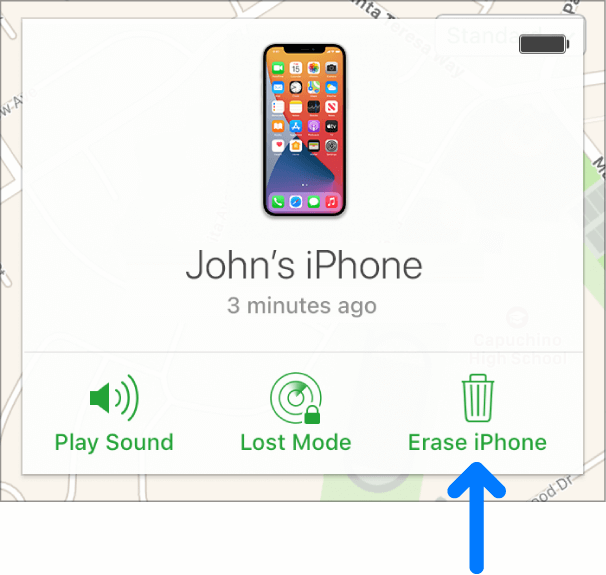
This approach is feasible if your iPhone is linked to the Internet. It will wipe your device's contents, including the passcode. Follow the steps to get into iPhone without passcode using Find My iPhone:
- Log in to the iPhone's Apple ID account at iCloud.com.
- 點擊選項 所有設備 在 iCloud 主畫面上。
- 然後,從出現的裝置清單中選擇 iPhone。
- 選擇 擦除iPhone 從下拉菜單中選擇。
- 輸入密碼 associated with your Apple ID. Alternatively, you can respond to security questions as directed by the browser.
- Wait till the erasing procedure is finished. You may 恢復備份 從您的電腦或 iCloud 中或 設立 your iPhone as a fresh device.
人們也讀如何在沒有密碼的情況下輕鬆進入 iPad4 種透過恢復手機解鎖 iPhone 的方法
第五部分:結論
This post has provided you with the best solution to get into iPhone without passcode. As a result, we've provided three options for removing the passcode from your smartphone. This contains the iOS Unlocker, recovery mode, and the Find My iPhone feature.
Honestly, using a specialized tool for this is the most effective not only because it's easy to use but also offers other useful functions that you may need in the future. You can acquire the tool right now at fonedog.com/ios-unlocker/, and you'll never be locked out of your iOS device again!
羅西(Rosie)撰寫
上次更新時間:2022-03-22