


Forgetting your Apple ID account’s password is the same as forgetting the password of your iCloud account. So, what to do if you forgot iCloud email password ?
Es gibt verschiedene Möglichkeiten reset your password if you forgot your iPhone passcode. This guide will teach you the things you should do if you forgot iCloud email password. We will talk about how to reset your password. In addition, we will give a tool that will help you Apple-ID-Passwort knacken and its corresponding iCloud account within your iOS device.
Part #1: Things to Do if You Forgot iCloud Email PasswordPart #2: The Best Tool to Unlock Your iOS DeviceTeil 3: Eine Zusammenfassung
Part #1: Things to Do if You Forgot iCloud Email Password
You can reset your password if you forgot iCloud email Password. There are several options for resetting your password or regaining account access. The following are some of these methods:
- Change the password on your own device.
- Change the password on someone else's device.
- What to do if you can't remember or reset your password
Solution #1: Change the Password on Your Own Device
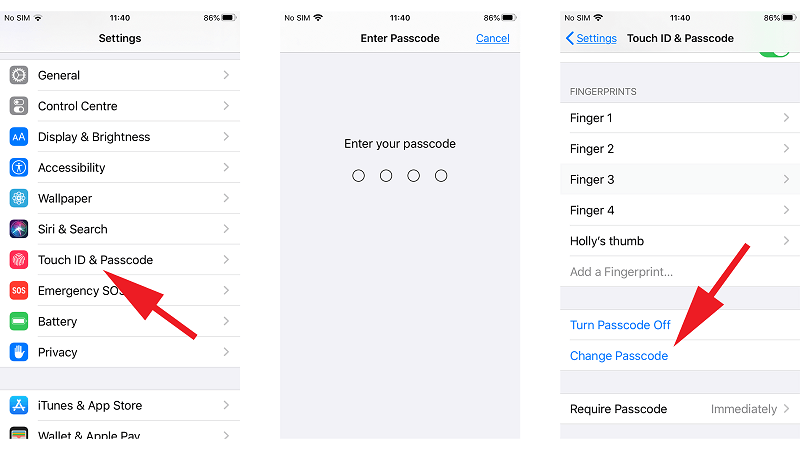
To reset your password on an iOS, iPad, or Apple Watch device when you forgot iCloud email password, follow the instructions below:
- Gehen Sie zu Ihrem Gerät Einstellungen
- [Your Device Name] is pressed. Then go to the Passwort und Sicherheit.
- Wählen "Passwort ändern " aus dem Dropdown-Menü.
- Sie sollten input your device passcode if the device is logged into iCloud and its passcode is enabled.
- Danach, Folge den Anweisungen auf dem Bildschirm um dein Passwort zu ändern.
The procedures below, on the other hand, will show you how to change your password on Mac OS X Catalina and later versions:
- Navigate to your Mac's Apple menu. Select Systemeinstellungen nachdem.
- Dann wählen Sie die apple ID
- Auswählen Passwort und Sicherheit from the drop-down menu. If the computer prompts you for your Apple ID account password, select "Forgot Apple ID Or Password." After that, Folge den Anweisungen auf dem Bildschirm. If you've already completed this section, you can skip to the next step.
- Passwort ändern is the option to select. You can then use it to enter the passcode for your Mac device.
It is critical to remember the following:
- Use a phone number, recovery key, email address, or account recovery contact that you are confident in.
- You may be able to retrieve your Apple ID account by using a trusted email address or telephone number.
- If your account's security includes a recovery key, you can use it to update or reset your Apple ID password on your iPod Touch, iPad, or iPhone.
- If you have an account recovery contact set up on your Apple ID, you can use your iPod Touch, iPad, or iPhone to reset the account's password.
Solution #2: Change the Password on Someone Else's Device.
You can reset the password for your Apple ID account using the iPod Touch, iPad, or iPhone of a family member or friend when you forgot iCloud email password. You can accomplish this via the Find My iPhone program or the Apple Support Team app. Another option is to go to an Apple Store and use the gadgets available there.
Here's how to use someone else's smartphone to reset your Apple ID password using the Apple Support app:
- You must first request that your friend download the Apple-Unterstützung application. This is available on the App Store.
- Öffnen Sie danach die Apple-Unterstützung
- Passwörter & Sicherheit sollte ausgewählt werden.
- Wähle aus Apple ID zurücksetzen Password option.
- Drücken Sie dann die Taste Loslegen
- After that, choose "Eine andere Apple-ID."
- Umstellen eintippen the Apple ID whose password you want to reset or update.
- Klicke Nächster nachdem.
- Once done, you can follow the onscreen prompts till the end wherein it says that the Apple ID account’s password has been changed.
Here's how to use another person's cellphone to reset your Apple ID password with the Find My iPhone app:
- On your friend's handset, open the Mein iPhone suchen App.
- A UI for Einloggen should be presented. Make sure there's nothing in the Apple ID field. If there is another user name in the field, it should be removed.
- Auswählen Forgot Apple ID Or Password Aus dem Dropdown-Menü.
- Then, to reset your Apple ID account's password, follow the on-screen steps.
Solution #3: What to Do if You can't Remember or Reset Your Password
If none of the above methods worked, you should try the procedures below:
- Nutze den iForgot.Apple.com Webseite.
- Then, in the field, eintippen Ihre Apple-ID.
- Select the option that indicates you should Ändern Sie Ihr Passwort. Then select the option to Fortfahren.
- Wählen zwischen beantworten ing the precise security questions linked with your Apple ID, receiving an email message, or entering your own Key Recovery-.
- To reset your Apple ID account's password, follow the on-screen steps.
You should sign back into the Apple ID account with the new password you just created after you've reset the password. As a result, the gadget will regain its Apple ID and become one of your trusted devices.
It's vital to know that if you can't access a trusted device or if you've lost your Recovery Key permanently, you won't be able to change your password. In these circumstances, an iPhone unlocking client can assist you in removing the Apple ID from your smartphone and replacing it with a new one.
Part #2: The Best Tool to Unlock Your iOS Device
iOS-Entsperrer is the greatest iPhone unlocking app available. It provides several methods for unlocking your iPhone, iPod Touch, or iPad. The passcode, the screen time password, and the Apple ID, as well as any related accounts, can all be removed. You can use it when you forgot iCloud email password.
Kostenlos herunterladen Kostenlos herunterladen
It can be used to remedy a variety of issues:
- The predicament in which you forget your device's passcode.
- A situation in which you repeatedly failed to enter the correct passcode auf Ihrem Gadget.
- When the screen on your iOS smartphone is broken und du bist unable to enter the passcode.
- iOS Unlocker can help you if your Touch ID or Face ID isn't working.
- You may also use this program if you have a used iOS device.
Take the following into consideration before using the tool:
- The Apple ID deactivation method will completely wipe your device's data.
- The iOS device must be completely linked to the computer during the removal process.
- Stellen Sie sicher, nicht use the Erase All Content And Settings function. This is because the device will be permanently tied to your old Apple ID.
- Do kein Frontalunterricht. restore or update your device using iTunes. As a result, the old Apple ID will be permanently disabled on your device.
Here's how to use it to delete the Apple ID and iCloud account connected with it from your iOS device:
- Launch iOS Unlocker. On the main interface, select the Apple ID entfernen
- Verbinden the iOS device to the PC with the USB cable. Press the device's Vertrauen können button to create a stable connection.
- Drücken Sie auf Start button to begin the process of erasing your Apple ID.
- If Find My [iOS Device] is ausgeschaltet, iOS Unlocker will remove the Apple ID right away.
- If Find My [iOS Device] is eingeschaltet, your device's settings must be reset. To accomplish this, go to Einstellungen . After that, navigate to Allgemein. Dann wähle Alle Einstellungen zurücksetzen von dem Zurücksetzen To confirm the action, enter your passcode if requested.
- If your smartphone is running iOS 11.4 or later, you must enable two-factor authentication. Go to Settings to do so. Then, under Passwort und Sicherheit, klicken apple IDund schalten Sie die ein Zwei-Faktor-Authentifizierung option in that section.
- Once everything is in place, type "0000 " to activate the Two-Factor Authentication function on your iOS device.
- Double-check the information on your smartphone. Press the Start button to begin the firmware download. Wait till it is completed.
- Once the process is complete, the Apple ID and iCloud account will be removed.
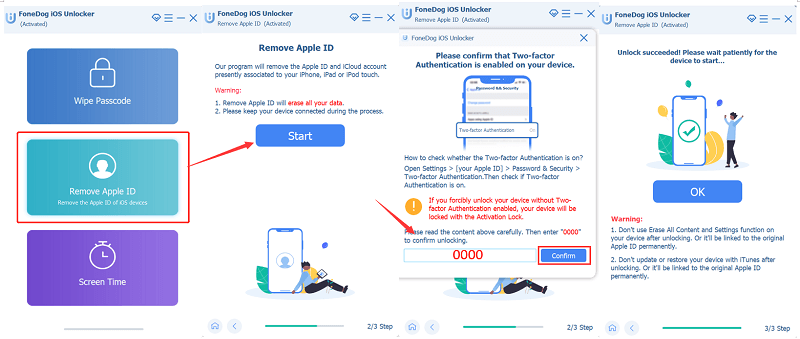
As you can see, it is very easy to unlock your iPhone by removing the Apple ID and its corresponding iCloud account with iOS Unlocker.
Menschen Auch LesenEffective Solutions on How to Delete iCloud EmailsSo entsperren Sie Ihre Apple Watch ganz einfach ohne iCloud-Passwort
Teil 3: Eine Zusammenfassung
This guide has given you the best thing you can do if you forgot iCloud email password. We taught you how to reset your iCloud email password or Apple ID account password in order to regain access to your account. We talked about the different methods of doing so using your own device, using another person’s device, and using a third method if you can’t access your account.
In addition, we talked about how to unlock your iOS device using iOS Unlocker. This tool can help you remove the iOS device passcode, remove the screen time passcode, and even remove the Apple ID and its corresponding iCloud account. It is very easy to use and understand that even if you don’t have technical knowledge, you can take advantage of its features.
Grab iOS Unlocker today at FoneDog.com and never worry about having access to your iOS device!
Geschrieben von Rosie
Letzte Aktualisierung: 2022-06-02