


Buying a used iPhone is way more affordable than a brand new one. However, there is a nightmare that many users fear when purchasing a second-hand iPhone, and that is the Activation Lock.
Many sellers often forget to use software to remove iCloud account before handing out the unit to the new owner. It is even worse when the transaction happened online and there is no way you can track down the previous owner to remove the iCloud for you.
This is why you are getting the error "the apple id cannot be used to unlock this iPhone". Check out our recommended steps below on how you remove the old account and use your own Apple ID without further issues.
Part #1: What Is The Apple ID Cannot Be Used to Unlock This iPhone Error About?Part #2: Use iOS Unlocker to Fix The Apple ID Cannot Be Used to Unlock This iPhone Part #3: Contact the Previous Owner and Ask for Remote AssistancePart #4: Ask Apple HelpTeil 5: Zusammenfassung
Part #1: What Is The Apple ID Cannot Be Used to Unlock This iPhone Error About?
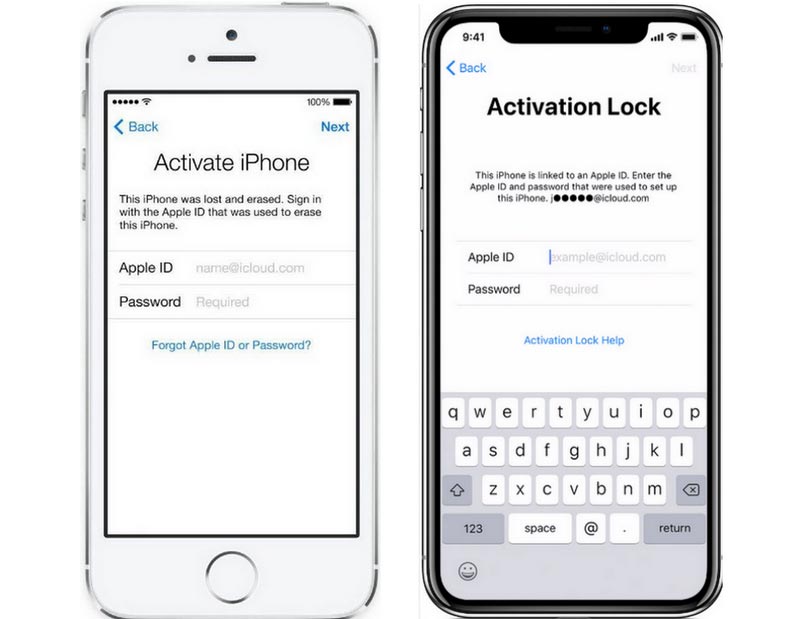
Whenever you see this ‘the apple id cannot be used to unlock this iPhone’ error, it simply means that the unit is still locked with an existing Apple ID. Perhaps, the original owner didn’t sign out of the iCloud before giving the iPhone to you and the only way for you to use the device is to contact the old owner and let him or her remotely and securely erase the iPhone from iCloud.
Dies wird als Aktivierungssperre. This security feature is one of the best settings ever developed by Apple. It locks your device and prohibits anyone from using it without the correct Apple ID and password.
Activation Lock is ideal for lost or stolen devices. You can remotely access and lock your device using iCloud, ring an alarm, and even wipe out the entire data for privacy purposes.
But is there a way to unlock an Activation Lock?
Part #2: Use iOS Unlocker to Fix The Apple ID Cannot Be Used to Unlock This iPhone
Let’s start with the most convenient method first. In order to remove the Apple ID on the used iPhone you purchased, you need a professional tool to help you. iOS-Entsperrer comes with an efficient and convenient method to remove the Apple ID on any iOS device.
Kostenlos herunterladen Kostenlos herunterladen
Since it can be challenging to find and contact the previous owner, why not head over to remove the Apple ID on the device to save time, right? iOS Unlocker has a Remove Apple ID feature that you can use and get the iPhone ready anytime soon.
Here is the complete guide on how to use iOS Unlocker, Remove Apple ID feature:
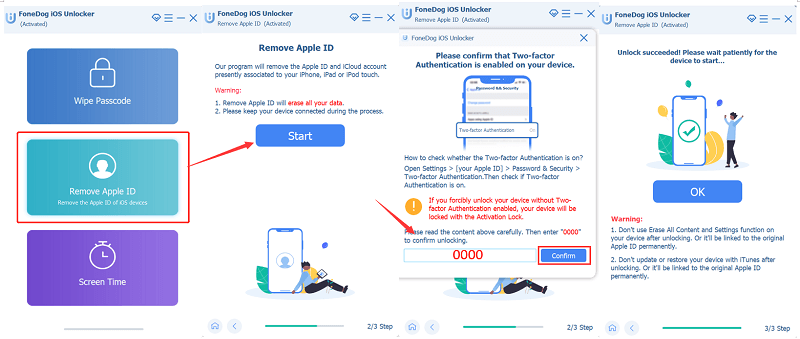
Step #1: Install and Launch iOS Unlocker
First, download the software iOS Unlocker on your computer and follow the onscreen instructions on how to successfully install it. Launch the software and select Apple ID entfernen aus dem Menü.
Step #2: Connect Your iPhone via USB Cable
Nachdem du es getan hast Sie the iPhone via USB cable and have already been detected, click the Start button to proceed with the unlocking.
Step #3: Verify Find My app
Besitzt das Finde meine app is disabled on the iPhone, iOS Unlocker will just proceed with the unlocking, however, if the Find My feature is enabled, then you need to reset all the settings on the iPhone.
Öffne Einstellungen Wählen General, und tippe auf Zurücksetzen. Wählen Sie Alle Einstellungen zurücksetzen and enter the device passcode to confirm the reset.
Step #4: Check the Two-Factor Authentication
Your iPhone will send codes to the registered devices in the Two-factor authentication feature. If this is not enabled, you need to enable it via Einstellungen, tap your apple IDWählen Passwörter & Sicherheit and turn on the Two-Factor authentication.
Enter 0000 on the program screen and confirm.
Step #5: Download Firmware
After you have entered the default password, you will be asked to verify the device's make and model. This is essential since you will need to herunterladen und installieren the iOS firmware package.
iOS Unlocker will install the neuesten and most compatible iOS on your iPhone. Click Download and wait.
Step #6: Remove Apple ID
When the firmware package has been successfully downloaded, click the Unlock button to remove the existing Apple ID. Wait for the process to be completed.
Part #3: Contact the Previous Owner and Ask for Remote Assistance
If by any chance you have contacted the previous owner, you can ask them to assist you in remotely wiping out the data on the iPhone and removing it from the registered device list when the Apple ID cannot be used to unlock this iPhone.
This process can all be done using any browser and by simply logging in to their iCloud account. Here is the complete guide:
- Gehe zu iCloud mit einem beliebigen Browser
- Let them sign in with their iCloud account
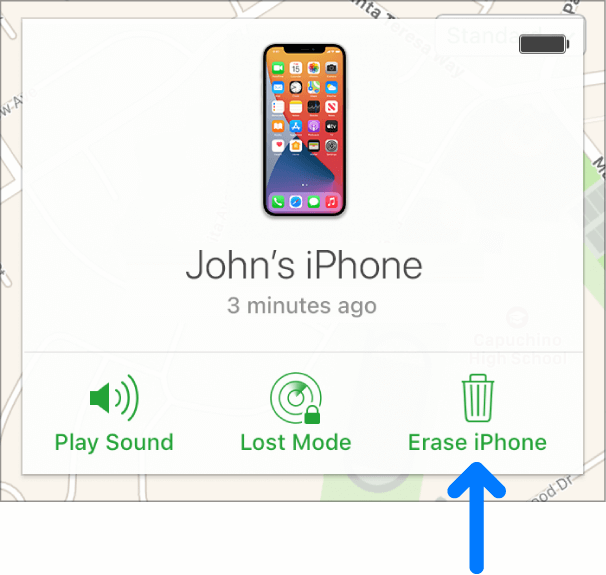
- Klicke Finde das iPhone once logged in
- Öffne Alle Geräte and find the iPhone in question
- Auswählen Löschen Iphone to wipe out all the data
- Don’t forget to let them click the Vom Konto entfernen Taste im nun erscheinenden Bestätigungsfenster nun wieder los.
Now you are all good. Once the owner has done this step, you will be able to activate and set up the iPhone the way you want it.
Part #4: Ask Apple Help
The easiest method you can do when the Apple ID cannot be used to unlock this iPhone is to call Apple customer service. They are expertly trained to manage queries like this. However, you must prepare all the details that they require in order to assist you in removing the Apple ID.
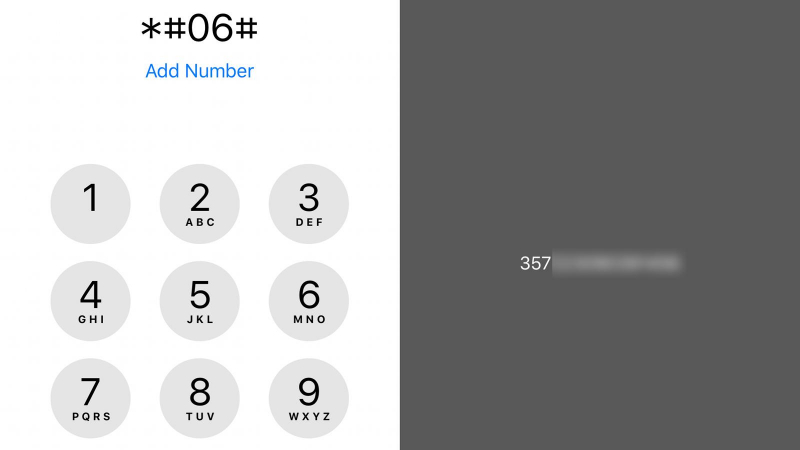
Usually, you are required to send a copy of the purchase receipt together with the IMEI-Nummer. This number can be found in Einstellungen und dann Allgemein. Zapfhahn Über uns und Kopieren die IMEI-Nummer.
Another way to get this number is by dialing * # # 06 on the dialer. Once you have all these details sent over, it may take days or a week before your iPhone will be freed from the previous Apple ID.
The only thing we are concerned about using this method is the time wasted in waiting for the Apple ID removal.
Menschen Auch LesenSo entfernen Sie die Aktivierungssperre ohne VorbesitzerSo entfernen Sie die Find My iPhone-Aktivierungssperre ohne Vorbesitzer
Teil 5: Zusammenfassung
The main reason why you get the "the Apple ID cannot be used to unlock this iPhone " message is due to an existing account already set up on the device.
Well, it can be disappointing to get this error but should be expected especially when buying a used iPhone. This is why we strongly suggest that in case you want to buy a used iOS device, get it from authorized sellers. All the iOS device they sell is already wiped out and cleaned from previous owners’ data and account.
However, you can still fix this issue by using iOS Unlocker. This software includes a Remove Apple ID feature that lets you wipe out the data including the Apple ID and iCloud account on the iPhone. This is perhaps, the most feasible solution that can helo you use the iPhone quickly.
The other two methods are also good but we think it would take time since you need to get in touch with the previous owner, which we think is quite impossible.
Geschrieben von Rosie
Letzte Aktualisierung: 2022-01-27