


Do you enjoy the high-security features that come with iPhone? Do you know the original owner can still access the device when you still maintain the main Apple ID? It's important to understand how the tools' security features work and specifically unlock iPhone without code. Wenn Sie lose your iPhone passcode, or rather you attempt to key in the wrong password six attempts, the iPhone automatically locks itself. That's the moment you will know that such an article exists on the web.
The digital market has several solutions to bypass the passcode. Some require an internet connection; others only need the apple application, while others still use the inbuilt settings of the smartphone. This article looks at four suitable ways to unlock iPhone without code. Read on
Part #1: How to Unlock iPhone without Code Using iTunesPart #2: How to Unlock iPhone without Code Using iCloudPart #3: Unlock iPhone without Code Using The Find My AppPart #4: How to Unlock iPhone without Code Using iOS UnlockerTeil 5: Fazit
Part #1: How to Unlock iPhone without Code Using iTunes
Since this is an Apple device, Apple applications come in handy to minimize compatibility issues. Although it's a viable method to remove the passcode on iPad and iPhone, you have to forfeit your saved data unless you back it up. It's advisable for Apple users to always back up their data from time to time to minimize such inconveniences at such times. With iTunes, you also have three options:
- When the iPhone has been connected before.
- When the device has never been connected to iTunes before.
- When you use the recovery mode of the firmware.
Option #1: Unlock iPhone without Code When Not Connected to iTunes before
Hier sind die Schritte
- Use the USB cable to the PC and iPhone
- Auswählen Wiederherstellen iPhone once the PC detects the device
Option #2: Use iTunes When You Have Never Connected to iTunes before
- Switch off and connect to the PC
- Klicken Sie auf die Lautstärke und nach unten simultaneously until you get the Recovery Mode Bildschirm
- In this mode, open the iTunes app
- Klicken Sie oben auf Wiederherstellen " for the iPhone to get back to recovery mode
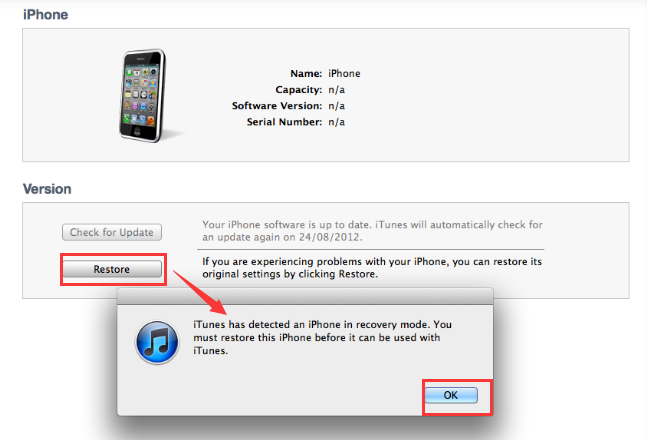
Option #3: Unlock iPhone When You Can't Enter The Recovery Mode
- Herunterladen, installieren und starten iTunes
- Lang drücken Power-Taste as you hold the Lautstärke und nach unten gleichzeitig drücken
- Lassen Sie nach fünf Sekunden die Startseite Taste im nun erscheinenden Bestätigungsfenster nun wieder los.
- If the screen is back, you are good to go; it's now in factory settings
Part #2: How to Unlock iPhone without Code Using iCloud
Do you have your Apple ID? If yes, then this is the ticket to unlock iPhone without code and any third-party integrations. iCloud is a purely online system with unlock features for iPhone, among other functions. Its unique advantage is that you can remotely use it as long as the Apple ID is accurate. That means that if you steal the iPhone, you can lock and unlock it remotely too.
Hier sind die Schritte
- Öffnen Sie den Microsoft Store auf Ihrem Windows-PC. iCloud. Com site
- Anmelden using the Apple ID and password
- Wähle aus Finde meine icon on the main menu
- Schichtannahme die Details
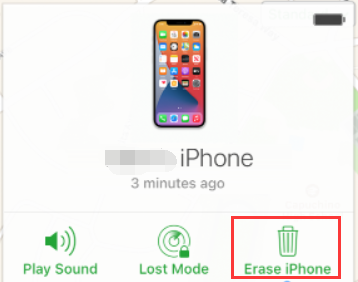
Choose the locked iPhone
- and three options appear, lost mode, play sound and Erase iPhone.
- Auswählen Löschen Iphone
- Enter the Apple ID and password. You have the new device as you bought it; you can choose to reset it up.
Part #3: Unlock iPhone without Code Using The Find My App
When you don't have access to a computer, the Find My App is the best option to unlock iPhone without code. It is a simple procedure that allows the following steps
- Öffnen Sie den Microsoft Store auf Ihrem Windows-PC. Finde meine application on the iPhone
- Click the right iPhone among the listed devices
- Wählen "Löschen Iphone "
- You have the unlock code deleted from the iPhone system
Whether the iPhone is locked or disabled, you can still use the same procedure and enjoy your new device.
Part #4: How to Unlock iPhone without Code Using iOS Unlocker
When all other options seem not to work, a toolkit comes in handy for phone recovery. It comes with additional functions apart from the unlock options. That includes the Apple ID.
Die Wahl fiel auf das iOS-Entsperrer is your go-to application when looking for the best application to unlock iPhone without code. It is also the best option to remove the screentime limitations. Furthermore, this is the recovery tool of choice when you are a second or a third owner of the phone.
Kostenlos herunterladen Kostenlos herunterladen
Its simplicity in service delivery makes it the best toolkit for Apple device owners. In short, it's a must-have tool. Here are the steps to unlock iPhone:
- Herunterladen and launch the FoneDog iOS Unlocker on your PC
- Wählen Passcode löschen on the appearing menu
- Verbinden the iPhone to the PC using the USB cable
- Select the locked iPhone model from the list for the toolkit to automatically download the firmware
- Click start the key in "0000 " as the passcode
- Wartezeit for some minutes for the iPhone to come back to factory settings
When you haven't backup data in an iCloud storage device, this process is bound to delete all the data. Therefore, in the future, as an iPhone user, you must always back up your data before you get such eventualities.

Menschen Auch LesenSo entsperren Sie die Apple Watch ohne Passwort: Effektive Möglichkeiten3 Möglichkeiten: So entsperren Sie den iPhone 6-Passcode, ohne Daten zu verlieren
Teil 5: Fazit
As much as Apple users enjoy all the security functions of the toolkit; it's also important for the user to arm themselves with information like how to unlock iPhone without code to know what to do; in case of a broken screen or a forgotten password, you can still get full control of your phone without losing iPhone data.
iOS Unlocker is your to-go-to toolkit when it comes to unlocking Apple devices. Whether the original owner is within reach or not, you can still use the Apple ID to manage the unlock utility. The choice of the available options to unlock an iPhone without a code is at the user's discretion.
Geschrieben von Rosie
Letzte Aktualisierung: 2022-02-25