


There can be a lot of reasons why someone would resort to knowing the process of how to bypass Apple ID. If you have bought a second-hand phone and the previous owner is not around anymore, and you cannot access the device, it is when you look for ways how to bypass the Apple ID. It could also happen that you have forgotten your passcode on your iPhone and you have tried so many options until the phone was locked, and the only thing that you must do to access it is to bypass the Apple ID.
In this article, there is no room for your feet getting cold, or your hands being shaken up, there are always solutions to these things and we just have to figure out the dilemma well. Here, we will give you a tour of the proper and strategic ways to bypass Apple ID so that you can still be able to access your device and continue with your normal life as it is. Let us begin!
パート1: ああ大変!Apple IDがロックされてしまいました!Part #2: What Should We Do to Bypass Apple ID?Part #3: How to Bypass Apple ID Using A Third-Party Tool?パート4:すべてを要約する
パート1: ああ大変!Apple IDがロックされてしまいました!
Before learning about the methods to bypass Apple ID, it's necessary to figure out the reasons why your Apple ID got locked. When you are in a rush or when you have a lot of things on your mind, there can be a time that you occasionally forget some passwords, and it would only be difficult to resolve if the situation has been crucial.
If you are an Apple user ever since you would know that it is very important to have your アップルID intact as it is the identification of your Apple device or your Apple account. When you have forgotten your Apple ID there is no way that you can be able to access Apple services such as iCloud, App Store, FaceTime, and even Apple Support which is considered one of the most important.
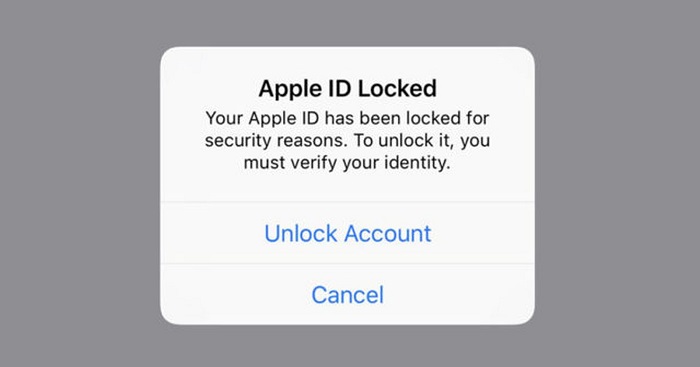
Apple IDがロックされたことがあるとしたら、それはおそらく、設定したパスワードに合うと思って何度もパスワードを入力しようとしたにもかかわらず、パスワードを思い出せなかったためにApple IDがロックされたということでしょう。Apple IDをロックするのは、不正な取引を禁止し、正当な所有者だけがAppleデバイス内で操作を行えるようにするためのAppleデバイスのセキュリティ機能です。
- インターネット接続に問題があるため、Apple ID の処理を続行できません。
- 使用している iOS デバイスで制限が有効になっています。
- Apple のサービスは現在停止しており、サーバーが復旧するまで Apple ID を再びアクティブにすることはできません。
- 現在、iCloud はバックアップからアプリケーションを復元しています。
- 使用している Apple デバイス (iPad、iPod、iPhone) が監視されている可能性があります。
Part #2: What Should We Do to Bypass Apple ID?
And if your Apple ID got locked and you cannot access it anymore you have to bypass the Apple ID so that you can use your device. There are some tools that we can use in case we have to bypass the Apple ID to use our iDevices. We will have the list of the tools and methods that we can try, and see if they can be possible solutions in case our devices get locked.
iCloud
One of the tools that we can use which is commonly installed on iPhone or Apple devices is the iCloud. You can use it to bypass the Apple ID, however, you must contact the previous owner of the device as there are details needed to be able to proceed. The previous owner can provide the username and the password that you can use to bypass Apple ID. Here’s what you have to do:
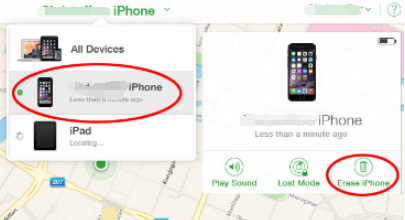
- Launch the web browser on your device and go to icloud.com. You have to sign in using your Apple ID username as well as the password. And then go tap “iPhoneを探す "。
- Once you have opened the iCloud, you have to tap “すべてのデバイス "。
- Then you have to choose the model as well as the name of the device that you wanted to bypass. You have to tap “iPhoneを消去する ” or iPad if you are using an iPad and then click “アカウントから削除 "。
Once you are done with the said steps, the device that you have chosen will be deleted from your Apple ID, and then bypass Apple ID.
DNS
You can also use DNS to bypass Apple ID, let us take a look at the steps that you have to do if you opted to use DNS.
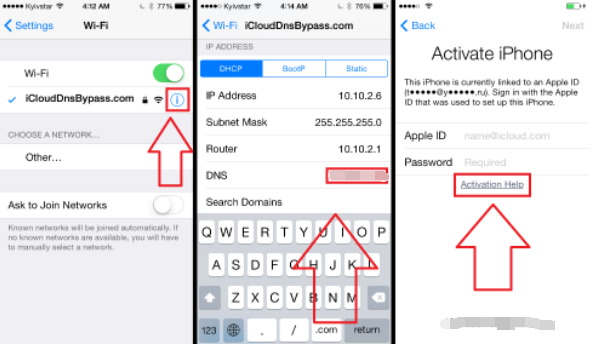
- The initial step that you have to do is to restart your iDevice, and then select the country and also the language, and then you have to enter the DNS server that you will use, it must be a new one, samples of these servers are:
- ヨーロッパ:104.155.28.90
- USA/ North America: 104.154.51.7
- アジア:104.155.220.58
- DNS of the rest of the world: 78.109.17.60
- 次に「 戻る ”, and you have to connect your device to the Wi-fi network, and then tap “是非お見逃しなく! e”, and then click “アクティベーションヘルプ ”. Once you have successfully connected the device, you will receive a message that it is successfully connected to the server.
- 次に「メニュー ”, and then have a preview of the apps that are available and then you have to choose a thing or option that you can verify from the previous owner of the device.
Permanently Bypass Your Apple ID
For the third method, we will teach you how to bypass Apple ID permanently. If you have opted to use DNS you should know that it is just a temporary solution, here’s how you do it permanently.
- クリックして "メニュー 」に進み、「アプリケーション 」をクリックし、「Crash ”, if you have followed it right, your device will restart.
- Then you have to choose the language, and also the country, and then click the “ホーム ” button then select “その他のWi-Fi設定 ”, and then click the “I ” symbol which you will see beside the Wi-Fi network. You then have to go down and tap the “メニュー "。
- You have to clear the address bar and then tap “グローブ ”, and then you have to type random numbers from 15-30 that you will see in the “Port Zone ”, and then you have to click “ 戻る ”, and select the “Next Option ”. Then you will see the language option and also the unlock screen, it will appear repeatedly. You just have to unlock the device, and then click the options for language and you just have to stop until you are able to see the “ホーム 」画面が表示されます。
Part #3: How to Bypass Apple ID Using A Third-Party Tool?
Now that we already have an idea of some methods and tools on how to bypass Apple ID, we will now discuss a third-party tool that we can use in case all the previous methods and tools failed. This time, if we use the iOSアンロック, we are definite that the result will be good and useful.
It is a powerful tool that can help you unlock your iPad or iPhone through the process of erasing your passcode. Aside from the deleting passcode, you can also use it to erase the Apple ID without using a password on your device and also get rid of your password with regards to “Screen Time”. This tool is compatible with both Mac and Windows computers, and it has a very easy-to-understand user interface.
Once you have decided to use the iOS Unlocker, there are things that you have to put into mind first.
- Once you proceed with the process, all the data that are present on your device will be deleted, so you must have backup data.
- When you proceed with the process, the operating system of your device will be updated to the latest version.
- You have to make sure that your device is connected to a computer before you bypass the Apple ID.
Let us see the steps on how to bypass Apple ID using the iOS Unlocker.
- Launch the iOS Unlocker on your personal computer, and tap “パスコードをワイプ "。
- 」をクリックしてくださいお気軽にご連絡ください ” then connect your device to the computer via cable.
- Confirm all the details that you will see, and then tap “お気軽にご連絡ください "。
- The downloading of the firmware package will commence, and then you have to tap “AIの洞察を解き明かす ”, and type “0000 ”. After some minutes, you can now be able to access your device.

人々はまた読むiTunesを使わずにiPadのロックを解除する方法【2023年版ガイド】古いiPhoneのロックを解除する最良の方法
パート4:すべてを要約する
We hope that you have learned the proper things to do prior to the process of bypassing your Apple ID. We also have shared important notes that you should take into mind so that you can still protect the data that are present in your device before you bypass Apple ID.
ロージー脚本の作品
最終更新日:2022-06-02