


Parental controls within iPhones and other iOS devices can help ensure parents that their children are safe and secure. However, you may want to know how to remove parental controls on iPhone if you’re going to use the Apple smartphone yourself.
Here, we will discuss the details on this question. We will teach you how to tweak the settings as well. Finally, we will give you the best tool you can get to unlock your iOS devices through various methods.
Part #1: How to Remove Parental Controls on iPhonePart #2: The Best Way to Remove Screen Time Passcodeパート3:結論
Part #1: How to Remove Parental Controls on iPhone
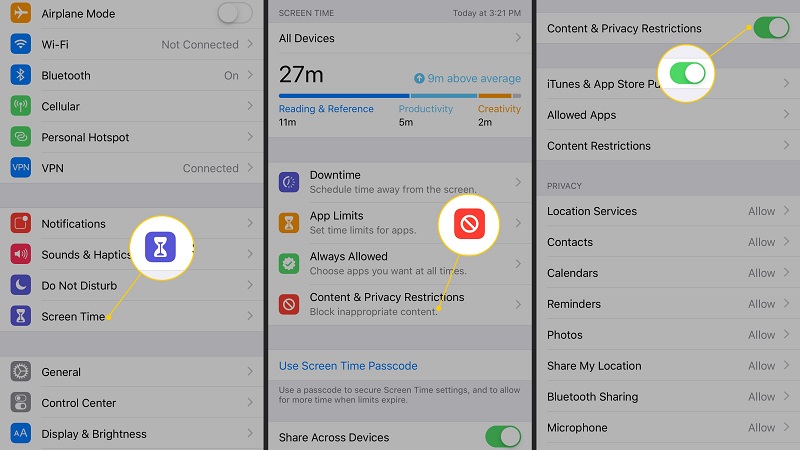
The steps below will teach you how to remove parental controls on iPhone easily:
- 起動する 設定 > 上映時間 > コンテンツとプライバシーの制限 > スクリーン時間をオフにする
- Toggle the slider of Content & Privacy Restrictions off. This will enable you to deactivate parental controls.
How to Tweak Parental Control Settings on Your iPhone
If you don’t need the way of how to remove parental controls on iPhone but just want certain parental controls to be available, try the steps below to tweak the options on your iPhone.
- に行く 設定 > 上映時間 > コンテンツとプライバシーの制限
- In the Content & Privacy Restrictions, you have the option of changing the settings of each section. It may be required to place your screen time passcode before changing the settings of each part of the Content & Privacy Restrictions.
- メディア掲載 iTunesとAppStoreでの購入 if you want to manage whether the child can buy from the App Store or whether the child can install applications. You can set 許可しない or 許可する depending on what you want for アプリ内購入 および アプリのインストール.
- You can also set whether certain apps are allowed or not. This can be done in the 許可されたアプリ You can turn the slider off for the apps you don’t want your child to use.
- メディア掲載 コンテンツ制限. In this section, you can set the content maturity that your child has access to.
-
- ゲームセンター。 You can use Game Center in order to control whether the child can play games that are multiplayer in nature. This can be used to set whether the child can record their screen or add friends within the Game Center.
- You can change Siri settings allowing or not allowing the child to use it to search online. In addition, you can set whether Siri uses or doesn’t use explicit language.
- Webコンテンツ。 In the Web Content section, you can block your child from accessing adult websites. In addition, you can control particular websites that your child can only access.
- Allowed Store Content. In this section, you can choose a level for the rating of your region or country. In addition, you can set the rating for maturity of content from the App Store, iTunes, and the store for Apple Books. You can also set the content maturity rating for podcasts and music.
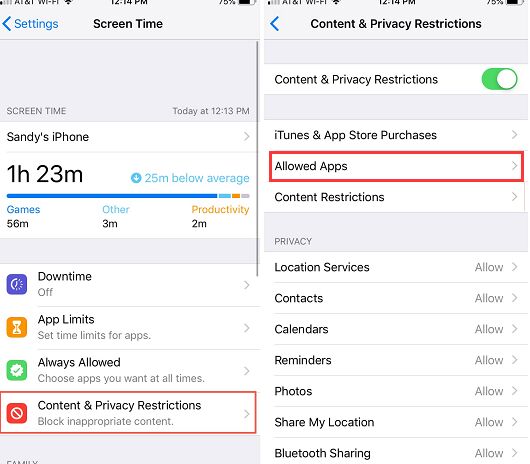
- 管理 プライバシー In this section, you can manage whether certain applications can access particular data on your iPhone.
- Go to the section labelled 変更を許可. In this section, you can control whether the kid can or cannot make changes to the settings associated with the device passcode, do not disturb mode while driving, and volume limit, among others.
Part #2: The Best Way to Remove Screen Time Passcode
In the steps of how to remove parental controls on iPhone, screen time passcode removal is part of it. So iOSアンロック is recommended here as the best thing you can implement to remove the screen time passcode from your iPhone. Apart from that, you can use it to remove your iPad passcode, Apple ID, and its associated iCloud account. The tool works on iPhones, iPod Touch, and iPads and is available in both macOS and Windows platforms, so you don’t have to worry about which operating system to use.
加えて、 it works to help you with the following situations below:
- It helps you when you forgot the passcode on your iPhone.
- If you have disabled the iPhone due to multiple failed attempts to put the right passcode, iOS Unlocker can help you unlock the device.
- If you cannot place the passcode due to a broken iOS device screen, it can help you access your device again.
- You can use it for second-hand devices to remove Apple ID, iCloud account, Screen Time passcode, and main device passcode.
Here are the steps on how to use the tool to remove Screen Time passcode:
- Make all of the appropriate arrangements. 無効化 私を探す Feature on your device and アップグレーディング iTunes to the most recent version are two of them.
- Launch iOS Unlocker on your PC.
- を選択 "上映時間 モード。
- Using the USB cord, 接続する the iOS device to the computer. Click the 信頼 button on your iOS device.
- Remove the screen time passcode by pressing the お気軽にご連絡ください There will be two alternative scenarios:
-
- If the Find My function is turned off in iOS 12 and subsequent versions of the operating system, the software will 瞬時に begin removing the screen time passcode. If this is the case, choose アプリとデータを転送しない while configuring your device's apps and data. Then, when the 設定 section appears, select 後で設定.
- If the backup on iTunes isn't password-protected or encrypted, iOS Unlocker will begin removing the passcode instantly for iOS 11 and older versions of the operating system. On the other hand, if the encryption is present, you should input the password to decrypt the backup from iTunes.
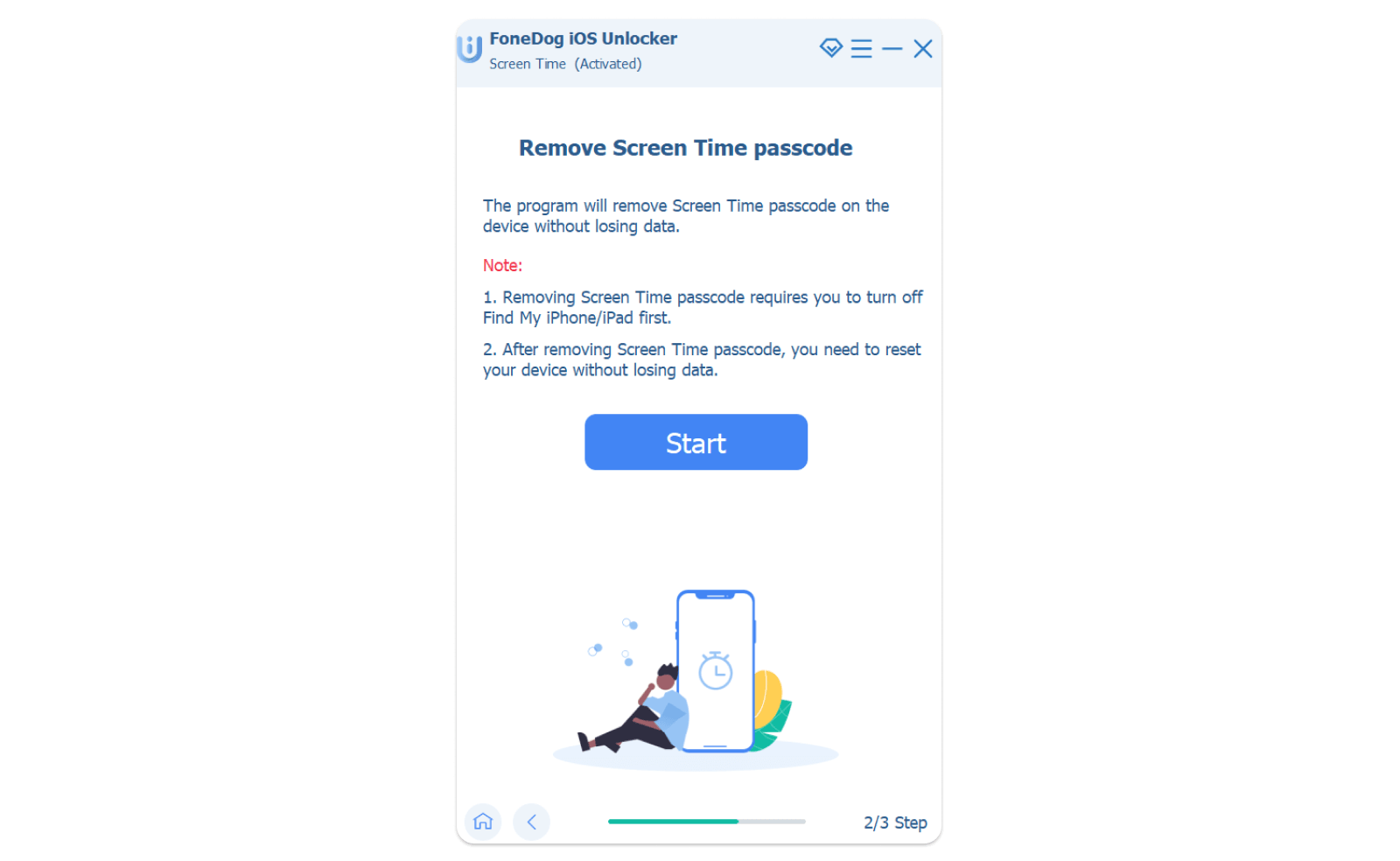
- Wait until the screen time passcode is retrieved. Once that is done, you can reset it to a new one.
人々はまた読むパスワードなしでiPhoneのペアレンタルコントロールをオフにする方法は?前の所有者なしでアクティベーションロックを解除する方法【2024年版ガイド】
パート3:結論
This guide has given you the methods you need to follow on how to remove parental controls on iPhone. In addition, we have given you a tool to help you remove the screen time passcode on your iOS device. This tool is iOS Unlocker, a great iOS device unlocking client you can use for second-hand iOS devices. Grab the tool today and have no limitations on your iOS device!
ロージー脚本の作品
最終更新日:2022-06-02