


An Apple ID is a must-have for a Mac or Apple device. There is no harm in having two Apple IDs, especially for business executives who may not want to mix business with personal information. Therefore, you must know how to update New Apple ID on iPhone, for this is your passbook to access all iDevices content, including music and applications.
The advantage of two or more Apple ID you can easily separate content for easy access when using the device. Whatever your reason, it's a minute to change from one Apple ID to the other. How possible is it to add or update a new Apple ID on the iPhone? Take note that this is not a guide to changing the Apple ID but simply updating a new Apple ID, the most useful tool to 古いApple IDを消去する has also been given in this post, read on to learn more.
Part #1: What Content Changes When Switching Apple ID?Part #2: How to Update New Apple ID on iPhonePart #3: How to Update New Apple ID on iPhone Using iOS Unlockerパート4:結論
Part #1: What Content Changes When Switching Apple ID?
Standard content on the iPhone does not change even if you change the Apple IDs. These are like the program files on a computer. The essential functions of an iPhone never change with the change in Apple ID. Unless the specific content is saved on the Apple ID, the function is still available.
This includes contacts, calendar functions, and messages, among others. The moment you aren't able to access some content, then it means it's saved on the other Apple ID. These are the challenges of using different Apple IDs, you might think you have lost the data, no, it's on the inactive account since you can only use one Apple ID at a time. Read on and get information on how to update New Apple ID on iPhone.
Part #2: How to Update New Apple ID on iPhone
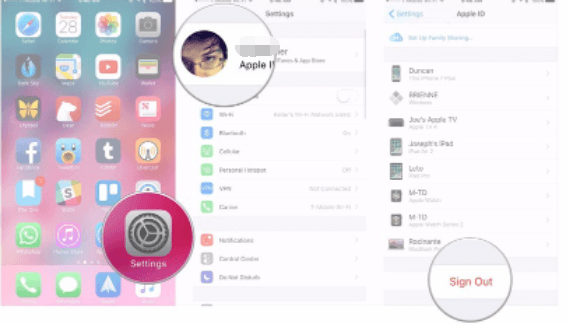
Action #1: Log Out The Current Apple ID on The iPhone
- GO to the 設定 app on your iPhone, depending on the iOS version installed
- クリック アップルID icon on top of the screen
- 下にスクロールして、 サインアウト (Comma Separated Values) ボタンをクリックして、各々のジョブ実行の詳細(開始/停止時間、変数値など)のCSVファイルをダウンロードします。
- Also, click the Sign Out iCloud icon tool in case you also have different iCloud プロファイル
- Key in the password in line with the Apple ID
- Switch off for iPhoneを探します
- Permit data that you need to turn on and merge with the Apple ID information
- Click Sign Out and confirm
Action #2: Sign In With A Different Apple ID
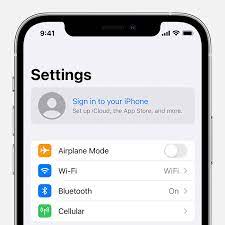
This is the time to include another Apple ID on the system using the following steps.
- に行きます 設定 iPhoneのオプション。
- 詳しくはこちら サインイン
- 詳しくはこちら メールアドレス and input the Email for the other Apple ID.
- Enter the password associated with the Email and the Apple ID
- 詳しくはこちら マージ if you want the same data on both Apple ID accounts. In case you think otherwise, then click マージしないでください.
Action #3: Merge The Shared Content
Now that you've learned how to update new Apple ID on iPhone. For your shared content that you need to access on both accounts, like Email, contacts and some apps, you can command the iDevice to merge them to avoid switching from one Apple ID to another to access specific content that's a waste of time. Here is the procedure
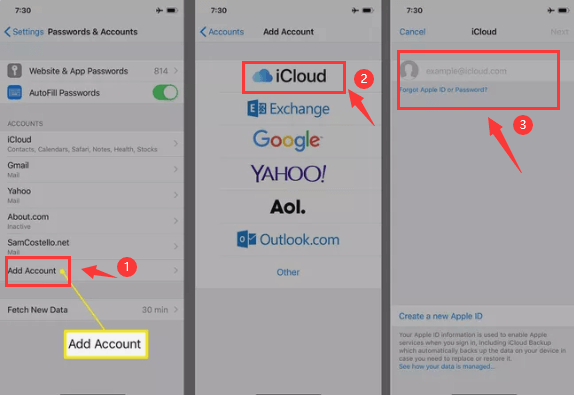
- に行きます 設定 オプション
- Scroll down and choose the content you want to access for both accounts
- 詳しくはこちら アカウント
- 詳しくはこちら アカウントを追加する and choose iCloud
- Key in the Apple ID email and tap 次へ
- Enter the password and choose Next
- Turn on the features you want to have live with all the アップルID アカウントの視聴者データを取得する
To enhance your security, it's wise to include a two-point verification such that you get an alert when an unauthorized person tries to access the iPhone from a remote location.
In these three actions, you now know how to update New Apple ID on your iPhone with minimum hassle.
Part #3: How to Update New Apple ID on iPhone Using iOS Unlocker
当学校区の iOSアンロック is your go-to toolkit when you want to remove and even add an Apple ID on your iPhone. This simple application runs on a simple interface with three modes: Wipe Passcode, Remove Apple ID, and Screen Time Management.
This is your go-to application for iPhone users to be able to reset the iPhone passcode when forgot it without the fear of losing data. In case you have an iPhone and have no access to the old Apple ID, you can still update the new one on the system. Here is the procedure on how to update New Apple ID on iPhone.
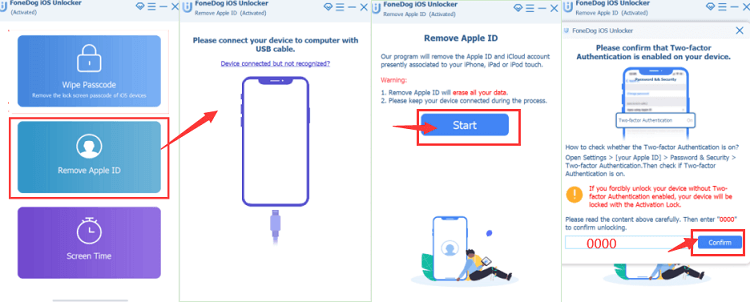
- iOS Unlockerをダウンロード、インストールして実行する
- 選択する Apple IDを削除 - the second option
- Connect the iPhone to the PC using a USB cable
- 同意する 信頼 buttons and agreements
- メディア掲載 お気軽にご連絡ください プロセスを開始するには
- Confirm all authentications and input "0000 " to activate the device
- Confirm the device information and click start to download the firmware package
- Within minutes the iCloud account and Apple ID are deleted, ready for you to set up another one of choice.
What a simple toolkit to help you have another Apple ID live on your system. There is no harm in setting up multiple Apple IDs.
人々はまた読むAppleIDパスワードを見つけるための究極のガイド[2024更新]Apple IDがグレー表示になってしまった!対処法
パート4:結論
The choice of the toolkit on how to update new Apple ID on iPhone is all dependent on what is easy for you at that time. Since you have access to the iPhone settings, you need no third-party integrations. However, when you aren't able to access the iPhone due to a locked screen or disabled Apple ID, that's when third-party solutions come in handy. Although we have only discussed iOS Unlocker in this article, there are several other applications out there you can explore to get the best out of what the digital market has to offer.
ロージー脚本の作品
最終更新日:2022-06-16