


iPad is one of the most vulnerable devices that you can ever have. If you have entered the wrong passcode over ten times, that could result in you disabling your iPad, so it's necessary to learn several ways to unlock iPad in case you glömde lösenordet. Do you know how to solve it? In this article, we will teach you hur man låser upp en inaktiverad iPad utan iTunes. There can be several methods to solve this dilemma, and you will be the one to choose which matches your resources as well as the output or result that you are yearning for.
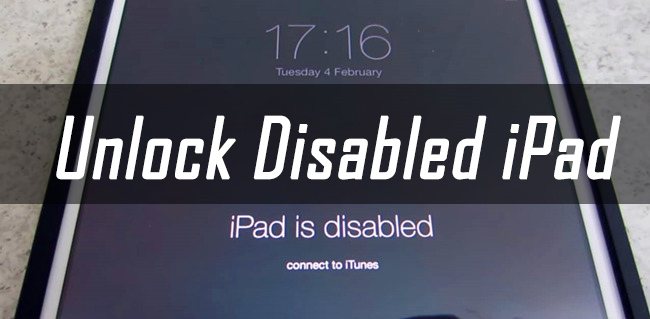
One of the noted defense mechanisms that you can apply to your devices, like your iPad is to integrate a passcode that will protect it from people whom you do not know, and also protect your data that are stored on the iPad which may include personal or work information. There are rare cases where you might forget the passcode then you need to look for ways to deal with the iPhone passcode forgot issue. And since you have all the data that you need to be stored on it, you must immediately find a solution on how to unlock disabled iPad without iTunes.
Technically, the way of restoring your device with iTunes will result in you losing all the stored data on your device, personal ones, and also the passcodes. You need a computer with iTunes to do it, but what will you do if you do not have any access to your iTunes or you do not have iTunes at all? Let us take a tour of the lists of the possible solutions that you can use as your reference just in case.
Part 1. How to Unlock Disabled iPad without iTunes?Del 2. För att sammanfatta allt
Part 1. How to Unlock Disabled iPad without iTunes?
It can be so frustrating that you cannot access your iPad due to the several trials that you have made to unlock it. It is really annoying especially if you are using your iPad to do work or attend your classes. In addition to your frustration, you do not have an iTunes account to help you unlock the device, what should you do? Is there still hope that you can access your data on your iPad and have them on time for your deadline? See the list of the methods that we will be explaining to you one by one, and step by step to help you solve how to unlock a disabled iPad without iTunes.
- Use a third-party professional application that can help you unlock your disabled iPad.
- Använda iOS-system
- Använd Finder
- Använd "Hitta mig ” application or feature of iOS devices.
Method #1. The iOS Unlocker
For the first method, we are going to introduce to you a professional application that can help you solve your dilemma with your disabled iPad. The iOS Unlocker can do so many things that you would be glad that it existed. It is considered one of the most powerful tool that can help you wipe the passcode of your device, and is compatible with both Mac and Windows computers. In case you do not have access to your iTunes account, or you do not have an iTunes account this iOS Unlocker supports a number of passcodes like Touch ID, Face ID, a 6-digit passcode, and 4-digit passcode.
Gratis nedladdning Gratis nedladdning
One of the things that you must remember if you have chosen the option to wipe the passcode of your iPad is that all the data on your device will be wiped off or deleted. In case you are also having issues regarding your Apple ID, this iOS Unlocker can also help you remove your Apple ID on a certain device, and activate it again by having a new Apple-ID.
With the help of the iOS Unlocker, you can have access and control of your iOS devices without any limits. There is no way that you will be connected again or be tracked by the old Apple ID that was used on your device, and you will have the opportunity to access iCloud settings and features of Apple ID.
Now, let us have to take a look at how you can use the iOS Unlocker and how to unlock disabled iPad without iTunes.
- The first step is to have the iOS Unlocker ner and installed on your personal computer. Once the iOS Unlocker is ready, lansera
- You will then see options, you have to choose the option to “Torka lösenord ".
- Tryck på "Start ”, and then you have to establish a connection between your device and the personal computer that you are going to use. You have to use a cable to do it, to ensure that the connection is stable and allowed, tap “Litar ” when it appears.
- Tryck på "Start " en gång till.
- Once you have successfully have done the past steps, the process of downloading the firmware package
- Once the process of downloading is done, tap “Lås ”, and key in “0000 ” on your keyboard. By doing so, you will have the chance to see details of your device, you can also use it, in case you wanted to finalize something on your device.
- Därefter, vänta for some minutes to finish the process, and you can now access your iPad which has been disabled even without using a passcode.

Method #2. Use The iOS System Recovery to Unlock The Disabled iPad
Aside from the first method, you can also use the iOS-systemåterställning to unlock your disabled iPad without using iTunes. So first and foremost, we have to get an idea of what iOS system recovery is, technically defined, it is a solution that uses algorithms to solve issues and dilemmas on your device. It can also be used in the case you need to do some troubleshooting on your iPad to fix a specific issue. This iOS system recovery has two modes, the standard one, and the advanced mode.
iOS-systemåterställning Fixa med olika iOS-systemproblem som återställningsläge, DFU-läge, vit skärmslinga vid start, etc. Fixa din iOS-enhet till normal från vit Apple-logotyp, svart skärm, blå skärm, röd skärm. Fixa bara din iOS till normalt, ingen dataförlust alls. Fixa iTunes Error 3600, Error 9, Error 14 och olika iPhone-felkoder Frigör din iPhone, iPad och iPod touch. 
The standard mode is used to repair basic problems that you commonly encounter every day while the advanced mode is the one used to repair errors that are stubborn that is hard to find as they hide in the system which causes you to reinstall and update to the latest version of the iPad's firmware.
Here are the steps on how to use the iOS system recovery on how to unlock disabled iPad without iTunes.
- Using a cable ansluta your iPad to your computer, and lansera the program immediately.
- Du måste klicka på "Fler verktyg ” which you will see on the main screen of your computer’s interface. Then hover your mouse to “iOS-systemåterställning ” to fix your iPad which is currently disabled.
- You will then see a list of the issues on your iPad, once you had a glance at the issues that can still be repaired, tap “Start ".
- Sedan Välj "Avancerat läge ".
- You have to check on the firmware package that you intend to download, once you have made your decision you have to click “Nästa ".
- Once you have successfully downloaded the iPadOS firmware package, you have to tap the “Fast ” tab, and you are done. The resetting of your iPad will automatically commence and your iPad can now be accessed even without a passcode.
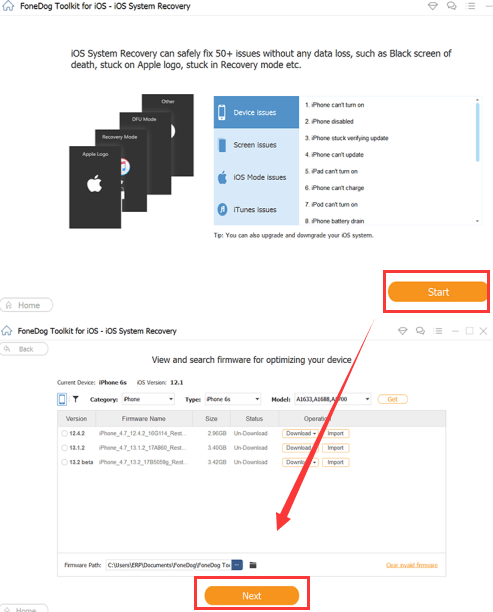
Also one of the things that you have to remember is once your iPad is not recognized; there should be a window that requires you to enter your iPad into “återställningsläge ”. The buttons that you have to use will vary depending on the device or model of iPad that you have.
Method #3. Use The Finder App to Unlock Disabled iPad
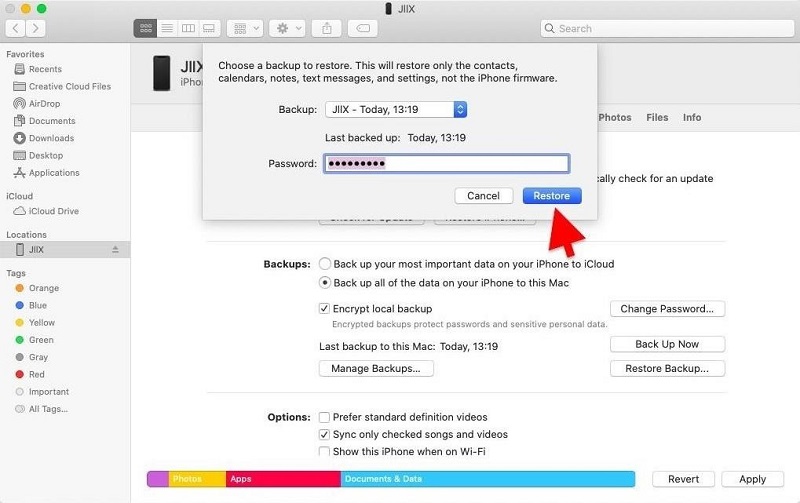
Another thing that you can do is the use Finder App. Here are the steps on how to unlock disabled iPad without iTunes in the newer version of macOS.
- Take out your cable and use it to ansluta your personal computer.
- Then put your device into “återställningsläge ".
- Open the Finder App and choose your iPad on the list of devices that you will see.
- Sedan Välj "återställa ” to start the process of restoring your device.
Method #4. Use The Find My to Unlock Disabled iPad
- Using your computer, or another device goes to the website of icloud.
- You have to log in using your Apple ID and your password and use the ones that you are using on your iPad.
- Then select your iPad from the list of devices that you will see on the “Alla enheter "Fliken.
- Tryck sedan på "Radera iPad ".
- Then your device will be unlocked, and then choose the option to restore using a backup, or just start over again.
Folk läser också4 bästa sätten att återställa lösenordet på iPadEnkel guide om hur du fabriksåterställer iPhone utan lösenord
Del 2. För att sammanfatta allt
And that is it! We had an overview of the methods on hur man låser upp en inaktiverad iPad utan iTunes. We hope that you can use these details and information in case you have encountered the dilemma of having your iPad disabled.
Skrivet av Rosie
Senast uppdaterad: 2022-04-07